
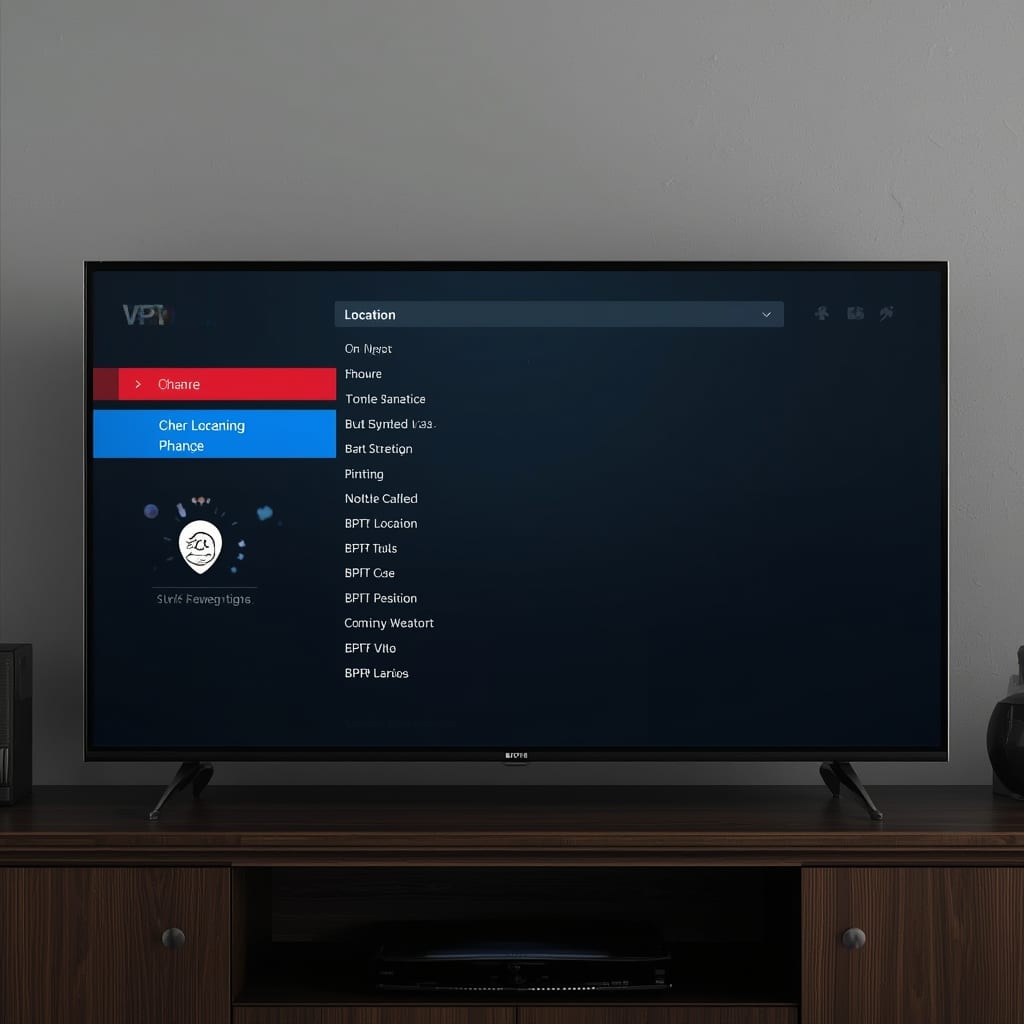

Introduction
Streaming services are constantly battling regional licensing, which makes how to change vpn location on tv a hot search term in 2025. Whether you’re in a European apartment trying to watch a U.S. sports league, or in an Asian hotel wanting to access your home country’s library, the ability to mask your IP address on a television is now a basic expectation.
Equally important is the skill to change smart TV VPN region. Smart TVs run on Android TV, webOS, or Tizen, each with its own network stack, and the process varies by brand and firmware version. Understanding the underlying principles helps you adapt quickly as manufacturers push new updates.
In this guide we’ll cover why geo‑blocking matters, the legal landscape (see our article on VPN legality), and how to implement a reliable VPN solution without compromising picture quality. By the end you’ll be able to answer the question “how to change vpn location on tv” for any device, and you’ll have the confidence to change smart TV VPN region whenever you travel.
Step‑By‑Step Instructions
1. Choose a VPN Provider That Supports Router‑Based Connections
Not all consumer VPN apps work directly on a TV. The most reliable method is to configure the VPN on your home router. Look for providers that offer OpenVPN, WireGuard, or proprietary apps for routers. This way every device, including your smart TV, inherits the VPN tunnel automatically.
Once you have a subscription, download the router firmware guide from your provider and prepare the router’s admin login details. If you need a visual walkthrough, our article on setting up a VPN with a router walks you through the process step by step.
2. Flash or Update Your Router Firmware (if necessary)
Many stock routers lack VPN client support. Flashing DD‑WRT, OpenWrt, or AsusWRT‑Merlin expands capabilities. Follow the vendor’s instructions carefully; a failed flash can brick the device. After flashing, reboot the router and log in to the new admin interface.
Configure the WAN settings as normal, then locate the VPN client section. Upload the .ovpn or .conf file provided by your VPN, and enter your username and password. Save and apply the settings.
3. Verify the VPN Tunnel on a Desktop First
Before involving the TV, test the router’s VPN connection on a laptop or desktop. Visit a geo‑IP checker (e.g., Cloudflare Learning Center) to confirm that the public IP belongs to the desired country. If you see the correct location, you’re ready to move on.
4. Connect Your Smart TV to the VPN‑Enabled Router
On the TV, go to Settings → Network → Wi‑Fi (or Ethernet) and select the SSID of the router you just configured. If the router broadcasts multiple SSIDs (one for VPN, one for normal), choose the one labeled “VPN”. Enter the Wi‑Fi password and let the TV obtain an IP address.
After connecting, open a web browser on the TV (if available) or use a streaming app’s “About” section to check the IP address. It should match the VPN server’s location. This is the core of how to change vpn location on tv using a router.
5. Adjust the VPN Server for a New Region
To change smart TV VPN region, return to the router’s admin page, select a different server from your provider’s list, and apply the change. The router will reconnect, and all attached devices—including your TV—will instantly appear to be in the new country.
For frequent changes, some providers allow you to set up “quick‑switch” scripts or use a mobile app that pushes new server configurations to the router via API.
6. Test Streaming Services After Each Switch
Open Netflix, Hulu, Disney+, or any regional service you plan to use. If the content catalog matches the chosen server’s country, the change was successful. If you still see a “Not Available in Your Region” message, clear the app cache or power‑cycle the TV for a fresh DNS request.
7. Troubleshoot Common Issues
Slow speeds: Verify that your VPN server is not overloaded and that your internet plan can handle the extra encryption overhead. Switching from OpenVPN UDP to WireGuard often restores speed.
DNS leaks: Use a DNS leak test on the TV (some browsers allow it) or on a connected device. If the DNS resolves to your ISP’s servers, enable DNS leak protection in the router settings.
ISP detection: Some ISPs throttle VPN traffic. Our guide on whether an ISP can see your VPN explains how to hide the fact that you’re using a VPN.
8. Optional: Use a Dedicated VPN App on Compatible TVs
Some Samsung and LG models now include a native VPN app store. If your TV supports it, download the provider’s app, log in, and select a server directly on the TV. This method is less flexible than router‑based but can be useful for travelers with portable hotspot routers.
Tips for a Seamless Experience
Keep firmware updated. TV manufacturers release patches that may break VPN compatibility. Regularly check for updates on Android TV, webOS, or Tizen.
Use split‑tunneling wisely. If you want only certain apps (e.g., Netflix) to go through the VPN while others use your local ISP, set up split‑tunneling on the router if supported.
Choose servers close to your physical location. For the best bitrate, select a VPN server in a neighboring country rather than a continent‑away server; latency drops dramatically.
Clear app caches after each region change. On Android TV, go to Settings → Apps → Your Streaming App → Clear Cache. This forces the app to re‑resolve the catalogue.
Consider DNS over HTTPS (DoH). Enabling DoH on the router prevents ISP‑level DNS manipulation, which can otherwise reveal your true location.
When you need to remove a VPN from an iOS device, see our guide on uninstalling VPN on iPad. The same steps apply to any iOS‑based smart TV remote apps.
Alternative Methods
If flashing a router isn’t an option, there are two practical alternatives that still answer the core question of how to change vpn location on tv.
Method A – Smart DNS Services
Smart DNS doesn’t encrypt traffic but rewrites DNS queries to make services think you’re in a different country. Sign up for a reputable Smart DNS provider, add the DNS addresses to your TV’s network settings, and select the desired region. This works well for platforms that rely heavily on DNS for geo‑checks, such as BBC iPlayer.
Remember, Smart DNS can’t hide your IP from sites that perform IP‑based checks, so it’s a partial solution compared to a full VPN.
Method B – Portable VPN Router (Travel Router)
Buy a travel‑size VPN router (e.g., GL.iNet) pre‑loaded with OpenVPN. Connect the router to your hotel Wi‑Fi, load the VPN config, and then connect the TV to the travel router’s Wi‑Fi. This method is ideal for frequent travelers who need to change smart TV VPN region on the fly.
The travel router can be powered via USB, making it easy to set up in dorm rooms, Airbnb rentals, or business hotels.
Method C – Use a Virtual Machine on a PC
Install a VPN client on a Windows PC, then enable “Network Bridge” to share the PC’s internet connection with the TV over Ethernet. This effectively routes the TV’s traffic through the PC’s VPN tunnel. The downside is a higher power draw and extra configuration steps.
Conclusion
Understanding how to change vpn location on tv empowers you to bypass geo‑restrictions, protect your privacy, and enjoy a global entertainment library without sacrificing quality. By configuring a VPN at the router level, you automatically change smart TV VPN region for every device in your home, including the newest 8K OLEDs and budget Android sticks.
We’ve walked through the complete process: selecting a VPN, flashing a router, testing the tunnel, switching servers, and troubleshooting common pitfalls. Remember to keep your router firmware updated, use servers close to your physical location, and clear app caches after each region swap.
For those who can’t flash a router, Smart DNS, portable VPN routers, and PC‑based bridges provide viable alternatives. Whichever method you choose, you’ll be ready to stream the latest U.S. series from Berlin, catch a live Premier League match while staying in Tokyo, or access your home library from a vacation condo in Costa Rica.
Finally, always stay informed about local regulations. While using a VPN is legal in most countries, some regions impose restrictions on certain content. Check the latest guidance on the Electronic Frontier Foundation for up‑to‑date legal advice.
“`



