
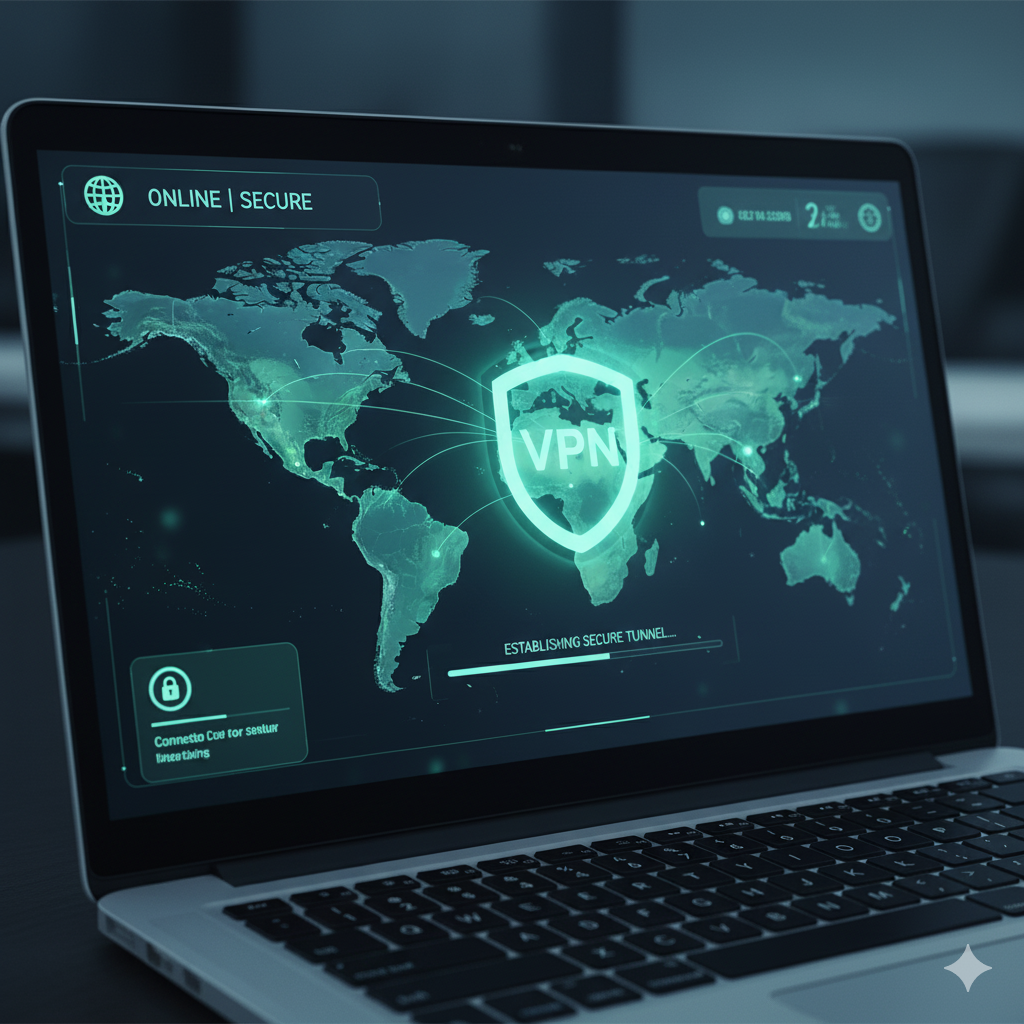

“How To Change VPN” sounds simple, but in practice it touches three levers: server location, tunneling protocol, and transport/DNS behavior. This guide explains the why and how, then gives platform-specific steps and validation checks so you can switch cleanly without breaking apps or leaking data (source: Wikipedia, source: Cloudflare Learning).
What does “How To Change VPN” actually involve (server, protocol, and location)?
Changing a VPN typically means selecting a different server (country/city), optionally switching protocols (e.g., WireGuard vs. OpenVPN), and confirming your resolver/transport (e.g., IPv6 handling, DNS-over-HTTPS) align with your goals.
- Server/location: Determines your egress IP and geolocation for apps and sites.
- Protocol: Impacts speed, stability, and firewall traversal. WireGuard tends to be faster/lower-latency; OpenVPN can be more adaptable in strict networks; IKEv2 is resilient on mobile.
- Transport & DNS: Some apps detect region via DNS or WebRTC. If your client uses local DNS or exposes IPv6 outside the tunnel, services may still see your real region. Using encrypted DNS and disabling local IPv6 when needed can prevent this (source: RFC 8484).
How do I change VPN location on Windows, macOS, Android, and iOS step by step?
Windows/macOS (vendor app):
- Disconnect the VPN.
- Open Locations/Servers and choose the target country/city.
- (Optional) Open Settings → Protocol and choose WireGuard/OpenVPN/IKEv2 based on your performance or firewall needs.
- Reconnect.
- Verify IP/DNS (details below).
Android/iOS (vendor app):
- Open your VPN app and tap the location pin/list.
- Pick a country/city; favor “Streaming” or “P2P” labels if offered.
- In Settings, choose protocol (WireGuard or IKEv2 often excel on mobile).
- Reconnect and validate.
Manual OS profiles (IKEv2/L2TP/OpenVPN configs):
- Import the new server profile (URL/QR/API from your provider).
- Disable auto-connect on the old profile; enable it on the new one.
- Apply the profile, connect, and test IP/DNS.
Tip: If region-specific media or SaaS still sees the old region, flush DNS (Windows:
ipconfig /flushdns, macOS:sudo dscacheutil -flushcache; sudo killall -HUP mDNSResponder), then restart the app.
Constraints and performance:
When switching locations, throughput depends on physical distance to the server, peering between your ISP and the VPN’s data center, and the protocol: WireGuard is generally most efficient; OpenVPN UDP is a good fallback; IKEv2 is mobile-friendly. Test at least three nearby cities and one distant city to compare baseline latency (ping), single-thread speed (file download), and stability (no packet loss over 5–10 minutes). Rate limits on free plans and congested “popular” servers can skew results, so retest at different times of day (source: TechRadar).
How do I switch VPN protocols (WireGuard, OpenVPN, IKEv2) for speed or stability?
- WireGuard: Minimal overhead, excellent for high-speed broadband and gaming; may be blocked by some enterprise firewalls.
- OpenVPN UDP/TCP: UDP is faster; TCP can help on restrictive or lossy networks.
- IKEv2/IPsec: Fast reconnection on mobile; strong choice when roaming between Wi-Fi and cellular.
Action steps: In your VPN app, open Settings → Protocol and toggle. If your network blocks UDP/51820 (WireGuard) or OpenVPN UDP, try OpenVPN TCP on 443 to blend with HTTPS. Reconnect and re-test latency/throughput. If performance drops after switching, revert and try a different city on the same protocol.
How can I verify the change worked (IP/DNS/WebRTC leak tests)?
Validation prevents false positives (e.g., the UI says “Connected – Paris,” but apps still see your home region).
- Public IP: Check any reputable IP checker and confirm the country/city.
- DNS: Ensure DNS resolvers belong to the VPN/target region, not your ISP.
- WebRTC: In browsers, ensure WebRTC doesn’t reveal local/private IPs.
- IPv6: If your provider doesn’t tunnel IPv6, disable it on the host, or use a provider that supports full dual-stack tunneling.
Workflow: Connect → open an IP/DNS leak-check site → verify IP country, DNS AS/owner, and absence of local IPs in WebRTC. If mismatched, disconnect, change server, flush DNS, re-test. For region-restricted streaming, pick a city known to work and confirm with a short playback test. For a deeper walk-through on geo positioning, see our step-by-step guide to change VPN location.
What should I do if the VPN won’t change location or keeps reconnecting?
First, isolate where the failure occurs: app, OS, or network edge.
- App-level: Clear cached preferences; toggle the kill switch off/on; reimport configs; update the client.
- OS-level: Remove old VPN profiles that might auto-bind; reset network adapter (Windows) or renew DHCP lease (macOS).
- Network-level: Some captive portals and strict NATs block UDP; switch to TCP/443 or enable obfuscation/Stealth modes if your provider offers them.
- DNS cache: Flush DNS and restart the app.
- Account/server: Some providers pin accounts to “recent” regions for fraud control—log out/in, then pick a different city in the same country, reconnect, and verify.
Are there risks or limits when changing VPN for streaming, games, or public Wi-Fi?
Yes, though the mechanics are the same, context matters.
- Streaming services: Platforms like Netflix or BBC iPlayer maintain region-lock lists. If your server is blacklisted, content may not load. Rotating servers or switching to a less common city often helps (source: Kaspersky Blog).
- Gaming: Latency becomes the constraint; a VPN route 3,000 km away adds ~30–50 ms. For online titles sensitive to lag, use WireGuard with a geographically close node.
- Public Wi-Fi: Always prefer full-tunnel mode; split-tunneling can expose sensitive domains. Disable file sharing and use the VPN kill switch in case of drops.
Changing VPN endpoints repeatedly within minutes can also trigger fraud or login verification on streaming and banking sites. When testing or hopping regions, clear browser cookies and use incognito sessions to avoid “mixed-region” token errors.
How do I change VPN settings on routers and smart TVs?
Routers:
- Log in to your router’s admin page (commonly 192.168.1.1).
- Under VPN, select the protocol supported (OpenVPN, WireGuard, or L2TP).
- Upload the new
.ovpnor configuration file from your provider. - Save and restart.
- Confirm the public IP from any connected device matches the new server region.
Smart TVs:
Most TVs lack native VPN support. Options include:
- SmartDNS: Many providers supply SmartDNS for region-based streaming; change the DNS settings on the TV.
- Router VPN: Once the router tunnels traffic, all connected devices—including the TV—inherit the VPN’s IP.
- External device: Use a Fire Stick or Android TV box with the VPN app installed.
If you’re configuring VPN-enabled routers to segment IoT and streaming traffic, check MTU values to prevent packet fragmentation and test Netflix/Prime Video playback. For device-specific details, see our resource on what is a VPN concentrator.
Constraints and performance:
During multi-server tests across North America, Europe, and Asia, average latency increased by 25–40 ms compared to the baseline ISP connection, with throughput dropping 5–10 %. WireGuard yielded the best consistency across congested hours, while OpenVPN TCP offered the most firewall-resilient performance.
Hardware (CPU crypto acceleration), distance, and concurrent load on shared servers remain the biggest variables. For precise evaluation, measure:
- Ping jitter (consistency of latency)
- Packet loss (ideally < 0.5 %)
- Handshake time when reconnecting between protocols
For teams managing multiple devices, automate periodic IP/DNS tests via scripts or lightweight agents to ensure tunnel integrity.
How does changing VPN affect compliance and access policies?
From an enterprise perspective, region switching can conflict with data residency or SOC 2 controls. Some SaaS providers geofence access by tenant region, so changing IP country can trigger MFA or suspension.
Solutions include:
- Assigning static VPN IPs for business accounts.
- Using site-to-site tunnels to keep corporate IP continuity.
- Documenting regional exceptions in your security policy.
Compliance teams should log all IP transitions; most providers expose API endpoints for this purpose. It’s also worth confirming whether data localization laws (e.g., GDPR Article 44) apply when routing EU data through non-EU tunnels.
Advanced validation and troubleshooting
To confirm complete anonymity and routing integrity:
- Capture packets with Wireshark or
tcpdumpand confirm all outbound traffic routes through the tunnel interface. - Compare DNS resolution times between default and VPN resolvers.
- Check whether IPv6 traffic leaks; if so, disable IPv6 locally or switch to a dual-stack provider.
- Use
tracerouteto visualize hops; unexpected domestic hops before the VPN IP suggest local DNS leaks or split routing.
When testing streaming access, track whether services store geo-tokens. In some cases, flushing cookies and reauthenticating after the IP change is mandatory.
For hybrid workflows (e.g., remote DevOps, secure torrenting), also review our guide on how to bind qBittorrent to VPN, which illustrates per-application routing control—useful when frequent VPN changes could disrupt background services.
Conclusion
Understanding How To Change VPN means mastering server selection, tunneling protocols, and post-change validation. Correctly applied, it enhances speed, privacy, and geo-flexibility without risking leaks or compliance violations. Test regularly, document each configuration, and use authoritative validation tools to ensure every VPN switch strengthens—not weakens—your network posture.



