

Introduction
In an era where digital privacy is paramount, how to connect to vpn on windows 10 has become a common question for users worldwide. Whether you’re traveling, accessing region‑locked content, or simply protecting your data, understanding the process is essential. The windows 10 vpn setup guide offers a foundation, but this article takes a deeper dive into practical steps, troubleshooting, and best practices for a seamless experience.
Geographic context matters too. If you’re in the United Kingdom, you might prioritize speed over anonymity, while users in Australia often face stricter local regulations. Regardless of location, the principles below remain applicable, ensuring you can confidently how to connect to vpn on windows 10 and maintain a secure online presence.
Remember, the goal isn’t just to establish a connection; it’s to do so efficiently and securely. By following this guide, you’ll gain a robust understanding of the VPN ecosystem on Windows 10, enabling you to navigate the internet with confidence.
Step‑by‑Step Instructions
Prerequisites and System Requirements
Before initiating a VPN connection, confirm that your Windows 10 system is up to date. Navigate to Settings → Update & Security → Windows Update and click “Check for updates.” A stable system ensures that the VPN client runs smoothly and reduces compatibility issues.
Also verify that your network adapter supports IPv6 if you intend to use modern VPN protocols such as WireGuard or OpenVPN over IPv6. While most modern adapters do, older hardware might require driver updates.
Having a reliable internet connection is fundamental. If you experience frequent drops, consider using a wired Ethernet connection instead of Wi‑Fi for a more stable VPN session.
Opening VPN Settings
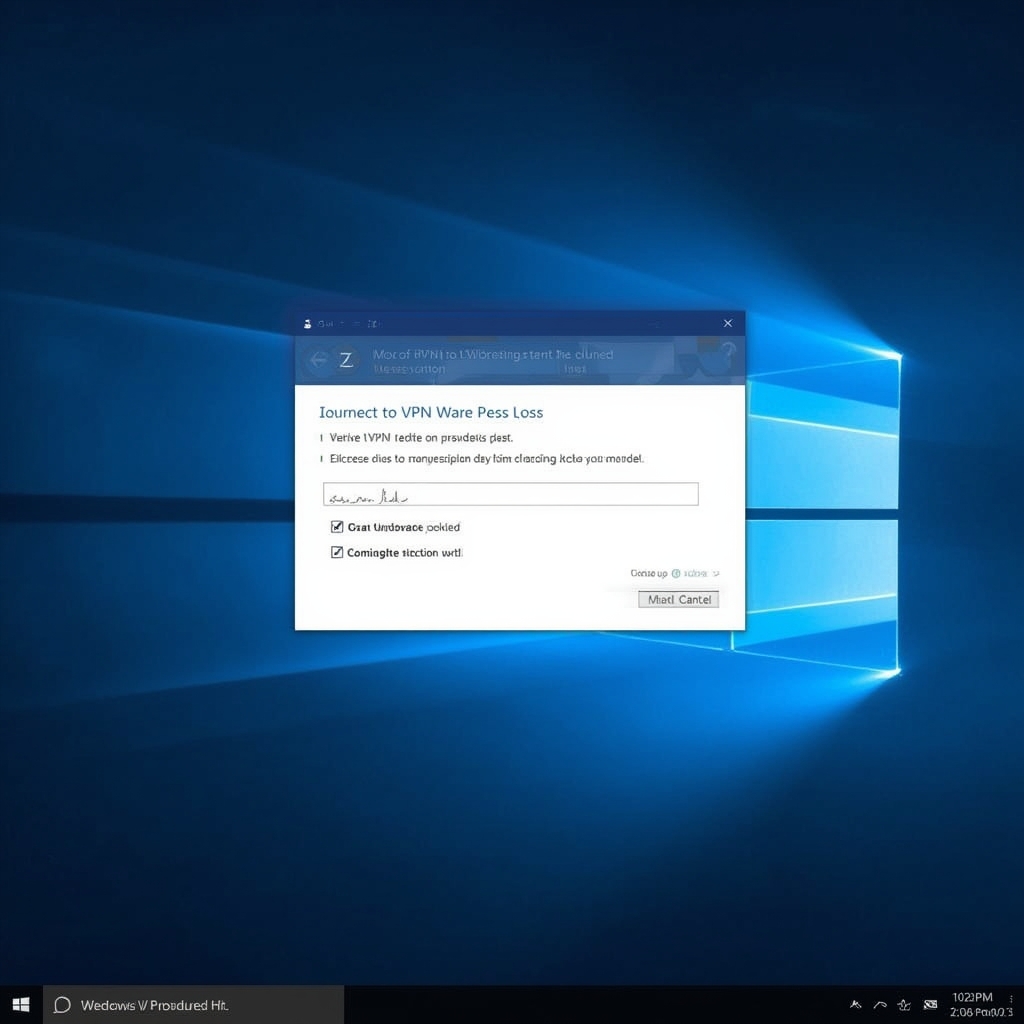
Press the Windows key, type “VPN,” and select the VPN settings tile. This opens the dedicated VPN configuration panel where you can add, manage, and test your connections.
Here you’ll find options to “Add a VPN” or view existing connections. It’s the starting point for anyone looking to how to connect to vpn on windows 10. Keep this window open as you progress through the setup.
Adding a New VPN Connection
Click the “Add a VPN” button. A form appears requesting provider details. You’ll need information from your VPN service: server address, VPN type, and authentication method.
Common VPN types include PPTP, L2TP/IPSec with pre‑shared key, L2TP/IPSec with certificate, OpenVPN (via third‑party client), and SSTP. Modern services recommend using OpenVPN or WireGuard for optimal security, but Windows 10’s native support is limited to PPTP, L2TP, SSTP, and IKEv2.
Entering VPN Details
Fill in the “VPN provider” dropdown with “Windows (built‑in).” For “Connection name,” choose a memorable title like “Corporate VPN.” The “Server name or address” field receives the IP or domain of your VPN server.
Under “VPN type,” select the protocol offered by your provider. If your service uses a pre‑shared key, select L2TP/IPSec with pre‑shared key. For a certificate‑based method, choose L2TP/IPSec with certificate. If the provider offers a proprietary protocol, you’ll need a third‑party client.
Configuring Advanced Settings
Click “Advanced settings” to enable options such as “Send all traffic through this connection” and “Use default gateway on remote network.” Activating these ensures that all internet traffic, including local network requests, routes through the VPN, providing full anonymity.
Additionally, under “Show advanced options,” you can set up split tunneling if you prefer certain applications to bypass the VPN. This is useful for high‑bandwidth tasks like gaming while still protecting sensitive data.
Saving and Testing the Connection
After entering all required fields, click “Save.” The new VPN profile appears in the list. To test, click the connection name, then “Connect.” Windows will authenticate using your credentials.
If you receive a “VPN connection succeeded” notification, you’ve successfully how to connect to vpn on windows 10. To verify, visit a site like Cloudflare’s IP check page or EFF’s IP lookup to confirm your public IP matches the VPN server’s location.
Should the connection fail, double‑check server addresses, credentials, and firewall settings. Common errors include incorrect pre‑shared keys or blocked ports.
Additional Security Measures
Once connected, enable Windows Defender Firewall rules that block traffic if the VPN disconnects unexpectedly. Go to Settings → Update & Security → Windows Security → Firewall & network protection → Advanced settings, then create a rule to block all outbound traffic when the VPN state is “disconnected.”
Also, consider installing a reputable anti‑malware program that monitors for DNS leaks. A quick leak test can be done on websites like Cloudflare’s DNS Leak Test.
Tips for a Stable VPN Experience
Choosing the Right Server
Server selection impacts speed and latency. For users in Canada, pick a server in Toronto or Montreal. Those in the U.S. should choose a state‑based server near their location. Many providers offer server “ranking” tools indicating current load.
In addition, consider servers with UDP support for lower latency and higher throughput. Some services label these as “High‑Performance” or “Gaming” servers.
Optimizing Windows 10 for VPN
Disable any legacy network adapters that could conflict. Open Device Manager, expand “Network adapters,” and uninstall any old or unused adapters. This reduces the chance of Windows attempting to use the wrong adapter during VPN sessions.
Also, ensure that Power‑Saving modes are disabled for your primary network adapter. In Device Manager → Properties → Power Management, uncheck “Allow the computer to turn off this device to save power.” This prevents the adapter from resetting during extended VPN use.
Managing VPN Credentials
Use Windows Credential Manager to store your VPN login securely. Navigate to Control Panel → Credential Manager → Windows Credentials, then add your VPN username and password. This allows Windows to automatically authenticate without re‑entering credentials each time.
For added security, enable two‑factor authentication (2FA) if your VPN provider supports it. This typically requires a second device or app to confirm your identity.
Troubleshooting Common Issues
If you encounter “Connection timed out,” verify that the VPN port (commonly 1194 for OpenVPN, 500/4500 for IKEv2) is open on your router. Use a port scanner to confirm the port is reachable from outside.
In the event of frequent disconnections, check for interference from other VPN clients or antivirus software that may block VPN traffic. Temporarily disabling the antivirus can help isolate the problem.
Alternative Methods
Using a Third‑Party VPN Client
Many providers offer dedicated Windows clients that bypass native Windows VPN support. Download the client from the provider’s website and follow the installer prompts. These clients often support OpenVPN and WireGuard, providing stronger security than native PPTP or L2TP.
Once installed, the client typically includes a system tray icon for quick connection toggling. Use this for scenarios where you need to switch servers frequently.
Installing OpenVPN via Command Line
OpenVPN can be installed on Windows 10 via the command prompt. Download the installer from the official OpenVPN site, then run openvpn-gui.exe as administrator. Import your provider’s .ovpn configuration file into the client, then connect using the GUI or via openvpn --config config.ovpn.
This method allows advanced users to tweak options such as DNS settings or redirect-gateway commands, ensuring all traffic routes correctly.
Browser Extensions and Mobile Apps
For quick, temporary VPN usage, consider browser extensions like TunnelBear or Windscribe. These extensions provide a lightweight VPN layer that only routes traffic from the browser, useful for accessing region‑locked streaming services.
Mobile devices running Android or iOS also benefit from VPN apps. These apps often include split‑tunneling features, allowing you to designate which apps use the VPN.
Changing Your VPN Server Location
To change the VPN server location on a Windows 10 client, open the VPN settings panel, click on your existing connection, and modify the “Server name or address” field. Save the changes, then reconnect. For dedicated clients, use the server list to select a new location.
Alternatively, the internal link how to change you vpn provides a concise guide for users seeking more granular control over their server choices.
Conclusion
Mastering the process of how to connect to vpn on windows 10 empowers users to maintain privacy and overcome geo‑restrictions. By following the comprehensive windows 10 vpn setup guide steps, you’ll ensure a secure, reliable connection across global locations, whether you’re in the United Kingdom, Canada, or the United States.
Remember to keep your system updated, choose the appropriate server based on geographic proximity, and leverage Windows features like Credential Manager and Power‑Saving settings for optimal performance. If you run into issues, consult the troubleshooting tips above or consider third‑party clients for advanced functionality.
In a world where cyber threats evolve daily, a well‑configured VPN on Windows 10 remains a cornerstone of digital safety. With the knowledge gained here, you’re ready to navigate the internet with confidence, knowing your data travels securely through a trusted tunnel.
For those curious about the broader value of VPNs, the discussion at Is a VPN Worth It Reddit thread offers diverse perspectives and real‑world experiences from users around the globe.



