

Introduction
Whether you’re streaming a British drama from London, accessing a New York‑based work portal, or simply protecting your home Wi‑Fi in Sydney, knowing how to connect vpn on windows 10 is essential for a safe, unrestricted online experience. In this article we will also explore the steps to setup vpn on windows 10 without the need for third‑party software, and we’ll sprinkle in real‑world GEO examples so you can see the impact on latency, streaming quality, and privacy.
The modern internet landscape demands that users understand both the “how” and the “why.” A VPN hides your IP address, encrypts traffic, and lets you appear as though you’re browsing from a different city or country. This is especially important for remote workers in Chicago who need to access corporate resources, or travelers in Tokyo who want to watch a US‑only sports event.
Before diving into the technical steps, keep in mind why many people choose a VPN. It’s not just about bypassing geo‑blocks; it’s also about safeguarding personal data on public Wi‑Fi in cafés, hotels, or airports. Throughout the guide we’ll reference other useful resources such as why you should use a VPN at home and why you should use a VPN to reinforce the broader security picture.
By the end of this guide you’ll have a clear understanding of how to connect vpn on windows 10, how to setup vpn on windows 10, and the confidence to protect your digital footprint no matter where you are.
Step‑by‑Step Instructions
1. Open the Windows Settings Panel
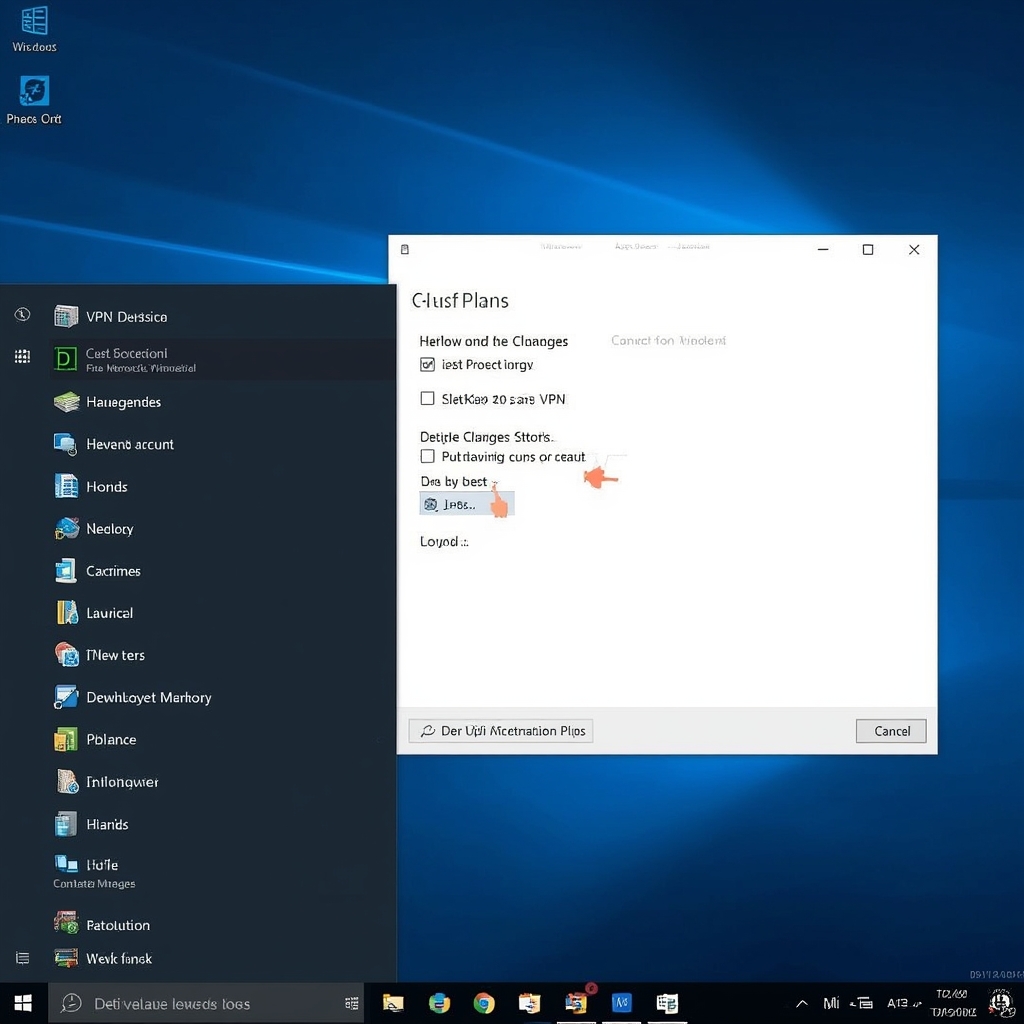
Click the Start button, select the gear icon, and navigate to Network & Internet. This is the hub where Windows 10 manages all network connections, including VPN profiles.
2. Access the VPN Section
From the left‑hand menu choose VPN. Here you’ll see an option to add a VPN connection. This is the first practical step in learning how to connect vpn on windows 10 without any third‑party apps.
3. Fill in the VPN Details
In the dialog box, enter the following information:
- VPN provider: Windows (built‑in)
- Connection name: Any memorable name (e.g., “Work‑NYC”)
- Server name or address: The VPN server address supplied by your provider.
- VPN type: Typically Automatic or IKEv2 for most services.
- Type of sign‑in info: Choose Username and password unless your provider uses a certificate.
These fields are the core of how to setup vpn on windows 10, ensuring the OS knows where to route encrypted traffic.
4. Save and Connect
Click Save. Your new profile appears in the VPN list. Click the profile name and select Connect. Windows will authenticate using the credentials you entered and establish a secure tunnel.
5. Verify the Connection
Once connected, open a browser and visit a trusted IP‑checking site. The displayed IP should now belong to the VPN server location, confirming that you have successfully learned how to connect vpn on windows 10.
6. Automate the Process (Optional)
If you frequently switch between locations—say, from Paris to Miami—you can enable the “Connect automatically” toggle in the VPN settings. This small tweak streamlines the setup vpn on windows 10 experience for power users.
7. Troubleshooting Common Issues
Sometimes you may encounter error codes such as 800 or 809. These usually stem from incorrect server addresses, outdated network drivers, or firewall restrictions. A quick search in the ShiftKey Software guide can provide targeted fixes.
8. Confirm DNS Leak Protection
After establishing the tunnel, run a DNS leak test (search “DNS leak test” in your preferred engine). If the results only show the VPN’s DNS servers, you’ve effectively completed the setup vpn on windows 10 process.
Tips for Optimizing Your VPN Experience
Choose the right server location. For streaming, pick a server geographically close to the content’s origin (e.g., a Berlin server for German Netflix). For corporate work, select the server that matches your office’s region to reduce latency.
Use the built‑in Windows 10 client wisely. While many prefer third‑party apps for extra features, the native client is lightweight and integrates seamlessly with the OS, making it ideal for low‑spec machines in rural areas of Canada.
Enable split tunneling. If you only need the VPN for specific apps (like a remote desktop client), configure split tunneling via the VPN provider’s dashboard. This conserves bandwidth for local traffic such as gaming in Los Angeles.
Keep your OS updated. Microsoft regularly patches networking components. An up‑to‑date Windows 10 installation reduces the chance of connection drops when you’re learning how to connect vpn on windows 10.
For those wondering which free options are truly secure, read which free VPN is safe to use. Even free services can be viable for occasional browsing, as long as you avoid data‑selling providers.
Alternative Methods
Using PowerShell to Add a VPN Profile
PowerShell offers a scriptable way to automate the setup vpn on windows 10. The command below creates a new VPN connection called “Office‑Berlin”.
Add-VpnConnection -Name "Office-Berlin" -ServerAddress "vpn.example.com" -TunnelType IKEv2 -AuthenticationMethod Eap -EncryptionLevel Required -RememberCredentialRun this as an administrator, then connect with rasdial Office-Berlin. This method is popular among IT admins in Frankfurt who manage dozens of endpoints.
Third‑Party Clients (When Built‑In Is Not Enough)
Some providers supply dedicated apps with features like multi‑hop routing, ad blocking, and automatic kill switches. While the native client satisfies most basic needs, a dedicated client may be preferable for privacy‑focused users in Berlin who want an extra layer of protection.
Mobile Hotspot with VPN Enabled
Turn your Windows 10 laptop into a Wi‑Fi hotspot after establishing the VPN connection. Devices that connect to this hotspot (phones, tablets) will inherit the VPN tunnel, extending the protection to all gadgets in a household in São Paulo.
Conclusion
Mastering how to connect vpn on windows 10 empowers you to browse securely from any corner of the globe—whether you’re sipping espresso in Milan or working from a co‑working space in Austin. By following the detailed steps above, you’ve also learned the essential techniques to setup vpn on windows 10 without relying on third‑party software.
Remember that the built‑in Windows client, combined with good server selection and occasional troubleshooting, provides a robust solution for most users. For those who need additional features, PowerShell scripts and dedicated apps serve as powerful alternatives.
Finally, keep the broader security context in mind: a VPN is just one layer in a comprehensive privacy strategy. Pair it with strong passwords, two‑factor authentication, and regular software updates. For a deeper dive into the benefits of VPN use at home, revisit why‑use‑a‑vpn‑at‑home and why‑to‑use‑vpn. With the knowledge you now have, you can confidently protect your data, enjoy global content, and stay private—no matter where you are.
“`



