
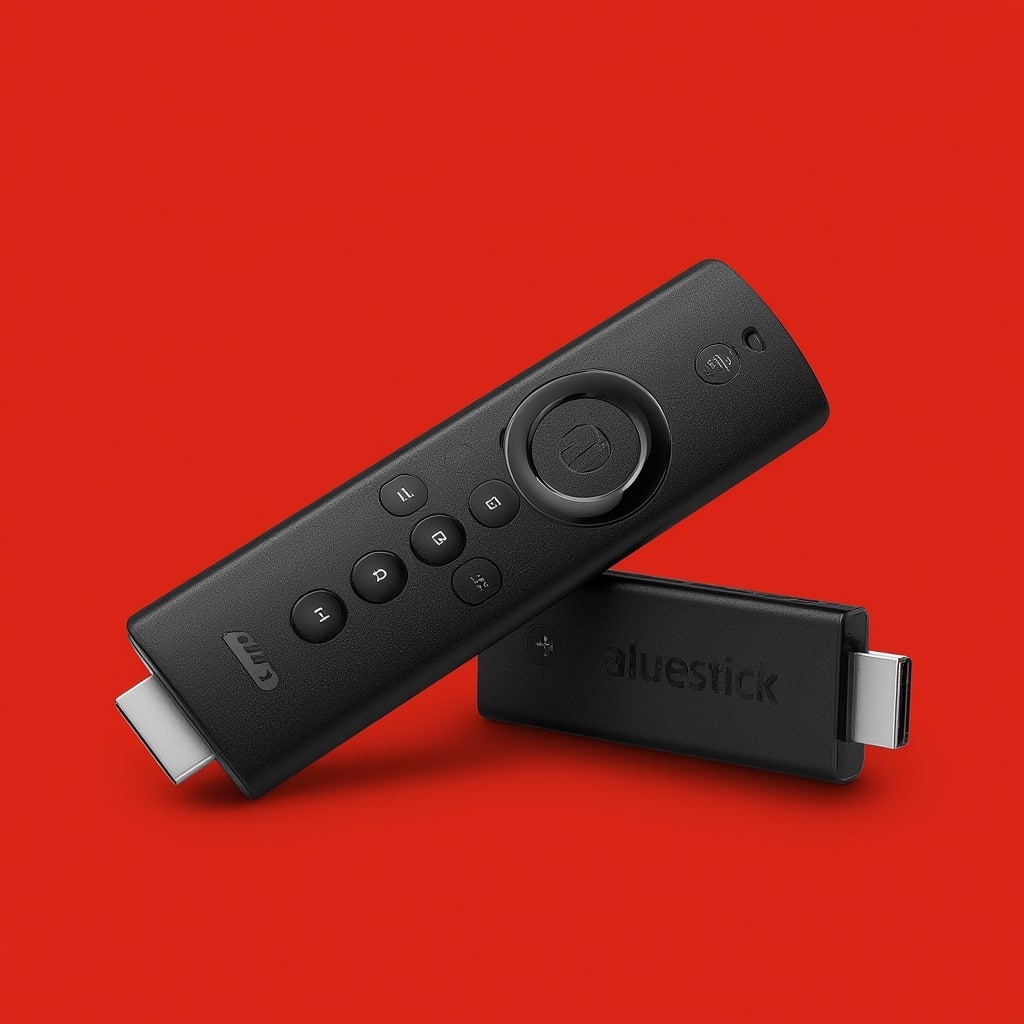

Understanding the Need for a VPN on Your Fire Stick
The Amazon Fire Stick is a fantastic device for streaming entertainment, opening up a world of content from services like Netflix, Hulu, Amazon Prime Video, and countless others. However, it’s also a device that collects usage data, potentially exposes your IP address, and may be subject to geo-restrictions depending on your location. A Virtual Private Network (VPN) addresses these concerns, encrypting your internet traffic and masking your IP address. This isn’t just about accessing content unavailable in your region; it’s about enhancing your privacy and security while enjoying your favorite shows and movies. Many users are searching for how to put a vpn on firestick, and it’s a crucial step for anyone serious about online security. Choosing the best vpn for firestick can be tricky, given the variety of options available. We’ll delve into the reasons why a VPN is beneficial, and then provide a comprehensive guide on setting one up.
Without a VPN, your Internet Service Provider (ISP) can see everything you do online. This data can be used for targeted advertising, or, in some cases, even sold to third parties. Streaming services also use your IP address to determine your location, restricting access to certain titles based on licensing agreements. Using a VPN effectively bypasses these limitations. Furthermore, public Wi-Fi networks are notoriously insecure. When connected to public Wi-Fi, your data is vulnerable to hackers who can intercept your traffic. A VPN creates a secure tunnel, protecting your sensitive information even on unsecured networks.
The Fire Stick’s operating system, Fire OS, is based on Android, meaning that many of the same techniques used to install VPNs on Android devices apply here. However, the Fire Stick’s interface and lack of a default browser can make the process slightly more complex. Fortunately, there are several straightforward methods – and we’ll explore them all. Thinking about improving your overall streaming experience? A VPN can even help with that – will a VPN get me better streams on firestick? It’s worth investigating!
Step-by-Step Instructions: How to Put a VPN on Firestick
Method 1: Installing via the Amazon Appstore
This is the easiest method if your chosen VPN provider has an app available on the Amazon Appstore. Not all providers do, so this is your first consideration when hunting for the best vpn for firestick.
-
- Navigate to the Appstore: From the Fire Stick home screen, go to the search icon (magnifying glass) and type “Appstore.” Select the Amazon Appstore from the search results.
-
- Search for Your VPN: In the Appstore search bar, type the name of your VPN provider (e.g., NordVPN, ExpressVPN, Surfshark).
-
- Select and Download: If the app appears in the search results, select it and click “Get” or “Download.”
-
- Install and Open: Once the download is complete, click “Open.”
-
- Log In: Enter your VPN account credentials (username and password).
-
- Connect to a Server: Choose a server location and click the “Connect” button.
Method 2: Sideloading a VPN App (Using Downloader)
If your VPN provider doesn’t have an app on the Amazon Appstore, you’ll need to sideload it. This involves downloading the VPN’s APK file (Android Package Kit) and installing it manually using an app like Downloader. This is a common method for how to put a vpn on firestick when the official app isn’t available.
-
- Enable Apps from Unknown Sources: This is a crucial step. Go to Settings > My Fire TV > Developer Options. Turn on “Apps from Unknown Sources.” You’ll receive a warning; acknowledge it.
-
- Install Downloader: Search for “Downloader” in the Appstore and install it.
-
- Find the APK File URL: Visit your VPN provider’s website and look for the latest APK file download link. Make sure it’s a legitimate source!
-
- Open Downloader: Launch the Downloader app.
-
- Enter the APK URL: In the Downloader text box, paste the URL of the APK file.
-
- Download and Install: Click “Go.” The APK file will download and then the installation process will begin.
-
- Open the VPN App: After installation, click “Done” and then “Delete” (to remove the APK file from Downloader’s cache) and then open the newly installed VPN app.
-
- Log In and Connect: Enter your VPN credentials and connect to a server.
Method 3: Using Router-Level VPN Configuration
This is a more advanced option but offers system-wide protection, covering all devices connected to your router, including your Fire Stick. It doesn’t involve installing an app directly on the Fire Stick. This method is effective when you’re looking for the best vpn for firestick but want broader coverage. It’s crucial to ensure your router is compatible with VPN configuration. Steps vary greatly depending on your router model.
-
- Check Router Compatibility: Consult your router’s documentation or the manufacturer’s website to see if it supports VPN client configuration.
-
- Obtain VPN Configuration Files: Your VPN provider should offer OpenVPN configuration files (.ovpn files) or instructions for manual configuration.
-
- Access Router Settings: Log in to your router’s admin panel (usually through a web browser). The address is often 192.168.1.1 or 192.168.0.1. You will need your router’s administrator username and password.
-
- Configure the VPN Client: Navigate to the VPN settings in your router’s admin panel. Upload the OpenVPN configuration file or enter the necessary settings manually (server address, username, password, encryption protocol).
-
- Connect and Verify: Save the settings and connect the VPN client on your router. Verify the connection by checking your IP address on the Fire Stick (using a website like whatismyipaddress.com).
Tips for Optimizing Your VPN Experience on Fire Stick
-
- Choose a Fast VPN Server: The closer the server is to your actual location, the faster your connection speed will generally be. Experiment with different servers to find the optimal balance between speed and location.
-
- Use WireGuard Protocol: If your VPN provider supports it, use the WireGuard protocol. It’s generally faster and more secure than older protocols like OpenVPN.
-
- Split Tunneling (If Available): Some VPNs offer split tunneling, allowing you to choose which apps use the VPN connection and which don’t. This can be useful for optimizing speed and bandwidth.
-
- Disable IPv6 (If Necessary): IPv6 leaks can sometimes bypass your VPN. Check your VPN settings or look for instructions on how to disable IPv6 on your Fire Stick.
-
- Clear Cache Regularly: Clearing the cache of your VPN app and streaming apps can improve performance.
-
- Change Your VPN Server Regularly: Rotating your server IP address can help prevent detection and maintain access to geo-restricted content. Consider using a feature that automatically changes your server.
-
- Check for DNS Leaks: Ensure that your VPN is preventing DNS leaks. You can use online tools (like dnsleaktest.com) to check for leaks. If leaks are found, contact your VPN provider for assistance.
-
- Consider a Dedicated IP Address: Some VPN providers offer dedicated IP addresses for an additional fee. This can be helpful if you frequently encounter CAPTCHAs or IP bans.
-
- Troubleshooting Connection Issues: If you’re having trouble connecting, try restarting your Fire Stick, your router, and your VPN app. Also, how to change VPN settings to resolve conflicts.
-
- Document Your Setup: Keep a record of your VPN settings and server choices, especially when using sideloading or router-level configurations.
Remember, finding the right VPN isn’t just about how to put a vpn on firestick; it’s about choosing a provider with a reliable network and strong security features. Read reviews and compare different options before making a decision. Resources like Reddit’s r/VPN forum can offer valuable insights from other users.
Alternative Methods for Enhanced Privacy
While a VPN is the most effective solution for protecting your privacy on a Fire Stick, there are some alternative methods and complementary tools you can consider. It’s important to note that these alternatives don’t offer the same level of security and privacy as a VPN.
Smart DNS
Smart DNS services redirect only the portion of your internet traffic that reveals your location. This can be useful for accessing geo-restricted content, but it doesn’t encrypt your traffic like a VPN. While less secure, Smart DNS can be faster than a VPN in some cases.
Tor Browser (Limited Compatibility)
The Tor network is designed for anonymous communication. However, the Tor Browser is not natively compatible with Fire OS. You can attempt to install it via sideloading, but performance can be very slow. It’s generally not recommended for streaming video.
Fire Stick Privacy Settings
Amazon provides some basic privacy settings on the Fire Stick. You can disable personalized advertising, manage your voice data, and review your app permissions. While these settings can help reduce data collection, they don’t encrypt your traffic or mask your IP address.
Using a Privacy-Focused DNS Server
Changing your DNS server to a privacy-focused option like Cloudflare (1.1.1.1) or Google Public DNS (8.8.8.8) can help prevent your ISP from tracking your browsing activity. However, this doesn’t encrypt your data.
For those focused on a specific VPN solution, learning how to use Proton VPN can walk you through a powerful and privacy-focused choice.
Conclusion: Secure Your Streaming Experience
Protecting your privacy and accessing a wider range of content on your Amazon Fire Stick is achievable with a VPN. As we’ve explored, how to put a vpn on firestick can be done in a few different ways, from simple app installation to more advanced router configuration. Ultimately, the best vpn for firestick will depend on your technical skills, your router’s compatibility, and your specific privacy needs.
Remember to prioritize speed, security, and a no-logs policy when choosing a provider. Regularly test your connection and DNS settings to ensure your VPN is working correctly. Don’t fall for free or unreliable VPN services, as these often come with hidden costs, such as data logging or malware. Investing in a reputable VPN is a small price to pay for a more secure and open streaming experience. You should also revisit these settings periodically, as both VPNs and Fire OS are updated continually. Consider the long-term benefits: a VPN protects your personal information and provides peace of mind, making your Fire Stick a truly enjoyable and safe entertainment hub.
And finally, stay informed about the latest VPN trends and security threats to ensure your protection remains up-to-date – the landscape evolves quickly, particularly with new developments expected in the VPN space by 2025!
“`



