

Introduction
Understanding how to VPN setting configurations is essential for maintaining online privacy and bypassing geo-restrictions. Whether you’re trying to secure your connection on public Wi-Fi or access region-locked content like TikTok with a VPN, proper setup is critical. This guide will demystify vpn connection setup processes across multiple devices while addressing common challenges like network restrictions in schools or workplaces. With data breaches increasing by 38% in 2023 (Verizon DBIR), configuring your VPN correctly has never been more urgent.
Step-by-Step Instructions
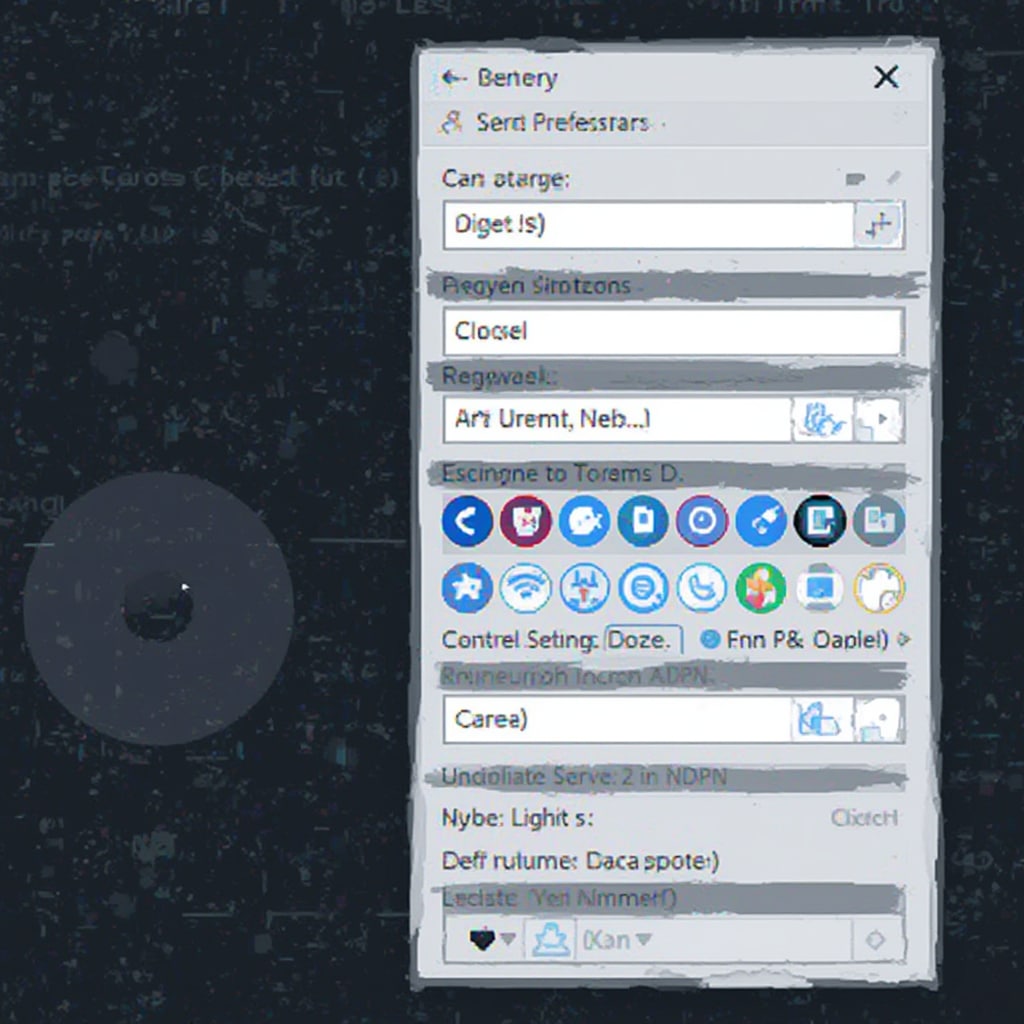
Windows VPN Configuration
- Navigate to Settings > Network & Internet > VPN
- Click “Add a VPN connection” and select provider type
- Enter server details provided by your VPN service
- Choose authentication method (username/password or certificate)
- Enable “Remember my sign-in info” for automatic vpn connection setup
Microsoft’s official VPN setup guide recommends always verifying your connection’s security properties after configuration.
macOS VPN Installation
- Open System Preferences > Network
- Click the “+” button and select VPN from interface options
- Choose between IKEv2, L2TP/IPSec, or Cisco IPSec protocols
- Configure server address and authentication credentials
- Enable “Show VPN status in menu bar” for quick access
Android Mobile Setup
- Access Settings > Network & internet > VPN
- Tap “+” to add new configuration
- Enter server information and preferred protocol (WireGuard recommended)
- Configure Always-on VPN for automatic protection
Google’s Android VPN documentation emphasizes checking app permissions when using third-party VPN clients.
iOS VPN Activation
- Go to Settings > General > VPN & Device Management
- Select “Add VPN Configuration”
- Choose between IKEv2, IPSec, or L2TP protocols
- Input server details and authentication credentials
- Toggle “Connect On Demand” for persistent protection
Need to disable temporarily? Learn how to turn VPN off on iPhone properly without disrupting other services.
Pro Configuration Tips
- Protocol Selection: WireGuard offers speed, while OpenVPN prioritizes security
- Kill Switch: Essential feature to prevent data leaks during disconnections
- Split Tunneling: Route only specific traffic through the VPN tunnel
- Server Switching: Regularly test different endpoints for optimal speeds
- Security Audits: Choose providers with published audits like Proton VPN’s security verification
Alternative Connection Methods
Browser Extensions
Extensions like NordVPN’s proxy offer quick access without full system routing – ideal for temporary access needs.
Manual Configuration
Advanced users can configure OpenVPN manually using configuration files for specialized security setups. Reddit’s networking communities often discuss advanced home VPN configurations.
Smart DNS Services
For streaming-only needs, Smart DNS avoids encryption overhead while bypassing geo-blocks. Compare services like Urban VPN’s performance before implementation.
Router-Level VPN Installation
- Flash compatible router with DD-WRT or Tomato firmware
- Navigate to VPN tab in admin interface
- Upload OpenVPN configuration files
- Configure DNS settings to prevent leaks
Conclusion
Mastering how to VPN setting configurations across devices ensures comprehensive digital protection. With this guide’s vpn connection setup instructions and advanced techniques like router-level implementation, you can customize security for any use case. Remember that proper configuration significantly impacts performance – test different protocols and servers to optimize your experience. For school/work restrictions where VPNs aren’t feasible, explore our alternative Chromebook unblocking methods to maintain productivity.



