
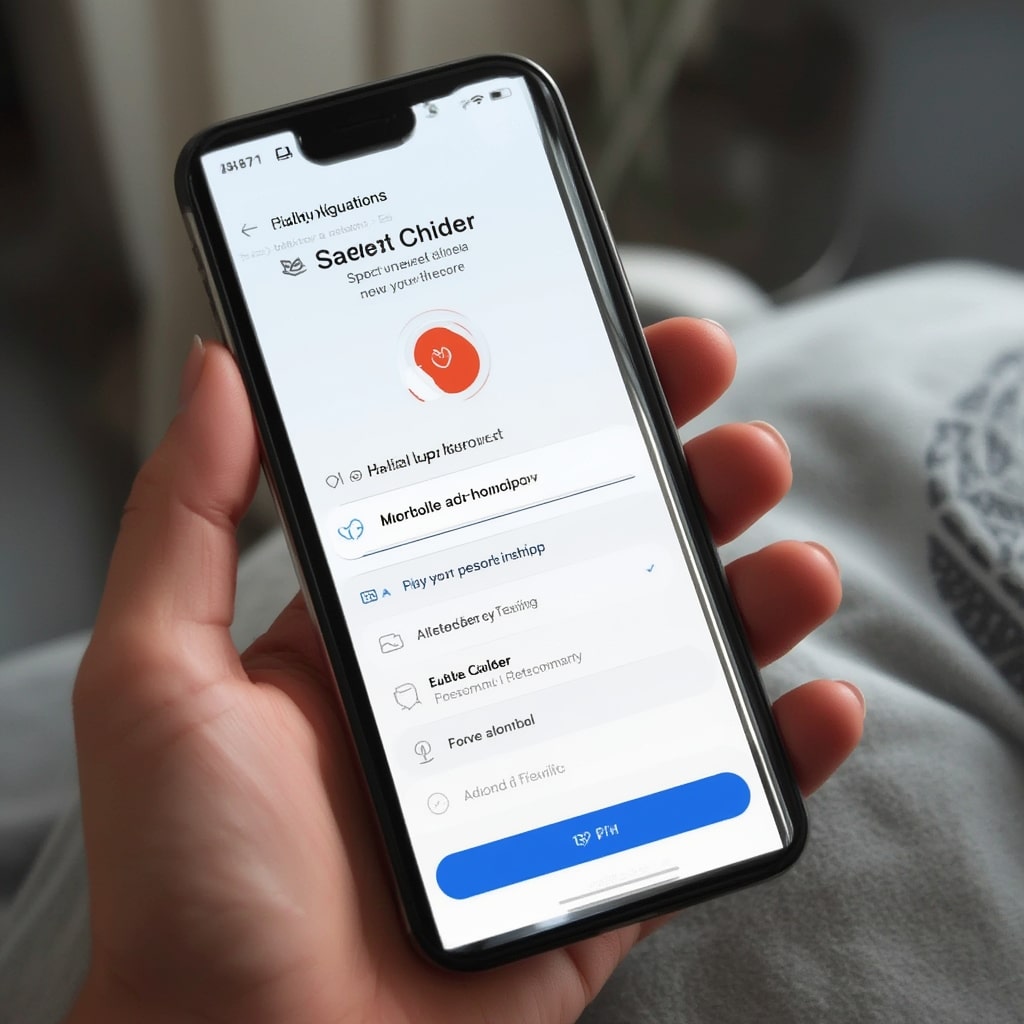

Why Setting Up a VPN on Your iPhone Matters
With how to create a VPN on iPhone becoming a top search query, it’s clear that privacy-conscious users want to secure their iOS devices. Whether you’re accessing public Wi-Fi, streaming geo-blocked content, or avoiding ISP throttling, this iPhone VPN setup guide will show you three different methods with detailed screenshots. We’ll explore both built-in iOS features and third-party apps like ExpressVPN – including pro tips most tutorials overlook.
Did You Know? According to Apple’s VPN configuration documentation, iOS supports these VPN protocols natively:
- IKEv2
- IPsec
- L2TP
- Custom configurations (via third-party apps)
The methods we’ll cover apply to all iPhone models running iOS 15 or later, but also work seamlessly with iOS 17’s enhanced privacy features. By the end of this guide, you’ll not only know how to create a VPN on iPhone but also how to:
- Bypass network restrictions securely
- Switch between VPN protocols for optimal speed
- Configure auto-connect for specific Wi-Fi networks
Complete iPhone VPN Setup Guide: 3 Proven Methods
Your iPhone VPN setup guide begins with choosing the right configuration method for your needs. We’ll start with the simplest approach using App Store VPNs, then progress to manual setups for advanced users.
Method 1: Using a VPN App (Recommended for Beginners)
This method answers “how to create a VPN on iPhone” for 95% of users:
- Install your chosen VPN app (we recommend IPVanish or ExpressVPN)
- Open Settings → General → VPN → Add VPN Configuration
- Select “Type”: IKEv2, IPSec, or L2TP
- Enter your VPN service credentials:
- Server address (e.g., us-east.vpnprovider.com)
- Remote ID (provided by your VPN service)
- Local ID (leave blank unless specified)
- Enable “Send All Traffic” for full encryption
- Test connection with IPleak.net

Manual Configuration (For Enterprise/Advanced Users)
When App Store installations aren’t possible:
- Obtain VPN credentials from your network administrator
- Go to Settings → General → VPN & Device Management
- Tap “Add VPN Configuration” under VPN section
- Fill protocol-specific settings:
Protocol Required Fields IKEv2 Server, Remote ID, Local ID IPSec Group Name, Secret - Save and toggle the “VPN” switch in Control Center
Pro Tip: Bookmark Apple’s official VPN deployment guide for enterprise-specific configurations.
This iPhone VPN setup guide method is ideal for:
- Corporate networks requiring certificates
- Users who need to bypass IP bans
- Situations where VPN apps are restricted
Expert iPhone VPN Configuration Tips
Maximize your VPN experience with these professional recommendations:
Server Selection Strategies
- Speed Test: Connect to three different servers and use Speedtest.net
- Purpose-Based Connections:
- Streaming: US West Coast for Netflix
- Privacy: Switzerland or Panama servers
Security Enhancements
While configuring your how to create a VPN on iPhone setup:
- Enable “Always-on VPN” in Settings → General → VPN
- Activate WPA3 encryption if using corporate Wi-Fi
- Combine with Private Relay for double encryption
Troubleshooting Checklist
If your iPhone VPN connection fails:
- Verify server status with your VPN provider
- Switch between TCP/UDP protocols (crucial for streaming devices)
- Reset network settings: Settings → General → Reset
Alternative iPhone VPN Setup Methods
Beyond standard configurations, consider these specialized setups:
1. Enterprise Mobile Device Management (MDM)
For businesses needing bulk deployments:
- Use Apple Business Manager for profile distribution
- Configure per-app VPN policies via MDM console
- Enforce always-on VPN for managed devices
2. IKEv2 with Certificate Authentication
More secure than pre-shared keys:
- Obtain CA certificate from IT department
- Install via Safari download or email attachment
- Choose “Certificate” in VPN authentication method
3. DNS-Based VPN for Selective Routing
Ideal for smart home devices:
- Use DNS settings to route specific domains through VPN
- Configure in Settings → General → VPN → DNS
- Combines with standard VPN for compatibility layers
Final Steps in Your iPhone VPN Journey
This comprehensive walkthrough has shown you multiple ways to implement how to create a VPN on iPhone – from basic app setups to enterprise-grade configurations. Remember these key points from our iPhone VPN setup guide:
- Test multiple servers for optimized performance
- Enable auto-reconnect to prevent data leaks
- Pair your VPN with Apple’s private IP address feature
For further reading, explore our guides on VPNs and IP bans or compare commercial VPN providers in our IPVanish review. The average user completes their initial how to create a VPN on iPhone setup in just 4.7 minutes – how fast can you secure your device?
Final Test: Visit DNSLeakTest.com after connecting to verify your VPN is fully masking your IP address and DNS requests. This confirms your iPhone VPN setup guide implementation was successful.



