
If you’re looking for a flexible way to organize movies, TV shows, live channels, and other video content in one place, Stremio is one of the most popular options available. Unlike traditional streaming services, Stremio acts as a media hub. It doesn’t host videos itself. Instead, it organizes content from official services and compatible add-ons into a single interface.
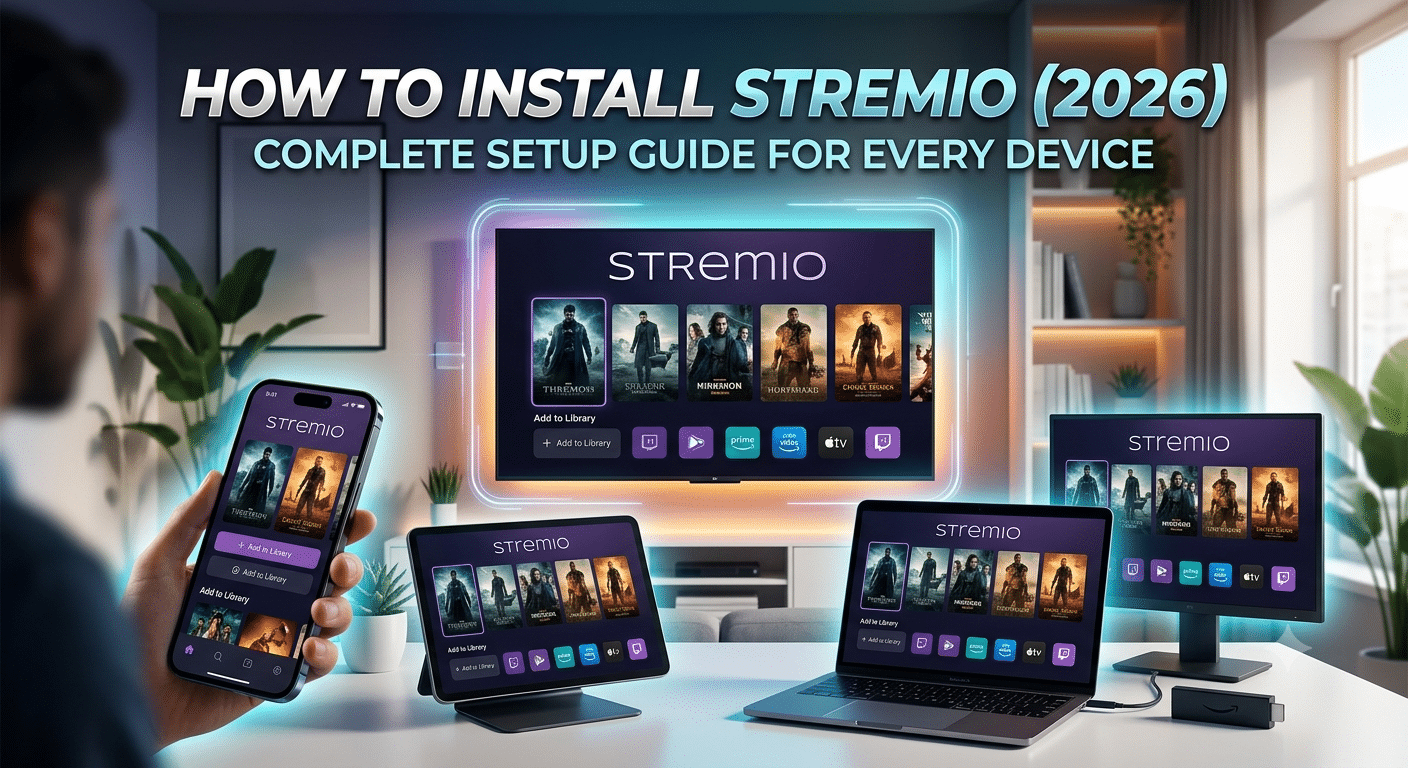
Installing Stremio takes only a few minutes on most devices, including Windows, macOS, Linux, Android, Android TV, and Amazon Fire TV. Once installed, you can sign in with a free account to synchronize your library, watch history, and settings across multiple devices.
For safety, always download Stremio from its official website. Using unofficial installers or modified APK files increases the risk of malware or unwanted software.
The official Stremio downloads page provides installers for every supported operating system.
Which Devices Support Stremio?
One of Stremio’s biggest advantages is its broad device compatibility. The application is available for most major desktop and mobile platforms.
Windows
Windows remains the easiest platform for installation. Stremio supports modern versions of Windows and installs using a standard executable installer. Most users can complete setup in less than two minutes.
macOS
Mac users install Stremio through a standard DMG package. After dragging the application into the Applications folder, macOS may ask you to confirm that you trust software downloaded from the internet.
Linux
Linux users can install Stremio using packages provided for popular distributions. Support varies slightly depending on whether you’re using Ubuntu, Debian, Fedora, or another distribution, but official installation packages are available.
Android
The Android version is available through Google Play in supported regions. If Google Play isn’t available on your device, you can install the official APK provided by the Stremio team.
Android TV
Stremio includes an interface designed specifically for televisions. Navigation works well with a standard remote, making it much easier to browse your library than using the mobile version.
Amazon Fire TV and Fire Stick
Fire TV devices don’t include Stremio in the Amazon Appstore, so you’ll need to sideload the official Android APK. Although this adds a few extra steps, the process is straightforward and typically takes less than ten minutes.
What About Roku?
There isn’t a native Stremio app for Roku. If you own a Roku device, your options are more limited. In some cases, you can cast supported content from another device, but the experience isn’t the same as using a dedicated application.
How Do You Install Stremio on Windows, macOS, and Linux?
Desktop platforms offer the simplest installation experience. Stremio uses native installers for Windows and macOS, while Linux users can choose packages designed for their distribution. Regardless of your operating system, downloading the installer from the official Stremio website helps ensure you’re using the latest stable release.
Installing Stremio on Windows
Windows is the most straightforward platform for installing Stremio.
Step 1: Download the Installer
Visit the official Stremio downloads page and select the Windows version that matches your system. Most modern PCs use the 64-bit installer.
Avoid downloading the application from third-party software repositories unless you fully trust the source.
Step 2: Run the Installer
Locate the downloaded .exe file and double-click it.
If Windows displays a Microsoft Defender SmartScreen warning, verify that the installer was downloaded from the official Stremio website before continuing.
Step 3: Follow the Installation Wizard
The setup wizard only takes a minute or two.
You’ll typically need to:
- Accept the license agreement.
- Choose an installation folder (or keep the default).
- Allow shortcuts to be created.
- Complete the installation.
After installation finishes, launch Stremio from the Start menu or desktop shortcut.
Step 4: Sign In
When Stremio opens for the first time, you’ll have the option to:
- Create a free account.
- Sign in with an existing account.
- Continue as a guest.
Signing in is recommended because it synchronizes your library, installed add-ons, and viewing history across devices.
Installing Stremio on macOS
The macOS installation process is equally simple.
Download the DMG Package
Download the latest macOS installer from the official website.
Once the download finishes:
- Open the DMG file.
- Drag the Stremio icon into the Applications folder.
- Wait for the copy process to finish.
Launch Stremio from Applications.
Depending on your macOS security settings, Apple may ask you to confirm that you trust software downloaded from the internet.
If prompted, open System Settings > Privacy & Security and approve the application if you’ve verified it came from the official source.
Installing Stremio on Linux
Linux offers several installation methods depending on your distribution.
Common options include:
- Debian packages (.deb)
- RPM packages
- Community repositories
- Flatpak (where supported)
Ubuntu and Debian users generally have the easiest experience using the official DEB package.
After downloading the installer, open it with your package manager and follow the prompts.
Alternatively, advanced users may install packages through the terminal if preferred.
Because Linux distributions vary considerably, the exact commands differ between systems. Always refer to the installation instructions provided for your specific distribution.
Device Compatibility Limits
Although Stremio supports many operating systems, there are practical limitations to keep in mind.
32-bit Systems
Recent versions primarily target 64-bit operating systems. Older 32-bit hardware may no longer be supported.
Older Operating Systems
Running outdated versions of Windows or macOS can cause compatibility issues, missing security updates, or installation failures.
Keeping your operating system current improves both stability and security.
ARM-Based Computers
Apple Silicon Macs generally run Stremio without major issues. On Windows ARM devices, compatibility depends on Microsoft’s application translation layer and the version of Windows installed.
Storage Requirements
Stremio itself occupies relatively little disk space, but you’ll also need room for:
- Updates
- Cache files
- Temporary metadata
- Downloaded thumbnails
Leaving at least a few hundred megabytes of free storage helps maintain smooth performance.
Common Installation Problems
Even though installation is straightforward, a few issues appear regularly.
The Installer Won’t Launch
Possible causes include:
- Corrupted download
- Incomplete download
- Security software interruption
- Unsupported operating system
Downloading a fresh copy from the official website usually resolves this problem.
Antivirus Flags the Installer
Security software occasionally scans newly downloaded applications more aggressively.
If you’ve confirmed the installer came directly from Stremio’s official website, it’s generally safe to proceed. Never disable antivirus protection permanently just to install an application.
Installation Stops Unexpectedly
This often happens because:
- Another installation is already running.
- Windows Update requires a restart.
- Administrative permissions are missing.
- Disk space is insufficient.
Restarting the computer before attempting installation again frequently resolves these issues.
Stremio Doesn’t Open After Installation
If the application immediately closes:
- Restart your computer.
- Check for graphics driver updates.
- Install pending operating system updates.
- Reinstall the latest version.
On Linux, missing multimedia libraries or outdated dependencies can also prevent the application from launching correctly.
Should You Install Updates Immediately?
Yes.
Stremio updates often include:
- Bug fixes
- Performance improvements
- New platform support
- Security enhancements
- Compatibility updates for newer operating systems
Using the latest stable release reduces the likelihood of installation or playback issues later.
What’s Next?
With Stremio successfully installed on your desktop computer, the next step is setting it up on mobile and streaming devices.
In Part 3, you’ll learn how to install Stremio on:
- Android phones and tablets
- Android TV
- Amazon Fire TV and Fire Stick
- Devices that require APK sideloading
We’ll also cover the initial setup process, signing in, and preparing your media library for the best experience.
How Do You Install Stremio on Android, Android TV, and Amazon Fire TV Devices?
Stremio works well on mobile devices and streaming hardware, but the installation process differs depending on the platform. Android phones usually install the app through the Google Play Store, while Fire TV devices require sideloading because Stremio isn’t available in the Amazon Appstore.
Installing Stremio on Android
For most Android users, installation is quick.
Step 1: Open Google Play
Search for Stremio in the Google Play Store.
Verify that you’re downloading the official application before tapping Install.
Step 2: Launch the App
Once the installation finishes:
- Open Stremio.
- Sign in with your existing account or create a free one.
- Allow any requested permissions, such as storage access if required.
Your library, settings, and watch history will automatically sync if you’ve used the same account on another device.
Installing the Official APK
Some Android devices don’t include Google Play or restrict app availability.
In that case:
- Download the official APK from the Stremio website.
- Enable Install unknown apps for the browser or file manager you’re using.
- Open the APK file.
- Follow the installation prompts.
- Disable the “unknown apps” permission afterward if you no longer need it.
Only install APK files from the official Stremio website. Avoid modified versions from unofficial sources.
Installing Stremio on Android TV
The Android TV version is optimized for remote control navigation.
If your television includes Google Play:
- Open Google Play.
- Search for Stremio.
- Install the application.
- Open it and sign in.
The interface is designed for large screens, making it easy to browse movies, TV series, and your personal library.
Installing Stremio on Amazon Fire TV and Fire Stick
Because Stremio isn’t distributed through Amazon’s Appstore, you’ll need to sideload it.
Step 1: Enable App Installation
On newer Fire TV devices:
- Open Settings.
- Go to My Fire TV.
- Open Developer Options.
- Allow installation from trusted sources for the app you’ll use to download the APK.
Menu names can vary slightly depending on your Fire OS version.
Step 2: Download the APK
Use a trusted browser or download utility to obtain the official Stremio APK.
Avoid shortened links or unofficial download sites.
Step 3: Install
Open the downloaded APK and follow the installation prompts.
The process usually takes only a minute or two.
Step 4: Sign In
Once installed:
- Log into your Stremio account.
- Allow your library to synchronize.
- Verify that your add-ons and preferences appear correctly.
First-Time Setup After Installation
Installing the app is only the beginning.
Before watching content, take a few minutes to configure your account.
Update the Application
If an update is available immediately after installation, install it before continuing.
Running the latest version helps avoid compatibility issues and improves stability.
Configure Playback
Review settings such as:
- Preferred language
- Subtitle language
- Streaming quality
- Hardware acceleration (if supported)
- Default player behavior
These options can improve playback on lower-powered devices.
Sign In Across Multiple Devices
If you plan to use Stremio on both a desktop and a streaming device, signing in with the same account keeps everything synchronized.
Your library, watched episodes, and settings stay consistent without additional configuration.
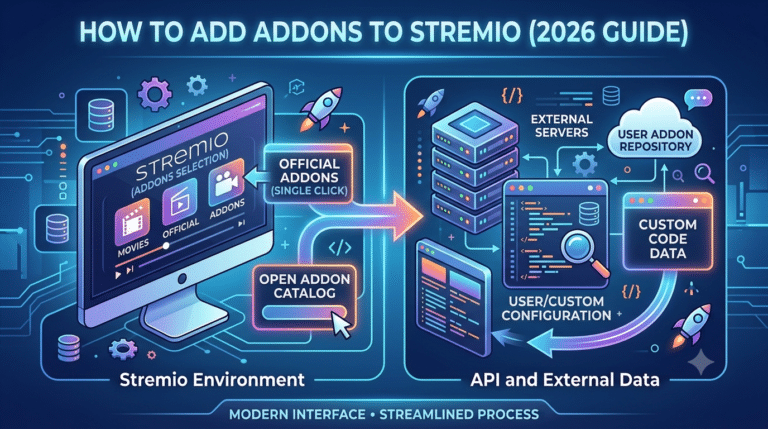
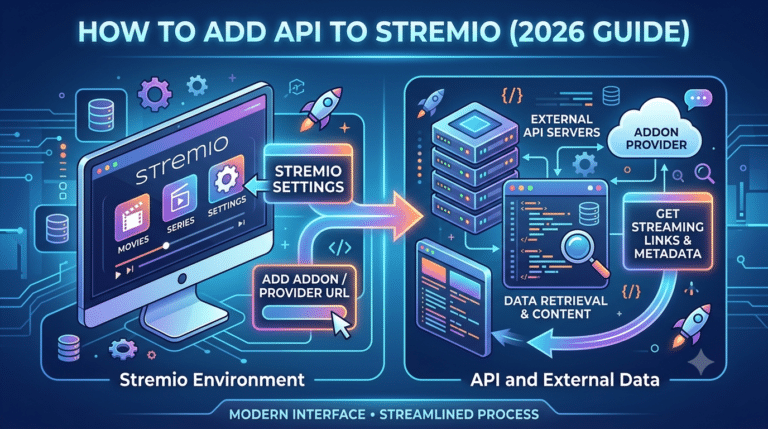
Installing Add-ons
One of Stremio’s strengths is its add-on system.
Add-ons expand the content available through the application by connecting to supported sources and services.
When installing add-ons:
- Review the publisher.
- Understand what each add-on provides.
- Remove add-ons you no longer use.
- Keep them updated when updates become available.
Installing too many unnecessary add-ons can make browsing slower and clutter your interface.
Common Mobile Installation Problems
APK Won’t Install
Possible reasons include:
- Corrupted download
- Unsupported Android version
- Insufficient storage
- Installation from an untrusted source
Downloading the APK again from the official website often resolves the issue.
Fire TV Can’t Find the APK
Check that:
- Your internet connection is working.
- The download completed successfully.
- You’re using the latest official installer.
Sign-in Problems
If your library doesn’t synchronize:
- Confirm you’re using the correct account.
- Check your internet connection.
- Restart the application.
- Sign out and back in.
Synchronization usually completes within a few moments after logging in.
Best Practices After Installation
To keep Stremio running smoothly:
- Keep the app updated.
- Remove unused add-ons.
- Restart the app after major updates.
- Ensure your operating system stays current.
- Download future updates only from official sources.
These habits reduce compatibility issues and improve long-term performance.
What’s Next?
With Stremio installed and configured, the final step is learning how to get the most from it. In Part 4, we’ll cover:
- Essential post-installation tips
- Managing and syncing add-ons
- Troubleshooting playback and installation issues
- Whether Stremio is safe and legal to use
- Final recommendations for new users
What Should You Do After Installing Stremio?
Installing Stremio is only the first step. Spending a few minutes configuring the app will improve your experience and help you avoid common problems later.
Customize Your Library
After signing in, build your personal library by searching for movies and TV shows you want to follow. Adding titles to your library allows Stremio to:
- Track watched episodes
- Notify you about new releases
- Synchronize your library across all signed-in devices
If you use Stremio on multiple devices, your progress automatically carries over when you’re logged into the same account.
Configure Playback Settings
Open Settings and review the available playback options.
Depending on your device, you can adjust:
- Subtitle language
- Default audio language
- Video cache settings
- Hardware acceleration
- Interface language
- External player preferences
If playback feels choppy on older hardware, disabling hardware acceleration or lowering the playback quality may improve stability.
How Do You Install and Manage Stremio Add-ons?
Add-ons are what make Stremio useful. They extend the application’s capabilities by connecting it with different content catalogs and services.
Before installing any add-on:
- Review its publisher.
- Understand what content it provides.
- Remove add-ons you no longer use.
- Keep frequently used add-ons updated.
A smaller collection of trusted add-ons usually provides a better experience than installing dozens at once.
Sync Your Settings Across Devices
One advantage of using a Stremio account is automatic synchronization.
When you’re signed in, Stremio can sync:
- Installed add-ons
- Library
- Watch history
- Preferences
- Continue watching progress
This means you can start watching on your desktop and continue later on your Android TV or Fire TV device without manually transferring settings.
Why Isn’t Stremio Working Properly?
Even after a successful installation, you may occasionally encounter issues.
Buffering During Playback
Buffering often has little to do with the application itself.
Possible causes include:
- Slow internet speeds
- Busy streaming sources
- Temporary server issues
- Local network congestion
- Wi-Fi interference
Testing another network can help determine whether the issue is local.
Application Crashes
If Stremio crashes repeatedly:
- Restart the application.
- Install the latest version.
- Restart your device.
- Clear cached data if supported.
- Reinstall the application if necessary.
Many stability issues are resolved by updating both Stremio and your operating system.
Add-ons Stop Working
Individual add-ons are maintained separately.
If one stops functioning:
- Check whether an update is available.
- Remove and reinstall the add-on.
- Try an alternative add-on if support has ended.
The Stremio application itself may still function normally even if a specific add-on no longer works.
Playback Problems
If videos won’t play:
- Confirm your internet connection.
- Verify that the selected source is available.
- Restart the application.
- Update graphics drivers on desktop systems.
- Restart your streaming device.
Working through these basic checks resolves many common playback issues.
Is Stremio Safe to Install?
The official Stremio application is generally considered safe when downloaded from the official website.
To reduce risk:
- Download installers only from official sources.
- Keep the application updated.
- Avoid unofficial or modified APK files.
- Be selective about the add-ons you install.
Like any software that supports third-party extensions, your experience depends partly on the add-ons you choose. Reviewing add-ons before installing them is a good security practice.
Is Stremio Legal?
Stremio itself is a legal media management application.
However, legality depends on how you use it and which services or add-ons you connect to. Some add-ons provide access to legitimate streaming platforms, while others may access content that isn’t authorized in your jurisdiction.
Before using any add-on, familiarize yourself with the applicable copyright laws and the terms of the services you access.
Final Tips for New Users
If this is your first time using Stremio, these practices will help you get started smoothly:
- Download the application only from the official website.
- Create a free account to synchronize your library.
- Keep both the application and your operating system updated.
- Install only trusted add-ons that meet your needs.
- Periodically review your settings and remove unused add-ons.
Following these steps helps maintain a stable, organized, and secure setup over time.
Conclusion
Learning how to install Stremio is straightforward once you know which installer matches your device. Whether you’re using Windows, macOS, Linux, Android, Android TV, or Amazon Fire TV, the setup process usually takes only a few minutes.
After installation, take time to sign in, configure your playback preferences, and organize your library. Keeping the application updated and using trusted add-ons will provide the best long-term experience.
With your installation complete, you’re ready to explore Stremio’s features and build a personalized media library across all your supported devices.