
If you’re trying to understand how to add addons to Stremio, the first thing to know is that Stremio doesn’t work like a traditional app store. Addons act as modular content sources that plug into the main Stremio interface, shaping what you can watch and how it’s delivered.
Most installation issues come from misunderstanding this structure rather than technical failure. Once you grasp how addons are registered and synced through your account, the setup becomes straightforward across devices.
Stremio’s official documentation describes addons as “content connectors” that extend the platform’s catalog and playback capabilities. You can verify this behavior through the official overview of the platform in what the Stremio service does, which explains how the system separates the app interface from content sources.
For privacy-conscious users, addon behavior can also intersect with broader security concerns. The Electronic Frontier Foundation highlights how streaming services that rely on third-party sources can expose metadata patterns unless proper safeguards are used (EFF privacy resources). While Stremio itself is not inherently risky, the addons you install determine your exposure level.
What Are Stremio Addons and How Do They Work?
Stremio addons are lightweight modules that connect your app to content catalogs, metadata services, subtitles, or streaming streams. They don’t install like traditional software. Instead, they register endpoints inside your Stremio account.
There are two primary types:
- Official addons (curated and maintained by Stremio)
- Community addons (created by third-party developers)
Official addons are stable and predictable. Community addons are more flexible but vary in reliability and source quality.
Each addon communicates through a manifest file—a structured JSON endpoint that tells Stremio what content it can provide. Once added, the addon becomes instantly available across your account.
Understanding this architecture is essential before learning how to add addons to Stremio, because installation is simply the process of registering that manifest with your profile.
How Do You Add Addons to Stremio?
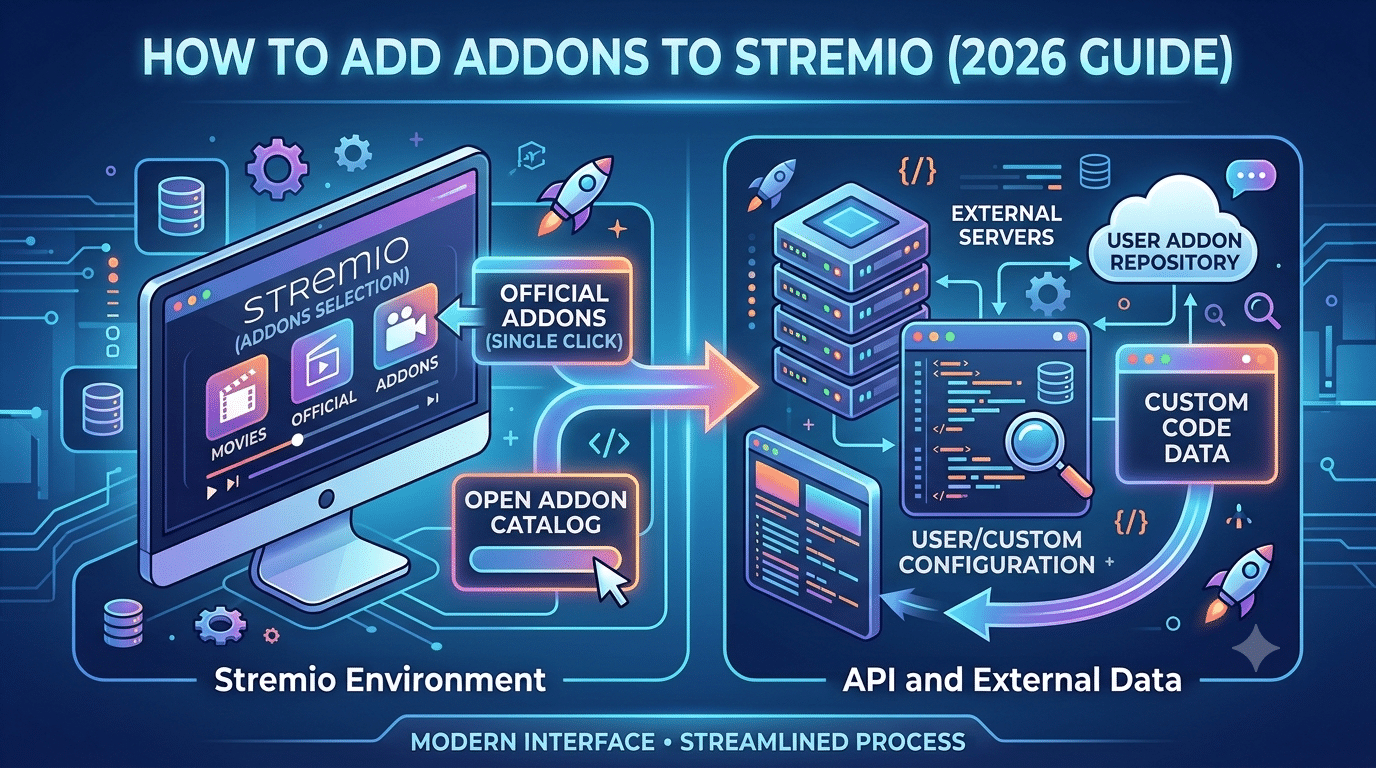
Adding addons is handled through the built-in Addon Catalog or through direct manifest links. The process is intentionally minimal to reduce user friction.
Step-by-step installation (official catalog method)
- Open Stremio on desktop or mobile
- Navigate to the Addons section
- Browse available official or community addons
- Click “Install”
- Wait for automatic account sync
Once installed, addons are immediately tied to your account. If you log into another device, they will appear automatically.
This behavior is central to understanding how to add addons to Stremio efficiently—installation is not device-bound, it is account-bound.
For users new to the platform, this mechanism is further explained in what the Stremio service does, which breaks down how Stremio separates interface, accounts, and content layers.
Device Compatibility Limits, Account Behavior, and Performance Factors
server load effects, device compatibility limits, account/plan restrictions, speed throttling scenarios, etc,
Stremio addons behave differently depending on the device and environment you use. While the core system is consistent, performance and availability can vary.
- Server load effects: Community addons may slow down during peak usage since they rely on external infrastructure.
- Device compatibility limits: Not all addons function identically on Android TV, desktop, and Stremio Web.
- Account synchronization: Addons are tied to your login, not your device, meaning changes propagate across all sessions.
- Speed throttling scenarios: Some ISPs may slow down certain streaming traffic types, especially when large data streams are involved.
These factors don’t prevent installation, but they directly impact usability and playback stability.
Why Understanding Addon Architecture Matters
Most guides on how to add addons to Stremio skip the underlying structure and jump directly to clicks and menus. That approach works short-term, but it breaks down when addons fail to appear or sync correctly.
Once you understand that addons are manifest-driven services tied to your account, troubleshooting becomes significantly easier:
- Missing addons usually indicate sync delay
- Broken addons often reflect unavailable external endpoints
- Device inconsistencies usually relate to platform support differences
This is why installation is less about “adding” and more about “registering” functional data sources.
How Do You Install Community Addons Using Manifest URLs?
Once you understand the basics of how to add addons to Stremio, the next step is working with community addons. These are not always listed in the official catalog and often require a direct manifest link.
A manifest URL is a web address that points to an addon configuration file. When opened inside Stremio, it registers the addon instantly to your account.
This method is widely used for advanced setups and is documented in various community guides such as installing addons using Stremio’s addon system, which explains how external addon sources connect to your profile.
Installing Addons from a URL (Manual Method)
Manual installation is straightforward but requires precision.
Steps:
- Copy the manifest URL from a trusted source
- Open it in a browser on the same device where Stremio is installed
- Stremio automatically detects the addon
- Click “Install” when prompted
- Confirm the addon appears in your Addons list
This approach bypasses the catalog entirely and directly registers the addon into your account.
Unlike official installs, this method depends heavily on the stability of the external source hosting the manifest.
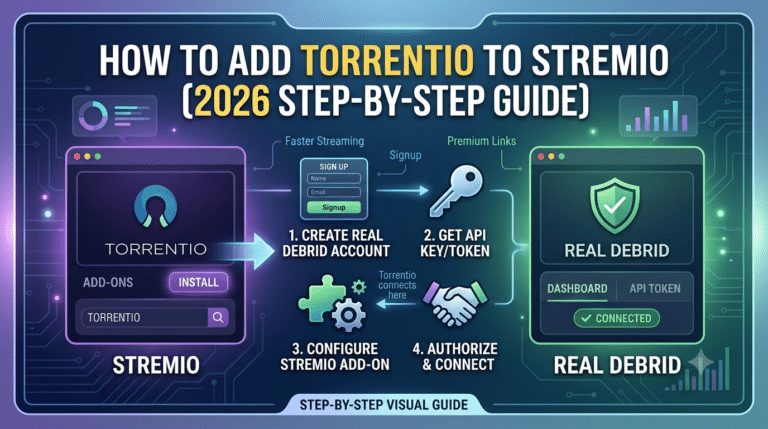
For users exploring deeper integrations, guides like installing Torrentio on Stremio show how manifest-based addons connect streaming indexes to the platform.
Official vs Community Addons: Key Differences
Understanding the distinction is critical when learning how to add addons to Stremio safely.
Official addons
- Maintained by the Stremio team
- Stable and predictable
- Limited in number
- Safer overall
Community addons
- Built by third-party developers
- Broader content sources
- Frequent updates and changes
- Higher variability in reliability
Community addons are the reason Stremio feels flexible, but they also introduce inconsistencies in performance and availability.
How Addon Sync Works Across Devices
Once an addon is installed, it is not stored locally. Instead, it is linked to your account and synced through Stremio’s cloud system.
This means:
- Install once → available everywhere
- Remove once → removed everywhere
- Update once → applied globally
You can explore this behavior in more detail in how Stremio addons sync across devices, which breaks down how account-based synchronization works across platforms.
Sync is nearly instant, but delays can occur if:
- You switch networks frequently
- The addon server is slow
- The Stremio account session needs refresh
Why Addons Sometimes Don’t Show Up
One of the most common issues users face when learning how to add addons to Stremio is missing addons after installation.
The causes usually fall into four categories:
- Sync delay: Cloud update hasn’t propagated yet
- Cache issues: App needs restart or refresh
- Invalid manifest: The addon link is broken or outdated
- Platform mismatch: Some addons don’t support all devices
Restarting the app or re-logging usually resolves most cases.
Device Compatibility Limits
Device behavior is not always uniform, especially when using community addons.
- Windows/macOS/Linux: Full addon support with fastest sync
- Android mobile: Slight UI limitations but full functionality
- Android TV / Fire TV: Works well but slower navigation
- Stremio Web: Limited addon functionality depending on browser restrictions
These differences matter because addons don’t run locally—they depend on how each platform handles network requests and account sync.
For users on streaming devices, setup guides like watching content on Stremio explain how playback behavior changes after addon installation.
server load effects, device compatibility limits, account/plan restrictions, speed throttling scenarios, etc,
Community addons rely on external servers, which introduces performance variability.
- Server load effects: Popular addons may slow down during peak hours
- Device compatibility limits: Some streaming formats don’t render on all platforms
- Account/plan restrictions: Stremio does not limit addons by subscription, but external services may impose restrictions
- Speed throttling scenarios: ISPs may throttle high-bandwidth streaming traffic, especially during torrent-based playback
These factors don’t affect installation directly, but they strongly influence usability after setup.
Internal Behavior of Manifest-Based Addons
Manifest URLs act as instructions rather than files. When Stremio loads one, it reads:
- Content catalogs
- Stream sources
- Metadata providers
- Subtitle endpoints
Then it integrates them into your interface in real time.
This is why broken or outdated manifests immediately cause missing content or empty catalogs.
Why Aren’t Your Stremio Addons Showing?
When users learn how to add addons to Stremio, the most common frustration is not installation—it’s invisibility. Addons appear to install correctly, yet don’t show in the interface or fail to load content.
This usually isn’t a failure of installation. It’s a sync or compatibility issue between your account, device, and the addon’s external endpoint.
The Electronic Frontier Foundation notes that modern streaming systems relying on external services often depend on “multiple third-party data paths,” which can introduce delays or inconsistencies in content availability (EFF privacy guidance).
In practical terms, this means your addon may be installed correctly, but not yet fully registered across Stremio’s network layer.
Common Causes of Missing Addons
There are four primary reasons addons don’t appear:
1. Sync delay
Even though Stremio uses account-based syncing, updates are not always instantaneous across devices.
2. Corrupted cache
Your device may still be showing an outdated addon state.
3. Broken addon endpoint
Community addons can go offline without warning if their hosting stops responding.
4. Platform mismatch
Some addons behave differently on Stremio Web compared to desktop or TV apps.
If the addon was installed via manifest, the issue is often the third case—an unstable or deprecated source.
How to Troubleshoot Addons Not Working
Before reinstalling everything, follow a structured approach:
- Log out and log back into your Stremio account
- Restart the application completely
- Check if the addon appears on another device
- Reinstall the addon from its original source
- Confirm the manifest URL is still active
This process resolves the majority of visibility issues without needing deeper configuration changes.
How Do You Sync Stremio Addons Across Devices?
Addon syncing is one of the most important features in understanding how to add addons to Stremio effectively.
When you install an addon, it is not stored on your device. Instead, it is linked to your account profile and distributed through Stremio’s cloud system.
You can explore this behavior in detail through how Stremio addons sync across devices, which explains how account-level propagation works across platforms.
In short:
- Install once → applies everywhere
- Remove once → removes everywhere
- Update once → syncs globally
This design eliminates manual setup across multiple devices but increases dependency on account connectivity.
How Can You Rearrange or Remove Stremio Addons?
Once you understand installation, managing addons becomes the next step in optimizing performance.
You can control your setup by adjusting visibility and removing unused addons. A detailed breakdown is available in how to rearrange Stremio addons, which explains how ordering affects interface behavior.
Removing addons:
- Open Addons menu
- Select installed addon
- Click “Uninstall”
Rearranging addons:
- Access addon management panel
- Adjust order based on priority or usage
- Save changes (auto-synced across devices)
While ordering doesn’t change backend performance, it improves navigation speed, especially on TV interfaces.
Security Risks You Should Understand Before Installing Addons
Not all addons are equal in trust or transparency. Official addons are controlled, but community addons can vary widely in quality and safety.
This is where privacy awareness becomes important. The FTC highlights that users should be cautious when third-party services access or route personal data through external infrastructure (FTC privacy recommendations).
Key risks include:
- Unverified streaming sources
- Unstable or abandoned manifests
- Exposure to third-party tracking
- Inconsistent encryption practices
This doesn’t mean community addons are unsafe by default, but it does mean you should evaluate them before installation.
VPN Usage and Privacy Considerations
Many users exploring how to add addons to Stremio eventually encounter privacy concerns—especially when using third-party streaming addons.
A VPN can help reduce exposure by encrypting traffic and masking IP activity. If you are unfamiliar with the concept, this guide explains the fundamentals of what is a VPN and how it fits into modern streaming privacy.
More advanced users can explore how VPN encryption works to understand how traffic is secured at the protocol level.
In general:
- VPNs encrypt your connection
- They reduce ISP visibility into traffic patterns
- They can help prevent throttling in some cases
For users evaluating services, comparisons like best VPN options and free VPN alternatives provide structured evaluations of performance, privacy, and speed trade-offs.
Using Stremio with External Content Sources
Some community setups integrate external streaming indexes or torrent-based addons. These configurations often require careful setup and awareness of content sources.
A practical example is documented in using Stremio with external streaming sources, which explains how third-party catalogs connect to the Stremio ecosystem.
These setups rely heavily on external availability, which makes stability and trust evaluation even more important than standard addons.
Which Devices Support Stremio Addons?
Understanding how to add addons to Stremio is incomplete without knowing where those addons actually work. Addons are tied to your account, but device support determines how smoothly they function.
The platform Stremio runs across multiple environments, but each one handles addons slightly differently due to UI constraints, browser limitations, and playback engine differences.
Supported devices:
- Windows (full functionality, fastest sync)
- macOS (stable performance, identical feature set to Windows)
- Linux (full support, depends on distribution packages)
- Android (mobile-optimized interface)
- Android TV (designed for remote navigation)
- Fire TV (similar to Android TV but slower navigation layers)
- Stremio Web (limited addon behavior depending on browser support)
Each environment still uses the same account-based addon system, but rendering and responsiveness vary.
For example, desktop apps refresh addon changes instantly, while TV interfaces may take longer due to background sync intervals.
Browser and Web Limitations
Stremio Web is convenient but not identical to native apps. Some addons behave differently due to browser sandboxing.
Limitations include:
- Reduced support for certain streaming formats
- Delayed addon refresh cycles
- Restricted local storage access
- Inconsistent playback behavior across browsers
These constraints matter when you rely on manifest-based addons or frequent updates.
For users moving between devices, it helps to understand how content playback differs, which is covered in how to watch on Stremio.
Final Setup Workflow: From Install to Optimization
At this stage, you already understand the full lifecycle of how to add addons to Stremio:
Step 1: Install addons
Use the official catalog or trusted manifest URLs.
Step 2: Confirm sync
Ensure addons appear across all devices linked to your account.
Step 3: Validate functionality
Check that streams load and metadata populates correctly.
Step 4: Optimize organization
Remove unused addons and prioritize active ones.
You can refine this process further using rearranging Stremio addons for better navigation, which helps reduce clutter and improve usability on TV interfaces.
Troubleshooting Edge Cases
Even well-installed addons can fail under certain conditions.
Common edge cases:
- Addon loads but shows no streams
- Addon disappears after reinstall
- Sync works on mobile but not TV
- Manifest installs but remains inactive
In most cases, the issue is external—not Stremio itself. Community addons depend on third-party infrastructure that may change or shut down without notice.
For more advanced setups, guides like installing Torrentio on Stremio demonstrate how high-demand addons can behave differently under load.
server load effects, device compatibility limits, account/plan restrictions, speed throttling scenarios, etc,
In real-world usage, performance is shaped more by environment than installation.
- Server load effects: Popular community addons may slow down or temporarily fail during peak traffic windows.
- Device compatibility limits: Older Android TVs or low-power devices may struggle with heavier streaming loads.
- Account/plan restrictions: Stremio itself does not restrict addons, but external services integrated via addons may impose limits.
- Speed throttling scenarios: ISPs may reduce bandwidth for high-volume streaming traffic, especially during peak hours.
These factors explain why two users with identical setups may experience different performance.
Best Practices for Stable Addon Usage
If you want consistent performance after learning how to add addons to Stremio, follow these principles:
- Stick to well-maintained addons with active development
- Avoid installing too many overlapping addons
- Reinstall only when manifests are confirmed active
- Keep your app updated across all devices
- Monitor addon behavior after major updates
Stability depends less on quantity and more on quality of installed sources.
Security and Privacy Reminder
Addon ecosystems introduce external dependencies. That means your privacy posture depends not only on Stremio but also on each addon provider.
If you’re new to privacy tools, start with understanding VPN technology to see how encrypted tunnels protect traffic at a system level.
More advanced users can review how VPN encryption works in practice to understand protocol-level protections.
For users evaluating tools, curated comparisons like top-rated VPN services or free VPN options can help balance performance and privacy trade-offs.
Final Takeaways
- Addons are account-based modules, not device installations
- Manifest URLs enable advanced community setups
- Syncing is automatic but depends on network stability
- Device behavior varies significantly across platforms
- Most issues stem from external addon sources, not Stremio itself
Once you understand the system structure, how to add addons to Stremio becomes a repeatable process rather than a troubleshooting task.
For users building a stable setup, the strongest approach is simple: prioritize trusted addons, minimize redundancy, and keep your ecosystem clean and updated.