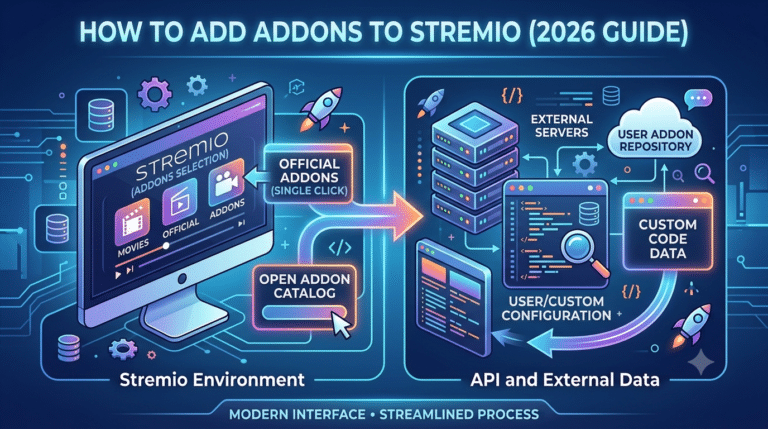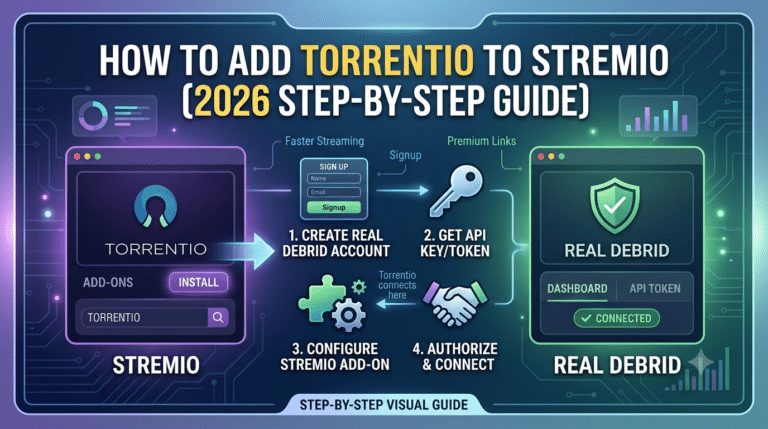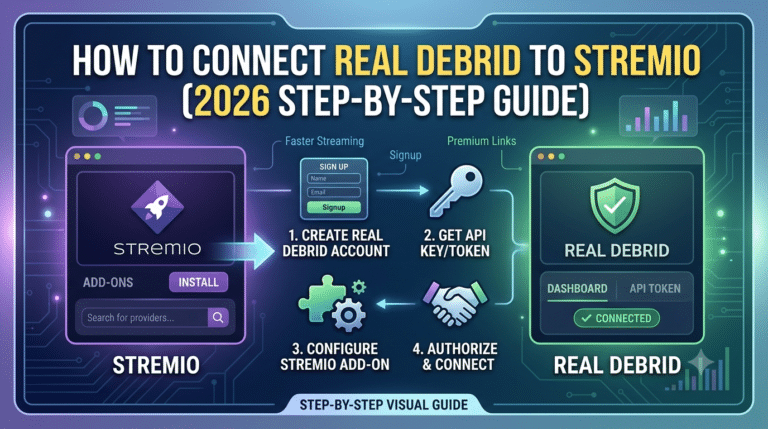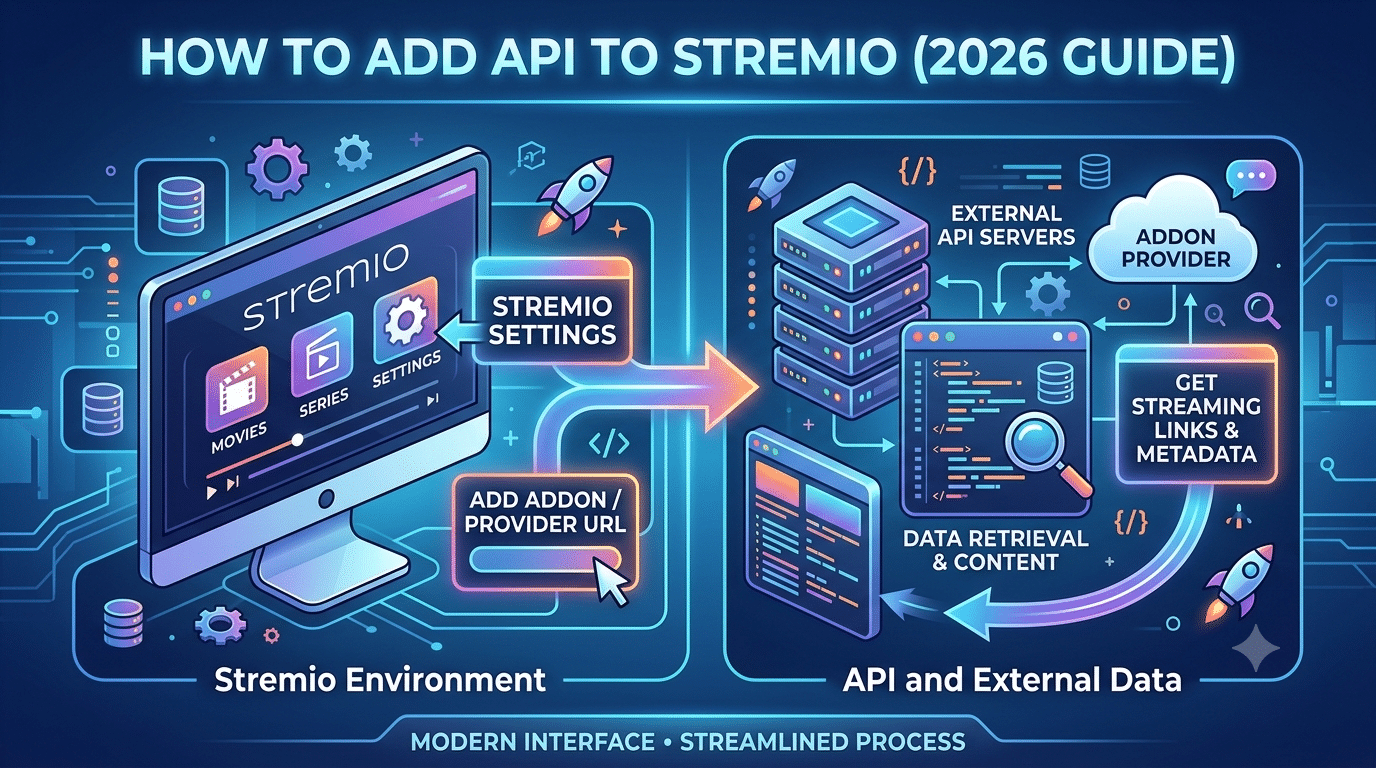

If you’re searching for how to add api to stremio, you’re probably trying to configure a Stremio add-on that connects to an external service. While Stremio itself doesn’t require a universal API key, many popular add-ons rely on third-party APIs to retrieve metadata, authenticate premium services, or enhance your streaming experience.
This guide explains what an API does, why certain add-ons require one, and how to prepare your Stremio setup before configuring popular services like TMDb, AIOMetadata, and Debrid providers. You’ll also learn common mistakes to avoid so your add-ons work correctly from the start.
If you’re new to the platform, it’s helpful to first understand what Stremio is and how it works before configuring advanced integrations.
What Does It Mean to Add an API to Stremio?
The phrase “add an API to Stremio” is slightly misleading. You’re not modifying the Stremio application itself. Instead, you’re connecting a compatible add-on to an external service by entering an API key or authentication token supplied by that service.
An API (Application Programming Interface) allows two applications to exchange information securely. In Stremio, add-ons use APIs to request information such as:
- Movie and TV metadata
- Posters and artwork
- Ratings and descriptions
- Premium cached streaming links
- Personalized content
Without these APIs, many add-ons would have limited functionality or wouldn’t work at all.
Why Do Some Stremio Add-ons Need an API Key?
Different add-ons serve different purposes. Some only organize publicly available information, while others communicate with premium services that require account verification.
When an add-on asks for an API key, it’s typically using that key to:
- Verify your account.
- Access a metadata database.
- Retrieve personalized content.
- Authenticate premium features.
- Increase request limits.
Because an API key identifies your account, you should never share it publicly or include it in screenshots.
Which Services Commonly Use APIs?
Several popular services integrate with Stremio through APIs.
Metadata Providers
Metadata providers supply information about movies and TV shows, including titles, cast members, release dates, genres, ratings, and artwork.
Popular examples include:
- TMDb
- MDBList
- TVDB
- AIOMetadata
If you plan to use AI-powered metadata enhancements, you’ll later configure them through this guide to using AIOMetadata with Stremio.
Debrid Services
Debrid platforms authenticate your subscription before providing access to supported cached files.
If you’re unfamiliar with how they work, understanding Stremio Debrid services will make the setup process much easier.
Subtitle Services
Some subtitle providers also use API credentials or account tokens to synchronize preferences or enforce request limits.
Do You Need an API for Every Installation?
No.
A clean installation of Stremio works perfectly without manually adding any API keys. Most users only encounter API configuration after installing community add-ons that integrate with external services.
If an add-on doesn’t ask for credentials during setup, there’s usually nothing else you need to configure.
Before You Start
Before configuring any API, make sure you:
- Install the latest version of Stremio.
- Create an account with the service that provides the API.
- Obtain your API key directly from the provider.
- Keep the key private.
- Confirm that the add-on supports the service you want to use.
Using official documentation and trusted add-on sources reduces configuration problems and security risks.
Should You Use a VPN While Using Stremio?
Many users choose to protect their privacy when streaming by using a VPN, especially when add-ons communicate with external services.
If you’re still researching providers, our guide to the best VPN compares leading services based on speed, privacy features, and device compatibility.
If you’re unfamiliar with the technology, reading about what is a VPN helps explain how encrypted connections protect your internet traffic and why many privacy-conscious users enable one while streaming.
Using a VPN doesn’t replace safe browsing habits or trustworthy add-ons, but it can help encrypt your connection on public or untrusted networks.
What’s Next?
Now that you understand what APIs are and why they’re used in Stremio, the next step is configuring them correctly.
In Part 2, you’ll learn how to add API keys to compatible Stremio add-ons, including step-by-step instructions for TMDb, AIOMetadata, and Debrid integrations. You’ll also see how to verify that each configuration is working before you begin streaming.
How Do You Add an API to a Stremio Add-on?
Now that you understand what an API key is, it’s time to configure one inside a compatible Stremio add-on. Although the exact interface varies slightly between add-ons, the overall process is nearly identical.
Before you begin, make sure you have:
- The latest version of Stremio installed.
- An active account with the service that provides the API.
- A valid API key or authentication token.
- A stable internet connection.
Most configuration happens in your web browser rather than inside the desktop application itself.
Step 1: Obtain Your API Key
Visit the official website for the service you want to connect. After creating an account, locate the developer, API, or account settings page where your API key is generated.
Depending on the provider, you may need to:
- Verify your email address.
- Accept the API terms of service.
- Generate a new key.
- Copy the key to your clipboard.
Treat this key like a password. Anyone with access to it may be able to use your account within the limits allowed by the service.
Step 2: Open the Add-on Configuration Page
Most Stremio add-ons include a configuration page where you can enter your credentials before installation.
This page commonly contains fields such as:
- API Key
- Authentication Token
- Username
- Provider URL
- Region or language preferences
Paste your API key carefully. Even a single missing character can prevent authentication.
Step 3: Save the Configuration
After entering your credentials, save the configuration. Many add-ons automatically generate a personalized installation link or manifest based on your settings.
When you install the configured add-on, Stremio stores those settings for future requests.
If the installation succeeds, the add-on should immediately begin using your configured service.
How to Configure TMDb-Based Add-ons
Many metadata-focused add-ons rely on TMDb (The Movie Database) to display posters, cast information, ratings, genres, and descriptions.
The setup process generally involves:
- Creating a TMDb account.
- Generating an API key.
- Opening the compatible Stremio add-on.
- Entering the API key.
- Saving the configuration.
- Installing the personalized add-on.
Once configured correctly, you’ll typically notice richer metadata throughout your media library.
How to Configure AIOMetadata
AIOMetadata extends metadata capabilities by combining information from multiple sources, helping improve search results and media information.
If you’re looking for a complete walkthrough, follow our guide on using AIOMetadata with Stremio, which explains every configuration option in detail.
Before installing the add-on, double-check that:
- Your API key is active.
- You copied the full key.
- The configuration page accepted your changes.
- The installation completed successfully.
How to Configure a Debrid Service
Many premium streaming add-ons require authentication with a supported debrid provider before cached links become available.
If you’re new to this technology, our guide explaining Stremio Debrid services covers the basics and helps you understand why API authentication is required.
Most providers follow a similar workflow:
- Sign in to your account.
- Locate your API token.
- Copy the token.
- Paste it into the compatible add-on.
- Save the configuration.
- Install the configured version of the add-on.
After successful authentication, supported add-ons can request content using your authorized account.
Verify That Everything Works
Before troubleshooting, confirm that the installation completed correctly.
A properly configured add-on should:
- Load without errors.
- Display updated metadata.
- Detect your authenticated account where applicable.
- Return search results normally.
- Continue working after restarting Stremio.
If you encounter authentication failures, avoid repeatedly generating new API keys. Instead, verify that the original key was copied correctly and that it hasn’t expired or been revoked.
Common Mistakes to Avoid
Many configuration issues result from simple mistakes rather than software bugs.
The most common include:
- Copying only part of the API key.
- Adding extra spaces before or after the key.
- Using an expired credential.
- Installing an outdated version of the add-on.
- Mixing credentials from different services.
- Forgetting to save the configuration before installation.
Carefully reviewing each step often resolves the problem within minutes.
Using Stremio on Fire TV Devices
If you’re configuring APIs on an Amazon Fire TV device, you’ll first need a working installation of the application.
Our guide explaining how to sideload Stremio on Firestick walks through the installation process before you begin configuring add-ons.
Privacy Considerations
Whenever an add-on communicates with an external API, information travels across the internet. While reputable services use encrypted HTTPS connections, many users still choose to protect their overall internet traffic with a VPN.
If you’re considering a free option, compare the strengths and limitations of the best free VPN before relying on one for everyday use. Understanding how does a VPN work also helps explain what a VPN can—and cannot—protect during streaming sessions.
In the next part, we’ll troubleshoot common API errors, authentication failures, buffering issues, and VPN-related connection problems.
Why Isn’t Your Stremio API Working?
If you’ve completed the setup but your add-on still isn’t functioning correctly, don’t assume the API service is down. Most Stremio API issues are caused by configuration mistakes, expired credentials, or compatibility problems between the add-on and the external service.
A systematic troubleshooting approach can help you identify the problem much faster than repeatedly uninstalling and reinstalling add-ons.
Verify Your API Key
The first step is confirming that your API key is valid.
Check the following:
- The key was copied completely.
- There are no extra spaces before or after the key.
- The API key hasn’t expired or been regenerated.
- You’re using the correct API key for the service you’re configuring.
- Your account is active and, if applicable, your subscription hasn’t expired.
Some providers immediately invalidate older API keys when you generate a new one. If you’ve recently created another key, update the add-on with the latest version.
Confirm the Add-on Supports the Service
Not every Stremio add-on works with every metadata provider or premium service.
Before assuming there’s an issue with your API, verify that:
- The add-on officially supports the service.
- You’re using the latest version of the add-on.
- The configuration instructions match the current release.
- The provider hasn’t changed its authentication method.
Community-maintained add-ons may also stop working if the original developer no longer maintains the project.
What Should You Do if Authentication Fails?
Authentication errors usually appear when the external service rejects your credentials.
Common causes include:
- An incorrect API key.
- A revoked token.
- An inactive account.
- A temporary service outage.
- Incorrect regional settings.
- An outdated add-on version.
Instead of repeatedly generating new API keys, sign in to your provider’s dashboard and verify that your existing key is still active.
If necessary, revoke the compromised key and create a new one.
How Can You Fix Metadata Problems?
Sometimes the add-on installs successfully but displays missing posters, incorrect titles, or incomplete descriptions.
This often indicates a metadata issue rather than an API failure.
Try these steps:
- Refresh the add-on catalog.
- Restart Stremio.
- Check whether the metadata provider is operational.
- Confirm your API key has sufficient permissions.
- Reinstall the configured add-on if necessary.
Metadata providers occasionally perform maintenance, which can temporarily affect search results.
Why Is Buffering Still Happening?
API configuration does not directly affect streaming speed.
Instead, buffering is typically caused by:
- Slow internet connections.
- Congested servers.
- Limited cached availability.
- High network latency.
- Local network problems.
If playback frequently pauses, adjusting Stremio’s playback settings may help. Our guide explaining how to change the Stremio buffer window size discusses when changing buffer settings can improve playback and when it won’t make a noticeable difference.
Keep in mind that increasing the buffer size cannot compensate for an unstable internet connection or overloaded streaming source.
Why Does Stremio Stop Working When a VPN Is Enabled?
Some users notice that add-ons work normally until they connect to a VPN.
Possible reasons include:
- The VPN server is temporarily blocked.
- DNS requests are failing.
- The selected server has high latency.
- IPv6 or DNS settings are conflicting.
- The VPN connection dropped unexpectedly.
If this happens, try switching to another VPN server, reconnecting, or verifying your DNS configuration before assuming the API itself is malfunctioning.
For a more detailed walkthrough, see our guide on how to fix Stremio when it isn’t working with a VPN.
Server Load Effects, Device Compatibility Limits, Account Restrictions, and Speed Throttling Scenarios
Several external factors can affect how well API-powered add-ons perform, even when they’re configured correctly.
Server Load Effects
Metadata providers and premium services occasionally experience heavy demand.
During peak periods, requests may:
- Take longer to complete.
- Return incomplete metadata.
- Produce temporary timeout errors.
- Delay authentication.
Most providers resolve these issues automatically once demand decreases.
Device Compatibility Limits
Although Stremio supports multiple operating systems, individual add-ons may behave differently depending on the device.
Always make sure:
- You’re running a supported version of Stremio.
- The add-on is compatible with your operating system.
- Your device has enough available storage and memory.
Older streaming devices may take longer to process metadata requests than modern desktop systems.
Account and Plan Restrictions
Some services impose usage limits based on your account level.
These restrictions may include:
- Daily API request quotas.
- Premium-only features.
- Concurrent session limits.
- Regional availability.
- Rate limiting during periods of heavy activity.
Review your provider’s documentation if you consistently encounter authorization errors despite using a valid API key.
Speed Throttling Scenarios
Internet service providers, local network congestion, and overloaded Wi-Fi networks can all reduce streaming performance.
To minimize slowdowns:
- Use a wired connection whenever possible.
- Restart your router periodically.
- Avoid heavy downloads during streaming sessions.
- Select nearby VPN servers if you’re using one.
- Close unnecessary background applications consuming bandwidth.
Optimizing your network often has a greater impact on playback quality than changing API settings.
In the final part, you’ll learn security best practices for protecting API keys, discover answers to frequently asked questions, and review the key takeaways for building a reliable and secure Stremio setup.
What Security Practices Should You Follow When Using APIs in Stremio?
After you’ve successfully configured your API keys, protecting them should become part of your regular security routine. Although most reputable services use encrypted HTTPS connections, your API credentials still provide access to your account and should be handled with the same care as a password.
Following a few simple practices can significantly reduce the risk of unauthorized access.
Keep Your API Keys Private
Never post API keys on public forums, social media, or GitHub repositories. If you’re asking for technical support, remove or mask your credentials before sharing screenshots or configuration files.
If you believe an API key has been exposed, revoke it immediately through the provider’s account dashboard and generate a replacement.
Download Add-ons from Trusted Sources
Stremio’s ecosystem includes many community-developed add-ons, but not all are actively maintained. Before installing one:
- Check the developer’s reputation.
- Review recent updates.
- Read community feedback.
- Avoid unofficial websites that promise “premium” features or modified installers.
Installing software from trusted sources helps reduce the risk of malicious code or outdated integrations.
Review Account Permissions
Some services allow you to manage active sessions, connected devices, or API permissions.
Take a few minutes every few months to:
- Remove devices you no longer use.
- Revoke old API keys.
- Enable two-factor authentication if available.
- Check your account’s recent activity for anything unusual.
Good account hygiene minimizes the impact of compromised credentials.
Keep Stremio and Add-ons Updated
Developers regularly release updates that improve compatibility, fix bugs, and adapt to changes made by external API providers.
Running outdated versions can lead to:
- Authentication failures.
- Missing metadata.
- Playback issues.
- Broken integrations.
Installing updates promptly helps maintain compatibility with third-party services.
Frequently Asked Questions
Does Stremio have its own API key?
No. Stremio does not provide a universal API key for users. Instead, individual add-ons may require API keys supplied by external services such as metadata providers or premium streaming platforms.
Can I use multiple API keys at the same time?
Yes. Different add-ons can use different API keys simultaneously. For example, one add-on may connect to a metadata service while another authenticates with a Debrid provider. These configurations operate independently.
Is adding an API to Stremio free?
It depends on the service. Many metadata providers offer free API access with reasonable usage limits, while some premium services require an active subscription before they issue an API key.
Why does my API key suddenly stop working?
API keys may become invalid if they are revoked, regenerated, expired, or if the provider changes its authentication system. Account suspensions and subscription expirations can also prevent successful authentication.
Is using APIs with Stremio safe?
Using APIs is generally safe when you obtain credentials directly from official providers, install trusted add-ons, and protect your API keys from unauthorized access.
Key Takeaways
Successfully configuring APIs in Stremio is less complicated than many new users expect. The most important step is understanding that you’re connecting individual add-ons—not the Stremio application itself—to external services.
Before adding any API key:
- Verify that the add-on officially supports the service.
- Obtain your credentials directly from the provider.
- Keep your API keys private.
- Double-check every configuration field before installation.
- Update Stremio and your add-ons regularly.
Taking a careful, methodical approach helps prevent the majority of setup problems and reduces the need for unnecessary troubleshooting later.
Conclusion
Learning how to add api to stremio becomes much easier once you understand how add-ons communicate with external services. Whether you’re connecting a metadata provider, configuring AI-powered enhancements, or authenticating a premium Debrid account, the process follows the same core principles: generate a valid API key, enter it into the compatible add-on, verify the configuration, and keep your credentials secure.
A well-configured Stremio setup provides a more reliable experience, richer metadata, and smoother integration with supported services. By following the best practices covered in this guide—including careful API management, regular updates, and basic security precautions—you’ll minimize common errors and get the most from your add-ons over the long term.