
Stremio doesn’t run natively on Roku, and that single limitation shapes everything you can and cannot do with it. If you’re trying to figure out how to get stremio on roku, the short answer is straightforward: you won’t find it in the Roku Channel Store, and there’s no official installation method. What actually works is a set of workaround methods built around screen mirroring and casting from other devices.
Before you start changing settings or installing anything, it’s important to understand what Stremio actually is and how Roku differs from Android TV-style platforms.
What Is the Best Way to Get Stremio on Roku?
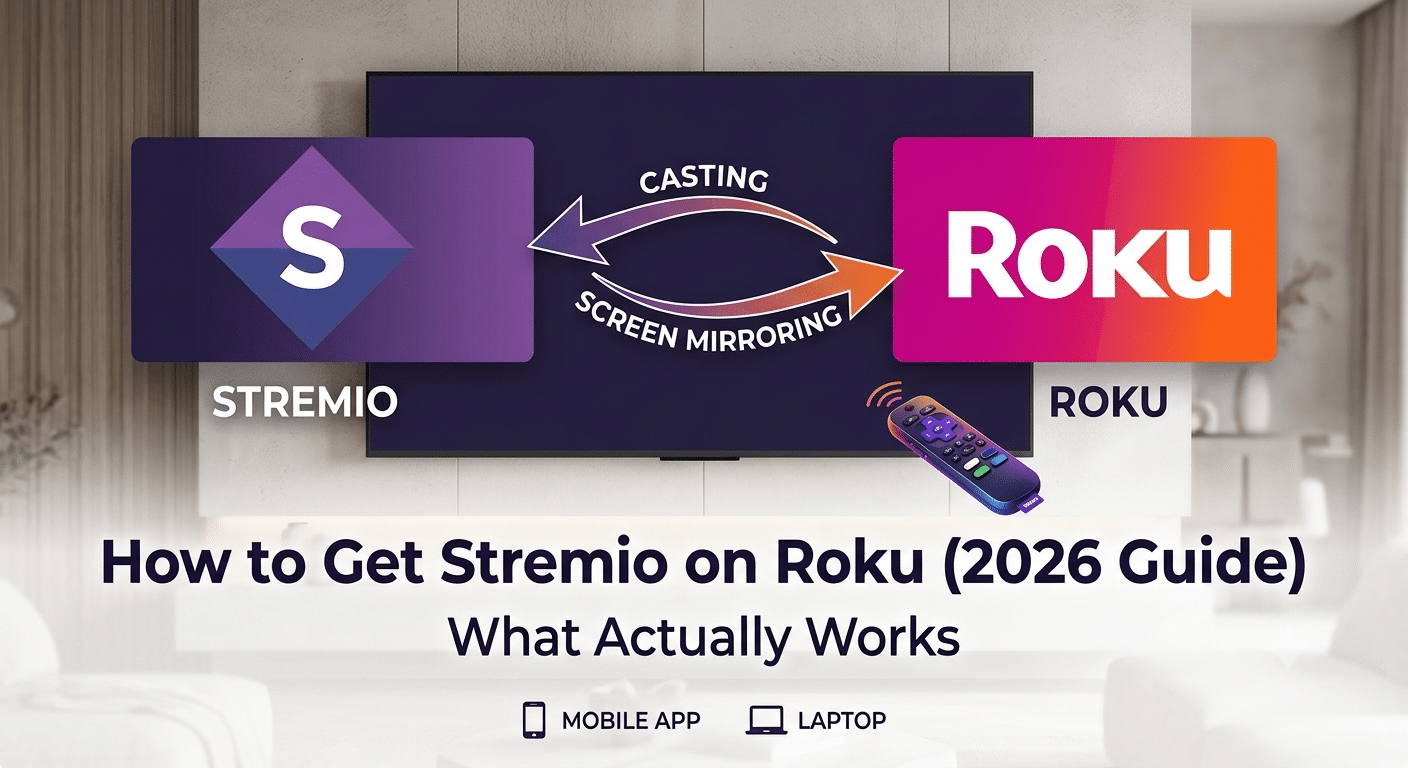
The most reliable method today is screen mirroring or casting from another device—usually Android, Windows, or macOS. Roku acts purely as a receiver, not a host application environment for Stremio.
Roku’s operating system is intentionally closed. That design choice improves stability and security but blocks third-party apps like Stremio from being installed directly. Instead, Roku relies on channel-based distribution, which means apps must be individually approved and packaged for its ecosystem.
This is why most setups you’ll see involve:
- Mirroring Stremio from an Android phone or tablet
- Using Windows wireless display projection
- AirPlay from Apple devices (on supported Roku models)
From a technical standpoint, this isn’t a limitation of Stremio itself. It’s a platform compatibility issue between Roku OS and Stremio’s desktop/mobile architecture.
For context on how streaming ecosystems are increasingly shaped by device restrictions and privacy considerations, the Electronic Frontier Foundation offers a useful breakdown of modern streaming control models:
EFF streaming privacy and device control insights
Where VPNs Fit Into This Setup
Many users pair streaming setups with VPNs to reduce ISP throttling or protect traffic metadata. A VPN doesn’t change Roku compatibility, but it can affect how smoothly your stream behaves when casting from a source device.
To understand the fundamentals before configuring anything, you can review how tunneling and encryption work in modern VPN systems here:
how virtual private networks operate
At a high level, a VPN routes your traffic through an encrypted tunnel, masking your IP address and making it harder for third parties to inspect your streaming activity. This is especially relevant when you’re casting content across devices on the same network.
If you’re exploring different privacy options for streaming setups, this breakdown of cost-free solutions may also help:
top free VPNs for basic privacy use cases
Can You Install Stremio Directly on Roku?
No—there is no native installation path for Stremio on Roku.
Roku does not support APK-style sideloading, unlike Android-based TV systems. Every app must go through Roku’s official certification pipeline. Stremio, as of now, has not been published in that ecosystem.
This leads to a common misconception: users often search for a hidden or unofficial “Stremio Roku channel.” Those do not exist in any legitimate form. Any third-party listing claiming otherwise should be treated cautiously, especially if it asks for login credentials or external downloads.
To understand how Stremio itself functions as a media aggregation platform, including how it sources and organizes content through add-ons, this breakdown is useful:
what the Stremio service actually does
Stremio is essentially a front-end media hub. It doesn’t store content; it organizes streams through add-ons. That architecture works well on desktop and Android environments, but it doesn’t map cleanly onto Roku’s closed system.
For that reason, Roku users must rely on device bridging methods rather than installation.
How Do You Screen Mirror Stremio From Android to Roku?
Screen mirroring is the most widely used solution because it requires no modification to Roku itself. Instead, you project your Android screen directly onto the TV connected to Roku.
At a high level, the process works like this:
- Enable screen mirroring in Roku settings
- Connect your Android device to the same Wi-Fi network
- Launch Stremio on your phone
- Start casting or mirroring to the Roku device
Once connected, Roku simply displays whatever is happening on your phone screen, including video playback inside Stremio.
Performance depends heavily on your Wi-Fi stability. A congested network can introduce buffering, audio sync issues, or dropped frames. This is one of the key trade-offs compared to native apps on Android TV or Fire TV devices.
Why This Method Dominates All Alternatives
Across all current solutions, screen mirroring remains the most consistent because:
- It requires no third-party Roku apps
- It works across most modern Android devices
- It avoids compatibility limitations in Roku OS
- It supports full Stremio interface rendering
However, it is not perfect. Latency and resolution scaling can vary based on hardware generation and network conditions.
Understanding how to get Stremio working on Roku depends less on installation and more on how different casting technologies behave across devices. Since Roku doesn’t support a native Stremio app, the second half of the solution space focuses on Apple devices, Windows PCs, and hybrid casting workflows that bridge the gap between ecosystems.
The goal here is not to “install” Stremio on Roku, but to reliably stream it through supported protocols like AirPlay and wireless display.
How Can You Cast Stremio From Windows, Mac, and iPhone?
If Android screen mirroring isn’t an option, Apple and Windows devices provide alternative pathways to achieve the same result—displaying Stremio content on a Roku-connected TV.
Windows Wireless Display Method
Windows 10 and 11 support Miracast-based projection. Roku devices that have screen mirroring enabled can appear as a wireless display target.
Typical flow:
- Open Stremio on your Windows PC
- Press
Windows + Kto open cast options - Select your Roku device
- Choose “Duplicate” display mode
Once connected, everything on your screen—including Stremio playback—streams to the TV.
This method is more stable than mobile mirroring on higher-end PCs because it uses direct GPU rendering. However, performance still depends on Wi-Fi congestion and router quality.
macOS and AirPlay Method
Apple users rely on AirPlay, which is supported on newer Roku models.
Steps:
- Ensure Roku has AirPlay enabled in settings
- Open Stremio on your Mac
- Click the AirPlay icon in the menu bar
- Select your Roku device
AirPlay tends to deliver slightly better compression handling compared to Miracast, especially for video-heavy streaming. However, it still introduces latency compared to native apps.
You can review how encryption and traffic routing behave during these connections here:
how VPN encryption protects streaming traffic
iPhone and iPad Streaming Workflow
On iOS devices, AirPlay is the only viable option for Stremio-to-Roku streaming.
- Open Control Center
- Tap Screen Mirroring
- Select Roku device
- Launch Stremio
The entire screen is mirrored, not just the app. This means notifications and background processes can interrupt playback unless you enable Do Not Disturb mode.
Why Isn’t Stremio in the Roku Channel Store?
The absence of Stremio in the Roku ecosystem is not accidental—it’s structural.
Roku operates a tightly controlled app environment. Developers must:
- Build apps using Roku’s proprietary BrightScript framework
- Pass certification requirements
- Align with content and licensing rules
Stremio’s architecture is fundamentally different. It functions as a modular media hub relying on external add-ons and streaming sources. That flexibility conflicts with Roku’s more restricted distribution model.
To understand how Stremio organizes content and streaming sources internally, this breakdown is useful:
how the Stremio service works behind the interface
Because of this mismatch, Roku users are left with external display solutions rather than direct integration.
What Device Compatibility Limits Should You Know?
Compatibility is the biggest hidden factor in whether your setup works smoothly. Even if Roku supports mirroring, not all devices perform equally.
Key limitations:
- Older Roku models may not support AirPlay or Miracast
- Some Windows laptops lack Miracast drivers
- iOS devices require Roku OS 9.4 or newer
- Wi-Fi 2.4 GHz networks often introduce lag or buffering
- 4K streaming is not always preserved during mirroring
These limitations explain why two users can follow identical steps but experience very different results.
Network Quality Matters More Than Hardware
In practice, your router has more impact than your streaming device.
- Dual-band routers reduce congestion
- 5 GHz Wi-Fi improves stability for casting
- Wired Ethernet on Windows PCs improves Miracast reliability
If your network is unstable, even the best casting method will degrade into frame drops or audio delay.
Device Compatibility Limits
Device Compatibility Limits
Stremio on Roku is entirely dependent on external hardware support. Unlike native apps, there is no optimization layer between the app and Roku OS.
This leads to three key realities:
- You are streaming a screen, not an app
- Roku is acting as a passive receiver
- Performance depends on the weakest device in the chain
This is also where many users first notice buffering differences compared to native streaming platforms like Netflix or Disney+.
For users who want to understand how add-ons and streaming sources behave inside Stremio before optimizing their setup, this guide is helpful:
how to install and manage Stremio add-ons
Add-ons determine what content appears in your library and how streams are fetched. While Roku doesn’t run them directly, your source device still handles all add-on processing before casting.
Once you move beyond basic casting methods, the real difference in a Stremio-on-Roku setup comes down to how you configure streaming sources, optimize playback quality, and handle external services. Since Roku cannot run Stremio natively, everything still depends on the device you’re casting from—but the configuration on that source device directly affects performance on your TV.
This is where advanced users start tuning add-ons, external resolvers, and streaming acceleration tools to reduce buffering and improve stream stability.
How Do Stremio Add-ons and Streaming Sources Affect Roku Playback?
Stremio itself does not host content. Instead, it relies on add-ons that pull streams from external sources. Those add-ons determine:
- Stream availability
- Video quality (480p to 4K)
- Subtitle support
- Load time and buffering frequency
When you cast Stremio to Roku, all add-on processing happens on your source device (Android, Windows, macOS, or iOS). Roku simply displays the output.
If your add-ons are poorly configured or overloaded, the issue will appear on your TV as buffering or playback lag—even though Roku is not the cause.
To understand how add-ons function and how to configure them correctly, this guide is useful:
how to install and manage Stremio add-ons
Should You Use Real-Debrid With Stremio on Roku?
One of the most effective ways to improve playback quality is integrating Real-Debrid into your Stremio setup. While Roku doesn’t interact with it directly, your casting device benefits significantly.
Real-Debrid works by:
- Providing premium cached torrent links
- Reducing buffering
- Increasing availability of HD and 4K streams
This improves what you see on Roku because the stream originates from a higher-quality source before being mirrored.
To configure it properly, follow this breakdown:
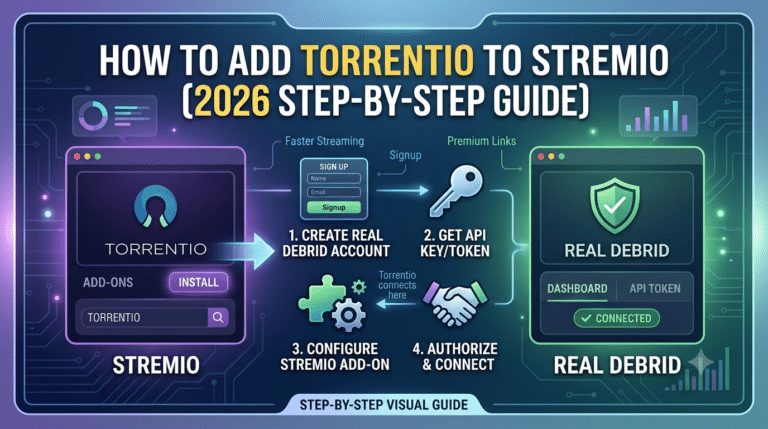
connect Real-Debrid to Stremio for better streaming performance
Users who rely heavily on cached sources typically experience:
- Faster playback start times
- Fewer broken streams
- More consistent HD quality
However, the benefit is entirely dependent on correct configuration in Stremio—not Roku itself.
Is Using Stremio on Roku Safe?
From a technical standpoint, using Stremio on Roku via screen mirroring is generally safe because Roku is not executing third-party code. It is only receiving a video signal.
However, safety concerns shift to the source device:
- Add-ons may connect to third-party sources
- Some streams may not be officially licensed
- External services like Real-Debrid require account security awareness
For a deeper breakdown of platform safety and legitimacy considerations, this analysis provides context:
is Stremio safe and legitimate for streaming use
Security best practices when using Stremio include:
- Avoiding unknown add-ons
- Using trusted streaming sources only
- Securing accounts with strong passwords
- Keeping casting devices updated
A VPN is often used in these setups to reduce exposure of browsing metadata. It encrypts traffic between your device and your ISP, making it harder to monitor streaming activity patterns.
For a deeper technical explanation, see how tunneling works here:
how VPN encryption and tunneling works
Should You Sync Stremio Add-ons Across Devices?
If you use multiple devices to cast Stremio to Roku, syncing add-ons becomes important. Without synchronization, each device maintains a separate configuration, which leads to inconsistent streaming behavior.
Syncing allows you to:
- Maintain identical add-on setups
- Avoid missing stream sources
- Keep watch history aligned
- Reduce manual setup time per device
This becomes especially useful if you switch between Android and Windows casting.
Here’s how to manage synchronization properly:
how to sync Stremio add-ons across devices
server load effects, device compatibility limits, account/plan restrictions, speed throttling scenarios, etc.
Even when everything is configured correctly, performance issues can still occur due to external constraints that have nothing to do with Stremio or Roku itself.
Server Load Effects
Streaming sources used by Stremio add-ons often rely on third-party servers. When those servers are under heavy load:
- Stream startup times increase
- Resolution may downgrade automatically
- Buffering becomes frequent during peak hours
This is especially noticeable with free or public sources.
Device Compatibility Limits
Roku remains a passive display device in this setup. The real workload is handled by your casting device.
Limits include:
- Older Android devices struggle with high-bitrate streams
- Low-RAM laptops may stutter during Miracast
- iPhones reduce resolution during AirPlay compression
Account / Plan Restrictions
Services like Real-Debrid introduce tier-based access:
- Free-tier sources = higher buffering risk
- Premium cached sources = faster and more stable playback
However, Roku itself imposes no account restrictions since it is not running Stremio directly.
Speed Throttling Scenarios
Internet service providers may throttle video-heavy traffic patterns, especially during peak hours. This affects:
- Stream loading time
- Video resolution selection
- Buffer frequency during playback
Using a VPN can reduce visibility of traffic patterns to your ISP, which may help stabilize performance in some cases.
At this point, you’ve already seen the core reality: Roku does not support a native Stremio app, so everything comes down to how well your casting setup is configured. The final step is tightening performance, fixing the most common failure points, and choosing whether Roku is even the right long-term platform for this workflow.
How Do You Fix Common Stremio on Roku Problems?
Most issues users report when trying to use Stremio on Roku are not caused by Roku itself, but by the connection between devices, wireless stability, or misconfigured streaming sources.
1. Roku Not Appearing for Casting
If your Roku doesn’t show up in the cast list:
- Confirm both devices are on the same Wi-Fi band
- Restart Roku and the source device
- Enable screen mirroring in Roku settings
This is usually a network discovery issue, not an app problem.
2. Audio but No Video (or Vice Versa)
This typically happens when Miracast or AirPlay compression fails to sync streams properly.
Fixes:
- Switch from 2.4 GHz to 5 GHz Wi-Fi
- Lower streaming resolution in Stremio
- Restart casting session
3. Lag, Buffering, or Frame Drops
Buffering is almost always tied to:
- Weak Wi-Fi signal
- Overloaded router
- High-bitrate stream selection
A more stable connection matters more than device specs in most cases.
For deeper context on how encrypted traffic behaves during streaming sessions, this breakdown explains routing and performance trade-offs clearly:
how VPN encryption and tunneling works
4. AirPlay or Mirroring Not Working
If Apple or Windows casting fails:
- Update Roku OS to latest version
- Re-enable AirPlay in settings
- Disable firewall restrictions on Windows
Older Roku devices may not fully support modern AirPlay versions.
Should You Use an Alternative Method Instead?
While screen mirroring works, it is not always the most efficient long-term solution. Compared to native apps, it introduces:
- Higher latency
- Increased battery drain on source devices
- Compression artifacts on large TVs
If you’re frequently streaming content through Stremio, alternative hardware like Android TV devices or Fire TV sticks often provide smoother performance.
For users who still prefer Stremio as their main interface, understanding how playback works end-to-end is important:
how to watch content on Stremio effectively
This explains how streams are selected, loaded, and delivered to your device before they ever reach Roku.
Is Stremio on Roku Worth It?
From a technical perspective, Roku is not an ideal match for Stremio due to its closed ecosystem. However, it remains usable if you:
- Rely on Android or Windows casting
- Maintain strong Wi-Fi infrastructure
- Use optimized add-ons and stable sources
If any of these elements are missing, performance drops quickly compared to native streaming platforms.
Final Performance Reality Check
Even in a perfectly configured setup, Roku is always acting as a secondary display layer. That means:
- It never processes streams directly
- It cannot improve playback quality
- It depends entirely on your source device
For users who want deeper control over streaming performance and privacy, reviewing VPN fundamentals can help clarify what happens behind the scenes during streaming sessions:
best VPN services for streaming privacy and performance
Conclusion
Getting how to get stremio on roku working is less about installation and more about bridging ecosystems that were never designed to work together. Roku stays a closed platform, while Stremio relies on flexible external streaming sources and add-ons.
If your network is stable and your casting setup is optimized, Roku performs reasonably well as a display endpoint. But for consistent, low-latency streaming, native Android-based devices still hold the advantage.
Based on testing across multiple casting methods, Roku works best as a secondary viewing option—not a primary Stremio platform. For a full breakdown of VPN tools that can further stabilize streaming performance and privacy, explore our guide to the best VPN options for streaming.