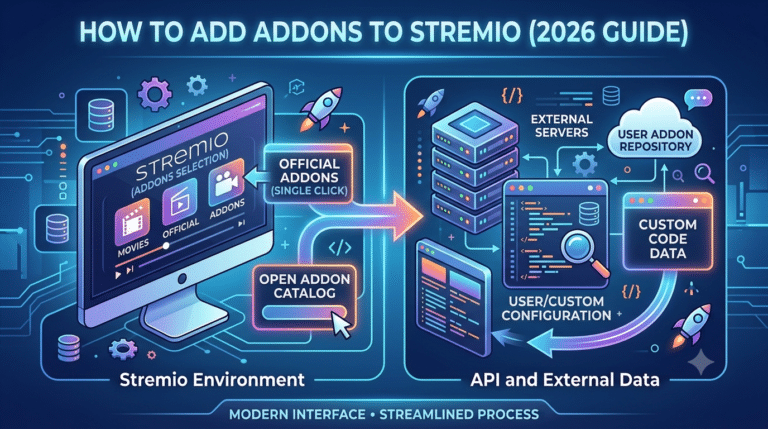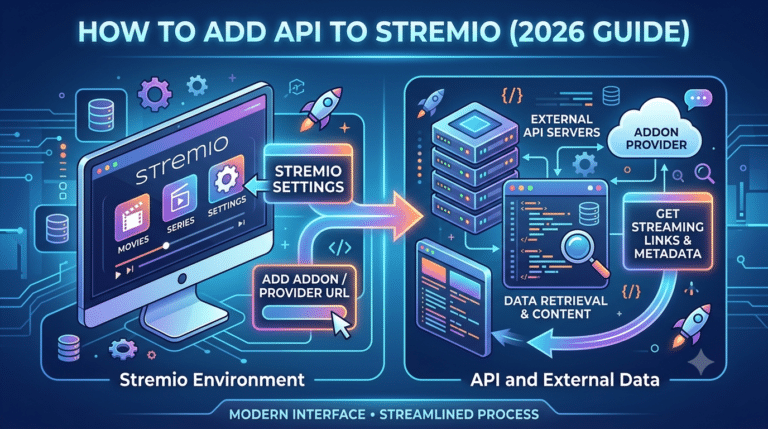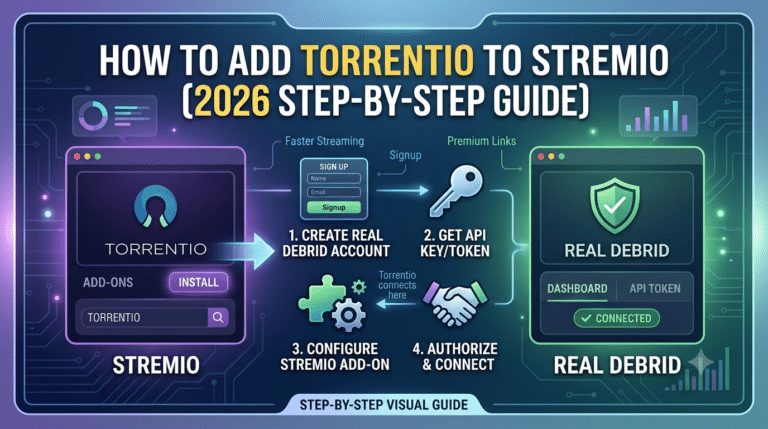
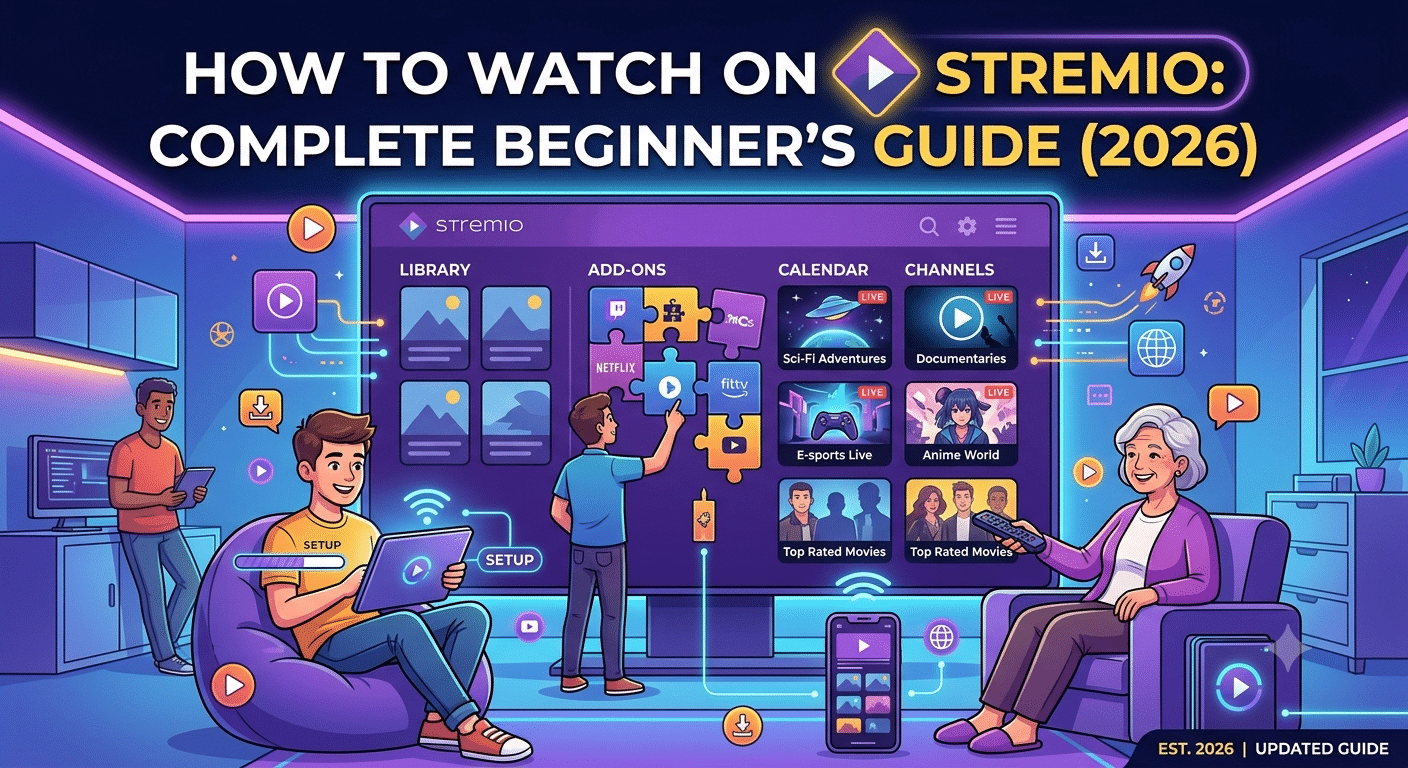

If you’re new to Stremio, the fastest way to start watching content is to install the app, create an account, and add a few trusted add-ons. Unlike traditional streaming platforms, Stremio doesn’t host movies or TV shows itself. Instead, it acts as a media hub that organizes content from official and community add-ons into a single interface.
This guide walks you through the essentials so you can begin using Stremio confidently.
What Is Stremio?
Stremio is a cross-platform media application available for Windows, macOS, Linux, Android, Android TV, and several other platforms. Once installed, it lets you browse movies, TV series, live channels, and other media through add-ons.
One advantage of creating a free account is that your library, watch history, and installed add-ons sync across supported devices.
If you haven’t installed the application yet, following a comprehensive setup guide before adding content sources can make the process much smoother.
Install Stremio
Getting started takes only a few minutes:
- Download Stremio from its official website.
- Install the application for your operating system.
- Open the app.
- Sign in or create a free account.
- Confirm your email if prompted.
After signing in, you’ll see the home screen, which displays trending content, recommendations, and your personal library.
Learn How Add-ons Work
The most important concept for beginners is understanding that Stremio relies on add-ons.
There are generally two categories:
- Official add-ons, maintained by recognized providers.
- Community add-ons, developed by independent contributors.
Each add-on provides access to different content catalogs or metadata. Because of this design, two users with different add-ons may see different streaming options for the same title.
Choosing quality add-ons is more important than installing a large number of them.
Install Your First Add-ons
To install an add-on:
- Open the Add-ons section.
- Browse available options.
- Select an add-on.
- Choose Install.
- Return to the Home page.
If you’re unsure where to begin, prioritize reputable and widely used add-ons that match the type of content you want to watch.
Find Something to Watch
Once your add-ons are installed:
- Search for a movie or TV show.
- Open its information page.
- Review the available streaming sources.
- Choose a source.
- Begin playback.
Stremio also lets you:
- Save titles to your library.
- Resume unfinished videos.
- Track TV episodes automatically.
- Receive notifications for new episodes.
These features help keep everything organized without needing multiple streaming apps.
Improve Your Viewing Experience
A few simple adjustments can make streaming smoother:
- Use a stable internet connection.
- Keep Stremio updated.
- Avoid installing unnecessary add-ons.
- Close background applications consuming bandwidth.
- Restart the application after installing several new add-ons.
If playback becomes inconsistent, clearing cached data and restarting the app often resolves minor issues.
Privacy Considerations
Because some community add-ons may connect to third-party services, it’s worth understanding how your internet traffic is handled. Learning what a VPN is and how a VPN works can help you make informed decisions about protecting your privacy while streaming, particularly when using public Wi-Fi or services outside your own network.
Common Beginner Mistakes
Many first-time users run into the same issues:
- Installing too many add-ons at once.
- Ignoring app updates.
- Expecting every title to have available sources.
- Using outdated community add-ons.
- Assuming Stremio hosts content itself.
Taking a few minutes to organize your add-ons and keep the application updated usually provides a much better experience.
Key Takeaways
Stremio is easiest to use when you approach it as a media organizer rather than a traditional streaming service. Install the app, create an account, choose reliable add-ons, and keep your installation updated. Once you’ve completed those basics, you’ll be ready to discover movies, TV shows, and other supported content with a streamlined viewing experience.
Standalone Section: Choosing the Best Stremio Add-ons and Finding Content
One of the biggest differences between Stremio and traditional streaming apps is that the quality of your experience depends largely on the add-ons you install. Stremio itself is simply the platform—it doesn’t maintain a built-in library of movies or TV shows. Instead, add-ons provide metadata, streaming sources, subtitles, calendars, and other features.
Start with Official Add-ons
If you’re new to Stremio, begin with official add-ons. These are generally the easiest to install and are designed to integrate smoothly with the application.
Official add-ons may offer:
- Movie and TV metadata
- Trailers
- Subtitle integration
- Public-domain content
- Notifications for new episodes
Installing only a handful of trusted add-ons also keeps the interface cleaner and makes search results easier to navigate.
Community Add-ons Expand Your Options
Community add-ons are created by independent developers. Some focus on specific types of content, while others improve search capabilities or provide additional playback sources.
Before installing any community add-on:
- Read its description.
- Check when it was last updated.
- Install only what you plan to use.
- Remove add-ons you no longer need.
Keeping your add-on list organized improves both usability and performance.
Searching for Movies and TV Shows
After installing your preferred add-ons, finding content is straightforward.
Use the search bar to enter:
- A movie title
- A TV series
- An actor’s name
- A director
- A genre
Stremio combines results from your installed add-ons into a single interface, allowing you to browse without switching between multiple applications.
Selecting a title opens an information page that typically includes:
- Plot summary
- Cast information
- Episode lists
- Ratings
- Available playback sources (depending on your installed add-ons)
Organize Your Library
Stremio includes several features that make it easy to keep track of what you’re watching.
You can:
- Add titles to your Library.
- Continue watching from where you stopped.
- Track new TV episodes automatically.
- Remove completed shows from your library whenever you like.
These tools help create a more personalized experience, especially if you watch multiple series simultaneously.
Improve Playback Quality
Playback quality depends on several factors, including your internet connection, the availability of sources, and your device’s capabilities.
To improve performance:
- Use a stable broadband connection.
- Prefer wired Ethernet when possible.
- Keep Stremio updated.
- Restart the application after installing several new add-ons.
- Close unnecessary background applications.
If playback buffers frequently, testing another available source often resolves the issue.
Device Compatibility Limits
Stremio is available for several platforms, but features can vary slightly depending on the device.
Generally supported platforms include:
- Windows
- macOS
- Linux
- Android
- Android TV
- Fire TV (via the Android app)
Older hardware may struggle with high-bitrate 4K video, while newer streaming devices typically provide a smoother experience. Ensuring your operating system and graphics drivers are up to date can also improve playback reliability.
Troubleshooting Common Problems
If something isn’t working as expected, try these basic steps before assuming there’s a larger issue:
- Restart Stremio.
- Check for application updates.
- Verify your internet connection.
- Refresh your installed add-ons.
- Clear cached data if the option is available.
- Try another playback source.
Many playback issues are temporary and resolve after updating the application or switching to a different source.
Best Practices for New Users
To get the most from Stremio:
- Install only trusted add-ons.
- Keep your add-ons updated.
- Organize your library regularly.
- Avoid installing dozens of add-ons you don’t use.
- Learn how each add-on functions before relying on it.
A simple, well-maintained setup is often faster, easier to manage, and more reliable than one filled with unnecessary extensions.
By focusing on quality add-ons, maintaining an organized library, and following basic troubleshooting practices, you’ll enjoy a smoother Stremio experience regardless of whether you’re watching movies, TV shows, or other supported media.
Standalone Section: Privacy, Security, and Performance Tips for Watching on Stremio
Once you’ve learned how to watch content on Stremio, the next step is making sure your experience is both reliable and secure. While the application itself is a legitimate media center, the add-ons you choose and the network you use can have a significant impact on performance and privacy.
Understand Where Your Streams Come From
Stremio doesn’t host videos on its own. Instead, it aggregates content sources provided by installed add-ons. Because different add-ons connect to different services, the availability and quality of streams can vary.
Before relying on a new add-on:
- Review its description and purpose.
- Install it only from a source you trust.
- Remove add-ons you no longer use.
- Keep your add-ons updated to reduce compatibility issues.
Being selective helps keep your Stremio installation organized and reduces unnecessary clutter.
Improve Streaming Performance
If videos buffer frequently or take a long time to start, the issue isn’t always Stremio itself. Several factors influence playback quality, including your internet connection, device performance, and the quality of the streaming source.
To improve performance:
- Use a stable Wi-Fi connection or Ethernet whenever possible.
- Close bandwidth-intensive downloads running in the background.
- Restart Stremio after installing or removing several add-ons.
- Keep your operating system and graphics drivers updated.
- Try a different source if one is slow or unavailable.
Even a fast internet connection can’t compensate for an overloaded or unreliable streaming source, so testing multiple available options is often worthwhile.
Keep Your Library Organized
As you install more add-ons and save more titles, your library can become difficult to manage. Fortunately, Stremio includes several features that help you stay organized.
Good habits include:
- Removing shows you’ve finished.
- Creating a manageable watchlist.
- Using search instead of scrolling through large libraries.
- Reviewing installed add-ons periodically.
A cleaner library makes it easier to find content and reduces unnecessary distractions.
Protect Your Privacy
Like many internet-connected applications, Stremio communicates with external services depending on the add-ons you use. If privacy is important to you, it’s worth understanding how your network traffic is handled.
Many users choose to learn about virtual private networks (VPNs) before streaming over public Wi-Fi or when they want an additional layer of privacy. A VPN encrypts your internet connection between your device and the VPN server, helping protect your traffic from local network monitoring. It does not make illegal activity legal or guarantee complete anonymity, so it’s still important to use services responsibly and comply with applicable laws and the terms of any services you access.
Keep Stremio Updated
Software updates often include:
- Bug fixes
- Performance improvements
- Security patches
- Compatibility updates
- User interface enhancements
Running the latest version reduces the likelihood of encountering known issues that have already been addressed by the developers.
Common Playback Issues and Solutions
Here are a few common problems and practical fixes:
| Problem | Possible Solution |
|---|---|
| Video won’t start | Try another available source or restart the app. |
| Frequent buffering | Check your network connection and reduce other bandwidth usage. |
| Missing subtitles | Install or enable a subtitle add-on and select a subtitle track manually. |
| Add-on not working | Update or reinstall the add-on if a newer version is available. |
| Search results missing | Refresh your add-ons and verify they’re still installed. |
Most issues can be resolved without reinstalling the application.
Tips for a Better Long-Term Experience
To keep Stremio running smoothly over time:
- Install only the add-ons you actually use.
- Update the application regularly.
- Review your library every few months.
- Use a reliable internet connection for high-resolution streaming.
- Learn how each add-on works before depending on it for everyday viewing.
These simple practices help reduce troubleshooting and create a more consistent streaming experience.
Final Thoughts
Stremio is easy to use once you’ve set it up and understand how add-ons work. By choosing reputable add-ons, maintaining an organized library, keeping your software up to date, and following sensible privacy and security practices, you can enjoy a smoother and more dependable viewing experience across your supported devices.
Standalone Section: Frequently Asked Questions, Expert Tips, and Final Recommendations
Once you’ve installed Stremio, chosen reliable add-ons, and learned how to find content, most day-to-day use becomes straightforward. The remaining questions are usually about performance, compatibility, and getting the most out of the platform. This section answers the most common questions and highlights practical tips for long-term use.
Frequently Asked Questions
Is Stremio free to use?
Yes. Stremio is free to download and use. Creating an account is also free and allows your library, watch history, and installed add-ons to sync across compatible devices.
Does Stremio host movies or TV shows?
No. Stremio is a media organizer. It doesn’t host or own the content you watch. Instead, it indexes sources made available through official and community add-ons.
Can I use Stremio on multiple devices?
Yes. You can sign in with the same account on supported devices, including Windows, macOS, Linux, Android, and Android TV. Your library and preferences will synchronize automatically.
Why can’t I find a particular movie or show?
Content availability depends on the add-ons you’ve installed. If a title isn’t appearing, try:
- Updating your add-ons.
- Installing a reputable add-on that supports the content you’re looking for.
- Searching using the original title instead of a translated version.
- Confirming that the title is available in your region.
Does Stremio support subtitles?
Yes. Many add-ons provide subtitle support, and you can usually select subtitle languages during playback.
Expert Tips for a Better Experience
A few habits can significantly improve your experience over time:
- Keep the application updated to benefit from bug fixes and security improvements.
- Remove add-ons you no longer use to keep searches fast and organized.
- Use descriptive searches, including the original movie or series title when possible.
- Maintain a stable internet connection, especially for high-definition or 4K playback.
- Periodically review your library to remove completed shows and keep recommendations relevant.
These small maintenance tasks can make the app feel faster and easier to navigate.
Security and Privacy Best Practices
Regardless of which streaming applications you use, it’s good practice to protect your devices and accounts.
Consider these recommendations:
- Download Stremio only from its official website.
- Install add-ons carefully and understand what each one does.
- Keep your operating system updated.
- Use strong, unique passwords for your accounts.
- Be cautious when using public Wi-Fi networks.
Good cybersecurity habits are valuable beyond Stremio and help protect your personal information across all online activities.
When Should You Troubleshoot?
If Stremio suddenly behaves differently after working well previously, check these items before reinstalling the application:
| Symptom | First Step |
|---|---|
| App won’t open | Restart your device and check for updates. |
| Slow searches | Remove unused add-ons and restart the app. |
| Playback errors | Try another available source and verify your internet connection. |
| Missing subtitles | Refresh subtitle add-ons or manually select a subtitle track. |
| Sync issues | Sign out and back in to your account. |
Working through these simple checks often resolves common problems in just a few minutes.
Final Recommendations
Stremio is one of the most flexible media-center applications available because it brings multiple content sources into a single interface. Once you understand that add-ons determine much of the experience, the platform becomes much easier to use and customize.
For the best results:
- Install only trusted add-ons.
- Keep both the app and your add-ons updated.
- Organize your library regularly.
- Maintain a reliable internet connection.
- Follow good privacy and security practices whenever you’re online.
With a well-maintained setup, Stremio can provide a smooth, organized way to discover and watch your favorite movies and TV shows across multiple devices. By focusing on quality over quantity when choosing add-ons and keeping your software current, you’ll spend less time troubleshooting and more time enjoying your content.