
Using how to use stremio on iphone with pc is currently the most practical way to enjoy your Stremio library on iOS. Unlike Android, Apple does not offer a native Stremio app through the App Store, so the experience relies on Stremio Web and a desktop computer for the best compatibility.
According to the Electronic Frontier Foundation, protecting your online privacy is especially important when using internet-based services and third-party platforms. While Stremio itself is legitimate software, your privacy practices should always match the content sources you use.
What Is the Best Way to Use Stremio on an iPhone with a PC?
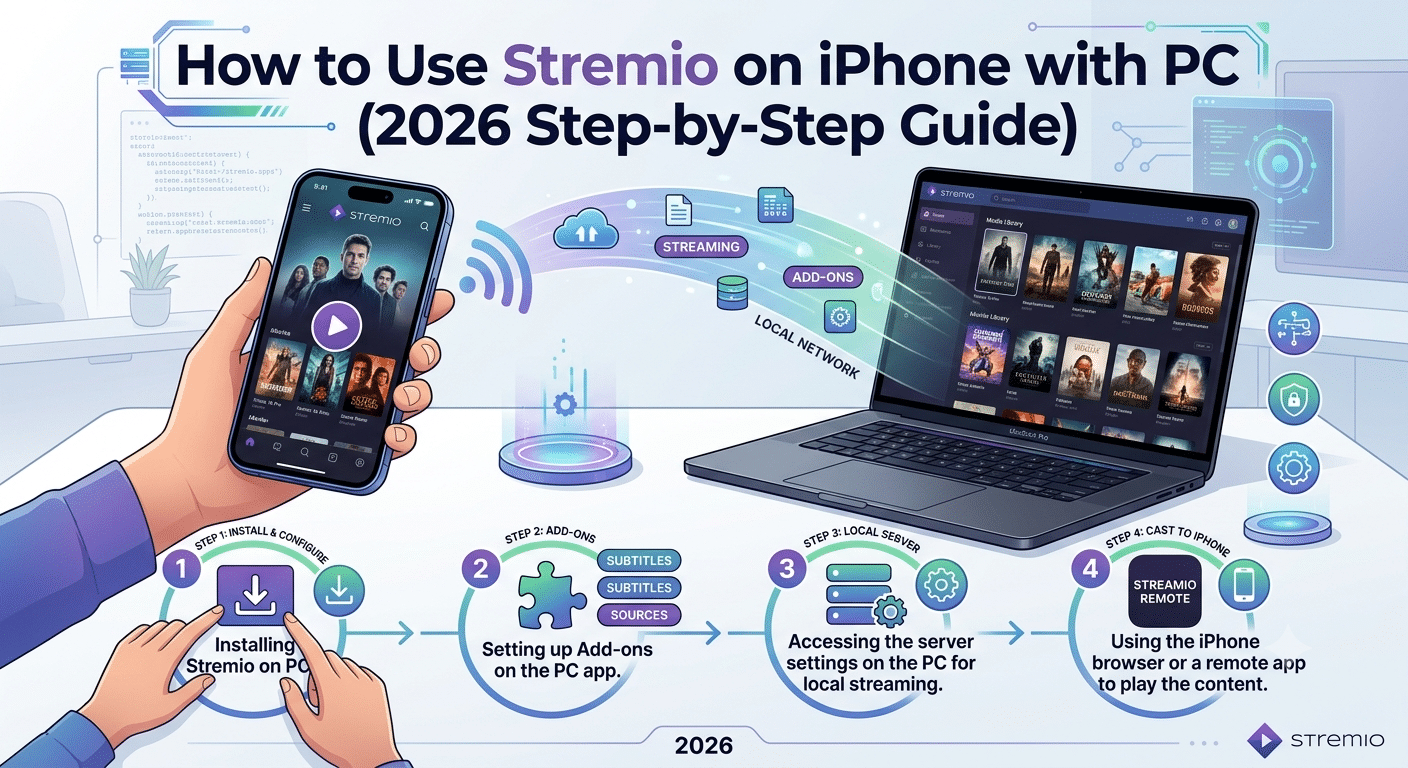
The simplest approach is to install Stremio on your Windows PC or Mac, configure your account and add-ons there, and then access your synchronized library from your iPhone through Stremio Web. Your account keeps your library, watch history, and settings synchronized across supported devices.
If you’re completely new to the platform, start by learning what Stremio is and how it works before configuring multiple devices.
After creating your account:
- Install Stremio on your computer.
- Sign in using the same account you’ll use on your iPhone.
- Configure the add-ons you need.
- Open Stremio Web in Safari on your iPhone.
- Sign in with the same account.
Because your account syncs through the cloud, your library should appear automatically after signing in.
If you have never configured the platform before, the complete Stremio setup guide explains the desktop installation process in greater detail.
Why Doesn’t Stremio Have a Native iPhone App?
Apple’s App Store policies differ significantly from Android’s ecosystem. Certain streaming architectures and external add-on systems don’t fit within Apple’s distribution requirements, which is why Stremio currently focuses on desktop platforms, Android, and the browser-based experience for iOS users.
That doesn’t mean you cannot use it on an iPhone. Instead, Stremio Web provides most of the functionality many users need, particularly for browsing libraries and compatible playback methods.
For many people, pairing an iPhone with a desktop installation delivers a much smoother experience than trying to rely on unsupported workarounds.
How Do You Prepare Your PC Before Connecting an iPhone?
Before opening Stremio Web on your iPhone, spend a few minutes preparing your desktop installation.
Recommended checklist:
- Update Stremio to the latest version.
- Sign into your account.
- Configure preferred add-ons.
- Organize your media library.
- Test playback on the desktop first.
- Verify your internet connection is stable.
Testing playback on the PC first helps eliminate many troubleshooting steps later because you know the configuration is already working.
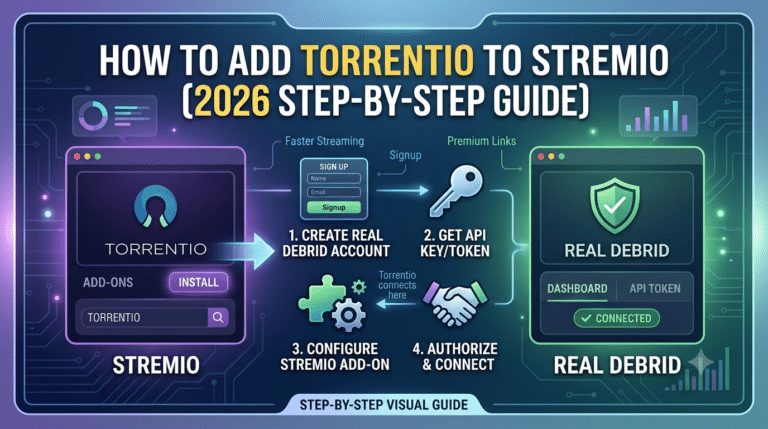
If you plan to stream supported torrent-based sources, the dedicated guide explaining how to play a movie in Stremio from torrent covers that workflow in more detail.
Why Should You Think About Privacy?
Whether you’re streaming from home or using public Wi-Fi, protecting your internet traffic is a sensible precaution.
If you’re unfamiliar with VPN technology, our guide explaining what is a VPN covers the fundamentals, while how VPN encryption works explains how encrypted tunnels protect your connection.
If you decide additional privacy is appropriate for your setup, you can compare our tested top-rated VPN services or explore several reliable free VPN services if you’re evaluating options before paying for a subscription.
We’ll discuss whether a VPN is actually necessary for Stremio later in this guide and explain when it provides meaningful benefits.
How Do You Set Up Stremio Web on Your iPhone?
Once your desktop installation is configured, accessing your library on an iPhone is straightforward. The key is using the same Stremio account across devices so your settings and watch history remain synchronized.
Start by opening Safari on your iPhone and navigating to the Stremio Web interface. Sign in with the account you previously configured on your PC. After authentication, your media library, installed add-ons, and saved content should begin syncing automatically.
If your library appears empty, verify that you’re signed into the same account on both devices. Many synchronization issues are caused by using different email addresses or authentication methods.
Configure Add-ons Before Using Your iPhone
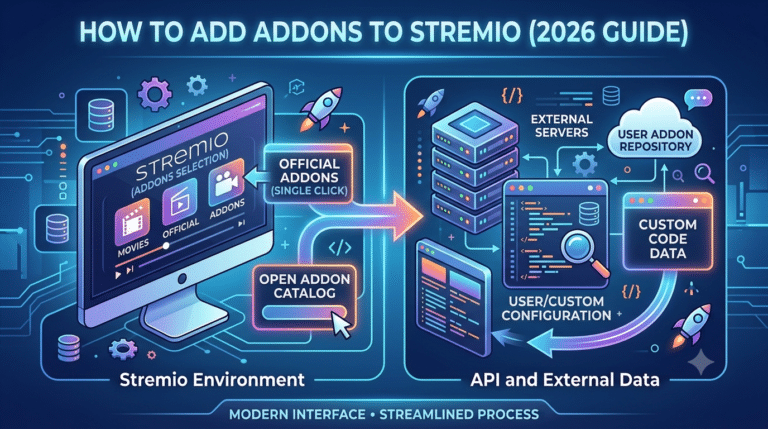
The desktop application remains the easiest place to manage your Stremio configuration. Installing or adjusting add-ons from a computer is generally faster and provides access to the full management interface.
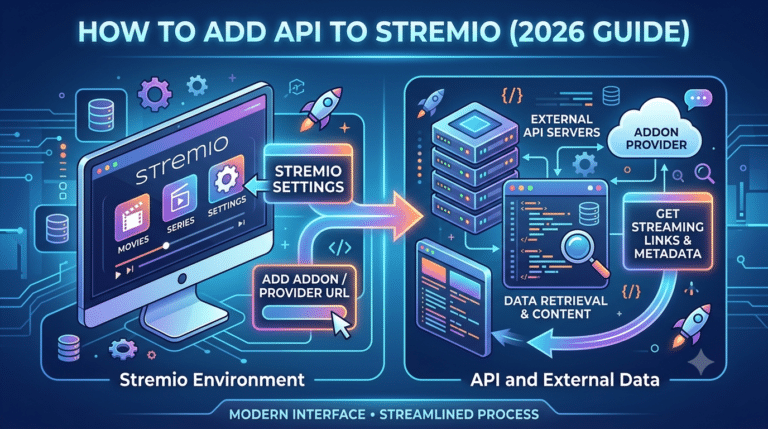
If you plan to use services that require API credentials, configure them on your computer first. A detailed walkthrough is available in this guide to adding API integrations to Stremio. Once the configuration syncs with your account, compatible settings become available when you access Stremio Web on your iPhone.
Troubleshooting Common Sync Problems
If content doesn’t appear correctly on your iPhone, work through these checks:
- Confirm both devices use the same Stremio account.
- Refresh the browser tab after signing in.
- Ensure your desktop application has completed syncing.
- Update your browser to the latest version.
- Test another network to rule out local connectivity issues.
Most synchronization problems are temporary and resolve after refreshing the account or waiting a few moments for cloud synchronization to complete.
What Limitations Should iPhone Users Expect?
Although Stremio Web has improved significantly, it doesn’t offer every capability available in the desktop application.
Some playback methods depend on browser support, while others may require codecs or technologies that desktop operating systems handle more effectively than mobile browsers. As a result, certain add-ons or playback sources may behave differently on iOS than on Windows or macOS.
For many users, the desktop application remains the primary management tool, while the iPhone serves as a convenient viewing device.
server load effects, device compatibility limits, account/plan restrictions, speed throttling scenarios, etc.
Performance isn’t determined solely by your iPhone. Several external factors can affect the overall experience.
Server Load Effects
During periods of heavy demand, metadata providers or streaming sources may respond more slowly, increasing loading times before playback begins.
Device Compatibility Limits
Older iPhone models or outdated iOS versions may not support the latest browser technologies required for the best Stremio Web experience. Keeping both iOS and Safari updated can improve compatibility.
Account and Service Restrictions
Some third-party services integrated with Stremio have their own subscription requirements or usage limits. Those restrictions are independent of Stremio itself and may affect available content or playback quality.
Speed Throttling Scenarios
Your internet service provider, home Wi-Fi congestion, or limited mobile bandwidth can all reduce streaming performance. If you’re using public Wi-Fi, network management policies may also impact video quality or buffering.
Is Stremio Safe to Use on an iPhone?
The Stremio application itself is legitimate software. However, overall safety depends on how you use it, the add-ons you install, and the content sources you access.
Choosing well-maintained add-ons, keeping your software updated, and understanding the origin of streamed content all contribute to a safer experience.
For a deeper examination of privacy considerations, third-party add-ons, and recommended security practices, see this detailed guide explaining whether Stremio is safe.
Cross-platform users who also stream on media devices may be interested in this tutorial covering how to sideload Stremio on Firestick, which explains a different installation approach for Amazon’s streaming hardware.
How Can You Improve Streaming Performance on an iPhone?
Once you’ve successfully connected your iPhone to your Stremio account, optimizing playback becomes the next priority. Most buffering or playback issues are caused by network conditions, browser limitations, or media sources—not the synchronization process itself.
Start with the basics:
- Use a stable Wi-Fi connection whenever possible.
- Keep iOS and Safari updated.
- Close unused browser tabs and background apps.
- Restart Safari if playback becomes unresponsive.
- Verify that the source you’re streaming is available and healthy.
If a title refuses to play, try another source before assuming there’s a problem with your setup. Different add-ons often provide multiple playback options for the same movie or TV show.
Choose Compatible Playback Sources
Not every source behaves the same way in a mobile browser. Some are optimized for desktop playback, while others work more reliably across multiple platforms.
If one source buffers continuously, switch to another with more available peers or better availability. This simple step often resolves playback issues without changing any device settings.
Keep Your Add-ons Organized
Installing every available add-on usually creates more problems than it solves. An overcrowded library can produce duplicate search results, inconsistent metadata, and unnecessary confusion.
Instead:
- Remove add-ons you no longer use.
- Keep trusted add-ons updated.
- Test newly installed add-ons before relying on them.
- Review permissions or configuration options when available.
A smaller, well-maintained collection generally delivers a better experience than dozens of overlapping extensions.
What Should You Do If Playback Doesn’t Start?
If Stremio Web loads correctly but the video never begins playing, work through a systematic checklist instead of changing multiple settings at once.
Verify Your Browser
Safari receives frequent updates that improve compatibility with modern web applications. Running an outdated version may affect playback or media decoding.
If you’re already on the latest version, clear the browser cache and reload the page before testing again.
Confirm Desktop Synchronization
Because your desktop application acts as the primary management environment for many users, it’s worth opening it occasionally to confirm:
- Your account is still signed in.
- Installed add-ons remain enabled.
- Metadata is syncing correctly.
- Your library displays as expected.
If everything works normally on the desktop but not on the iPhone, the issue is more likely related to the browser environment than your account.
Test Another Network
Home Wi-Fi, public hotspots, workplace networks, and mobile data all behave differently.
Testing another connection can quickly identify whether the problem is caused by:
- Local network congestion
- Router configuration
- ISP restrictions
- Temporary connectivity issues
Changing networks for a few minutes is often faster than repeatedly reinstalling software.
What Security Best Practices Should You Follow?
Regardless of the platform you use, maintaining good security habits helps protect both your account and your personal information.
Consider these recommendations:
- Use a unique, strong password for your account.
- Enable two-factor authentication if it’s offered by any connected services.
- Install software updates promptly.
- Avoid downloading unofficial software from unknown websites.
- Review third-party integrations periodically and remove anything you no longer use.
These practices improve your overall digital security and aren’t limited to Stremio alone.
Can You Use the Same Account Across Multiple Devices?
Yes. One of Stremio’s strengths is account synchronization.
For example, you can:
- Browse your library on a Windows PC.
- Continue watching on your iPhone through Stremio Web.
- Resume later on another supported device without rebuilding your library.
Because your watch history and preferences are linked to your account rather than a single device, moving between compatible platforms is generally straightforward.
The exact experience may differ depending on browser capabilities and supported playback methods, but your synchronized library remains consistent across devices signed in with the same account.
In the final part of this guide, we’ll answer frequently asked questions, cover advanced troubleshooting tips, discuss when a VPN may be beneficial, and summarize the most effective approach for using Stremio on an iPhone with a PC.
Frequently Asked Questions
Can you use Stremio on an iPhone without a PC?
Yes, but with limitations. If you’ve already configured your Stremio account, you can access compatible features through Stremio Web in Safari. However, a Windows PC or Mac remains the easiest place to manage your account, install add-ons, and troubleshoot issues. Most users will have a smoother experience by completing the initial setup on a desktop computer before switching to an iPhone.
Why doesn’t video play even though Stremio Web loads?
If the interface opens but playback fails, the cause is usually unrelated to your account. Check that:
- Safari is updated to the latest version.
- Your internet connection is stable.
- The selected source is currently available.
- The required add-ons are installed and synchronized.
- Any third-party services you rely on are configured correctly.
Testing an alternative source is often the fastest way to determine whether the problem is with the media source rather than your browser or device.
Does using a VPN improve the experience?
A VPN primarily improves privacy—not playback quality. Encrypting your internet traffic can help protect your activity on public Wi-Fi and reduce exposure to local network monitoring, but it won’t fix broken add-ons, unavailable streaming sources, or slow servers.
If you decide to use one, choose a reputable provider with a transparent privacy policy, modern VPN protocols such as WireGuard or OpenVPN, and servers located near your region to minimize speed loss.
Can I use the same Stremio account on multiple devices?
Yes. Your account synchronizes your library, watch history, and many settings across supported devices. You can browse content on your desktop, continue watching from your iPhone through Stremio Web, and later resume on another compatible device using the same account.
Final Recommendations
For most users, the most reliable approach is to configure Stremio on a Windows PC or Mac first and then access the same account from an iPhone using Stremio Web. This workflow simplifies add-on management, keeps your library synchronized, and minimizes compatibility issues that can arise when relying solely on a mobile browser.
Keep your software updated, install only trusted add-ons, and use secure browsing habits whenever you stream online. If you regularly connect through public Wi-Fi or simply want an additional layer of privacy, a reputable VPN can complement your setup by encrypting your internet traffic.
Ultimately, how to use stremio on iphone with pc is less about finding a hidden iOS app and more about using the desktop application and browser together. Once your account is configured correctly, switching between devices becomes straightforward, allowing you to enjoy your media library with minimal additional setup.