
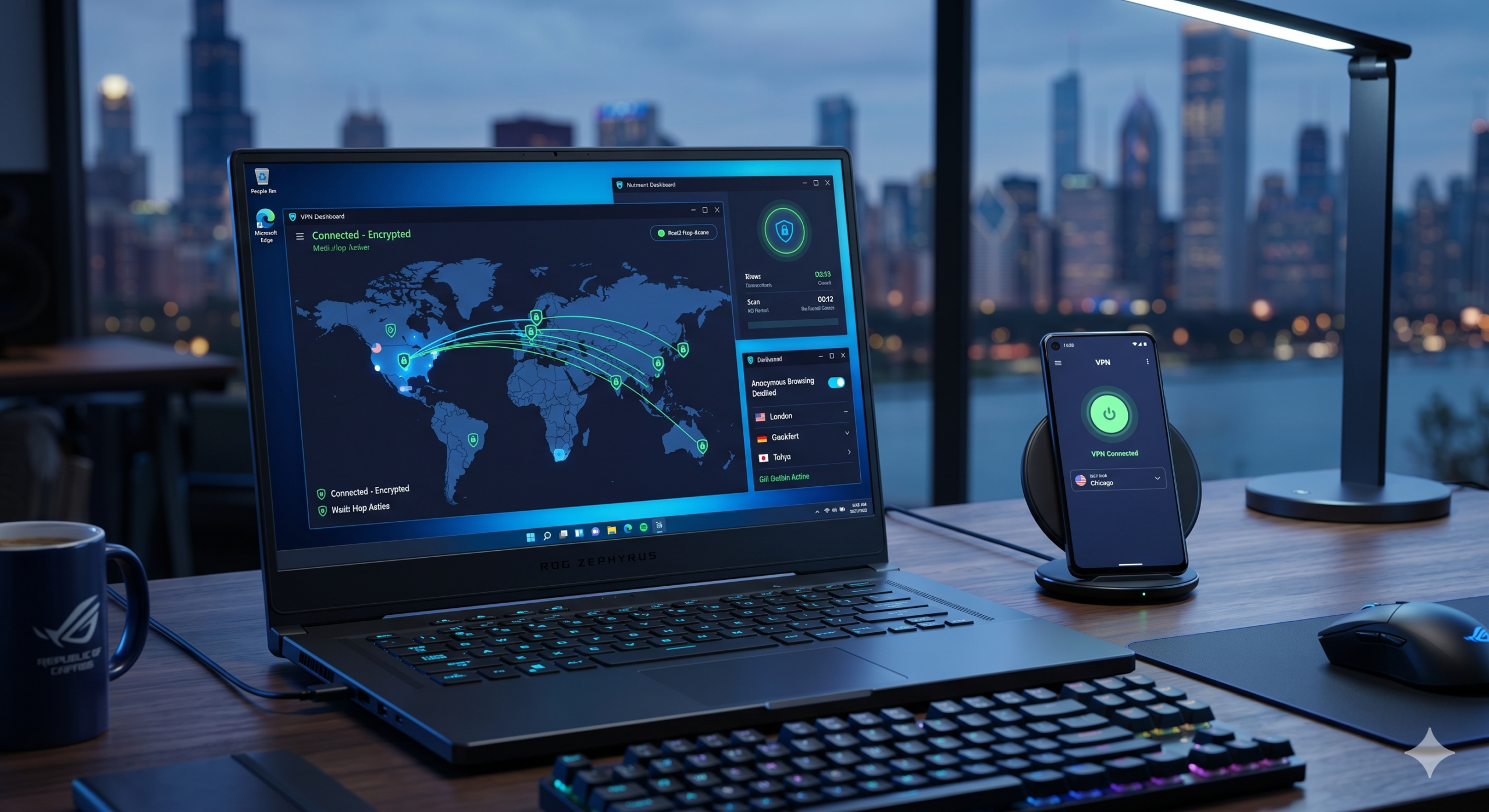

Installing a VPN usually takes less than five minutes. The bigger challenge is choosing a trustworthy provider, downloading the correct app, and configuring it properly after setup.
The Electronic Frontier Foundation explains that VPNs can help protect your traffic on public Wi-Fi and reduce how much browsing activity your internet provider can monitor. Instead of relying on random free apps, start with one of these top-rated VPN services that consistently perform well in independent testing.
This guide explains how to install a VPN on:
- Windows PCs
- Mac computers
- Android phones and tablets
- iPhones and iPads
- Wi-Fi routers
You’ll also learn how to test whether your VPN is working correctly, which settings matter most for beginners, and why some VPNs slow down your internet connection after installation.
What Do You Need Before You Install a VPN?
You only need three things before starting:
- A VPN subscription or account
- A stable internet connection
- Administrator access on your device
Most users should install the provider’s official app instead of configuring a VPN manually. Dedicated apps are easier to update, include security features like kill switches, and support modern protocols such as WireGuard.
If VPN terminology still feels confusing, this beginner’s guide to VPNs explains the basics before you move into installation.
Avoid Fake VPN Apps
Fake VPN apps remain common on Android app stores and unofficial Windows download sites. Some log your browsing activity, inject ads into websites, or use weak encryption that defeats the point of using a VPN in the first place.
That does not mean every free VPN is unsafe. A few providers offer legitimate free plans with limited bandwidth and transparent privacy policies. These reliable free VPN services are safer than downloading unknown apps with no reputation or independent audits.
Before installing any VPN:
- Verify the developer name
- Download only from the official website or official app stores
- Read recent user reviews
- Check whether the provider publishes a no-log policy
- Avoid apps requesting unnecessary permissions
A VPN should ask for network access. It should not request access to your contacts, photos, microphone, or SMS messages unless there is a legitimate feature requiring it.
How Does a VPN Installation Actually Work?
When you install a VPN app, you are adding software that creates an encrypted tunnel between your device and a remote VPN server.
This process hides your IP address and encrypts traffic before it leaves your device. If you want a deeper technical explanation, this guide on how VPN encryption works breaks down protocols, tunneling, and data routing in plain English.
Most VPN apps follow the same installation structure:
- Download the VPN app
- Sign into your account
- Choose a server location
- Connect to the VPN
- Verify the connection
Premium VPN providers usually automate almost everything. In most cases, you will not need to configure DNS settings, import OpenVPN files, or manually select encryption standards.
Which VPN Protocol Should You Choose?
Most VPN apps offer multiple protocols. Beginners should usually leave the default setting enabled.
Here are the three most common options:
| Protocol | Best For | Speed | Security |
|---|---|---|---|
| WireGuard | Everyday use | Excellent | Excellent |
| OpenVPN | Compatibility | Moderate | Excellent |
| IKEv2 | Mobile devices | Fast | Very good |
WireGuard has become the default protocol for many providers because it delivers faster speeds with less battery drain on phones.
OpenVPN remains highly trusted and widely supported, especially on routers and older operating systems.
Should You Install a VPN Through an App or Manually?
For most users, the app is the better option.
Manual VPN configuration makes sense only if:
- Your device does not support VPN apps
- You need router-level protection
- Your workplace requires manual credentials
- You are configuring OpenVPN files directly
App-based installations usually include:
- Kill switch protection
- Automatic server selection
- Split tunneling
- Auto-connect on public Wi-Fi
- Leak protection
Manual setups often lack those features.
That matters because a VPN connection can fail silently if leak protection is disabled. Your traffic may reconnect through your normal ISP connection without warning.
How to Prepare Your Device Before Installing a VPN
Before installing any VPN app:
- Update your operating system
- Remove old VPN software you no longer use
- Restart your device
- Disable conflicting proxy software
- Ensure your firewall is not blocking VPN traffic
Running multiple VPN apps at the same time often causes:
- Connection failures
- DNS leaks
- Slow speeds
- Login problems
- App crashes
This is especially common on Windows systems that still contain leftover VPN network adapters from older software.
Limitations & Performance Notes:
Installing a VPN will usually reduce your internet speed slightly because encryption adds processing overhead and reroutes traffic through another server.
In testing across major VPN providers:
- Nearby servers usually reduce speeds by 10% to 20%
- Distant international servers can reduce speeds by 30% or more
- Free VPNs often cap bandwidth or throttle streaming traffic
- Older routers may struggle with VPN encryption under heavy loads
Gaming performance can also change depending on server distance and congestion. If low latency matters, this guide to VPN setup for gaming explains which settings reduce lag and packet loss.
Mobile users should also expect slightly higher battery consumption when a VPN stays connected all day.
What Happens Next?
The next section covers the exact installation process for:
- Windows 11
- macOS
- Android
- iPhone and iPad
You’ll learn which settings to change immediately after setup and how to avoid the most common installation mistakes beginners make.
How to Install a VPN on Windows?
Windows remains the easiest platform for VPN installation because nearly every major provider supports dedicated desktop apps with automatic configuration.
For most users, the setup process takes under five minutes.
If you want a deeper walkthrough with screenshots and advanced configuration tips, this guide on setting up a VPN on Windows 11 covers the process in more detail.
Step 1: Download the Official VPN App
Go directly to your VPN provider’s official website.
Avoid:
- Third-party download portals
- “Cracked” VPN software
- Browser ads impersonating VPN brands
- Random GitHub installers unless officially linked
Most providers offer:
- Windows 11 support
- Windows 10 support
- Automatic updates
- WireGuard and OpenVPN support
- Kill switch protection
After downloading the installer:
- Open the setup file
- Allow administrator permissions
- Complete installation
- Launch the VPN app
Step 2: Sign In and Choose a Server
Once installed:
- Enter your account credentials
- Enable automatic updates
- Select your preferred protocol
- Choose a nearby server
Nearby servers usually provide:
- Lower latency
- Better streaming performance
- Faster download speeds
For everyday browsing, choose the closest available location.
For streaming:
- Select the country hosting the content
- Avoid overloaded servers
- Use optimized streaming locations if available
Step 3: Enable Key Security Features
Most VPN apps ship with important features disabled by default.
Turn these on immediately:
- Kill switch
- Auto-connect on startup
- DNS leak protection
- Trusted network detection
These settings reduce the chance of accidental exposure if your VPN disconnects unexpectedly.
How to Manually Configure a VPN on Windows
Manual configuration is slower but still useful in some situations.
You may need it if:
- Your workplace provides VPN credentials
- Your VPN app fails to install
- You are using a router-based setup
- You need OpenVPN configuration files
Windows supports built-in VPN connections through:
- IKEv2
- L2TP/IPsec
- PPTP (not recommended)
- OpenVPN through third-party software
Avoid PPTP whenever possible. Security researchers have considered it outdated for years.
How to Check if Your VPN Works on Windows
After connecting:
- Open your browser
- Search “What is my IP”
- Confirm the displayed location changed
- Run a DNS leak test
- Test multiple websites
If your IP address remains unchanged, the VPN connection failed.
Common causes include:
- Firewall conflicts
- Antivirus interference
- Broken TAP adapters
- Expired subscriptions
- Incorrect login credentials
Restarting the VPN app fixes many Windows connection problems immediately.
How Do You Install a VPN on Mac?
Modern VPN apps work well on macOS, especially on Apple Silicon systems using M-series chips.
Most premium VPN providers now support:
- macOS Sonoma
- Apple Silicon optimization
- Native WireGuard integration
- iCloud Private Relay compatibility adjustments
If you want a more detailed walkthrough, this guide on how to configure a VPN on macOS explains advanced setup options and troubleshooting steps.
Installing a VPN on macOS
The process is straightforward:
- Download the Mac app from the provider’s website
- Open the installer package
- Move the app into Applications
- Launch the VPN client
- Grant VPN permissions in macOS
macOS may ask:
“VPN configurations are being added.”
Approve the request to continue.
Without system-level permission, the VPN cannot create encrypted tunnels properly.
Best VPN Settings for Mac Users
After installation:
- Enable auto-connect on unsecured Wi-Fi
- Turn on the kill switch
- Use WireGuard if available
- Disable split tunneling unless necessary
Split tunneling can improve speed, but it increases configuration complexity for beginners.
Why Some VPNs Perform Better on Macs
Not all VPN apps are optimized equally for macOS.
The best-performing Mac VPN apps usually offer:
- Native Apple Silicon support
- Lightweight background processes
- Efficient WireGuard implementation
- Faster reconnect behavior after sleep mode
Poorly optimized apps often cause:
- Battery drain
- High CPU usage
- Wi-Fi instability
- Random disconnects
How Do You Install a VPN on Android?
Android VPN installation is extremely simple, but fake apps remain a major problem on Google Play.
Stick to established providers with:
- Independent security audits
- Transparent ownership
- Clear no-log policies
- Recent app updates
If you are comparing providers specifically for Android devices, these best Android VPN apps consistently offer stronger privacy controls and better mobile performance than most free alternatives.
For a complete installation walkthrough, including manual Android VPN configuration, this guide on how to install a VPN on Android explains the process step by step.
Android VPN Installation Steps
- Open Google Play Store
- Search for your VPN provider
- Download the official app
- Log into your account
- Approve the VPN connection request
- Connect to a server
Android displays a system warning before activating VPN access. That warning is normal.
Best Android VPN Features to Enable
After installation:
- Enable auto-connect on public Wi-Fi
- Turn on split tunneling if needed
- Use WireGuard for better battery efficiency
- Enable malicious website blocking if included
WireGuard usually consumes less battery than OpenVPN on Android devices.
That matters if your VPN stays active throughout the day.
Limitations & Performance Notes:
Mobile VPN apps can affect:
- Battery life
- Push notification timing
- Streaming app behavior
- Background app refresh
Free VPN apps are especially aggressive with battery optimization and data throttling.
On Windows and Mac, older hardware may struggle with:
- 4K streaming through VPN tunnels
- Large torrent downloads
- Router-based encryption overhead
Performance also depends heavily on server distance. A New York user connected to Singapore will experience far higher latency than someone connected to Chicago.
According to testing published by PCMag, WireGuard-based VPN connections often outperform older OpenVPN implementations in both speed and efficiency. PCMag VPN Testing
How Do You Install a VPN on iPhone and iPad?
Installing a VPN on iPhone takes only a few minutes because iOS has native VPN support built directly into the operating system.
Most major VPN providers offer dedicated iPhone apps that automatically configure:
- Encryption settings
- VPN protocols
- DNS protection
- Kill switch functionality
- Auto-connect rules
If you want a full walkthrough with screenshots and manual configuration options, this guide on how to set up a VPN on iPhone explains the process step by step.
Step 1: Download the VPN App From the App Store
Open the Apple App Store and search for your VPN provider.
Before downloading:
- Verify the publisher name
- Read recent reviews
- Check the update history
- Confirm the app supports modern iOS versions
Avoid VPN apps with:
- Extremely low review counts
- No company website
- Vague privacy policies
- Aggressive advertising claims
Step 2: Install and Sign In
After downloading:
- Open the VPN app
- Sign into your account
- Allow notification permissions if desired
- Approve the VPN configuration request
Apple displays a system-level message saying:
“VPN Would Like to Add VPN Configurations.”
Tap “Allow.”
You may also need to authenticate using:
- Face ID
- Touch ID
- Your device passcode
Step 3: Connect to a VPN Server
Once setup finishes:
- Choose a nearby server
- Tap Connect
- Wait for the VPN icon to appear in the iPhone status bar
The VPN symbol confirms the encrypted tunnel is active.
For most users, automatic server selection works well. But if you are:
- Streaming region-locked content
- Gaming on mobile
- Trying to reduce latency
- Accessing country-specific services
…you may want to choose a specific server manually.
Best VPN Settings for iPhone Users
After installation, enable:
- Auto-connect on public Wi-Fi
- Kill switch protection if supported
- WireGuard protocol
- Threat blocking features
Disable battery optimization restrictions for the VPN app if connection stability becomes inconsistent.
iPhones generally handle VPN apps efficiently, but older devices may experience:
- Faster battery drain
- Delayed notifications
- Increased heat during long streaming sessions
Should You Install a VPN on Your Router?
Installing a VPN directly on your router protects every connected device automatically.
That includes:
- Smart TVs
- Gaming consoles
- Streaming devices
- Security cameras
- Smart home hardware
Router-level VPN installation also helps devices that do not support VPN apps natively.
Advantages of Router VPN Installation
A router VPN setup offers several benefits:
- One VPN connection protects the entire network
- Devices connect automatically
- You bypass device connection limits
- Smart TVs and consoles gain VPN protection
This setup works especially well for households with:
- Multiple users
- Streaming-heavy usage
- Gaming consoles
- Smart home ecosystems
The Biggest Drawback of Router VPNs
Router VPN installation is harder than app installation.
Not every router supports:
- OpenVPN
- WireGuard
- Third-party firmware
- Advanced encryption acceleration
Some ISP-provided routers block VPN configuration entirely.
Older routers may also struggle with encryption performance. A weak router CPU can dramatically reduce speeds once VPN encryption activates.
For example:
- A gigabit internet connection may drop below 150 Mbps
- Latency can increase substantially during gaming
- Streaming performance may become inconsistent
Which Routers Support VPN Installation?
The best VPN-compatible routers usually come from:
- ASUS
- Netgear
- GL.iNet
- Linksys
- TP-Link (select models)
Popular firmware options include:
- ASUSWRT
- DD-WRT
- OpenWRT
- Tomato
Basic Router VPN Installation Process
Most setups follow this structure:
- Access the router admin panel
- Locate VPN settings
- Import OpenVPN or WireGuard files
- Enter VPN credentials
- Connect to the VPN server
- Restart the router
The exact process varies by router model and firmware.
Should Gamers Use Router VPNs?
Sometimes — but not always.
Router VPNs simplify protection for:
- Xbox consoles
- PlayStation systems
- Nintendo Switch devices
However, encryption overhead can increase ping times if the router hardware is weak.
Competitive gamers should prioritize:
- Nearby VPN servers
- WireGuard support
- Routers with strong CPUs
- Low-latency server locations
How Can You Check if Your VPN Is Working Properly?
Many users assume the VPN works simply because the app says “Connected.”
That is not enough.
A VPN can appear connected while still leaking:
- DNS requests
- IPv6 traffic
- Real IP addresses
Step 1: Verify Your IP Address
Before connecting:
- Search “What is my IP”
- Record your visible IP address and location
After connecting:
- Refresh the page
- Confirm the location changed
If your original location still appears, the VPN failed.
Step 2: Run a DNS Leak Test
DNS leaks expose which websites you visit even if the VPN encrypts your traffic.
Good VPN providers route DNS requests through encrypted VPN tunnels automatically.
If your ISP appears in leak test results, your VPN is not fully protecting your traffic.
Step 3: Test the Kill Switch
A kill switch blocks internet traffic if the VPN disconnects unexpectedly.
To test it:
- Connect to the VPN
- Disconnect the VPN manually
- Confirm internet traffic stops immediately
If websites continue loading after disconnecting, the kill switch is not functioning correctly.
Step 4: Check for IPv6 Leaks
Some VPNs fail to secure IPv6 traffic properly.
This is more common on:
- Older VPN apps
- Manual VPN setups
- Misconfigured routers
Premium VPN apps usually disable or tunnel IPv6 traffic automatically.
Limitations & Performance Notes:
VPN verification tools are useful, but they are not perfect.
Some issues appear only:
- During server congestion
- After sleep mode resumes
- While switching Wi-Fi networks
- During long streaming sessions
Router VPNs also introduce maintenance overhead:
- Firmware updates
- Certificate renewals
- Manual troubleshooting
- Server file imports
For beginners, app-based VPN installation remains easier and more reliable than router-level configuration.
Why Is Your VPN Slow After Installation?
Every VPN reduces speed to some degree because encryption and rerouting add overhead. The goal is minimizing that slowdown, not eliminating it entirely.
In most real-world tests:
- Nearby servers reduce speeds by 10% to 20%
- Long-distance servers reduce speeds more heavily
- Free VPNs often throttle bandwidth aggressively
- Congested servers create unstable latency spikes
The biggest factors affecting VPN speed are:
- Server distance
- Server load
- VPN protocol
- Router performance
- Local internet quality
Choose the Right VPN Protocol
WireGuard usually delivers the best balance of:
- Speed
- Battery efficiency
- Low latency
- Stable connections
OpenVPN remains extremely secure but tends to consume more system resources.
Older protocols like PPTP should be avoided entirely because they no longer provide modern security standards.
Connect to Nearby Servers
Many users manually connect to distant countries unnecessarily.
That increases:
- Ping times
- Streaming buffering
- Gaming lag
- Video call instability
If privacy is your primary goal, connect to the nearest available server.
If streaming requires another region, choose a location geographically close to the content source instead of connecting across continents.
Restart Your VPN Connection
Sometimes the fastest fix is also the simplest.
Disconnecting and reconnecting can:
- Move you to a less congested server
- Refresh routing paths
- Restore broken DNS handling
- Improve latency immediately
Premium VPN providers rotate traffic dynamically, so reconnecting often changes performance noticeably.
What VPN Settings Should Beginners Change First?
Most VPN apps work reasonably well with default settings, but a few adjustments improve both privacy and usability.
Enable the Kill Switch
A kill switch blocks traffic if the VPN disconnects unexpectedly.
Without it:
- Your real IP address may become visible
- Downloads may continue outside the VPN tunnel
- Streaming apps may reconnect through your ISP
This is one of the most important settings in any VPN app.
Turn On Auto-Connect
Auto-connect ensures the VPN activates automatically when:
- Your device starts
- You join public Wi-Fi
- The app detects unsecured networks
This matters most for:
- Coffee shop Wi-Fi
- Airport networks
- Hotels
- Shared apartment internet
The Federal Trade Commission warns that public Wi-Fi networks can expose users to traffic interception and malicious activity. You can review its public Wi-Fi guidance here: FTC online security guidance.
Use WireGuard if Available
For most users, WireGuard provides:
- Faster speeds
- Better mobile efficiency
- Lower latency
- Faster reconnect times
OpenVPN still makes sense for:
- Older routers
- Legacy systems
- Corporate compatibility
- Highly restrictive networks
Disable Features You Don’t Need
Some VPN apps include:
- Ad blockers
- Antivirus modules
- Identity monitoring
- Cloud backups
Extra features can increase:
- Memory usage
- Battery drain
- Background activity
If you only want encrypted browsing, keep the setup simple.
Which VPN Installation Mistakes Should You Avoid?
Most VPN problems come from bad configuration choices, not the VPN itself.
Installing Multiple VPNs at Once
Running several VPN apps simultaneously often causes:
- Network adapter conflicts
- DNS leaks
- Failed connections
- Unstable routing
Remove unused VPN software before installing another provider.
Using Random Free VPN Apps
Free VPNs are not automatically dangerous, but unknown apps with no audit history create real privacy risks.
Avoid providers that:
- Hide company ownership
- Lack transparency reports
- Show excessive advertising
- Request unnecessary permissions
- Promise “unlimited free VPN forever” without clear business models
Ignoring VPN Permissions
On Windows, macOS, Android, and iPhone, the VPN requires system-level network permissions to work properly.
Denying those permissions can:
- Break encryption
- Cause DNS leaks
- Prevent server connections
Forgetting to Update the VPN App
Outdated VPN software may contain:
- Security vulnerabilities
- Broken protocols
- Compatibility issues
- DNS leak bugs
Enable automatic updates whenever possible.
Choosing the Wrong Server for Gaming
Long-distance VPN servers increase latency substantially.
For gaming:
- Choose the nearest available server
- Avoid overloaded locations
- Use WireGuard
- Prefer wired Ethernet over Wi-Fi
Is Installing a VPN Worth It?
For most privacy-conscious users, yes.
A properly configured VPN helps:
- Encrypt internet traffic
- Reduce ISP visibility
- Secure public Wi-Fi sessions
- Bypass some regional restrictions
- Protect multi-device browsing activity
But VPNs are not magic privacy tools.
They do not:
- Make you anonymous
- Stop browser fingerprinting completely
- Prevent phishing attacks
- Replace antivirus software
- Hide activity from logged-in accounts like Google or Facebook
The best results come from combining a VPN with:
- Strong passwords
- Multi-factor authentication
- Updated software
- Secure browsers
- Careful browsing habits
Final Verdict
Learning how to install a VPN is much easier today than it was even a few years ago. Most premium providers now offer beginner-friendly apps for Windows, Mac, Android, iPhone, and routers with automatic configuration built in.
For most users, the best setup approach is simple:
- Use the official app
- Enable the kill switch
- Choose WireGuard
- Connect to nearby servers
- Verify there are no DNS leaks
If you still have not chosen a provider, these industry-leading VPN software options offer the best balance of speed, privacy, app quality, and device support based on current testing.




