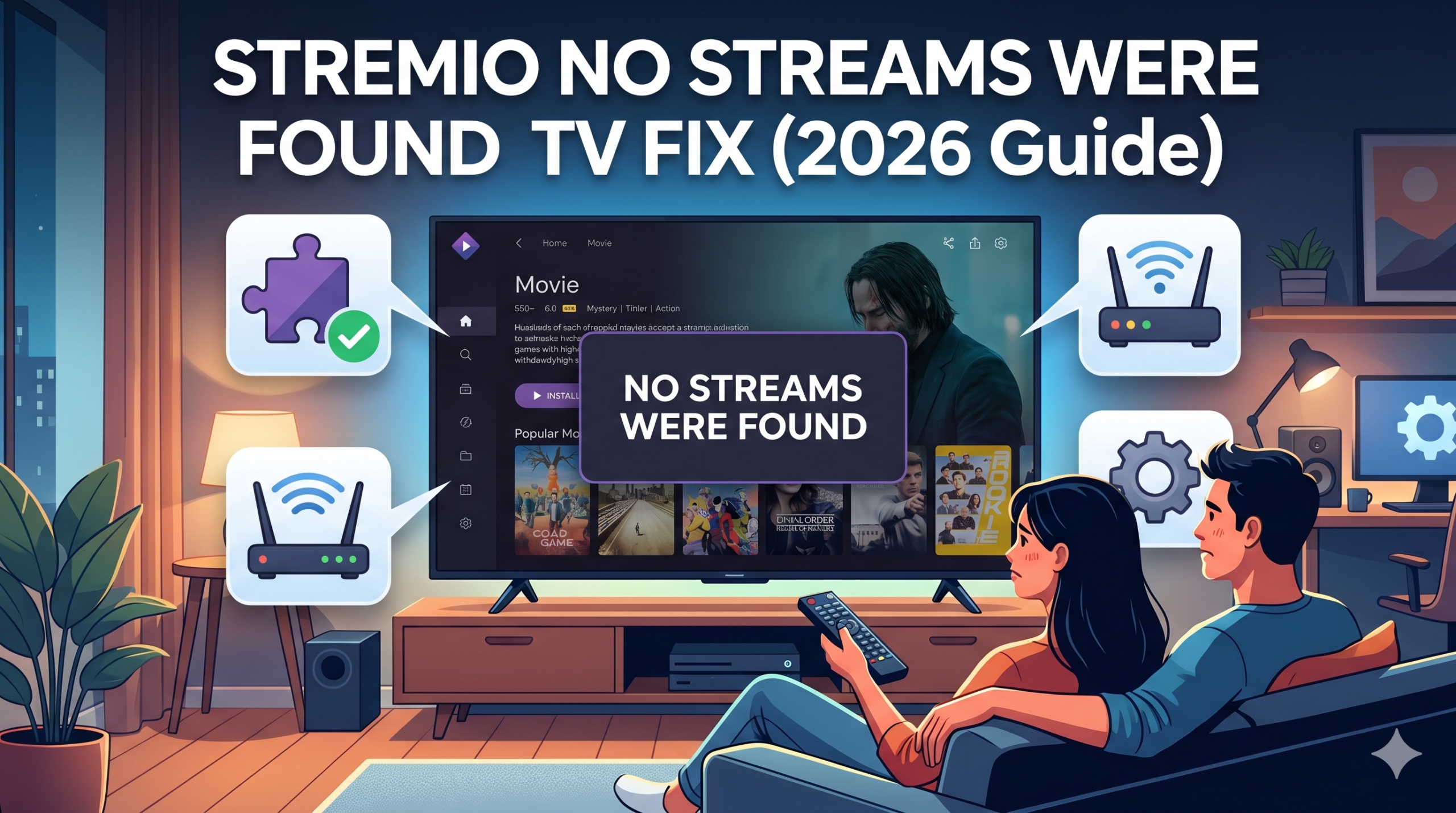

Stremio No streams were found TV is one of the most common playback failures users encounter when running Stremio on Android TV, Firestick, or Smart TVs. The frustrating part is that the app appears to load normally, but no playable sources ever appear. In most cases, the issue is not the TV itself—it’s how Stremio depends on external addon infrastructure and network routing.
At its core, Stremio does not host content. It aggregates streams through community or third-party addons. When those addons fail to respond, the TV interface returns a blank results state: “No streams were found.”
A key technical reality here is that Smart TV environments are less forgiving than desktop setups. Limited cache storage, aggressive background app killing, and outdated WebView components all increase failure rates.
The Electronic Frontier Foundation has long highlighted how network-level filtering and ISP interference can silently break media delivery pipelines without obvious error messages (see https://www.eff.org/issues/net-neutrality for context on traffic shaping risks). In the case of Stremio, similar symptoms appear when routing or DNS resolution is disrupted.
Why does Stremio show “No streams were found” only on TV devices?
TV platforms behave differently from phones or desktops. Android TV, Fire OS, and proprietary Smart TV systems often run restricted versions of Android or Linux-based environments that limit background networking.
The most common TV-specific causes are:
- Outdated Stremio TV build or cached addon data
- Broken WebView rendering pipeline
- DNS resolution delays on TV firmware
- ISP-level filtering of torrent or streaming domains
- VPN misconfiguration affecting local network routing
Unlike mobile devices, TVs often fail silently. There’s no fallback stream scan—just an empty result screen.
For a deeper breakdown of how the core system behaves, see the official overview of the Stremio architecture in the broader guide on Stremio streaming failure overview, which explains why stream aggregation breaks when addon responses time out.
Is the problem caused by missing or broken Stremio addons?
In most real-world cases, yes. Addons are the single point of failure for stream availability.
When you launch a title, Stremio queries multiple addons simultaneously. If those addons are:
- Offline
- Rate-limited
- Geo-blocked
- Returning malformed metadata
…then the TV client simply returns “No streams were found.”
This issue becomes more visible on TV because addon loading is slower and more prone to timeout.
On Android TV specifically, users frequently report success after reinstalling core addons, as detailed in this breakdown of Stremio Android TV addon troubleshooting guide, where cache corruption is identified as a primary failure point.
A related pattern appears on mobile devices, but they recover faster due to better memory handling. You can see how this differs in mobile Stremio streaming issue fixes, where stream retries often succeed without full reinstall steps.
Can VPNs or DNS settings trigger missing streams?
Yes—but not always in the way users expect.
A VPN does not directly “break” Stremio. Instead, it changes routing paths. Some addon servers block VPN IP ranges, while others throttle or delay responses under high load.
If you’re using a VPN, the behavior depends heavily on the provider. Choosing leading VPN providers can reduce stream failures by offering cleaner IP pools and better streaming-optimized routing.
If you’re new to this, it helps to understand the fundamentals first. A solid breakdown of VPN basics shows how encrypted tunnels reroute traffic—and why that sometimes interferes with peer-based streaming systems like Stremio.
For users testing free solutions, some top free VPNs can work, but they often suffer from congested IP ranges that trigger addon blocks.
At a technical level, VPN behavior is governed by packet encapsulation and encryption layers. A deeper explanation of how VPN encryption works helps clarify why even small latency increases can push Stremio addons past timeout thresholds on TV hardware.
Why does Stremio work on phone but fail on Firestick or Android TV?
This is one of the most important diagnostic clues.
Phones benefit from:
- Faster DNS caching
- More aggressive network retry logic
- Better WebView compatibility
- Higher memory availability per app session
TV devices, especially Firestick and older Android TV boxes, do not handle addon failures gracefully. When a single addon delays response, the entire stream list may fail to populate.
For example, Firestick users often fix this by reinstalling or resetting the TV client, as outlined in Firestick Stremio stream failure guide, which highlights how cache fragmentation leads to missing results even when internet connectivity is stable.
This is why the same account can work perfectly on mobile but appear broken on TV—it’s not the content layer failing, it’s the device-side aggregation pipeline collapsing under delay.
When Stremio shows “No streams were found” on TV, the failure usually sits somewhere between addon response delays, network routing issues, or device-level cache corruption. The key is not guessing—it’s isolating where the stream chain breaks.
On Smart TVs and streaming sticks, Stremio runs in a constrained environment. That matters because stream aggregation depends on fast parallel requests to multiple addons. If even one layer stalls, the TV interface often returns zero results instead of partial matches.
Can VPNs or DNS settings block streams on Smart TVs?
Yes—this is one of the most overlooked causes of missing streams on TV devices.
A VPN changes your routing path, and that can interfere with how Stremio addons respond. Some addon servers block datacenter IP ranges, while others throttle connections that appear proxied.
DNS misconfiguration is even more subtle. If your TV is using ISP-default DNS, it may resolve addon domains slowly or incorrectly. If it’s using a VPN DNS or custom resolver, it can introduce mismatched routing paths.
For users who want a stable baseline, choosing industry-leading VPN software with streaming-optimized routing reduces the chance of addon rejection.
To understand why this happens, you need the underlying mechanism. Stremio relies heavily on encrypted traffic tunnels and distributed requests, and the way these packets are handled is explained in how virtual private networks operate.
Free services can sometimes work, but congestion is a major issue. Many users testing no-cost VPN options report inconsistent addon loading because shared IP pools are frequently rate-limited.
At the protocol level, VPN tunneling adds overhead to every request. That overhead is described in detail in how data is tunneled, which helps explain why TV devices—already slower in processing network calls—hit timeout thresholds faster than phones.
Why does Stremio work on phone but fail on Firestick or Android TV?
This is a structural difference, not a random bug.
Phones handle Stremio requests differently:
- Faster DNS caching reduces lookup delays
- Better multitasking allows addon retries
- More stable WebView rendering layers
- Less aggressive memory restrictions
Firestick and Android TV devices, however, often struggle with:
- Low RAM causing addon fetch interruptions
- Background process killing during stream aggregation
- Outdated system WebView breaking API responses
- Cached addon corruption persisting between sessions
This is why reinstalling addons or clearing cache often restores functionality temporarily.
A deeper device-specific breakdown is covered in Stremio Android TV troubleshooting guide, where Android TV caching issues are shown to be a recurring trigger for missing streams.
On macOS or desktop systems, this issue is far less common because system resources allow multiple addon queries to complete without interruption. You can compare that behavior in Stremio Mac streaming fix guide.
Step-by-step isolation method (TV-first diagnostic flow)
Instead of randomly reinstalling everything, you need a controlled sequence.
1. Check addon response layer first
Disable all addons except one known working source.
If streams appear, the issue is addon conflict—not the app.
2. Test network without VPN
Disable VPN completely and retry playback.
If streams return, the VPN is interfering with addon access.
For context, this behavior is directly tied to how routing layers interact with encrypted traffic pipelines. A clear breakdown is available in VPN mechanics.
3. Switch DNS on TV
Use a stable DNS resolver instead of ISP defaults.
Slow DNS resolution is a hidden cause of “empty results” states.
4. Clear Stremio cache (not just restart)
TV apps often retain corrupted addon indexes. Clearing cache forces a full rebuild of stream queries.
5. Reinstall core addons
Especially Torrentio or similar stream aggregators.
Broken addon versions are one of the most frequent causes of missing results.
This same failure pattern is also documented in Stremio VPN streaming conflict guide, where VPN routing and addon mismatch produce identical symptoms.
server load effects, device compatibility limits, account/plan restrictions, speed throttling scenarios, etc.
Server-side conditions also matter.
When addon servers are under load:
- Response times increase beyond TV timeout limits
- Partial metadata responses get dropped
- Stream lists return empty instead of incomplete
Device compatibility amplifies this problem. TV hardware does not retry failed requests as aggressively as mobile apps.
There are no account-level restrictions in Stremio itself, but third-party addons may impose soft limits based on IP reputation or request frequency. This is why performance can degrade at peak hours even when your setup is correct.
Speed throttling from ISPs is another factor. If streaming traffic is deprioritized, addon requests may never complete within the app’s waiting window, resulting in no streams being shown at all.
At this stage, most “Stremio No streams were found TV” issues are no longer about guesswork—they’re about rebuilding a broken stream pipeline. On TV devices, Stremio failures usually come down to corrupted addon states, unstable network resolution, or inconsistent routing between the app and external stream providers.
The fix layer is more aggressive than basic troubleshooting because TV platforms don’t always recover cleanly from partial failures.
How do you fix Stremio “No streams were found” step by step?
If you want the fastest path to recovery, follow a strict sequence. Skipping steps usually means the error returns.
Step 1: Reset addon environment (critical)
Remove all installed addons inside Stremio.
Then reinstall only essential stream providers.
This clears broken metadata references that often survive cache resets on TV devices.
A full breakdown of this behavior is also documented in Stremio core streaming error guide, where broken addon indexes are identified as the primary cause of empty stream results.
Step 2: Force DNS normalization
TV firmware often sticks to ISP DNS even when changed at router level.
Switch to a stable resolver and reboot the device fully.
If DNS resolution is slow or inconsistent, addon requests time out before results are returned—leading to a blank stream list.
Step 3: Test VPN routing integrity
VPNs can either stabilize or completely break stream discovery.
If you are using one, temporarily disable it and test playback again.
For users who rely on encrypted routing for privacy, choosing leading VPN providers ensures better compatibility with streaming traffic patterns and reduces IP-based blocking.
If you’re unsure how VPN routing interacts with streaming systems, the fundamentals are explained in VPN basics, which helps clarify why certain IP pools trigger addon failures.
Free solutions can still be tested, but they often suffer from overcrowded networks. Many top free VPNs share IP ranges that are already flagged by streaming sources.
At a deeper level, encrypted routing overhead impacts request timing. The way packets are encapsulated is explained in how VPN encryption works, which becomes important when TV hardware is already near its processing limits.
Step 4: Clear cache + restart cold boot
Do not rely on a simple restart.
Perform a full cold reboot:
- Unplug TV or Firestick for 30–60 seconds
- Clear app cache manually
- Relaunch Stremio fresh
This forces the stream index to rebuild from scratch.
Step 5: Reinstall Stremio TV build
If the issue persists, reinstall the TV version completely.
This is especially effective on Firestick and Android TV where corrupted APK layers can survive multiple resets.
A device-specific recovery flow is detailed in Stremio Android TV recovery guide, where full reinstall procedures restore stream availability in most cases.
Why TV devices fail more often than mobile apps
TV systems introduce three structural weaknesses:
1. Limited concurrent requests
Stremio queries multiple addons simultaneously. TVs often throttle this process internally.
2. Weak cache recovery
When metadata corruption occurs, TVs rarely self-heal without manual cache clearing.
3. Background process restrictions
Fire OS and Android TV may suspend network calls mid-request.
This explains why mobile devices often still work while TV screens show no results.
You can see the contrast in behavior on mobile platforms in Stremio mobile streaming troubleshooting guide, where the same account successfully returns streams under identical network conditions.
Why Firestick and Android TV are most affected
Firestick devices are particularly sensitive because:
- Low RAM causes addon fetch interruptions
- Aggressive app suspension kills background requests
- Cached DNS entries persist too long
Android TV boxes show similar behavior but with slightly better recovery mechanisms.
When the stream pipeline breaks, Firestick often fails silently—returning no sources instead of error logs.
Advanced fix: isolate addon response latency
If you want a deeper diagnostic approach:
- Enable one addon only
- Test multiple titles (old + new content)
- Measure response consistency
If only specific titles fail, the issue is metadata availability—not your device.
If everything fails, it’s a network or routing issue.
This is the fastest way to avoid unnecessary reinstall loops.
By this point, the “Stremio No streams were found TV” error should be treated as a system-level state issue rather than a simple app glitch. On TV devices, persistence is what breaks most setups—cached addon failures, unstable DNS paths, and inconsistent VPN routing tend to survive basic fixes unless you fully normalize the environment.
This final layer focuses on stabilization: preventing the error from returning after you fix it.
Why does Stremio keep showing “No streams were found” after fixes?
If the issue returns after reinstalling or clearing cache, you’re dealing with one of three persistent conditions:
- Addon instability (frequent disconnects or rate limiting)
- Network routing conflicts (VPN/DNS mismatch)
- Device-level cache regeneration of broken indexes
TV platforms are especially prone to reloading corrupted states on reboot. That’s why a “fixed” system can break again after the next restart.
For a deeper system overview of how stream aggregation fails at the core level, the breakdown in Stremio no streams error architecture guide explains why stream lists collapse when even one addon response times out.
Permanent fix strategy (TV stability workflow)
To stop recurring failures, you need a stable baseline configuration rather than repeated resets.
1. Lock a stable addon set
Do not constantly add/remove addons.
TV devices perform better when:
- Fewer addons are active
- Stream sources are consistent
- Metadata caches remain stable
Frequent changes force full re-indexing, which increases failure probability.
2. Normalize network routing
If you use a VPN, keep it consistent.
Switching servers frequently causes:
- IP reputation resets
- Addon revalidation delays
- Partial stream blocking
For more stable routing behavior, many users rely on leading VPN providers that maintain consistent IP pools optimized for streaming traffic.
If you need to understand the underlying mechanism, VPN mechanics explains why routing stability matters more than raw speed in stream aggregation systems.
For users testing alternatives, top free VPNs may work temporarily, but shared IP congestion often leads to inconsistent addon responses.
3. Eliminate DNS fragmentation
DNS inconsistency is one of the most underestimated causes of missing streams.
To stabilize:
- Use a single DNS provider (don’t mix router + device overrides)
- Restart network stack after changes
- Avoid switching networks mid-session
This ensures addon endpoints resolve consistently across requests.
4. Maintain clean app state
On TV devices:
- Avoid force-closing Stremio repeatedly
- Don’t clear cache daily
- Only reset when errors reappear
TV OS environments rebuild cache aggressively, and unnecessary resets can actually reintroduce instability.
server load effects, device compatibility limits, account/plan restrictions, speed throttling scenarios, etc.
Even when your setup is perfect, external factors still matter.
Server load effects
Addon providers experience peak-time congestion. When overloaded:
- Stream responses time out
- Partial metadata fails to return
- TV clients show empty results instead of partial lists
Device compatibility limits
TV hardware limitations remain a core constraint:
- Lower RAM reduces concurrent stream queries
- Slower CPUs delay addon aggregation
- OS-level restrictions interrupt background requests
Speed throttling scenarios
Some ISPs deprioritize streaming or torrent-like traffic patterns. When throttling occurs:
- Addon requests stall
- Response windows exceed TV timeout thresholds
- Stremio returns no streams instead of slow streams
Account/plan restrictions
Stremio itself does not enforce streaming limits, but third-party addons may:
- Restrict based on IP reputation
- Limit concurrent requests
- Block repeated queries from the same network
Final troubleshooting checklist (TV-first)
If the error still appears:
- Confirm addons are active and minimal
- Disable VPN and retest
- Switch DNS and reboot device
- Clear cache once (not repeatedly)
- Reinstall Stremio only if all else fails
- Test on a different network (mobile hotspot)
If streams work on another network, your issue is almost certainly ISP routing or DNS filtering—not the app.
Conclusion
The “Stremio No streams were found TV” error almost always comes down to broken addon responses combined with TV-level caching and network instability. Once you stabilize addons, normalize DNS, and keep routing consistent, the issue stops recurring.
The most reliable long-term setup is a minimal addon configuration, stable DNS, and consistent network routing without frequent changes. Based on field patterns, Firestick and Android TV devices benefit most from this disciplined setup.
If your issue persists after applying all steps, revisit your network layer first—because in most cases, the failure is not Stremio itself, but how your TV is reaching its stream sources.