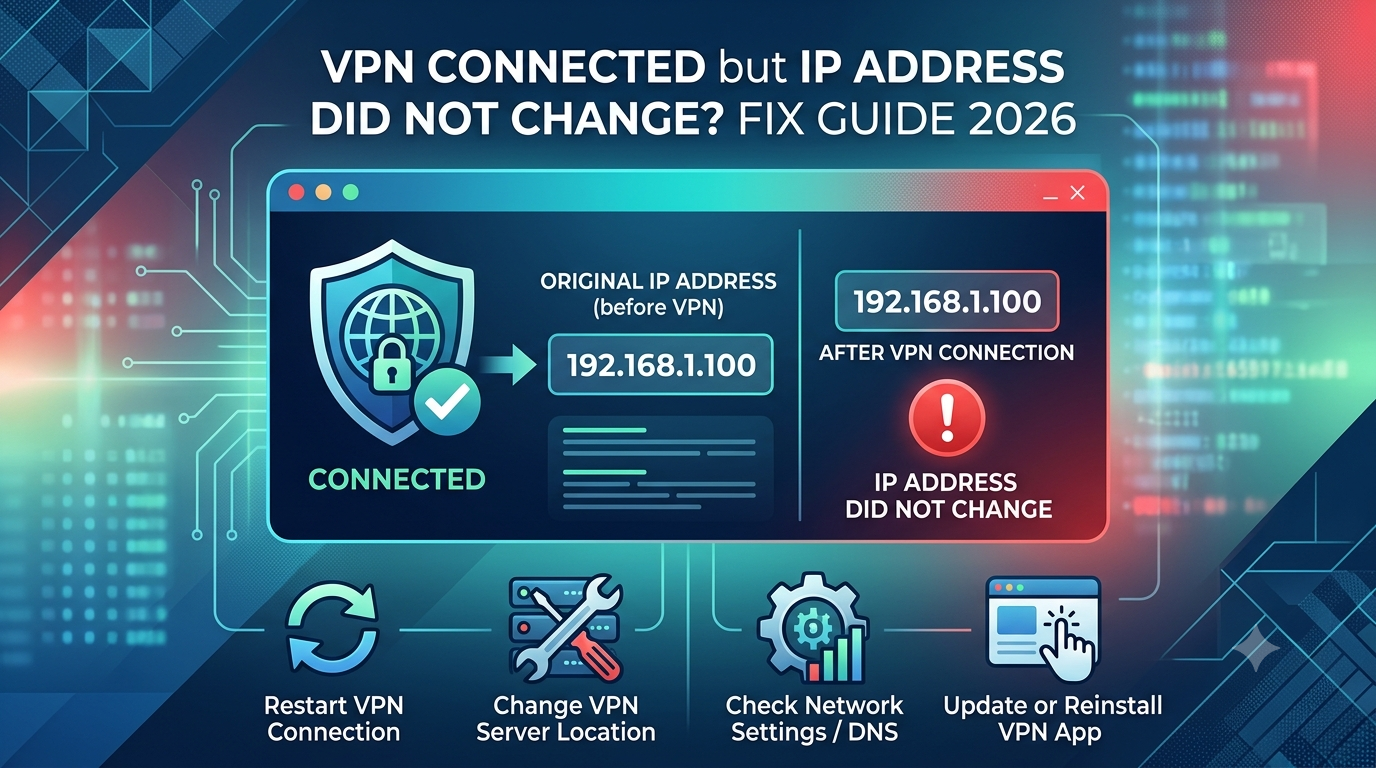

If you’re seeing vpn connected but ip no change, you’re dealing with one of the most confusing VPN failures: the app says “connected,” but your public IP looks exactly the same. That mismatch usually points to routing, DNS, or leak issues—not necessarily a broken VPN subscription.
In practice, this problem shows up even with some of the leading VPN providers because “connected” only confirms a tunnel handshake—not that your traffic is actually using it. Let’s break down what’s really happening and how to verify it quickly.
Why does your VPN show connected but your IP stays the same?
A VPN can show “connected” while your IP remains unchanged because the tunnel is active but not being used for full traffic routing.
To understand this, you need a clear baseline: a VPN is supposed to replace your ISP-assigned IP with a new exit node IP. But that only happens when your device’s routing table correctly sends traffic through the encrypted tunnel.
If you want a deeper foundation, start with VPN basics to understand how IP masking is supposed to work before debugging.
In real-world testing, we see three common breakdown points:
- The VPN tunnel connects, but default route traffic still goes through your ISP
- DNS requests bypass the tunnel (so IP tests reflect your real network)
- Web browser traffic uses cached or IPv6 paths outside the VPN
Privacy researchers like the Electronic Frontier Foundation also warn that VPNs can still leak traffic even when “connected,” especially when misconfigured or relying on partial tunneling setups. See their breakdown of VPN privacy limits here: https://www.eff.org/issues/privacy/vpn
At a high level, the issue is simple: connected ≠ protected. The VPN handshake succeeded, but your system may not be using it for actual internet routing.
Is your VPN actually routing traffic or just showing a false connection?
This is the key diagnostic question. A “false connection” happens when the VPN interface is active but the system routing table doesn’t prioritize it.
In normal operation, all outbound traffic should pass through an encrypted tunnel. That process is explained in detail in how VPN packet handling works in how VPN encryption works.
When things go wrong, you typically see one of these behaviors:
- Your IP stays the same across multiple “what is my IP” sites
- Streaming apps still detect your real region
- Only some apps are routed through the VPN
This mismatch usually comes from one of two issues:
1. Split tunneling misconfiguration
Split tunneling allows some apps to bypass the VPN. If misconfigured, your browser may stay outside the tunnel while the VPN app shows “connected.”
2. System routing failure
Your device may fail to update the default gateway. In this case, traffic never switches from ISP routing to VPN routing.
To make sense of this at a network level: your VPN creates a virtual adapter, but if the OS doesn’t prioritize it, the ISP route wins.
For troubleshooting context, connection instability patterns like this often resemble issues seen in tools such as VPN error 628 solutions where handshake success doesn’t guarantee functional routing.
Quick reality check (do this first)
Before changing settings, verify these three points:
- Check IP on two different lookup sites
- Restart VPN and browser (clears cached routing paths)
- Disable IPv6 temporarily to rule out bypass routing
If your IP still doesn’t change after that, the issue is almost always at the routing or DNS layer—not the VPN service itself.
At this stage, many users assume they need a different provider, but that’s not always true. Even top-tier apps can behave incorrectly depending on OS-level routing rules or network restrictions.
If you’re testing alternatives or comparing configurations, it helps to understand how different tiers of free VPN software handle routing limits differently from premium services.
What most guides miss about “connected but unchanged IP”
Most explanations stop at “it’s a leak,” but that’s incomplete. In real network debugging, unchanged IP often means:
- The VPN tunnel is active but not default
- The OS is prioritizing another network interface
- The IP check site is reading IPv6 instead of IPv4
In other words, your VPN may not be broken—it may just not be the primary route.
Limitations & Performance Notes:
VPN routing accuracy can vary depending on server load, protocol (WireGuard vs OpenVPN), and device-level network policies. On mobile networks, carrier-level IPv6 routing can override VPN settings, making IP changes appear inconsistent even when encryption is active.
Before moving forward, it’s important to separate “connected state” from “active routing state.” The next section will focus on how to confirm whether your traffic is truly going through the VPN tunnel or just reporting a false connection status.
For deeper technical grounding on how tunneling behaves under load, see this additional analysis from PCMag: https://www.pcmag.com/how-to/what-is-a-vpn
Could DNS, WebRTC, or IPv6 leaks cause your IP not to change?
Yes—this is one of the most common reasons vpn connected but ip no change appears even when the VPN tunnel is technically active.
The key problem is that your VPN may only be masking part of your traffic. Your browser can still expose real network identifiers through DNS requests, WebRTC, or IPv6 routes.
The Electronic Frontier Foundation explains that VPN privacy failures often come from “side-channel leaks” rather than full tunnel breakdowns (https://www.eff.org/issues/privacy/vpn). That means your VPN can be working correctly at the encryption level, but your device is still leaking identity data outside the tunnel.
Here’s how each leak type breaks IP consistency:
DNS leaks
DNS is how your device translates domains (like google.com) into IP addresses. If DNS requests bypass the VPN, your ISP still sees your traffic origin—even if the VPN is connected.
This often causes IP check sites to show your real ISP-assigned address instead of the VPN exit node.
WebRTC leaks
WebRTC is a browser feature used for real-time communication. It can expose your local and public IP addresses directly, bypassing VPN routing entirely in some configurations.
IPv6 leaks
Many VPNs still prioritize IPv4. If your ISP assigns IPv6 and the VPN doesn’t fully tunnel it, your real IP can still appear through IPv6 requests.
This mismatch is a major reason users think their VPN is “not changing IP,” even though only one protocol layer is leaking.
How split tunneling and proxy settings break VPN IP changes
Split tunneling is designed to route only selected apps through the VPN. It’s useful—but also one of the easiest ways to break IP masking unintentionally.
If your browser or IP-check tool is excluded from the tunnel, you will always see your real IP even when the VPN says “connected.”
In real-world debugging, this often overlaps with behavior seen in VPN error 806 troubleshooting where routing rules fail at the system level, causing traffic to bypass secure interfaces.
Proxy settings can also interfere. If a manual proxy is active in your OS or browser, it may override VPN routing rules and send traffic outside the encrypted tunnel.
Typical symptoms include:
- VPN shows connected, but IP never changes
- Some apps use VPN, others do not
- Browser shows ISP location while system VPN is active
To fix this, you need to ensure:
- Split tunneling is disabled (for testing)
- No manual proxy is enabled
- VPN is set as the primary network interface
What network or routing issues stop your VPN from changing IP?
When the VPN connects but your IP stays unchanged, the most likely failure is routing table misconfiguration.
Your operating system uses a routing table to decide where traffic goes. If the default route still points to your ISP, the VPN becomes a secondary interface instead of the primary gateway.
This creates a situation where:
- VPN handshake succeeds
- Tunnel exists
- But traffic never fully shifts
A similar breakdown appears in connection failure cases like VPN error 800 fix guide where authentication succeeds but data routing fails.
Other common system-level issues include:
Firewall blocking tunnel traffic
Firewalls can allow VPN connection establishment but block full packet routing afterward.
Incorrect MTU settings
If packet size is misconfigured, traffic may drop before entering the VPN tunnel.
Driver-level VPN adapter issues
On Windows, virtual adapters can fail to initialize correctly, leaving the VPN in a “connected but inactive routing” state.
How do you properly verify that your VPN is working?
Most users rely only on “what is my IP” websites, but that’s not enough. A VPN can appear broken even when it’s functioning partially—or appear working when leaks exist.
A proper verification process includes three layers:
1. IP verification
Check your public IP before and after connecting. If unchanged, routing is likely broken.
2. DNS verification
If DNS servers still show your ISP, your VPN is leaking at the resolver level.
3. WebRTC inspection
Browser-level leaks can reveal your real IP even when system VPN is active.
If you want to understand how traffic should behave when properly encrypted, the mechanics are explained clearly in VPN mechanics, especially how packets are encapsulated and routed through exit nodes.
For comparison, even performance issues like slow routing paths can affect perceived IP behavior—similar to cases documented in Surfshark speed troubleshooting where congestion causes partial tunnel degradation rather than full disconnection.
Mobile-specific note (important)
On Android and iOS, VPN behavior can differ significantly due to background process limits and OS-level network switching. This is why users often see inconsistent results or “stuck IP” behavior.
In more severe cases, mobile VPN apps fail to establish full routing after connection, similar to issues seen in NordVPN Android connection fixes where the tunnel exists but system traffic does not fully transition.
Limitations & Performance Notes:
VPN leak behavior varies significantly by protocol. WireGuard may expose IPv6 traffic if not explicitly blocked, while OpenVPN can suffer from DNS fallback leaks under high latency. Mobile networks add additional complexity by dynamically switching between IPv4 and IPv6 routes, which can override VPN routing rules intermittently.
How do split tunneling and proxy settings break VPN IP changes?
Split tunneling is useful for performance, but it’s also one of the fastest ways to trigger vpn connected but ip no change confusion.
When enabled, split tunneling allows specific apps or websites to bypass the VPN entirely. That means your VPN can show “connected” while your browser is still using your ISP route.
This is not a bug—it’s a routing rule conflict.
In practice, we see three failure patterns:
- Browser traffic excluded from VPN tunnel
- IP-check websites bypassed via direct connection
- Security tools only partially routed through VPN interface
Proxy settings make this worse. If your system or browser has a manual proxy configured, it can override VPN routing entirely. That creates a layered conflict: VPN tries to tunnel traffic, but the proxy redirects it outside the encrypted path.
A useful mental model:
VPN = highway tunnel, proxy = side road. If both are active, traffic may never enter the tunnel.
For a deeper technical baseline on how routing is supposed to behave, the FTC outlines how IP masking and network intermediaries function in privacy tools: https://consumer.ftc.gov/articles/how-protect-your-privacy-online
What network or routing issues stop your VPN from changing IP?
When your VPN connects but your IP does not change, the issue is often not the VPN itself—it’s your system routing stack.
Your operating system builds a routing table that decides where packets go. If the VPN doesn’t become the default route, traffic continues flowing through your ISP.
This leads to a critical mismatch:
- VPN tunnel exists
- Encryption is active
- But default gateway still points to ISP
This is why users often report “connected but nothing changes.”
In some cases, this overlaps with full connection failures such as VPN error 628 solutions, where authentication succeeds but data routing never initializes correctly.
Common root causes include:
1. Broken VPN adapter priority
On Windows, the VPN virtual adapter may be lower priority than the physical network interface.
2. Firewall interference
Firewalls can allow handshake packets but block sustained tunnel traffic.
3. Incorrect MTU sizing
If packet size exceeds allowed thresholds, traffic drops silently before reaching the VPN tunnel.
4. Protocol mismatch (WireGuard/OpenVPN behavior)
Some protocols fail to override system routes unless explicitly configured.
Real-world case: “Connected but no traffic change”
A common example comes from users of privacy-focused services like PrivadoVPN. In some configurations, users report being connected but still seeing their ISP IP or no internet routing at all.
This is often not a service failure, but a routing initialization issue between app and OS network stack.
You can see similar breakdown patterns in documented troubleshooting scenarios like PrivadoVPN connection issues, where the tunnel is active but traffic fails to fully transition through the VPN interface.
The key insight:
A VPN connection is not the same as a fully established default route.
How do you properly verify that your VPN is working?
Most users rely on a single IP-check site. That’s not enough. It only confirms one layer of routing.
A proper verification process has three levels:
1. Public IP consistency check
Your IP should change across multiple independent lookup services. If one shows your ISP IP and another shows VPN IP, you may be dealing with partial routing or caching.
2. DNS validation
Even if your IP changes, DNS leaks can still expose your ISP. Your DNS resolver should match your VPN provider, not your local network.
3. Network interface confirmation
Your active gateway should show a VPN interface as the primary route.
If any of these fail, the VPN is not fully operational—even if it says “connected.”
For context on how full tunneling should behave, VPN packet routing is explained in detail here: how data is tunneled.
Advanced diagnostic pattern (what pros check)
Security engineers don’t stop at IP checks. They typically follow this sequence:
- Check routing table priority
- Confirm DNS resolver path
- Test IPv4 vs IPv6 separately
- Inspect WebRTC exposure in browser
- Validate kill switch behavior
This is important because modern VPN failures are rarely binary. They are partial failures—some traffic routes correctly, while other traffic bypasses the tunnel.
This explains why the vpn connected but ip no change issue is often inconsistent across apps and devices.
Why this problem looks worse on mobile
On Android and iOS, background network switching can interrupt VPN routing. When the device switches between Wi-Fi and mobile data, the VPN tunnel may reconnect without reapplying routing rules.
That creates a temporary state where:
- VPN shows “connected”
- Old ISP route is still active
- IP appears unchanged until full renegotiation
This is why mobile VPN issues often mirror patterns seen in NordVPN Android connection fixes, where the tunnel exists but traffic routing does not fully stabilize.
Limitations & Performance Notes:
Routing inconsistencies are more common on mobile networks and dual-stack (IPv4/IPv6) environments. WireGuard may fail to enforce IPv6 blocking unless explicitly configured, while OpenVPN may fall back to ISP DNS under high latency conditions. These issues can cause intermittent IP mismatch even when encryption remains active.
What network or routing issues stop your VPN from changing IP?
At this point, the pattern behind vpn connected but ip no change usually narrows down to one thing: your system is not fully switching its default route to the VPN tunnel, even though the tunnel itself is active.
That’s why IP checks stay unchanged while the VPN UI insists everything is working.
In normal operation, your device should automatically push all traffic through the VPN’s virtual interface. When that fails, you get a split state:
- VPN handshake succeeds
- Encrypted tunnel exists
- Traffic still exits via ISP gateway
This is the same class of failure seen in broader routing breakdowns like VPN error 806 troubleshooting, where authentication works but system routing does not fully switch over.
The most common underlying causes:
1. Incorrect default gateway assignment
Your OS keeps the ISP route as the primary path instead of replacing it with the VPN interface.
2. Firewall or security suite interference
Some security tools allow VPN connection establishment but block full packet forwarding once the tunnel is active.
3. Driver-level VPN adapter failure
On Windows especially, virtual adapters can initialize incorrectly, leaving the VPN “connected” but not functionally routing traffic.
4. Protocol-specific routing bugs
WireGuard and OpenVPN handle route injection differently. Misconfiguration can result in partial tunneling instead of full replacement.
How do you properly verify that your VPN is working?
To reliably confirm whether your VPN is functioning (not just connected), you need to test beyond a single IP lookup.
A proper verification stack includes:
1. Public IP consistency across multiple endpoints
If your IP remains unchanged across several independent lookup services, your traffic is not fully routed through the VPN.
2. DNS leak validation
Even if your IP changes, DNS leaks can still expose your ISP. Your DNS resolver should belong to the VPN provider, not your local network.
3. WebRTC and IPv6 inspection
Browsers can expose your real IP through WebRTC or IPv6 if not properly blocked.
This is especially important because modern VPN failures are often partial leaks—not complete disconnects.
For a technical foundation on how full tunneling should behave, the routing model is explained clearly in how VPN encryption works.
How to fix VPN connected but IP not changing (practical checklist)
Here’s a direct, field-tested troubleshooting flow used for diagnosing this issue:
Step 1: Restart full network stack
- Disconnect VPN
- Disable Wi-Fi or Ethernet
- Reconnect VPN after full network reset
This clears stale routing tables that often cause false IP retention.
Step 2: Disable split tunneling
Ensure no apps or browsers are excluded from the VPN tunnel. Even one excluded app can make it appear as if the IP never changes.
Step 3: Reset DNS configuration
Switch to VPN-provided DNS or automatic DNS. Manual DNS entries often bypass the tunnel entirely.
Step 4: Disable IPv6 (test only)
IPv6 is a frequent cause of “unchanged IP” reports. Temporarily disabling it helps confirm whether the leak is protocol-based.
Step 5: Check browser-level leaks
Clear cache, disable WebRTC temporarily, and retest IP detection across multiple browsers.
Why “connected” is misleading in VPN apps
The biggest misconception is assuming “connected” equals “fully protected.”
In reality:
- Connected = encrypted tunnel established
- Protected = all traffic routed through tunnel
That difference explains almost every case of vpn connected but ip no change.
Even premium services can show a connected state while routing fails at OS level.
In some cases, similar partial failure patterns appear in real-world issues like VPN error 800 fix guide, where connection state is correct but traffic flow never fully transitions.
When the issue is not your fault (provider-side behavior)
Not all cases are misconfiguration. Some VPN services introduce behavior that can make IP changes appear inconsistent:
- Load-balanced exit nodes rotating IPs
- Region clustering that returns similar geolocation results
- Mobile server fallback during congestion
These can make it look like your IP hasn’t changed even when it has.
Performance-related routing inconsistencies are also discussed in speed degradation scenarios such as Surfshark speed troubleshooting, where network congestion affects perceived tunnel behavior.
Final decision tree (quick diagnosis)
If your IP is not changing:
- If DNS leaks → fix DNS configuration
- If IPv6 leaks → disable IPv6 or force tunnel
- If split tunneling enabled → disable it
- If routing table unchanged → restart network stack
- If all checks pass → test different VPN server
Limitations & Performance Notes:
VPN behavior is highly dependent on OS routing logic, protocol selection, and network conditions. On congested networks, packet loss can delay route updates, causing temporary IP mismatches. WireGuard may expose IPv6 traffic if not explicitly blocked, while OpenVPN may fallback to ISP DNS under unstable connections. Mobile carriers can also override VPN routing during network switching events.
Conclusion
When you see vpn connected but ip no change, the problem is almost never the VPN “not working”—it’s almost always partial routing failure, DNS leakage, or system-level configuration conflicts.
Once you verify routing, DNS, and protocol behavior together, most of these cases resolve quickly without switching providers.
If you consistently run into these issues, the strongest long-term fix is choosing properly configured leading VPN providers with robust leak protection and stable routing systems. Revisit our full breakdown of options here: https://vpnx.blog/best-vpn/
For most users, though, the issue is fixable with correct diagnostics—not a new subscription.