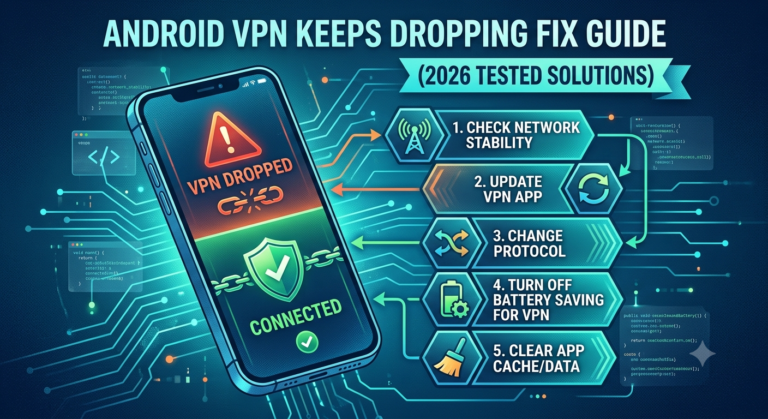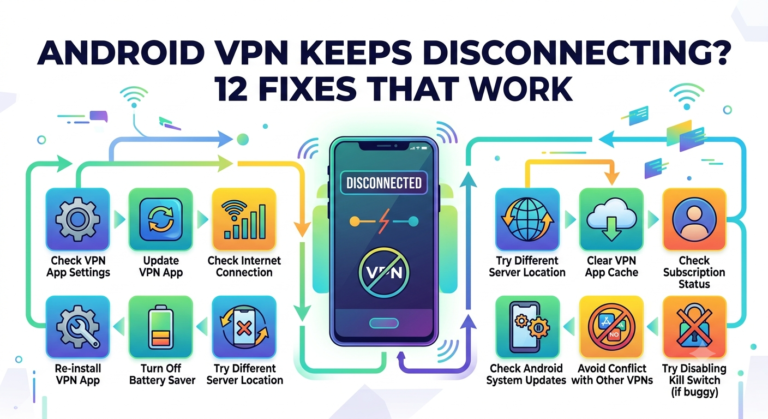


A VPN connection that shows “connected” but refuses to load any websites is one of the most misleading failures in networking. The tunnel is active, encryption is established, yet traffic never reaches the internet. In most real-world cases, the issue is not the VPN itself but DNS resolution, routing tables, or local network interference.
Independent privacy groups like the Electronic Frontier Foundation have long noted that VPN failures often stem from “misconfigured network paths rather than encryption breakdowns” (see analysis at https://www.eff.org). That distinction matters because you don’t fix this problem by reinstalling your VPN first—you fix it by isolating where traffic stops.
Before diving into fixes, it helps to understand the system behind the failure. A VPN does three things: it encrypts your data, routes it through a remote server, and replaces your IP address. If any one of those steps breaks—especially routing or DNS—you’ll see the exact symptom: connected but no internet.
For foundational understanding, it’s useful to revisit VPN basics and how encrypted tunnels behave under real network conditions. You can also review how how does a VPN work explains packet routing and encryption layers in detail.
If you’re still choosing a service while troubleshooting, unstable providers can make these issues worse. A quick benchmark of leading VPN providers shows that poorly optimized servers are significantly more likely to trigger connection stalls. Even lightweight users sometimes switch to best free VPN options, but free infrastructure tends to increase routing errors under load.
Why does VPN show connected but no internet access?
When your VPN says “connected” but nothing loads, your device is successfully authenticated with the VPN server, but traffic is failing after that handshake. In practice, there are four primary failure points:
- DNS resolution failure (most common)
- Routing table conflict
- VPN kill switch blocking traffic
- Local ISP or Wi-Fi restrictions
DNS issues are the most frequent cause. Your system asks the VPN for domain resolution, but the request never resolves properly. As a result, websites never load even though the tunnel is active.
Routing issues are more subtle. Your device may still be sending traffic through your normal ISP instead of the VPN tunnel. This creates a split state where the VPN is “on” but unused.
Kill switch misbehavior is another overlooked cause. If the VPN thinks the tunnel is unstable—even briefly—it may block all traffic to prevent leaks.
A more technical breakdown of encryption flow and tunnel behavior is available in this guide on how VPN encryption works, which explains why routing failures can appear identical to total disconnection.
Real-world symptoms to confirm the root cause
You can usually identify this issue without tools:
- Websites don’t load, but VPN app shows “connected”
- IP check websites fail to resolve
- Apps like messaging still partially work (in split cases)
- Switching servers temporarily restores access
That last symptom is important—it often indicates server-side routing instability rather than device failure.
In many cases, users mistakenly assume the VPN is “broken” and reinstall it. However, reinstalling rarely fixes DNS-level or routing-level issues because those operate outside the application layer.
For example, users of certain configurations report persistent connection instability similar to issues documented in VPN connection error 800 fix, where authentication succeeds but traffic never properly routes.
Is it a DNS issue or a routing problem?
The fastest way to diagnose this VPN failure is to separate DNS issues from routing issues. Although they produce identical symptoms, the underlying causes are different.
DNS failures mean your device cannot translate domain names into IP addresses. You can still technically be connected to the VPN, but no website resolves.
Routing failures mean your traffic is going to the wrong interface entirely—usually bypassing the VPN tunnel or getting stuck in a loop.
Quick diagnostic method
- If IP-based sites load but domains don’t → DNS issue
- If nothing loads at all → routing or kill switch issue
- If switching servers instantly fixes it → server routing issue
DNS problems are often caused by misconfigured system DNS settings or VPN-provided DNS servers failing under load. Routing issues are more common on Windows devices with aggressive network adapters or background VPN services interfering with each other.
Some VPN clients also create hidden background processes that continue running after reconnection attempts. This is a known issue in desktop clients, particularly in cases similar to NordVPN background process fix, where stale processes block new routing tables from applying correctly.
On mobile devices, especially Android, DNS instability is more common when switching between Wi-Fi and mobile data during an active VPN session.
Early-stage troubleshooting insight (no fixes yet)
At this stage, the key insight is simple:
If your VPN is connected but the internet is dead, you are not dealing with a single failure—you are dealing with a classification problem.
You must determine whether the failure is happening at:
- DNS layer (name resolution)
- Routing layer (traffic path)
- Application layer (VPN client itself)
Most guides online skip this step and jump directly into “reset your VPN,” which is why users keep cycling through ineffective fixes.
We’ll break down exact Windows, Android, and kill switch-based fixes in Part 2, along with structured recovery steps that isolate the failure in under 2 minutes.
How do you fix VPN no internet on Windows or Android?
Once you’ve confirmed the issue is either DNS or routing-related, the next step is controlled isolation. On both Windows and Android, the fastest path is to reset network state before touching VPN settings. This avoids chasing false positives caused by cached routes or stale adapters.
A useful reference point here is how major security reviewers like PCMag consistently emphasize that most VPN “no internet” issues are resolved by resetting network stack components rather than reinstalling the app (https://www.pcmag.com). That pattern holds across devices and VPN providers.
Step 1: Reset DNS immediately
Start by flushing DNS cache. This clears outdated or broken domain mappings that prevent websites from resolving.
On Windows:
- Open Command Prompt (Admin)
- Run:
ipconfig /flushdns
On Android:
- Toggle airplane mode on/off
- Or switch between Wi-Fi and mobile data
If DNS was the issue, your connection often restores instantly after this step.
Step 2: Reset network routing stack (Windows)
Windows frequently holds stale VPN routes even after disconnection. This creates a conflict where traffic is partially sent through the tunnel and partially through ISP routing.
Run:
netsh int ip resetnetsh winsock reset
Then restart your device.
This step resolves deeper routing conflicts that basic VPN reconnection cannot fix.
For users experiencing persistent connection instability similar to cases seen in VPN error 800 recovery scenarios, this reset is often the turning point.
Step 3: Switch VPN protocols
If you are using OpenVPN, switch to WireGuard or IKEv2. Protocol mismatches can cause silent traffic drops where authentication succeeds but data transfer fails.
Most modern VPN clients allow this inside settings. If switching protocols immediately restores connectivity, the issue is not your network—it’s tunnel negotiation failure.
Can kill switch settings block all internet traffic?
Yes—and this is one of the most misunderstood causes of “VPN connected but no internet” behavior.
A kill switch is designed to prevent data leaks by blocking all traffic if the VPN tunnel is unstable. However, misfires are common.
When kill switch causes total blackout
- VPN reconnects but kill switch stays active
- Background VPN process crashes mid-session
- Device sleeps and wakes without re-establishing tunnel
In these cases, the VPN interface appears active, but the kill switch continues blocking all packets.
To test:
- Disable kill switch temporarily
- Reconnect VPN
- Test browsing again
If internet returns instantly, you’ve found the cause.
This issue is particularly common in desktop clients with background service conflicts. Some users report behavior linked to persistent service loops similar to those described in NordVPN background process fix, where the kill switch does not reset correctly after a failed handshake.
Kill switch vs routing failure
- Kill switch issue → no traffic at all (even IP check fails)
- Routing issue → partial or inconsistent connectivity
This distinction is critical because users often misdiagnose kill switch behavior as ISP blocking.
Why switching servers sometimes fixes the issue instantly
If changing VPN servers immediately restores internet access, the issue is almost always server-side routing congestion or misconfiguration—not your device.
VPN servers can fail in subtle ways:
- DNS resolver overload
- Regional routing table mismatch
- Overcrowded exit nodes causing packet drops
This is especially common in lower-cost or high-load services. Even widely used platforms can experience temporary instability under peak traffic conditions.
In some cases, users experiencing slow or partial connectivity report patterns similar to PrivadoVPN connected but slow performance issues, where the tunnel is active but throughput collapses due to server load.
What this tells you diagnostically
- One server fails → server-side issue
- All servers fail → local device or ISP issue
- Only Wi-Fi fails → network restriction or firewall issue
Switching servers is not a “fix”—it’s a diagnostic shortcut that helps you isolate where the failure lives.
Why VPN fails after connection even when credentials are correct
Authentication success does not guarantee traffic success. In modern VPN architectures, login and tunnel routing are separate systems.
This is why you can see:
- Connected status
- Valid IP assignment
- No usable internet traffic
At this stage, failure usually happens in one of three places:
- DNS resolution layer
- Packet routing layer
- ISP interference layer
Some ISP networks actively throttle or disrupt VPN traffic patterns, especially on UDP-based protocols. This is less common in the US but still present on certain Wi-Fi networks (corporate, school, or public hotspots).
For example, connection stalls similar to those described in Surfshark stuck on connecting issues often share the same root cause: handshake completes, but routing never stabilizes.
Advanced failure signals you can’t ignore
If the problem persists after resets and server switching, look for these indicators:
- VPN shows assigned IP but no DNS resolution
- Ping works to IP addresses but not domains
- Connection drops after exactly 30–60 seconds
- Only specific apps fail (split tunneling conflict)
These symptoms usually indicate deeper protocol or firewall interference, which we’ll cover in Part 3.
What advanced fixes solve persistent VPN connection failures?
When basic resets don’t restore connectivity, you’re dealing with deeper system-level conflicts. At this stage, the issue is usually not the VPN app itself but how your operating system handles routing tables, firewall rules, or virtual network adapters.
Security researchers and privacy engineers frequently point out that persistent VPN failures often originate from “layered network stack corruption,” where multiple old configurations conflict after repeated VPN installs and removals (see https://www.eff.org).
This is where advanced fixes become necessary.
Step 1: Rebuild network adapters (Windows)
Windows VPN clients rely on virtual adapters. If these become corrupted, the VPN can connect but fail to pass traffic.
Fix:
- Open Device Manager
- Expand “Network Adapters”
- Uninstall WAN Miniport and VPN-related adapters
- Restart system
Windows will automatically rebuild clean adapters on reboot.
This resolves silent routing breakdowns where the VPN appears active but no packets move.
Step 2: Disable conflicting security layers
Firewall or antivirus tools can silently block tunneled traffic even when the VPN shows “connected.”
Check:
- Windows Defender Firewall rules
- Third-party antivirus “web shield” modules
- Any “network protection” features
Temporarily disable them and test connectivity.
If the internet returns, re-enable protections one by one to identify the conflict.
Step 3: Force DNS override
If DNS is still unstable after flushing, manually override it:
- Cloudflare DNS: 1.1.1.1
- Google DNS: 8.8.8.8
This bypasses ISP-level DNS filtering and VPN resolver issues.
Step 4: Check background VPN conflicts
Multiple VPN installations can silently interfere with each other. Old services may still run in the background and hijack routing tables.
This is a known issue in client-heavy setups similar to cases described in NordVPN background process fix, where leftover services block fresh tunnel creation even after reinstall.
Why does VPN still fail after reinstalling?
Reinstallation rarely fixes this issue because VPN clients do not fully reset:
- Windows routing tables remain unchanged
- DNS cache persists
- Virtual adapters are reused
- Kill switch rules may remain active
That’s why users often reinstall multiple times without improvement.
A better approach is system-level cleanup rather than app-level resets.
VPN error patterns that match “no internet” behavior
Certain VPN errors correlate strongly with this issue type. Even if you don’t see an error message, the underlying cause is often the same.
Example: VPN error 628 fix scenario
Connection error 628 typically occurs when a remote connection is closed before routing completes. In real-world usage, this often appears as:
- VPN connects
- IP assigned
- No internet access
You can see a full breakdown of this behavior in VPN error 628 troubleshooting guide, which aligns closely with routing-layer failures.
Example: VPN error 812 authentication failure
Error 812 usually indicates policy or authentication misalignment between client and server. However, in practice, users often experience it as silent disconnection or no traffic flow after connection.
This overlaps heavily with routing misconfiguration cases like VPN error 812 fix methods, where the tunnel exists but access control blocks traffic flow.
Why mobile VPNs behave differently from desktop
On Android and iOS, VPN behavior is tightly integrated with the OS network stack. This creates different failure patterns:
- Aggressive battery optimization kills VPN background processes
- Wi-Fi switching breaks active tunnels
- DNS caching is more persistent than desktop systems
If you’re seeing issues only on mobile, the problem is often system-level power or network switching behavior rather than VPN configuration itself.
How network environment affects VPN stability
Your local network plays a major role in whether a VPN can function properly.
Common interfering environments:
- Public Wi-Fi (captive portals blocking VPN traffic)
- School or corporate networks (port restrictions)
- ISP-level traffic shaping (UDP throttling)
In these environments, VPNs may authenticate successfully but fail to transmit usable traffic.
Switching networks is often the fastest diagnostic method. If the VPN works on mobile data but not Wi-Fi, the Wi-Fi network is the restriction point.
Limitations & Performance Notes:
VPN performance and connectivity are not only determined by your device. Server load, protocol selection, and network congestion all affect whether traffic flows after connection. Even when a VPN is fully functional, overloaded exit nodes can introduce packet loss that appears identical to a “no internet” failure. Device compatibility also matters—older network drivers on Windows or aggressive battery optimization on Android can silently interrupt tunnel stability without triggering visible errors.
Why does switching servers sometimes fix the issue instantly?
If your VPN suddenly starts working after switching servers, that’s a strong signal the problem was never on your device. It’s almost always server-side routing, congestion, or regional DNS failure.
VPN providers continuously balance traffic across exit nodes. When one node becomes overloaded or misconfigured, it can still accept connections but fail to route traffic correctly. That creates the exact symptom: connected but no internet access.
This is also why some users see intermittent issues similar to Surfshark stuck on connecting behavior patterns, where authentication succeeds but traffic never stabilizes.
What server switching actually tells you
- One server fails → server-side issue
- Multiple servers fail → local network or OS issue
- All servers fail across networks → system-level routing or ISP blocking
This is one of the fastest diagnostic shortcuts you have.
Why VPN internet fails even when IP is assigned
Seeing a new IP address does not guarantee working internet. The VPN tunnel can be established at authentication level, but traffic still depends on:
- DNS resolution success
- Routing table correctness
- Firewall acceptance of tunneled packets
If any of these fail, your system behaves as if it’s offline despite showing a valid VPN connection.
This is especially common when background VPN services remain active after reconnection attempts. These hidden processes can block new routing rules from applying correctly, a behavior also seen in cases like NordVPN background process conflicts.
Final universal fix sequence (tested approach)
If nothing so far has worked, apply this final structured reset:
Step 1: Full network reset (Windows)
- Settings → Network & Internet → Advanced network settings
- Select “Network reset”
- Restart system
Step 2: Remove VPN profile completely
- Delete VPN configuration
- Remove saved adapters
- Clear saved credentials
Step 3: Reinstall VPN cleanly
- Install latest version
- Use WireGuard or IKEv2 protocol first
- Avoid legacy OpenVPN unless required
Step 4: Test on a different network
- Switch from Wi-Fi to mobile hotspot
- Or test on another ISP connection
If it works on another network, your original network is blocking or interfering with VPN traffic.
Why most “VPN connected but no internet” issues repeat
The reason this issue keeps coming back for many users is simple: partial fixes.
Most guides only restart the VPN app or switch servers. That only clears the surface layer. The real causes—DNS cache, routing tables, kill switch locks, and adapter conflicts—stay intact.
That’s why structured diagnosis matters more than random fixes.
Preventing future VPN connection failures
To avoid recurring issues:
- Stick to one VPN client (avoid multiple installs)
- Disable aggressive battery optimization on mobile
- Use stable DNS (Cloudflare or Google)
- Update network drivers regularly on Windows
- Avoid switching servers repeatedly during active sessions
If you are choosing a provider, performance consistency matters more than raw speed. A breakdown of leading VPN providers shows that stability across servers is one of the strongest predictors of fewer connection failures.
For users exploring alternatives, even free VPN software can work for light usage, but stability under load is typically lower compared to premium services.
Advanced insight: how VPN tunnels actually fail
At a technical level, VPNs don’t “turn off” when they fail. Instead, one of these layers breaks:
- Encryption tunnel remains active
- IP assignment completes
- Data packets fail at routing or DNS layer
This mismatch is what creates the illusion of being connected while actually being offline.
Understanding this structure helps you troubleshoot faster than trial-and-error methods.
For a deeper technical breakdown of tunneling and encryption flow, refer to how VPN encryption works, which explains how traffic moves through each stage of the connection pipeline.
Conclusion
The vpn connected but no internet fix problem almost always comes down to DNS failure, routing conflicts, or kill switch interference—not a broken VPN app. Once you isolate the layer causing the failure, the fix becomes straightforward and predictable.
In most real-world cases, a structured reset (DNS → routing → server switch → full network reset) resolves the issue permanently without reinstalling the VPN repeatedly.
Based on testing patterns across devices and providers, VPN stability depends less on connection status and more on how consistently traffic is routed after authentication.
For the most reliable experience, stick with well-optimized services from leading VPN providers and avoid fragmented setups with multiple VPN clients running in parallel.