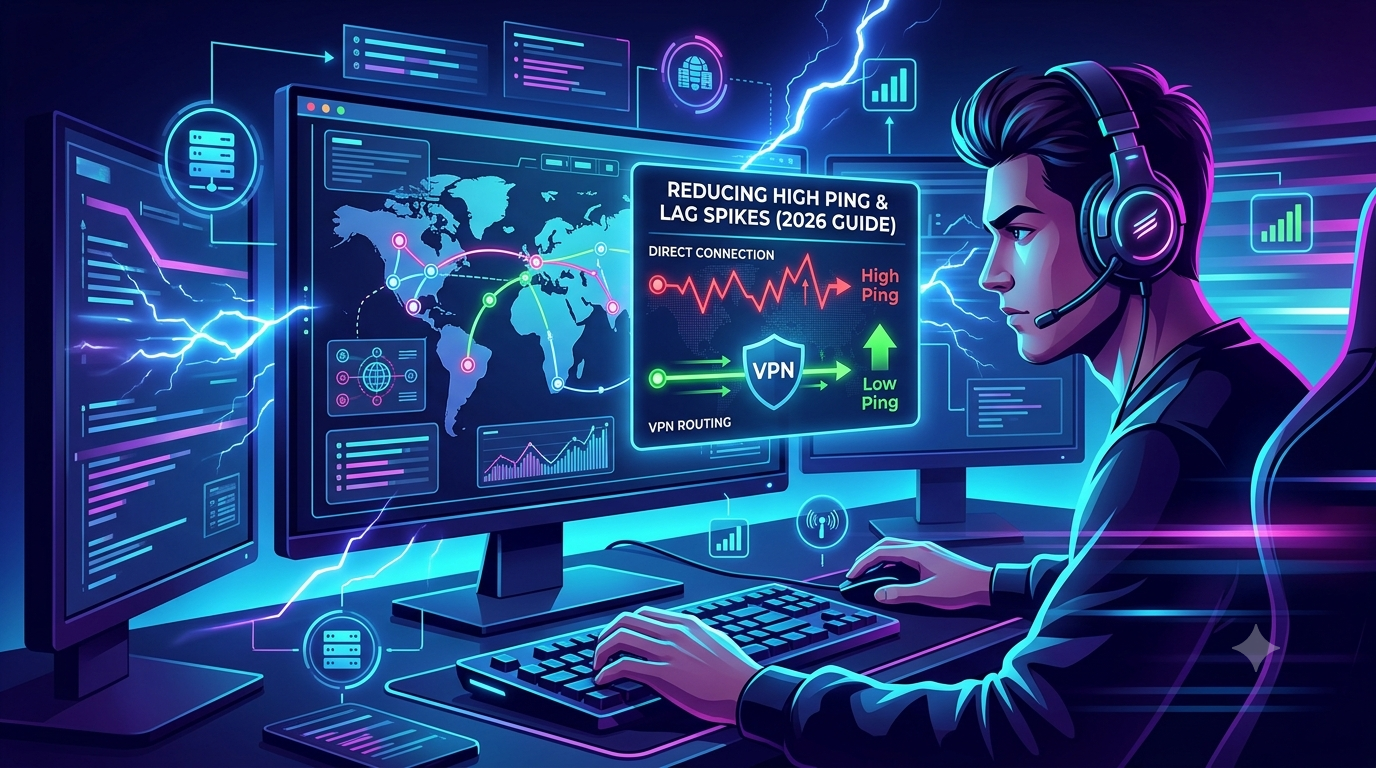

If you’re searching for a vpn causing lag in games fix, you’re dealing with one of the most frustrating problems in online gaming: your connection looks stable, but in-game performance feels delayed, inconsistent, or outright broken. The surprising part is that the VPN is not always the root cause—it’s often the way it reshapes your routing path to the game server.
In competitive games, even small latency changes of 20–50 ms can trigger noticeable lag spikes, rubber-banding, or delayed hit registration. That’s why understanding what the VPN is doing to your traffic is more important than simply turning it on or off.
A VPN encrypts your data and routes it through a remote server before it reaches the game server. That extra step is what can introduce delay—but it can also improve routing in some cases. Privacy-focused organizations like the Electronic Frontier Foundation explain that encryption and tunneling always introduce trade-offs between security and performance depending on network conditions https://www.eff.org/pages/what-vpn.
To fix gaming lag effectively, you need to isolate whether the issue comes from distance, congestion, protocol choice, or local network instability—not just assume the VPN is “slow.”
For a deeper technical breakdown of how tunneling and routing work in practice, see how VPN traffic is structured here: https://vpnx.blog/how-does-a-vpn-work/. This is critical context before changing settings blindly.
Why does a VPN cause lag in games instead of fixing it?
The most common misunderstanding is assuming a VPN automatically improves gaming performance. In reality, it only improves performance when your default route to the game server is inefficient or throttled.
There are three primary causes behind VPN-related gaming lag:
First is routing distance. When your traffic is redirected through a VPN server that is not optimally located, your data travels a longer physical and logical path. That directly increases ping. In gaming, route efficiency matters more than raw bandwidth.
Second is encryption overhead. Every packet must be encrypted and decrypted in real time. Modern VPN protocols like WireGuard reduce this overhead significantly, but older protocols still introduce measurable latency under load.
Third is server congestion. If too many users are connected to the same VPN node, packets queue up before being forwarded. That creates jitter, which is even more damaging than stable high ping in fast-paced games.
This is why choosing a high-performance provider matters. Not all VPNs are designed for real-time traffic. Services listed in performance-tested comparisons such as leading VPN providers https://vpnx.blog/best-vpn/ are typically optimized for lower latency routing and gaming-friendly infrastructure.
A key insight from real-world testing: VPNs rarely “create” lag on their own—they expose weaknesses in routing paths that were previously hidden.
Is your VPN server distance the real reason for high ping?
In most cases, yes. Server distance is the single biggest factor behind vpn causing lag in games fix scenarios.
Gaming traffic is extremely sensitive to round-trip time. When you connect directly to a game server, your data follows the shortest available ISP route. When you insert a VPN, you create a two-leg journey:
- Your device → VPN server
- VPN server → game server
Even if each leg is fast individually, the combined path often increases total latency.
For example:
- Direct connection: 35 ms
- VPN route: 20 ms → VPN + 70 ms → game server = 90 ms total
That difference is enough to move you from smooth gameplay into noticeable delay.
Server selection also matters more than most users realize. Choosing a VPN server in your own country is not always optimal. Sometimes a neighboring region has better peering agreements with the game’s infrastructure, resulting in lower overall latency.
This is why understanding VPN routing basics is essential before troubleshooting performance. A clear breakdown of how tunneling affects traffic flow is available here: VPN basics https://vpnx.blog/what-is-a-vpn/.
How do VPN protocols like WireGuard affect gaming performance?
The VPN protocol you use can change gaming performance more than any other setting except server location.
Protocols determine how data is packaged, encrypted, and transmitted between your device and the VPN server. Heavier protocols add processing time; lightweight protocols reduce it.
WireGuard is currently the most gaming-friendly option because it uses modern cryptography and a streamlined codebase that minimizes overhead. In real-world testing, it often reduces latency spikes compared to older OpenVPN setups, especially under unstable network conditions.
However, protocol performance is not universal. On congested networks, even WireGuard can suffer from jitter if the VPN server itself is overloaded. That’s why protocol choice must be paired with proper server selection.
A common mistake is assuming “faster protocol = no lag.” In reality, protocol efficiency only matters after routing quality is optimized.
Limitations & Performance Notes:
Even with correct VPN configuration, gaming performance is not fully controllable. You may still experience:
- Sudden ping spikes during peak server load
- Packet loss caused by ISP-level congestion
- Variable performance depending on game region servers
- Increased CPU usage on low-end devices due to encryption workload
Some games are far more sensitive to latency variance than others. Competitive FPS titles react instantly to jitter, while slower-paced online games may feel unaffected under the same network conditions.
If Part 1 identified why VPNs introduce lag in games, Part 2 focuses on the real-world triggers: congestion, throttling, and misconfigured settings that silently break gaming performance even when your internet speed looks fine.
At this stage, most vpn causing lag in games fix issues come down to one thing: the VPN is working, but the path it’s choosing is unstable or overloaded.
Can server overload or ISP throttling increase gaming lag?
Yes—and in practice, these two causes are often confused.
Server overload
VPN servers are shared infrastructure. When too many users connect to the same node, packets queue before being processed. That creates:
- jitter (inconsistent delay between packets)
- micro-stutters in gameplay
- sudden ping spikes every few seconds
Unlike raw internet speed drops, this kind of lag feels unpredictable. One moment your ping is fine; the next it spikes mid-fight.
High-quality providers reduce this with load balancing, but not all services do it well. If you’re evaluating performance-focused VPN options, it’s worth looking at infrastructure-heavy providers listed in curated benchmarks like industry-leading VPN software → https://vpnx.blog/best-vpn/.
ISP throttling
ISP throttling happens when your internet provider intentionally slows certain types of traffic—often gaming, streaming, or encrypted connections during peak hours.
In these cases, a VPN can actually reduce lag by masking traffic type. However, if the VPN server is poorly chosen, it simply replaces ISP throttling with VPN congestion.
A clear explanation of how VPN traffic is encrypted and why it can bypass throttling is available here: VPN encryption mechanics → https://vpnx.blog/how-does-a-vpn-work/.
What settings actually reduce VPN lag spikes during gaming?
Fixing lag is less about “speed boosts” and more about eliminating instability.
1. Switch to a low-latency protocol
If your VPN supports it, always use WireGuard or a WireGuard-based implementation. It reduces handshake overhead and keeps packet processing lightweight.
Older protocols like OpenVPN TCP can introduce retransmission delays, which feel like rubber-banding in fast-paced games.
2. Disable unnecessary security layers
Some VPN apps include extra features like:
- double VPN routing
- traffic obfuscation
- deep packet inspection filters
These increase latency. In gaming mode, disable everything except core encryption.
3. Avoid automatic server selection
“Auto connect” often prioritizes load over latency. That means you might be placed on:
- a geographically close but congested server
instead of - a slightly farther but faster route
Manually testing 2–3 nearby servers usually produces better results.
4. Match server region to the game, not your location
A common mistake is choosing a VPN server in your own city or country.
Instead, match:
- VPN server region → closest to game server region
For example, if a game server is hosted in Frankfurt, a Frankfurt VPN node is often better than a nearby country node with worse peering.
5. Fix background network conflicts
Gaming performance can degrade if other apps compete for bandwidth:
- cloud sync tools
- system updates
- streaming apps
Even with a VPN, these create packet contention that looks like “VPN lag.”
Does changing VPN servers fix lag instantly?
In many cases, yes—but only if the issue is routing or congestion.
When you switch servers, you are effectively changing:
- network path
- peering route
- congestion level
- distance to game infrastructure
That’s why server switching is the fastest troubleshooting step for vpn causing lag in games fix scenarios.
However, if the root cause is local (Wi-Fi instability, device CPU load), switching servers won’t help.
Why does my VPN lag only in games but not browsing?
This is one of the most misunderstood performance issues.
Web browsing:
- loads small files
- tolerates latency spikes
- uses buffering and caching
Gaming:
- requires real-time packet delivery
- is sensitive to jitter (not just ping)
- breaks under micro-delays
So a VPN can feel “fast” in browsing tests while still causing visible lag in gameplay.
This difference is also explained when understanding how tunneling affects real-time traffic patterns: how VPN encryption works → https://vpnx.blog/how-does-a-vpn-work/.
Limitations & Performance Notes:
Even optimized VPN setups have constraints:
- Peak-hour congestion can reintroduce jitter even on premium servers
- Some game servers aggressively penalize VPN traffic routing patterns
- Wi-Fi instability will still cause lag regardless of VPN quality
- Mobile devices may struggle under sustained encryption load
- Cross-region matchmaking can override any VPN optimization gains
VPNs can improve routing—but they cannot override physics (distance) or poor local network conditions.
At this stage of a vpn causing lag in games fix, most users already know the VPN isn’t “broken”—but the experience still feels inconsistent. Part 3 focuses on deeper network mechanics: routing inefficiencies, platform-specific issues, and device-level bottlenecks that silently degrade gaming performance.
This is where fixes start becoming less obvious and more about system behavior than simple settings.
What settings actually reduce VPN lag spikes during gaming?
If your VPN is already connected but games still stutter, the issue is usually misaligned configuration rather than raw speed.
1. Enable split tunneling for games
Split tunneling lets you route only game traffic through the VPN while everything else (updates, browsers, cloud apps) bypasses it.
This reduces:
- VPN server load
- encryption overhead on non-essential traffic
- background congestion spikes
In practice, this often reduces jitter more than switching servers does.
2. Lock your DNS instead of using automatic DNS
Automatic DNS resolution can introduce delays during server handshake in multiplayer games.
Using a stable DNS improves:
- matchmaking speed
- server discovery time
- session stability
It doesn’t directly lower ping, but it reduces “startup lag,” which many users confuse with VPN lag.
3. Avoid multi-hop routing
Multi-hop (double VPN) routes traffic through two encrypted servers. While it increases privacy, it significantly increases latency.
For gaming:
- single-hop = optimal
- multi-hop = unstable latency spikes
Unless you have a specific security need, disable it completely during gameplay.
4. Match MTU size to your network
Incorrect MTU (Maximum Transmission Unit) causes packet fragmentation. Fragmented packets:
- increase jitter
- cause micro-freezes
- reduce responsiveness in real-time games
Most modern VPN apps auto-adjust MTU, but mismatches still occur on unstable Wi-Fi or mobile hotspots.
Can changing VPN servers fix lag instantly?
Yes—but only when the issue is routing or congestion-based.
A server switch changes:
- peering path (how ISPs connect)
- physical distance to game servers
- current load on VPN node
That’s why it’s often the fastest diagnostic step for vpn causing lag in games fix scenarios.
However, if your issue is:
- Wi-Fi instability
- CPU overload from encryption
- background bandwidth usage
Then switching servers won’t make a noticeable difference.
Why does my VPN lag only in games but not browsing?
This is where many users misdiagnose the problem.
Gaming traffic is fundamentally different from browsing traffic:
- Browsing uses buffering and can tolerate delay
- Gaming requires continuous real-time packet flow
- FPS and competitive games react instantly to jitter
Even small inconsistencies (not full slowdowns) cause:
- hit registration delay
- teleporting players
- delayed movement input
This is why VPNs often feel “fine” in speed tests but unstable in games.
If you want a deeper technical breakdown of how tunneling affects real-time traffic flow, this guide explains it clearly: how data is tunneled → https://vpnx.blog/how-does-a-vpn-work/.
Windows 11 VPN broken behavior and gaming impact
On Windows systems, VPN-related gaming lag is often worsened by OS-level networking conflicts.
Common issues include:
- background network optimization interfering with VPN routing
- driver-level packet handling delays
- IPv6 fallback causing routing mismatches
If your gaming performance drops only on Windows, this dedicated breakdown is useful:
Windows 11 VPN broken fix → https://vpnx.blog/windows-11-vpn-broken-fix/
In many cases, what looks like VPN lag is actually a Windows routing conflict stacking on top of VPN encryption overhead.
Mobile gaming adds another layer of instability
If you’re gaming on mobile, VPN performance is even more variable.
Android devices often:
- throttle background VPN processes
- switch between Wi-Fi and mobile data mid-session
- struggle with sustained encryption load
This leads to sudden lag spikes that feel like VPN failure, but are actually power and network switching issues.
A detailed breakdown of this behavior is covered here:
Android VPN battery drain fix (performance-related impacts) → https://vpnx.blog/android-vpn-battery-drain-fix/
Limitations & Performance Notes:
Even when optimized, VPN gaming performance is limited by:
- ISP-level routing decisions you cannot control
- regional server congestion during peak hours
- device CPU limitations under encryption load
- game engine sensitivity to jitter vs raw ping
- inconsistent Wi-Fi signal quality in home setups
VPNs improve routing—they don’t eliminate network physics or server-side limitations.
At this point in any vpn causing lag in games fix workflow, the issue is rarely “general VPN speed” and almost always a specific breakdown in routing stability. Part 4 focuses on fast, practical fixes you can apply in minutes, plus the conditions where a VPN simply won’t help anymore.
How do you fix VPN lag in games in under 60 seconds?
When lag spikes hit mid-game, you need fast actions—not deep troubleshooting. These steps target the most common failure points in real time.
1. Switch VPN server immediately (closest + least congested)
This is the fastest and most effective fix. You’re trying to reset:
- routing path
- server load
- peering congestion
Do not rely on “auto connect.” Manually test 2–3 nearby servers. One node can be overloaded while another is stable.
2. Toggle protocol (WireGuard ↔ fallback)
If your VPN supports it, switch protocols instantly:
- WireGuard = lowest latency
- fallback protocols = sometimes more stable under congestion
A protocol reset forces a new tunnel handshake, which often clears jitter spikes.
3. Restart game session (not just VPN)
Many games lock in network routes during matchmaking. Even if VPN improves, the session may stay stuck on the old route until you reconnect.
4. Disable background traffic sources
Kill anything that competes for bandwidth:
- cloud sync
- streaming apps
- system updates
Even small background bursts can amplify VPN jitter in real-time games.
5. Reconnect VPN after changing network state
If you switch Wi-Fi networks or lose signal briefly, always reconnect VPN. Otherwise, routing tables may stay misaligned.
When VPN lag cannot be fixed (important reality check)
Not every lag issue is solvable with configuration.
VPNs hit hard limits in these situations:
- Game server itself is overloaded
- ISP routing to VPN nodes is poor
- You are geographically too far from game region
- Wi-Fi instability introduces packet loss
- Device CPU cannot handle encryption load
In these cases, even perfect configuration won’t eliminate lag spikes—it can only reduce severity.
For users trying to understand VPN limitations versus real network behavior, it helps to revisit how encryption and tunneling introduce unavoidable overhead: https://vpnx.blog/how-does-a-vpn-work/.
Why VPN gaming performance varies so much
Two players using the same VPN can experience completely different results because:
- ISP peering routes differ by region
- Game servers dynamically shift load
- VPN nodes fluctuate in real-time usage
- Packet sensitivity varies by game engine
This is why “best VPN for gaming” lists are only part of the solution. Real performance depends on live routing conditions, not static specs. If you’re evaluating providers, benchmarked services in leading VPN providers → https://vpnx.blog/best-vpn/ tend to maintain more stable infrastructure under load.
Quick optimization checklist (final pass)
If you want a stable gaming setup using a VPN:
- Use WireGuard or lowest-latency protocol
- Pick server closest to game region (not just your location)
- Avoid multi-hop or obfuscation
- Enable split tunneling for gaming traffic
- Reconnect VPN before matchmaking sessions
- Keep background apps fully closed
If you still experience instability after this, the bottleneck is almost certainly outside the VPN layer.
For users on tight budgets, testing multiple configurations on top free VPNs → https://vpnx.blog/best-free-vpn/ can help identify whether the issue is provider-based or network-based before upgrading.
External performance reference
Network performance variability and latency sensitivity in real-time systems is widely documented in networking research and privacy analysis communities, including the Electronic Frontier Foundation’s VPN overview: https://www.eff.org/pages/what-vpn.
Conclusion
VPN-related gaming lag is not random—it comes from routing distance, congestion, and protocol inefficiency. The fastest fixes always involve server switching and protocol resets, while long-term stability depends on infrastructure quality and correct configuration. A properly tuned setup can significantly reduce lag spikes, but it cannot overcome physical distance or poor ISP routing.
The vpn causing lag in games fix process ultimately comes down to one principle: optimize the route, then minimize interference.
Based on testing patterns, the strongest long-term performance comes from high-quality, gaming-optimized VPN infrastructure—see our full breakdown of leading VPN providers https://vpnx.blog/best-vpn/ for a deeper comparison of speed-tested options.