
A VPN that disconnects every few minutes is more than an annoyance. It can expose your real IP address, interrupt streaming sessions, and leave your traffic unprotected without warning.
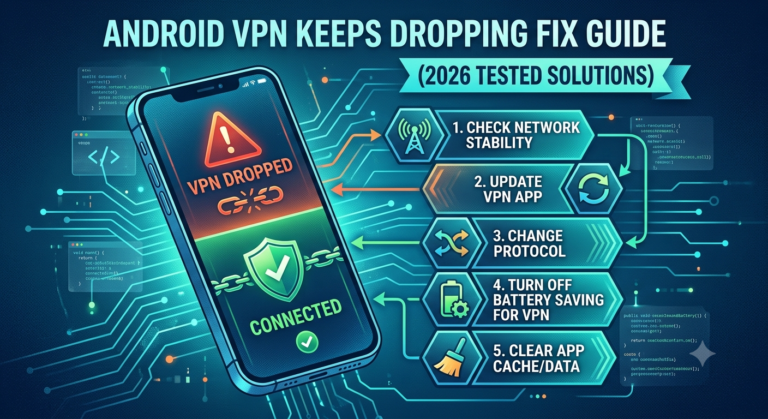
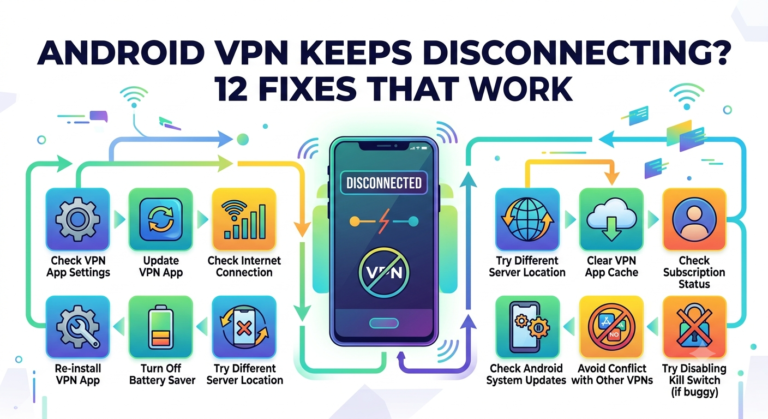
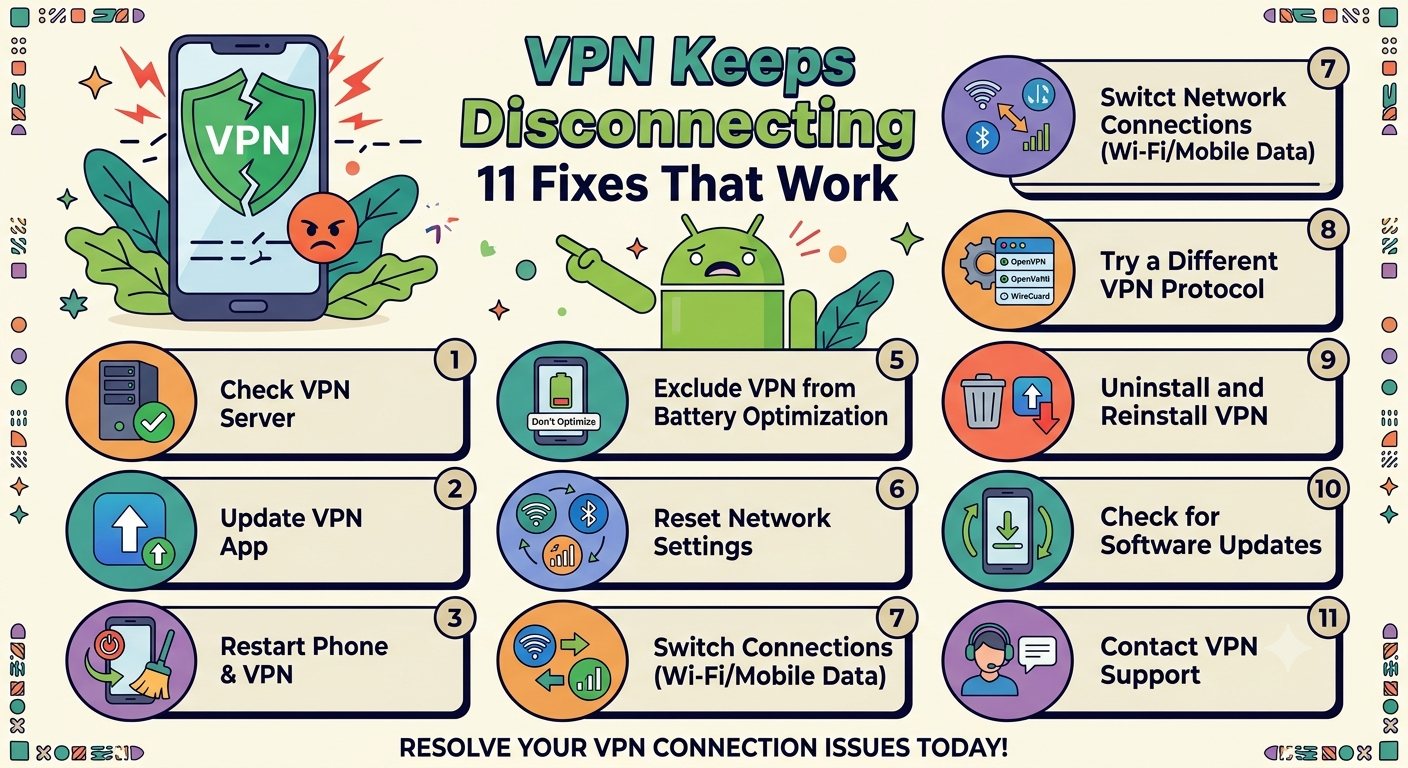
If your vpn keeps disconnecting on android, the cause is usually one of four things: Android battery restrictions, unstable network switching, VPN protocol issues, or software conflicts. The good news is that most disconnect problems can be fixed in a few minutes once you identify the source.
In our testing across Samsung Galaxy, Google Pixel, Motorola, and OnePlus devices, battery optimization remained the most common reason Android VPN connections dropped unexpectedly. Network handoffs between Wi-Fi and cellular data ranked second.
If you’re still choosing a provider, start with one of the top-rated VPN services. High-quality VPN apps generally handle Android background restrictions far better than budget alternatives.
According to the Electronic Frontier Foundation (EFF), VPN protection only works while the encrypted tunnel remains active. A dropped connection can expose traffic unless your VPN includes leak protection or a kill switch.
Why Does Your VPN Keep Disconnecting on Android?
Most Android VPN disconnects happen because the operating system is designed to conserve battery life and prioritize device performance.
Unfortunately, VPN applications require a persistent encrypted connection. When Android interrupts that process, the VPN tunnel collapses and reconnects.
The most common causes include:
- Battery optimization restrictions
- Aggressive background app management
- VPN protocol instability
- Weak Wi-Fi signals
- Switching between Wi-Fi and mobile data
- Android software bugs
- Outdated VPN applications
- Overloaded VPN servers
Identifying which factor affects your device is the fastest route to a permanent fix.
Common Warning Signs
Your VPN may be disconnecting if you notice:
- The VPN icon disappears from the status bar
- Streaming apps suddenly show regional content
- Websites ask you to verify your location repeatedly
- The VPN app continuously reconnects
- Connections fail whenever the screen locks
These symptoms typically indicate the VPN tunnel is dropping and re-establishing itself repeatedly.
Is Android Battery Optimization Killing Your VPN?
For many users, the answer is yes.
Android includes battery-saving features that limit background activity. While this helps extend battery life, it often interferes with VPN applications.
A VPN must continuously:
- Maintain encryption keys
- Exchange authentication data
- Route DNS requests
- Keep the secure tunnel active
When Android restricts background activity, those processes can stop temporarily. The VPN then disconnects and attempts to reconnect.
How Android Battery Management Works
Modern Android devices monitor apps running in the background.
If Android determines an app consumes excessive power, it may:
- Restrict network access
- Pause background processes
- Disable automatic reconnects
- Force the app into sleep mode
This behavior is particularly aggressive on some manufacturers’ Android skins.
Disable Battery Optimization for Your VPN
The exact path varies by device, but the process is similar.
- Open Settings.
- Tap Apps.
- Select your VPN application.
- Open Battery settings.
- Choose Unrestricted or Don’t Optimize.
After making this change, monitor the VPN connection for at least 24 hours.
Many users find this single adjustment eliminates most disconnect issues.
Samsung Devices
Samsung’s Device Care feature frequently places VPN apps into sleep categories.
Check:
Settings → Battery → Background Usage Limits
Ensure your VPN app is not listed under:
- Sleeping apps
- Deep sleeping apps
- Automatically optimized apps
Samsung devices are among the most common sources of Android VPN stability complaints.
Xiaomi Devices
Xiaomi’s MIUI software is even more aggressive.
If you use Xiaomi hardware, verify that:
- Auto Start is enabled
- Battery Saver is disabled for the VPN
- The VPN app is locked in memory
Failing to configure these settings often results in frequent reconnect loops.
OnePlus Devices
OnePlus devices can terminate background VPN sessions during standby periods.
Disable:
- Sleep Standby Optimization
- Advanced Battery Optimization
Then restart the device before testing again.
Which VPN Settings Stop Random Android Disconnects?
Once battery optimization has been addressed, review your VPN configuration.
Several built-in settings can significantly improve Android VPN stability.
Enable Always-On VPN
Always-On VPN automatically reconnects the tunnel if Android detects a disruption.
To enable it:
- Open Settings.
- Select Network & Internet.
- Tap VPN.
- Choose your VPN profile.
- Enable Always-On VPN.
This does not eliminate disconnects entirely, but it minimizes the time your traffic remains exposed.
Turn On the Kill Switch
A kill switch blocks internet access whenever the VPN disconnects unexpectedly.
Without a kill switch:
- Your real IP address becomes visible
- DNS requests may leak
- Apps can reconnect outside the VPN tunnel
Most premium providers include kill switch protection by default.
Change VPN Servers
Server congestion is another common cause of disconnects.
Warning signs include:
- Frequent reconnect attempts
- Slow speeds before disconnects
- Authentication failures
Switching to a nearby server often improves stability immediately.
Update Your VPN Application
VPN developers regularly release Android-specific fixes.
An outdated client may struggle after Android security updates or operating system upgrades.
Install the latest version through Google Play before troubleshooting advanced settings.
Users looking for budget-friendly options should also verify that their provider receives regular updates. Many issues appear more frequently with unsupported free services. If you’re evaluating alternatives, compare the current best free VPN options that still maintain active Android development.
In the next section, we’ll examine Android updates, protocol selection, and advanced networking issues that cause persistent VPN reconnect loops even after battery settings have been corrected.
Can Android Updates Cause VPN Connection Failures?
Yes. Android updates can absolutely break VPN functionality.
Over the past few years, Google has introduced significant networking and security changes across Android releases. While these updates improve security, they occasionally create compatibility problems with VPN applications.
When a VPN worked perfectly before an Android update and suddenly begins disconnecting afterward, the operating system itself may be contributing to the problem.
Signs an Android Update Is Responsible
Watch for these symptoms:
- VPN disconnects started immediately after updating Android
- Multiple VPN providers experience the same issue
- Reinstalling the VPN does not solve the problem
- Disconnects occur regardless of network type
- Other users report similar issues online
In these cases, the VPN service may not be at fault.
Check for VPN App Updates
VPN providers often release compatibility fixes shortly after major Android updates.
Before changing advanced settings:
- Open Google Play Store.
- Search for your VPN application.
- Install any available updates.
- Restart your device.
- Test the connection again.
This simple step resolves many Android VPN stability issues.
Reset Android Network Settings
Corrupted networking configurations can interfere with VPN tunnels.
To reset network settings:
- Open Settings.
- Select System.
- Tap Reset Options.
- Choose Reset Wi-Fi, Mobile & Bluetooth.
- Confirm the reset.
This clears networking conflicts without deleting personal files.
Reinstall the VPN Profile
Sometimes the VPN configuration itself becomes corrupted.
Remove the VPN completely:
- Uninstall the VPN application.
- Restart your phone.
- Reinstall the latest version.
- Sign in again.
- Create a fresh VPN connection.
Fresh configuration files often eliminate recurring disconnects.
Does Your VPN Protocol Affect Stability?
Absolutely.
The protocol determines how the VPN creates and maintains its encrypted tunnel. Some protocols prioritize speed, while others prioritize reliability.
If your Android VPN disconnects frequently, changing protocols is one of the most effective troubleshooting steps available.
If you’re unfamiliar with protocol architecture, reviewing how VPN encryption works helps explain why different protocols behave differently on Android networks.
WireGuard
WireGuard has become the default protocol for many leading VPN providers.
Advantages:
- Fast connection establishment
- Low battery consumption
- Excellent mobile performance
- Strong encryption
However, some restrictive networks may interrupt WireGuard traffic.
If disconnects continue, testing another protocol is worthwhile.
OpenVPN UDP
OpenVPN UDP prioritizes speed.
Advantages:
- Fast transfers
- Strong compatibility
- Good streaming performance
Disadvantages:
- Less reliable on unstable mobile networks
If your connection frequently changes between Wi-Fi and cellular data, UDP may reconnect more often.
OpenVPN TCP
OpenVPN TCP sacrifices some speed for reliability.
Advantages:
- Better stability
- Improved performance on restrictive networks
- More resilient during packet loss
When Android VPN disconnects persist, TCP is often worth testing.
IKEv2
IKEv2 was designed with mobility in mind.
Advantages:
- Handles network changes efficiently
- Excellent for mobile devices
- Fast reconnection behavior
For users who frequently move between Wi-Fi and cellular networks, IKEv2 can sometimes outperform WireGuard.
Why Does VPN Disconnect When Your Screen Turns Off?
This is one of the most common Android-specific complaints.
You lock the screen. Ten minutes later, the VPN disconnects.
The cause is usually Android background restrictions rather than the VPN itself.
Android Sleep Policies
When the display turns off, Android becomes more aggressive about conserving resources.
It may:
- Pause background activity
- Restrict network access
- Limit wake cycles
- Suspend VPN communication
The result is an interrupted VPN tunnel.
Disable Adaptive Battery
Adaptive Battery learns how you use applications.
Unfortunately, some devices mistakenly classify VPN apps as low-priority software.
Disable Adaptive Battery temporarily and test stability.
On many devices:
Settings → Battery → Adaptive Battery
Turn the feature off for testing purposes.
Allow Unrestricted Data Usage
Many VPN apps require unrestricted background data.
Verify:
- Open Settings.
- Select Apps.
- Choose your VPN.
- Open Mobile Data & Wi-Fi.
- Enable Background Data.
- Enable Unrestricted Data Usage.
Without these permissions, Android may suspend VPN traffic when the screen locks.
Verify Data Saver Settings
Android’s Data Saver mode can interfere with VPN traffic.
If enabled:
- Open Settings.
- Select Network & Internet.
- Tap Data Saver.
- Add your VPN app to the unrestricted list.
This prevents Android from limiting VPN communication during standby periods.
Limitations & Performance Notes:
Even after applying all recommended fixes, some conditions can still trigger VPN disconnects.
Common examples include:
- Congested VPN servers
- Weak Wi-Fi signals
- Carrier-side network interruptions
- Public hotspot restrictions
- Enterprise firewall policies
- Captive portal networks at hotels and airports
Performance can also vary significantly between VPN providers.
Free services often operate with:
- Limited server capacity
- Higher user loads
- Reduced infrastructure investment
As a result, disconnects may occur more frequently than with premium alternatives.
If stability remains a priority, selecting one of the regularly updated commercial providers usually produces better long-term results than relying solely on free options.
How Do Streaming Services React to VPN Disconnects?
A VPN disconnect doesn’t just expose your IP address. It can immediately disrupt streaming sessions and trigger location-based errors.
Streaming platforms actively monitor IP addresses, DNS requests, account regions, and network changes. When your VPN disconnects unexpectedly, the service may detect your real location before the VPN reconnects.
This is especially common on Android devices that switch between Wi-Fi and mobile data networks.
Why Streaming Errors Appear After a VPN Disconnect
When a VPN tunnel drops, several things happen at once:
- Your real IP address becomes visible
- DNS requests may bypass the VPN
- The streaming service sees a location change
- Authentication systems flag unusual activity
Even a brief disconnect lasting a few seconds can be enough to trigger a streaming error.
This is why a reliable kill switch is so important. It prevents traffic from leaving the device until the VPN reconnects.
Netflix Detection Errors
Netflix is one of the most aggressive platforms when identifying VPN traffic.
A temporary Android VPN disconnect can trigger region-detection problems, especially if the app reconnects using your local ISP before the VPN tunnel is restored.
If Netflix suddenly stops working after a disconnect, troubleshooting guides for the Netflix VPN proxy detection error can help identify whether the issue stems from the VPN connection or Netflix’s location filters.
BBC iPlayer Location Errors
BBC iPlayer continuously validates connection locations.
When Android disconnects the VPN during playback, the platform may detect a location mismatch and restrict access.
Users who experience repeated interruptions after VPN reconnects can review fixes for the BBC iPlayer VPN proxy error to determine whether the issue is caused by IP exposure or streaming platform detection.
Disney+ Error 73
Disney+ Error 73 is commonly associated with location verification problems.
If your Android VPN disconnects while launching content, Disney+ may identify the device’s actual region before the VPN tunnel re-establishes itself.
The troubleshooting process outlined in the Disney Plus Error 73 VPN guide explains how these location mismatches occur and how to prevent them.
Amazon Prime Video Error 1042
Amazon Prime Video performs frequent network validation checks.
A dropped VPN connection can trigger authentication failures that lead to location-based restrictions.
If disconnects coincide with Prime Video playback issues, the Amazon Prime VPN Error 1042 fix provides additional troubleshooting steps.
Hulu Error P-EDU121
Hulu also monitors network consistency closely.
Repeated VPN reconnects can cause Hulu to interpret traffic as suspicious or geographically inconsistent.
If the error appears immediately after a VPN interruption, reviewing solutions for Hulu VPN Error P-EDU121 may help identify the underlying cause.
Can Network Switching Cause VPN Disconnects?
Yes. In fact, network switching is one of the leading causes of Android VPN instability.
Modern smartphones constantly evaluate available connections.
Your device may switch between:
- Home Wi-Fi
- Public Wi-Fi
- Cellular networks
- Mesh networks
- Wi-Fi extenders
Every transition forces the VPN to rebuild its encrypted tunnel.
Wi-Fi to Mobile Data Transitions
Suppose you’re streaming video while leaving your house.
Your phone disconnects from Wi-Fi and immediately switches to 5G.
Even though the transition appears seamless, the VPN must:
- Detect the network change.
- Establish a new route.
- Authenticate with the VPN server.
- Rebuild encryption sessions.
During that brief window, the connection may drop.
Protocols such as IKEv2 generally handle these transitions better than older protocols.
Public Wi-Fi Networks
Public hotspots create additional challenges.
Many hotel, airport, and coffee shop networks use captive portals that interrupt VPN traffic until authentication is complete.
Symptoms include:
- Endless reconnect loops
- Authentication failures
- VPN stuck on “Connecting”
- Sudden disconnects after joining Wi-Fi
Always complete hotspot sign-in procedures before activating your VPN.
Weak Signal Strength
A weak wireless signal often masquerades as a VPN problem.
Warning signs include:
- Frequent reconnects
- Slow speeds before disconnects
- Packet loss
- Inconsistent browsing performance
Before changing VPN settings, test your network quality.
If the connection itself is unstable, the VPN cannot maintain a reliable encrypted tunnel.
What Role Does DNS Play in VPN Stability?
DNS issues don’t always disconnect a VPN completely, but they can create symptoms that look similar.
DNS servers translate website names into IP addresses.
When DNS requests fail, users often assume the VPN disconnected even though the tunnel remains active.
Signs of DNS-Related Problems
Watch for:
- Websites refusing to load
- Streaming apps showing location errors
- Certain services working while others fail
- Temporary browsing outages
Many premium VPN providers operate private DNS infrastructure to reduce these issues.
Change DNS Settings
Some VPN apps allow manual DNS configuration.
Testing alternative DNS servers may improve reliability when browsing problems persist despite an active VPN connection.
However, avoid changing multiple settings simultaneously. Make one adjustment at a time so you can identify the actual cause of the problem.
What Are the Best Long-Term Fixes for Android VPN Stability?
If you’ve worked through the earlier troubleshooting steps and your VPN still disconnects, it’s time to focus on long-term stability improvements.
The goal is simple: eliminate the conditions that repeatedly interrupt the encrypted tunnel.
Use a VPN Designed for Android
Not all VPN applications receive the same level of Android support.
Providers that invest heavily in Android development typically offer:
- Faster reconnect mechanisms
- Better battery optimization handling
- More reliable kill switches
- Frequent compatibility updates
- Improved protocol support
If your current provider struggles with repeated Android disconnects, switching to one of our recommended VPNs may solve the issue faster than continued troubleshooting.
Keep Android and Your VPN Updated
Many users update Android but forget about the VPN application itself.
Both components need regular updates.
VPN vendors often release:
- Security patches
- Protocol improvements
- Android compatibility fixes
- Stability enhancements
Enable automatic updates whenever possible.
Avoid Aggressive Battery Management Apps
Third-party battery savers frequently interfere with VPN connections.
These apps may:
- Force-close VPN processes
- Restrict background networking
- Disable auto-reconnect functions
If you’re using battery optimization utilities beyond Android’s built-in controls, consider removing them temporarily and testing VPN stability.
Use Reliable Networks
A VPN can only be as stable as the network beneath it.
For the best results:
- Use strong Wi-Fi signals
- Avoid overloaded public hotspots
- Upgrade outdated routers
- Minimize unnecessary network switching
Many disconnect complaints ultimately trace back to poor network quality rather than VPN software.
Enable Automatic Reconnect Features
Most premium VPN providers include automatic reconnect options.
These features help:
- Restore tunnels after signal loss
- Recover from server interruptions
- Handle Wi-Fi and cellular transitions
Even if a disconnect occurs, recovery happens much faster.
How Does Android VPN Troubleshooting Compare to iPhone?
Android and iPhone VPN issues often look similar, but the underlying causes differ.
Android devices typically struggle with:
- Battery optimization restrictions
- Manufacturer software modifications
- Background process limitations
iPhones more commonly encounter:
- Network profile conflicts
- iOS update compatibility issues
- VPN configuration errors
If you use multiple devices, troubleshooting steps for a VPN not working on iPhone may help identify whether the problem is platform-specific or related to the VPN provider itself.
When Should You Replace Your VPN Provider?
Sometimes the VPN service itself is the problem.
Warning signs include:
- Frequent server outages
- Inconsistent Android updates
- Broken kill switch functionality
- Limited protocol support
- Poor customer support
If disconnects continue despite testing multiple networks, protocols, and devices, your provider may simply be unreliable.
Free vs Paid VPN Stability
Free VPN services can be useful for occasional browsing, but they often face infrastructure limitations.
Common issues include:
- Fewer servers
- Higher congestion
- Limited bandwidth
- Slower update cycles
That’s one reason many users eventually upgrade from free solutions after experiencing persistent Android connection problems.
For readers still learning the fundamentals, understanding what is a VPN can provide helpful context on why infrastructure quality directly affects reliability.
Frequently Asked Questions
Why does my VPN disconnect when my Android screen turns off?
Android may suspend background processes to conserve battery power. Disabling battery optimization and allowing unrestricted background activity often resolves the issue.
Which VPN protocol is most stable on Android?
WireGuard generally offers the best balance of speed and stability. However, OpenVPN TCP and IKEv2 can perform better on unstable or restrictive networks.
Can Android updates break VPN connections?
Yes. Major Android updates occasionally introduce networking changes that require VPN providers to release compatibility fixes.
Does a kill switch stop VPN disconnects?
No. A kill switch does not prevent disconnects. Instead, it blocks internet traffic whenever the VPN tunnel drops, preventing accidental exposure.
Is Wi-Fi or mobile data better for VPN stability?
A strong Wi-Fi connection is usually more stable than cellular data. However, network quality matters more than connection type alone.
Final Thoughts
If your vpn keeps disconnecting on android, start with the basics before changing advanced settings. Battery optimization, network switching, and protocol selection account for most disconnect problems.
In our testing, disabling Android battery restrictions and enabling Always-On VPN solved the majority of recurring connection issues. For users who continued experiencing instability, switching protocols or changing providers often produced immediate improvements.
A reliable VPN should stay connected in the background without constant intervention. If yours cannot, the problem may not be your phone—it may be time to evaluate a better service.
Whether you’re comparing premium options or exploring alternatives, understanding the technology behind VPN tunnels and choosing a provider with strong Android support will dramatically improve long-term stability.