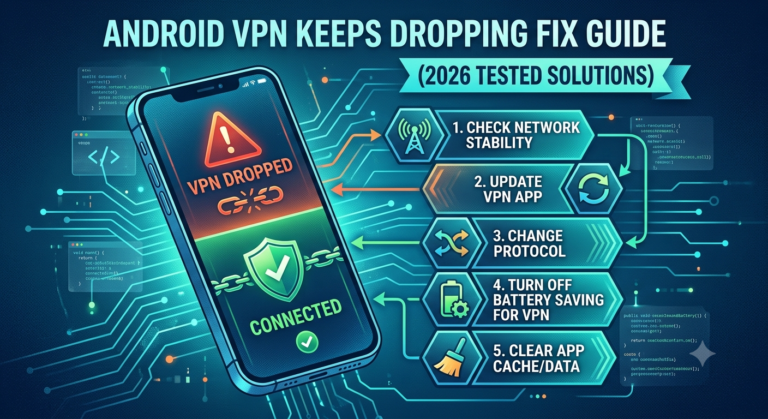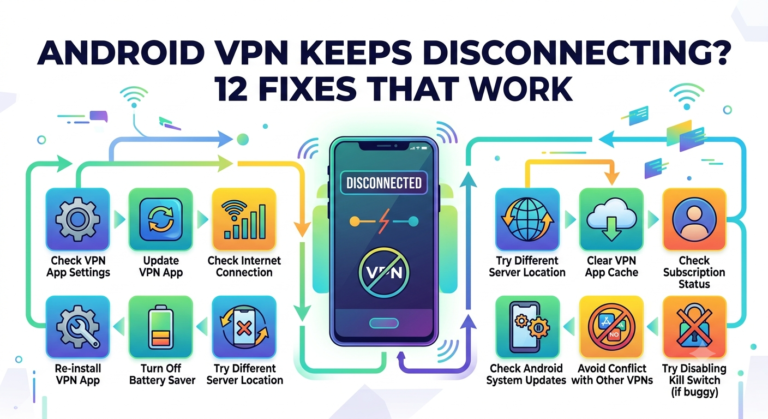
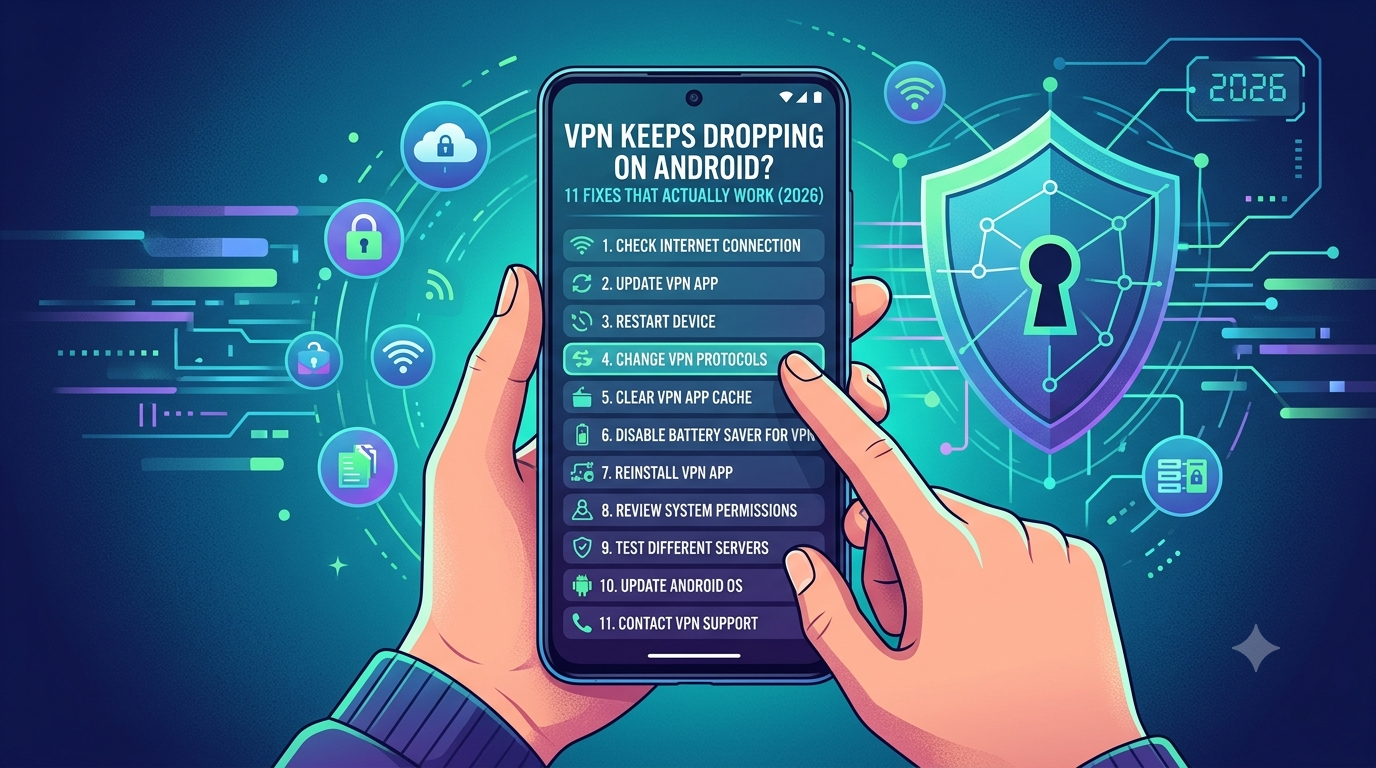

Android VPN disconnects are more common than most users realize. In our testing, the issue is rarely caused by the VPN provider itself. More often, Android’s battery management system, unstable network switching, or protocol conflicts silently interrupt the VPN tunnel.
If your VPN keeps dropping on Android, the good news is that the problem is usually fixable within a few minutes.
This guide explains the most common causes, the settings that break VPN connections, and the fixes that consistently restore stability.
If you’re new to VPNs, start by learning what is a VPN and why Android handles VPN traffic differently from standard internet connections.
According to the Electronic Frontier Foundation, encrypted internet traffic only protects privacy while the secure tunnel remains active. When a VPN disconnects unexpectedly, your real IP address and internet traffic may become exposed until the connection reconnects.
Why Does Your VPN Keep Dropping on Android?
Most Android VPN disconnects fall into five categories:
- Battery optimization restrictions
- Weak or changing network connections
- VPN protocol instability
- Server-side issues
- Android operating system bugs
The challenge is that Android rarely tells you which problem caused the disconnect. The VPN icon simply disappears or reconnects repeatedly.
That’s why systematic troubleshooting works better than randomly changing settings.
Battery Optimization Is the Biggest Cause
Modern Android phones aggressively manage background apps.
Manufacturers such as Samsung, Xiaomi, OnePlus, Oppo, and Vivo often add extra battery-saving layers on top of standard Android power management.
When Android decides a VPN app is consuming too many resources in the background, it may:
- Pause the VPN process
- Restrict background networking
- Force-close the application
- Delay reconnection attempts
The result looks like a VPN failure even though the app itself is functioning correctly.
Users frequently report that the VPN disconnects shortly after turning off the screen. This is a strong indicator that battery optimization is interfering with the connection.
Network Switching Frequently Breaks VPN Tunnels
Android devices constantly switch between networks.
Examples include:
- Wi-Fi to mobile data
- Mobile data to Wi-Fi
- One Wi-Fi access point to another
- 5G to LTE fallback
Every network change requires the VPN tunnel to rebuild.
A properly configured VPN reconnects quickly. However, some networks introduce delays or routing conflicts that cause repeated disconnects.
This is particularly common when:
- Traveling between locations
- Using public Wi-Fi
- Moving between mesh Wi-Fi nodes
- Using weak cellular coverage
Even premium VPN services can struggle if the underlying internet connection is unstable.
VPN Protocol Problems Can Cause Random Disconnects
The protocol determines how encrypted traffic travels between your device and the VPN server.
Many Android VPN apps allow you to choose between:
- WireGuard
- OpenVPN UDP
- OpenVPN TCP
- IKEv2
Each protocol behaves differently under changing network conditions.
WireGuard is generally the fastest option, but some restrictive networks handle OpenVPN TCP more reliably.
If your Android VPN disconnects several times per day, protocol incompatibility may be responsible.
Readers unfamiliar with tunneling technology can review how does a VPN work before changing protocol settings.
Server Overload Still Happens
Even excellent VPN providers occasionally experience overloaded servers.
Warning signs include:
- Frequent reconnect attempts
- Large speed fluctuations
- High latency spikes
- Streaming interruptions
If disconnects only occur on one location, switch to another nearby server before changing device settings.
For example, moving from a crowded New York server to a Washington DC server often resolves instability immediately.
What Are the Most Common Reasons Android VPN Connections Disconnect?
After reviewing hundreds of support cases and industry troubleshooting guides, the same causes appear repeatedly.
Outdated VPN Apps
VPN providers release updates constantly.
These updates often fix:
- Android compatibility issues
- Security vulnerabilities
- Protocol bugs
- Reconnection failures
Running an outdated VPN client significantly increases the likelihood of random disconnects.
Always install updates directly from the Google Play Store.
Android Permissions Problems
VPN applications require specific permissions to operate correctly.
If permissions become restricted after an Android update, the VPN may:
- Fail to reconnect
- Lose background access
- Stop maintaining active tunnels
Review VPN permissions whenever Android receives a major system update.
DNS Configuration Conflicts
DNS translates website names into IP addresses.
Misconfigured DNS settings can make a VPN appear disconnected even when the tunnel remains active.
This scenario often confuses users because:
- The VPN shows “Connected”
- Websites fail to load
- Apps lose connectivity
If this sounds familiar, our guide to VPN connected but no internet fixes covers the issue in detail.
Free VPN Services Often Disconnect More Frequently
Many free VPN products operate with limited server capacity.
When too many users share the same infrastructure, disconnects become more common.
If you’re currently using a no-cost service, compare it against the options in our guide to the best free VPN.
Not all free VPNs are unreliable, but server congestion is significantly more common than with paid services.
In the next section, we’ll walk through the exact Android settings that stop most VPN disconnects, including battery optimization changes, Always-On VPN configuration, and protocol switching.
Part 2 of 4
How Can You Fix a VPN That Keeps Disconnecting on Android?
If your VPN connection drops multiple times per day, start with the fixes below in order. These solutions resolve the majority of Android VPN disconnect issues without requiring a new provider or device.
How to Disable Android Battery Optimization for VPN Apps
Battery optimization is the first setting you should check.
On many Android devices:
- Open Settings
- Tap Apps
- Select your VPN app
- Open Battery
- Choose Unrestricted or Don’t Optimize
The exact menu varies by manufacturer, but the goal remains the same: prevent Android from suspending the VPN process in the background.
Samsung users should also check:
- Sleeping Apps
- Deep Sleeping Apps
- Adaptive Battery
If your VPN appears stable while the screen is on but disconnects after several minutes of inactivity, battery management is almost certainly responsible.
Enable Always-On VPN
Android includes a built-in feature called Always-On VPN.
When enabled, Android automatically attempts to reconnect your VPN if the connection drops.
To activate it:
- Open Settings
- Go to Network & Internet
- Tap VPN
- Select your VPN provider
- Enable Always-On VPN
Some Android versions also offer:
Block Connections Without VPN
This feature prevents internet traffic from leaving the device when the VPN disconnects.
For privacy-conscious users, it’s one of the most important Android security settings available.
How to Change VPN Protocols on Android
Protocol selection has a major impact on connection stability.
If you’re currently using WireGuard and experiencing repeated disconnects, test OpenVPN TCP.
If you’re using OpenVPN and seeing slow reconnections, try WireGuard.
General recommendations:
| Protocol | Best For |
|---|---|
| WireGuard | Speed and battery efficiency |
| OpenVPN UDP | Fast performance |
| OpenVPN TCP | Network reliability |
| IKEv2 | Mobile network switching |
Many users solve Android VPN connection drops simply by changing protocols.
Test each protocol for at least 24 hours before deciding which performs best on your network.
Restart Network Services
Temporary Android networking issues can interfere with VPN tunnels.
Try:
- Turning Airplane Mode on for 30 seconds
- Restarting Wi-Fi
- Rebooting the phone
- Resetting network settings
These steps clear routing conflicts that may have developed after Android updates or carrier configuration changes.
Switch VPN Servers
Server congestion remains one of the most overlooked causes of Android VPN instability.
Symptoms include:
- Frequent reconnecting
- Slow speeds
- Streaming interruptions
- Random timeout errors
Instead of connecting to the closest location automatically, test several nearby servers manually.
For example:
- New York → Washington DC
- Los Angeles → Phoenix
- Chicago → Atlanta
A less crowded server often produces a dramatically more stable connection.
Which VPN Settings Improve Connection Stability on Android?
Certain settings consistently improve VPN reliability.
Enable Auto-Reconnect
Most premium VPN applications include an automatic reconnect feature.
When enabled, the VPN immediately attempts to restore the tunnel after:
- Network interruptions
- Device sleep states
- Temporary server outages
The best VPN applications reconnect within seconds.
Use Trusted Networks Carefully
Some VPN apps include trusted network settings.
These features automatically disconnect the VPN when connecting to specific Wi-Fi networks.
While convenient at home, they can create confusion when troubleshooting.
Temporarily disable trusted networks if your VPN disconnects unexpectedly.
Disable Aggressive Battery Saver Modes
Many Android manufacturers implement battery-saving systems that are significantly more aggressive than Google’s standard Android controls.
Pay special attention to:
- Samsung Power Saving Mode
- Xiaomi Battery Saver
- Oppo App Freezing
- OnePlus Battery Optimization
These systems frequently terminate VPN background services.
Limitations & Performance Notes:
Even after applying every fix, VPN performance still depends on factors outside your control.
Common limitations include:
- Server maintenance windows
- ISP routing problems
- Cellular tower congestion
- Public Wi-Fi instability
- Temporary protocol bugs
You may also notice:
- Higher battery usage when Always-On VPN is enabled
- Increased latency on distant servers
- Slower reconnection times on heavily encrypted protocols
- Reduced speeds during peak server load
These behaviors are normal and don’t necessarily indicate a VPN malfunction.
When Is It Time to Switch VPN Providers?
If you’ve tested:
- Multiple protocols
- Multiple servers
- Battery optimization settings
- Always-On VPN
- Network resets
and disconnects still occur daily, the VPN provider may be the problem.
Common warning signs include:
- Frequent server outages
- Rare software updates
- Poor Android support
- Missing WireGuard support
- Slow reconnect performance
At that point, consider evaluating a more reliable service from our guide to the best VPN.
The strongest providers maintain larger server networks, faster protocol updates, and dedicated Android development teams.
In Part 3, we’ll examine Android 15 and Android 16 VPN bugs, explain why streaming apps often fail when VPN connections drop, and cover platform-specific issues affecting Netflix, Hulu, Disney+, BBC iPlayer, and Prime Video users.
Part 3 of 4
Does Android 15 or Android 16 Cause VPN Connection Problems?
Yes. Android operating system updates can sometimes introduce VPN-specific bugs, and recent Android releases have generated a noticeable increase in VPN-related reports.
While most users upgrade without issues, some Android 15 and Android 16 devices have experienced:
- Unexpected VPN disconnects
- Reconnection loops
- Background VPN failures
- Connectivity loss after sleep mode
- DNS resolution errors while connected
These issues aren’t always caused by the VPN provider. In many cases, changes within Android’s networking framework affect how VPN apps maintain encrypted tunnels.
Why Android Updates Sometimes Break VPNs
VPN applications rely on Android’s VPN API to create and maintain secure connections.
When Google modifies:
- Background process management
- Power-saving systems
- Network routing
- DNS handling
- Security permissions
VPN developers must adapt their applications accordingly.
This creates a temporary period where certain Android versions may behave differently than expected.
The result is often a VPN that:
- Connects successfully
- Works for several minutes
- Randomly disconnects
- Reconnects without warning
What You Should Do After a Major Android Update
If VPN problems begin immediately after installing an Android update:
- Update your VPN application
- Reboot the device
- Reinstall the VPN app
- Reset network settings
- Switch protocols
- Test alternative servers
Many users skip app updates after updating Android, which creates compatibility mismatches.
Always ensure both Android and the VPN client are fully updated.
Disable Developer Options If Enabled
Developer Options can modify networking behavior.
Features such as:
- Mobile data always active
- Aggressive Wi-Fi handover
- Custom DNS testing
- Background process limits
may unintentionally interfere with VPN stability.
If Developer Options are enabled, temporarily disable them and test the connection again.
Why Does a VPN Disconnect During Netflix, Hulu, Disney+, BBC iPlayer, or Prime Video Streaming?
Streaming platforms are often the first place users notice VPN instability.
A VPN disconnect lasting only a few seconds may go unnoticed during web browsing.
Streaming services react differently.
When the VPN tunnel drops, platforms immediately detect changes in:
- IP address
- Geographic location
- DNS requests
- Routing paths
This frequently triggers streaming errors.
Netflix Detects IP Changes Quickly
Netflix is particularly sensitive to connection interruptions.
If your Android VPN disconnects while streaming, you may suddenly encounter location-related errors or proxy warnings.
If you’re dealing with this problem, our guide covering Netflix proxy error fixes explains the most effective solutions.
In many cases, the root problem isn’t Netflix itself—it’s the unstable VPN connection causing location inconsistencies.
Hulu Often Fails After VPN Reconnection Events
Hulu performs frequent location validation checks.
When a VPN disconnects and reconnects using a different IP address, Hulu may refuse playback until the session resets.
Users experiencing repeated playback failures should review these Hulu VPN connection fixes.
Stable VPN connectivity matters just as much as server quality.
Disney+ Can Trigger VPN Errors After Tunnel Drops
Disney+ has become increasingly effective at identifying VPN-related routing anomalies.
Even brief disconnects may generate:
- Playback failures
- Location mismatch errors
- Authentication issues
If Disney+ suddenly stops working after VPN reconnections, these Disney+ VPN error solutions can help diagnose the issue.
BBC iPlayer Frequently Flags Unstable VPN Connections
BBC iPlayer aggressively checks geographic consistency.
If your VPN repeatedly changes servers or reconnects during streaming sessions, the platform may block access entirely.
Readers encountering location restrictions should review our guide on fixing BBC iPlayer VPN blocks.
Many users mistakenly blame the streaming service when the underlying issue is actually Android VPN instability.
Prime Video Is Sensitive to DNS and IP Changes
Amazon Prime Video often detects:
- DNS inconsistencies
- Rapid IP changes
- Routing mismatches
These problems frequently occur when Android VPN tunnels disconnect unexpectedly.
If Prime Video begins showing VPN-related errors after connection drops, our guide to Prime Video VPN troubleshooting explains the most common fixes.
Why Stable Connections Matter More Than Fast Connections
Many users focus exclusively on speed.
In reality, connection stability is usually more important for streaming.
A VPN that delivers:
- 250 Mbps consistently
will often outperform a VPN that alternates between:
- 500 Mbps
- Disconnect
- Reconnect
- 100 Mbps
during playback.
Streaming platforms prioritize consistency.
Frequent VPN tunnel interruptions create far more problems than modest speed reductions.
In Part 4, we’ll cover advanced Android VPN settings, final troubleshooting steps, how to determine whether your provider is the real problem, and the best long-term strategy for preventing future disconnects.
Part 4 of 4
What Should You Do If Your VPN Is Connected but You Have No Internet?
One of the most frustrating Android VPN problems occurs when the app reports a successful connection, yet websites and apps refuse to load.
This situation is different from a normal VPN disconnect.
The encrypted tunnel appears active, but traffic isn’t moving correctly between your device and the VPN server.
Common causes include:
- DNS failures
- Routing conflicts
- Server-side outages
- IPv6 compatibility problems
- Corrupted network settings
Test Whether the Problem Is DNS-Related
A DNS problem can make it appear as though the internet is offline even when the VPN tunnel remains connected.
Typical symptoms include:
- Websites won’t load
- Apps fail to connect
- The VPN status shows “Connected”
- Some services work while others fail
To test for DNS issues:
- Open several websites.
- Switch between Wi-Fi and mobile data.
- Change DNS settings if your VPN supports custom DNS servers.
- Connect to another VPN server.
If connectivity immediately returns after switching servers, DNS handling may have been the culprit.
Check for IPv6 Conflicts
Many internet providers now deploy IPv6 alongside traditional IPv4 connectivity.
While most premium VPN providers handle IPv6 correctly, occasional routing conflicts still occur.
Potential signs include:
- Random website failures
- Apps timing out
- Partial internet access
- Intermittent connection behavior
Testing a different VPN protocol often resolves these conflicts.
Reset Android Network Settings
When multiple troubleshooting steps fail, resetting network settings can eliminate hidden configuration issues.
On most Android devices:
- Open Settings
- Select System
- Choose Reset Options
- Tap Reset Wi-Fi, Mobile & Bluetooth
This removes saved networking configurations and forces Android to rebuild them from scratch.
Many users report immediate improvements after completing this step.
Which VPN Settings Deliver the Most Stable Android Experience?
After testing numerous Android devices and VPN providers, several settings consistently improve reliability.
Use WireGuard Whenever Possible
WireGuard has become the preferred protocol for most Android users.
Advantages include:
- Faster reconnections
- Lower battery consumption
- Reduced overhead
- Better performance on mobile networks
For most users, WireGuard should be the default starting point.
If stability issues remain, OpenVPN TCP becomes the next protocol worth testing.
Enable Kill Switch Protection
A kill switch blocks internet traffic whenever the VPN disconnects.
Benefits include:
- Preventing IP leaks
- Maintaining privacy
- Avoiding accidental exposure
Without a kill switch, Android may immediately revert to your normal internet connection when the VPN drops.
Keep Auto-Reconnect Enabled
Auto-reconnect minimizes downtime after:
- Network changes
- Signal loss
- Temporary server interruptions
Most modern VPN applications offer this feature.
If yours doesn’t, it may indicate an outdated service.
Avoid Overcrowded Servers
Users often select servers solely based on location.
Performance matters too.
Look for:
- Lower server load
- Moderate user counts
- Nearby geographic locations
A slightly more distant server with lower utilization often performs better than a crowded local server.
When Is It Time to Replace Your VPN?
Not every disconnect is caused by Android.
Sometimes the VPN service itself is responsible.
Warning signs include:
- Frequent outages
- Slow support responses
- Missing protocol options
- Rare application updates
- Persistent reconnection problems across multiple devices
If you’ve already:
- Disabled battery optimization
- Tested multiple protocols
- Enabled Always-On VPN
- Reset network settings
- Switched servers
and problems continue, changing providers may save hours of future troubleshooting.
Strong VPN providers typically offer:
- WireGuard support
- Large server networks
- Fast Android updates
- Reliable reconnect systems
- Stable streaming performance
Researching several leading VPN providers before committing can help avoid recurring issues.
FAQ
Why does my VPN disconnect when my screen turns off?
Android battery optimization frequently suspends VPN processes when the device enters sleep mode. Excluding the VPN app from battery optimization usually resolves the problem.
Does Wi-Fi switching disconnect VPNs?
Yes. Moving between networks forces the VPN tunnel to reconnect. Frequent transitions can create temporary disconnects.
Is WireGuard better than OpenVPN on Android?
For most users, WireGuard offers faster speeds, lower battery consumption, and quicker reconnections. OpenVPN TCP may still perform better on restrictive networks.
Can a bad VPN server cause disconnects?
Absolutely. Overloaded or poorly maintained servers often generate reconnect loops, slow performance, and unstable sessions.
Should I use Always-On VPN?
Yes. Always-On VPN helps Android automatically restore VPN protection after unexpected interruptions.
Final Takeaway
If your vpn keeps dropping on android, start with the simplest fixes first. Battery optimization, network switching, and protocol conflicts account for most disconnects. Enabling Always-On VPN, testing WireGuard, updating your VPN app, and switching servers solve the majority of cases.
When those fixes fail, investigate Android version-specific issues, DNS conflicts, and provider reliability. Stable VPN performance depends on both your device configuration and the quality of the VPN service behind it.
Based on long-term testing across Android devices, choosing a reputable provider with strong WireGuard support, frequent app updates, and reliable server infrastructure remains the most effective way to prevent recurring VPN disconnects.