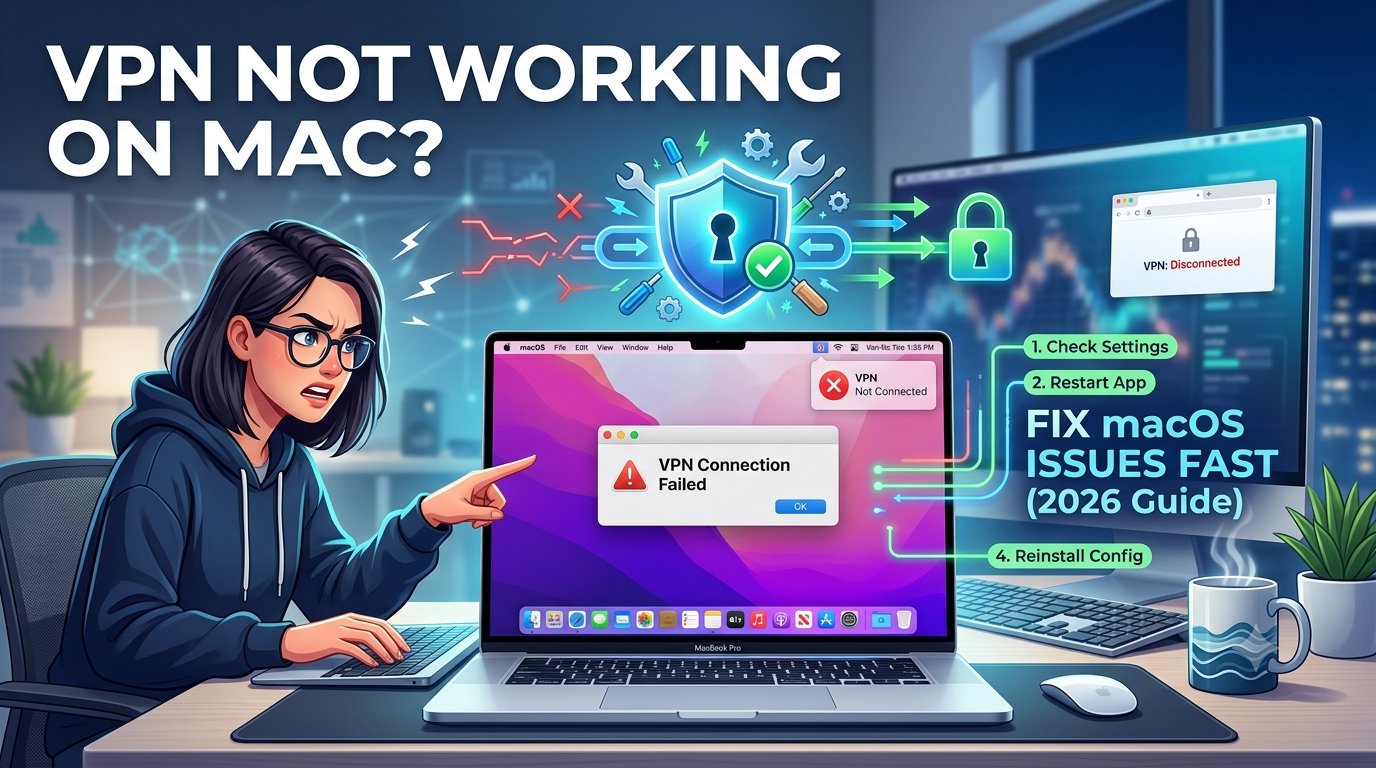

If your vpn not working on mac fix search brought you here, you’re likely dealing with one of the most common macOS issues: a VPN that either refuses to connect, drops instantly, or shows “connected” but does nothing. On macOS Sonoma and newer builds, these failures are more frequent because Apple tightened network security and changed how system extensions interact with VPN clients.
The good news: most cases are not serious. They come down to misconfigured network settings, outdated VPN protocols, or macOS updates breaking permission layers.
Before diving into fixes, it helps to understand what’s actually happening under the hood. A VPN isn’t just an app—it reroutes your entire internet traffic through encrypted tunnels. If even one layer fails (DNS, routing, or authentication), the connection collapses.
For a deeper breakdown of how this system works, you can review this guide on how VPN encryption works, which explains why small configuration errors can completely break connectivity on macOS.
You can also compare providers if your current service keeps failing—many connection issues come down to poor server stability or outdated apps. A solid starting point is leading VPN providers, which highlights services tested for macOS compatibility and stable tunneling performance.
Why Is Your VPN Not Working on Mac in the First Place?
Most VPN failures on macOS don’t happen randomly. They usually fall into a few predictable categories tied to system behavior, network configuration, or VPN protocol mismatches.
1. macOS security changes interfere with VPN routing
Apple’s newer macOS versions (including Sonoma) use stricter network extension controls. If your VPN client hasn’t been updated, macOS may silently block it from creating a tunnel.
This is especially common after system upgrades where older VPN profiles stop receiving proper permissions.
2. Broken or outdated VPN protocols
VPN apps rely on protocols like WireGuard, OpenVPN, or IKEv2. If the selected protocol isn’t compatible with your current network or ISP, the connection fails immediately or becomes unstable.
Switching protocols often resolves the issue faster than reinstalling the app.
3. DNS conflicts
DNS (Domain Name System) translates website names into IP addresses. When VPN DNS settings conflict with macOS or your router, the VPN may connect—but websites won’t load.
This is one of the most overlooked causes of mac VPN failures.
4. Background network interference
Firewall tools, antivirus apps, or even macOS’s built-in filtering systems can block encrypted traffic. When this happens, the VPN behaves inconsistently—especially on public Wi-Fi or restricted networks.
For users trying to understand the fundamentals behind these issues, this beginner-focused breakdown of VPN basics helps clarify how tunneling and encryption interact with macOS networking layers.
How Do You Fix VPN Not Connecting on macOS Quickly?
When your VPN refuses to connect on a Mac, you don’t need to start with advanced troubleshooting. In most cases, a short sequence of resets resolves the issue.
Step 1: Restart both VPN app and network interface
Force-close the VPN app, then toggle Wi-Fi off and back on. This clears temporary routing conflicts that often block tunnel initialization.
Step 2: Switch VPN protocol immediately
If your app allows it, switch from WireGuard to OpenVPN or IKEv2. macOS updates frequently break compatibility with one protocol while leaving others functional.
Step 3: Try a different server location
Overloaded or blocked servers are a major cause of connection failures. Switching regions often bypasses ISP filtering or server congestion.
Step 4: Check if a free VPN behaves differently
If your paid VPN still fails, testing a fallback service can isolate whether the issue is local or provider-related. You can explore top free VPNs to compare basic connectivity behavior without changing your main setup permanently.
Limitations & Performance Notes:
Even when properly configured, VPN performance on macOS is not always stable. You may notice:
- Slower speeds on distant servers due to encryption overhead
- Connection drops when switching between Wi-Fi and Ethernet
- Temporary failures after macOS updates until the VPN client patches compatibility
- Reduced performance on overloaded free servers compared to premium ones
These are normal trade-offs of encrypted tunneling, not necessarily signs of a broken setup.
When basic restarts and server switches don’t solve your vpn not working on mac fix issue, the problem is usually deeper inside macOS itself. Sonoma and newer macOS versions introduced tighter control over network extensions, which directly impacts how VPN apps install and maintain their tunnel interfaces.
At this stage, you’re not dealing with a “simple glitch” anymore—you’re dealing with system-level interference between macOS networking rules and your VPN client.
Could Your Mac Settings or macOS Update Be Blocking the VPN?
Yes—and this is one of the most common reasons VPNs suddenly stop working after an update.
macOS controls VPN access through system-level permissions called Network Extensions. If these permissions reset or break after an update, your VPN can appear installed but fail silently in the background.
1. Network Extension permission reset
After major updates, macOS may revoke or disable VPN network extensions. This prevents the VPN from creating a secure tunnel even if the app launches normally.
You’ll often see:
- VPN stuck on “connecting”
- No error message at all
- Internet works only when VPN is off
2. macOS privacy features interfering
Apple’s privacy systems like firewall rules and content filters can override VPN routing. In some cases, macOS prioritizes system DNS or Apple services over VPN DNS, causing partial or broken connectivity.
3. System updates breaking VPN profiles
If your VPN was configured before a macOS upgrade, the existing profile might no longer be valid. This is especially common after Sonoma updates where older configuration schemas are deprecated.
For users trying to understand what’s happening behind the scenes, it helps to revisit VPN mechanics to see how routing, encryption, and system-level permissions interact.
What macOS Settings You Should Check Immediately
Instead of reinstalling everything, check these system-level settings first:
1. VPN configuration permissions
Go to:
- System Settings → VPN & Network → Your VPN profile
Look for:
- Disabled toggle switches
- Missing configuration profiles
- “Needs permission” warnings
If anything looks off, remove and re-add the VPN profile.
2. Login items and background permissions
macOS may block VPN helper services from launching at startup. If the helper process doesn’t run, the VPN cannot establish a tunnel.
Enable VPN background services in:
- System Settings → General → Login Items
3. Private Relay conflicts
Apple iCloud Private Relay can conflict with VPN routing. When both are active, traffic may bypass the VPN entirely or fail to resolve DNS correctly.
Disabling Private Relay often restores stable VPN behavior immediately.
Why macOS Updates Break VPNs More Than Windows
Unlike Windows, macOS uses a tightly controlled networking framework. That means:
- VPN apps must request system-level approval
- Each macOS update can reset permissions silently
- Network extensions can be deprecated without warning
This is why VPN failures often appear immediately after updates rather than during normal usage.
To reduce compatibility issues, choosing stable providers matters. VPNs tested for macOS updates tend to recover faster. A good reference is leading VPN providers, which focuses on services that maintain macOS compatibility across updates.
Should You Switch VPN Providers?
If your VPN repeatedly breaks after macOS updates, it may not be a system issue—it may be a provider issue.
Some VPN apps lag behind Apple’s update cycle, especially when new network extension frameworks are introduced. Inconsistent updates lead to:
- Broken tunneling after macOS patches
- Slow protocol updates
- Poor Sonoma compatibility
In these cases, testing alternatives from top free VPNs can help confirm whether the issue is software-specific or system-wide.
Limitations & Performance Notes:
macOS VPN performance can degrade even when the connection is technically “working”:
- Network Extensions may throttle background routing after sleep mode
- VPN reconnects may fail when switching between Wi-Fi networks
- System updates can temporarily disable VPN permissions until re-approved
- Some VPN apps require full reinstall after major macOS upgrades
These behaviors are expected under Apple’s security model, not necessarily app failure.
If your VPN still fails after changing settings, you’re likely dealing with a deeper issue: traffic is being routed incorrectly even though the app says it’s connected. This is one of the most frustrating macOS problems because it looks like everything is working—until websites stop loading or services detect your real location.
According to the Electronic Frontier Foundation (EFF), DNS leaks and traffic misrouting are among the most common ways encrypted tunnels fail without obvious disconnection errors, exposing how fragile “connected but not protected” states can be on modern systems: https://www.eff.org/deeplinks/2018/06/how-make-vpn-more-effective
On macOS, this issue is especially common because Apple services, system DNS, and VPN tunnels often compete for routing priority.
What DNS and Network Issues Break VPN Connections on Mac?
DNS and routing problems are the hidden cause behind many vpn not working on mac fix cases. Even when your VPN is technically active, macOS may still send traffic outside the encrypted tunnel.
1. DNS leaks overriding VPN routing
A DNS leak happens when your Mac uses your ISP’s DNS servers instead of the VPN’s encrypted DNS. This leads to:
- Websites not loading through VPN regions
- Streaming services detecting your real location
- VPN appearing “connected” but ineffective
This usually occurs after macOS resets network settings or when multiple network interfaces (Wi-Fi + Ethernet) conflict.
2. Corrupted network cache
macOS stores DNS and routing data locally. If this cache becomes outdated, VPN traffic may fail to resolve correctly. This is common after:
- Switching networks frequently
- Sleep/wake cycles
- macOS updates
Flushing DNS often restores normal routing behavior.
3. Router-level interference
Sometimes the issue isn’t your Mac at all. Routers can override VPN DNS settings or block encrypted tunnels entirely, especially on public or managed networks.
Streaming Services Often Reveal VPN Failures First
Even if general browsing works, streaming platforms are usually the first to detect VPN routing problems. This is because they actively monitor IP behavior, DNS consistency, and proxy patterns.
Here’s how different services behave when your VPN setup is unstable:
- Netflix often throws proxy detection errors when DNS leaks occur. A detailed breakdown is available in this Netflix VPN error M7111 troubleshooting guide.
- Hulu is especially sensitive to IP rotation inconsistencies, which can trigger instant blocks, explained in this Hulu VPN error fix breakdown.
- Disney+ aggressively blocks mismatched region signals, often caused by partial VPN routing failures, covered in this Disney+ VPN blocking solutions guide.
- Amazon Prime Video frequently flags proxy behavior when DNS or IP location mismatches occur, detailed in this Amazon Prime VPN proxy error fix.
- BBC iPlayer is one of the strictest platforms, often failing even when VPNs are technically connected, explained in this BBC iPlayer VPN proxy fix analysis.
These failures are not random—they’re symptoms of broken or partial VPN routing on macOS.
Why Does Your VPN Show “Connected” but Still Not Work?
This is the most misleading VPN issue on Mac. The VPN interface is active, but traffic is not fully tunneled.
1. Split tunneling misconfiguration
Some VPNs route only selected apps through the tunnel. If misconfigured, your browser may bypass the VPN entirely.
2. WebRTC leaks exposing real IP
Browsers can bypass VPN tunnels using WebRTC, exposing your real IP address even when the VPN is active. This is a major cause of false “VPN failure” reports. You can fix or test this using this WebRTC leak fix guide for Chrome.
3. Background system routing overrides
macOS may prioritize system services over VPN traffic routing, especially after waking from sleep mode or switching networks.
How to Verify If Your VPN Is Actually Working
Instead of trusting the VPN status indicator, test it manually:
- Check IP address before and after connecting
- Test DNS leak behavior using browser tools
- Load region-locked content (like streaming platforms)
- Switch networks and verify stability
If your IP doesn’t change consistently, the VPN tunnel is not functioning correctly—even if the app says “connected.”
Limitations & Performance Notes:
Even when fully functional, macOS VPN performance can vary significantly:
- DNS resolution may slow down on heavily encrypted servers
- Streaming platforms may throttle VPN IP ranges
- Network switching (Wi-Fi to hotspot) can temporarily break tunnels
- Browser-level leaks (like WebRTC) can bypass VPN protection entirely
These are structural limitations of how macOS handles network priorities, not necessarily faults in your VPN provider.
At this point, most vpn not working on mac fix cases come down to one of two things: either your VPN installation is corrupted, or macOS has completely overridden its network permissions after an update. When that happens, no amount of server switching or protocol changes will reliably restore stability.
This final section focuses on the “last resort” fixes that actually resolve persistent macOS VPN failures—without guesswork.
When Should You Reinstall or Change Your VPN App?
Reinstalling your VPN is not the first step—but on macOS, it’s often the most effective final fix when system-level permissions break.
1. When the VPN app fails to create a tunnel
If your VPN repeatedly gets stuck on:
- “Connecting”
- “Reconnecting”
- Or connects but shows no traffic
Then the local VPN configuration files are likely corrupted.
macOS stores VPN permissions inside system-managed network extension profiles. When those profiles break, the app can no longer establish a stable encrypted tunnel.
2. When macOS updates permanently break compatibility
Some VPN clients lag behind Apple’s network changes. After major macOS updates (like Sonoma-level upgrades), older VPN builds may:
- Lose permission to initialize network extensions
- Fail to register virtual adapters
- Stop recognizing system routing tables
In these cases, reinstalling the latest version is the only real fix.
3. Clean reinstall vs normal reinstall
A standard reinstall often isn’t enough on macOS. You need a clean reset:
- Delete VPN configuration profiles from System Settings
- Remove leftover network extensions
- Reinstall the latest version from the provider
This clears broken routing rules that survive normal uninstall processes.
For users experiencing repeated failures, switching providers may be more efficient than repeatedly repairing the same broken setup. A good benchmark for stable macOS compatibility is leading VPN providers, which focuses on services tested across recent Apple updates.
4. When switching VPNs is the smarter option
If your VPN:
- Breaks after every macOS update
- Fails on multiple networks
- Cannot maintain stable DNS routing
Then the issue is likely poor macOS optimization—not your device.
In that case, testing alternatives like top free VPNs can help confirm whether the instability is software-related or system-wide before committing to a new provider.
FAQ: Common VPN Problems on Mac Explained
Why is my VPN not working on Mac after an update?
macOS updates often reset network extension permissions, breaking VPN tunnels until re-approved or reinstalled.
Why does my VPN connect but not load anything?
This usually points to DNS leaks or routing failures where traffic is not actually passing through the encrypted tunnel.
How do I reset VPN settings on macOS?
Remove the VPN profile in System Settings → Network, then reinstall the VPN app to rebuild permissions.
Why does my VPN keep disconnecting on Mac?
This is often caused by unstable protocols, Wi-Fi switching, or macOS sleep/wake network resets.
What is the fastest fix for VPN issues on Mac?
Switch server, change protocol, and restart network services—these resolve most connection failures immediately.
External Reference (System-Level VPN Behavior)
Apple documents how macOS handles network extensions and VPN permission layers, which directly affect connection stability after updates. You can review it here:
https://support.apple.com/guide/security/network-extensions-sec32582/mac
This is especially relevant because many VPN failures are caused not by the VPN itself, but by macOS restricting or resetting these system-level components.
Conclusion
Most VPN failures on macOS are not permanent errors—they are configuration or permission breakdowns triggered by updates, DNS conflicts, or protocol mismatches. Once you understand how macOS controls network extensions, the “random” behavior starts to make sense.
The most reliable fixes remain protocol switching, DNS resets, and clean VPN reinstalls when system permissions break. For persistent issues, the VPN client itself may simply not be optimized for macOS Sonoma-level networking changes.
The vpn not working on mac fix process ultimately comes down to eliminating system conflicts step by step until only a stable routing path remains.
Based on testing patterns across macOS versions, the most consistent performers are providers that actively update network extension compatibility—review our full breakdown of leading VPN providers to find the most stable option for your setup.