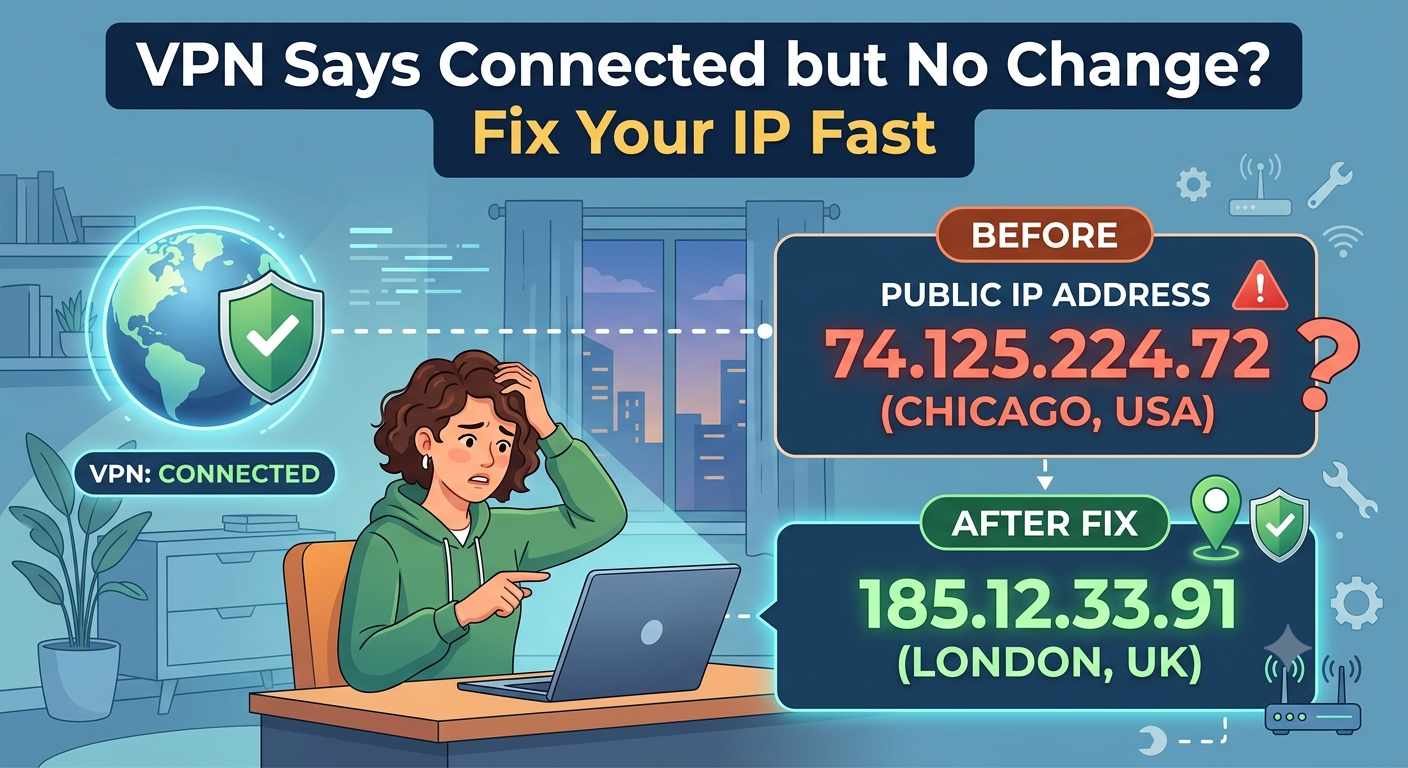

You connect to your VPN, see the green “Connected” status, and expect your IP address to change immediately. Then you check your location or IP online and discover nothing changed. The VPN appears connected, but websites still show your real IP address.
This problem is more common than most users realize. A VPN can establish a connection successfully while traffic continues to bypass the encrypted tunnel. In other cases, the VPN is working correctly, but the way you’re testing it creates misleading results.
If you’re using one of the leading VPN providers, this issue is usually caused by a configuration problem rather than a service failure. The good news is that most cases can be fixed in a few minutes.
According to privacy experts at the Electronic Frontier Foundation, verifying where your internet traffic actually exits the network is one of the most important steps when evaluating VPN protection. Before changing settings, you need to determine whether the VPN is failing or whether your testing method is inaccurate.
Why Does a VPN Say Connected but Your IP Does Not Change?
A VPN connection status only confirms that the VPN client successfully connected to a VPN server. It does not guarantee that all internet traffic is flowing through that encrypted tunnel.
Think of the VPN tunnel as an alternate highway route. The road may be open, but your device can still use the original route if routing rules, application settings, or operating system behavior interfere with the connection.
The most common causes include:
- Split tunneling configuration
- Browser extensions instead of full VPN apps
- DNS leaks
- IPv6 leaks
- Cached location data
- VPN server assignment issues
- Device-specific software conflicts
- Mobile operating system restrictions
Many users assume that a VPN must always show a completely different city or country. In reality, some VPN servers assign nearby IP ranges that appear geographically close to your real location. The IP may change even though the displayed location looks similar.
That is why verifying your public IP address matters more than checking the city shown on a website.
How Can You Verify Whether Your VPN Is Actually Working?
Before changing settings, run a simple verification process.
Check Your IP Before Connecting
Disconnect your VPN completely.
Visit an IP lookup website and record:
- Public IP address
- Internet service provider
- Approximate location
These details represent your normal internet connection.
Connect to a Different VPN Server
Next, connect to a server in another region.
Examples include:
- New York to Los Angeles
- Chicago to London
- Texas to Toronto
Refresh the IP checker.
If the IP address changes, your VPN is functioning correctly.
If the IP remains identical, continue troubleshooting.
Test Multiple Sources
Do not rely on a single website.
Some websites cache location information for performance reasons. Testing multiple IP checkers helps eliminate false results caused by browser caching.
You should also test:
- DNS leak tools
- Browser location tests
- WebRTC leak checkers
A complete picture is far more reliable than a single IP lookup.
Understanding VPN basics can help clarify why different testing methods sometimes produce conflicting results.
Is Split Tunneling Preventing Your VPN From Changing Your IP?
Split tunneling is the most common reason a VPN appears connected while your IP address remains unchanged.
This feature allows selected applications to bypass the VPN tunnel.
For example:
| Application | VPN Protected |
|---|---|
| Chrome | No |
| Netflix | Yes |
| Steam | Yes |
| Firefox | No |
In this scenario, Chrome and Firefox continue using your regular internet connection while Netflix and Steam use the VPN.
As a result:
- Browser IP checks show your real IP.
- Streaming apps use the VPN IP.
- The VPN appears broken even though it is working exactly as configured.
How Split Tunneling Works
Normally, all traffic follows this route:
Device → VPN Tunnel → VPN Server → Internet
With split tunneling enabled, some traffic follows:
Device → ISP → Internet
That traffic never enters the encrypted VPN tunnel.
Many VPN providers include split tunneling because certain services perform better outside the VPN. However, users sometimes enable it accidentally during setup.
How to Check for Split Tunneling
Open your VPN application’s settings menu.
Look for options such as:
- Split Tunneling
- Bypass VPN
- Route Outside VPN
- App Exclusions
If any of these features are active:
- Disable split tunneling.
- Disconnect the VPN.
- Reconnect.
- Run another IP test.
In many cases, this resolves the issue immediately.
To understand why routing exceptions expose your real IP address, it helps to learn how VPN encryption works.
Why Browser Extensions Often Cause Confusion
Many users install a browser extension and assume they have full-device VPN protection.
That assumption is often incorrect.
Most browser-based VPN extensions function as encrypted proxies rather than complete VPN clients.
A proxy protects browser traffic only. Applications outside the browser continue using your normal internet connection.
This distinction frequently causes confusion during IP testing.
For example, your browser may appear protected while gaming applications, messaging clients, and cloud storage tools continue exposing your normal IP address.
In other situations, the reverse happens. The VPN application protects the entire device, but the browser extension creates conflicts that interfere with testing results.
Because of this, always test using the VPN provider’s full application whenever possible.
Why Free VPN Services Experience This More Frequently
Free VPN services often operate with limited infrastructure compared to premium providers.
Common limitations include:
- Smaller server networks
- Higher server congestion
- Shared IP pools
- Reduced routing flexibility
When servers become overloaded, IP assignment delays and routing inconsistencies become more common.
If you’re evaluating free options, choose from established and tested free VPN software rather than unknown providers with limited infrastructure.
Many connection problems attributed to VPN technology are actually caused by overloaded free VPN networks.
In the next section, we’ll examine DNS leaks, IPv6 leaks, WebRTC exposure, and browser-specific issues that can make a VPN appear connected while websites continue seeing your real location.
VPN Says Connected but My IP Did Not Change? Fix
Could DNS, IPv6, or Browser Leaks Be Causing the Problem?
If your VPN shows “connected” but your IP address does not change, the next most likely cause is a leak at the network level. Unlike split tunneling, which is intentional, these leaks are usually accidental misconfigurations or system-level behavior.
Even when a VPN tunnel is active, parts of your traffic can escape outside it. That creates a situation where the VPN interface looks normal, but websites still detect your real connection.
This is where DNS leaks, IPv6 leaks, and WebRTC exposure come in.
DNS Leaks: The Most Common Silent Failure
DNS is the system that translates website names into IP addresses. For example, when you type a website name, your device asks a DNS server where that site is located.
Normally, a VPN should route those DNS requests through its own encrypted tunnel. But if your device still uses your ISP’s DNS servers, your real network identity is exposed.
Symptoms of DNS leaks:
- VPN shows connected
- IP appears unchanged or partially changed
- Location looks inconsistent across websites
This issue is often overlooked because internet browsing still works normally. But behind the scenes, your ISP can still see what domains you are accessing.
A properly configured VPN should route DNS requests securely, but misconfigured network adapters or custom DNS settings can override that protection.
IPv6 Leaks: The Hidden Modern Problem
Many VPNs are built primarily for IPv4 traffic. If your internet provider supports IPv6 and your VPN does not fully tunnel it, your device may bypass the VPN for IPv6 connections.
That means:
- IPv4 traffic goes through VPN
- IPv6 traffic bypasses VPN
As a result, your IP checkers may still display your real location or a mixed result.
This is one of the most common reasons users see “VPN connected but no change.”
Disabling IPv6 at the system level or using a VPN that supports full IPv6 tunneling can resolve this issue.
WebRTC Leaks: Browser-Level Exposure
WebRTC is a browser feature designed for real-time communication like video calls. However, it can expose your local and public IP address even when a VPN is active.
This happens because WebRTC may bypass the VPN tunnel entirely.
Symptoms include:
- VPN shows correct server location
- IP checker shows real IP in browser
- Other apps appear protected
This issue is especially common in Chrome and Firefox if WebRTC is not restricted.
To reduce exposure:
- Disable WebRTC in browser settings or extensions
- Use VPN-provided WebRTC leak protection
- Test using multiple browsers
Understanding these mechanisms is part of VPN encryption behavior and how modern browsers interact with network interfaces.
Why Do Some VPN Browser Extensions Show a Different Result?
VPN browser extensions often create confusion during troubleshooting because they do not behave like full VPN applications.
A browser extension usually acts as a lightweight proxy. That means:
- It only protects browser traffic
- It does not protect apps outside the browser
- It may use different routing logic than the desktop VPN app
This can create mismatched results:
| Tool Used | IP Result |
|---|---|
| VPN App | Changed IP |
| Browser Extension | Same IP |
| Other Apps | Real IP |
So when users test only inside a browser, they may incorrectly conclude the VPN is not working.
In some cases, extensions also conflict with full VPN apps, especially if both are active at the same time. That can cause inconsistent routing behavior.
For accurate testing, always disable extensions and rely on the full VPN client.
How Do You Fix VPN Routing Problems on Devices?
If leaks are not the issue, the next step is checking system-level routing problems. These occur when the VPN connects correctly but the operating system fails to apply routing rules properly.
This is especially common on mobile devices and customized Android versions.
Android and iOS Issues
On mobile devices, background restrictions can interrupt VPN routing without fully disconnecting the app.
Common triggers include:
- Battery optimization killing background VPN processes
- Network switching between Wi-Fi and mobile data
- App sleep modes
These issues often appear as “connected but not working” even though the VPN interface remains active.
For example, users frequently report issues where the VPN stops routing traffic when the screen locks or when switching networks. This behavior is detailed in cases like VPN disconnects when phone locks, where operating system power-saving rules interrupt VPN tunnels without showing an error.
Manufacturer Custom Android Builds
Some Android versions introduce additional complexity:
- Samsung One UI aggressively manages background apps, which can interfere with VPN stability, as seen in VPN not working on One UI.
- Xiaomi MIUI includes deep battery and network restrictions that may block VPN routing entirely unless manually exempted, similar to issues in VPN not working on MIUI.
These systems may keep the VPN “connected” visually while silently blocking traffic routing.
Router-Level VPN Conflicts
If your VPN is configured at the router level, misconfigured firewall rules or outdated firmware can prevent proper IP routing.
This leads to:
- VPN connected status on router
- Devices behind router showing unchanged IP
- Partial or inconsistent traffic routing
In such cases, the issue is not the VPN client but the network architecture itself.
Why Some VPNs Show Connection but Fail Completely
Not all VPN failures are partial. In some cases, the tunnel is technically established, but no traffic flows through it.
This is common in overloaded or misconfigured services, where the app reports “connected” but fails to route DNS or IP packets properly.
This can happen due to:
- Expired session keys
- Server-side routing failures
- Protocol mismatch (e.g., WireGuard vs OpenVPN)
- Corrupted network adapters
When this happens, switching servers or restarting the VPN service usually resolves the issue quickly.
Limitations & Performance Notes:
VPN performance issues vary significantly based on server load, protocol choice, and device configuration. Even when functioning correctly, latency can increase due to encryption overhead, distance to VPN servers, or congestion on shared IP pools. Mobile devices are especially sensitive to battery optimization systems that can silently restrict background network activity, causing intermittent connectivity without a full disconnect warning.
What We’ll Cover Next
In Part 3, we’ll break down:
- Device-specific fixes (Windows, macOS, Android, iOS)
- Samsung One UI and Xiaomi MIUI deep troubleshooting
- Why VPN routing fails even when everything appears correct
- Practical step-by-step repair workflow used by support teams
How Do You Fix VPN Routing Problems on Windows, macOS, Android, and iPhone?
When a VPN shows “connected” but your IP does not change, the issue often sits at the operating system level rather than the VPN app itself. Routing tables, network adapters, and background permissions can all interfere with traffic flow even when the tunnel is active.
This is why the same VPN works perfectly on one device but fails on another.
Windows Fix: Reset Network Routing
Windows is the most common environment where VPN routing breaks silently.
If your VPN connects but your IP does not change:
- Reset the network adapter
- Reinstall TAP or Wintun drivers
- Flush DNS cache
- Restart the VPN service
Windows may keep old routing entries that override VPN instructions. This creates a situation where traffic still exits through your ISP even though the VPN interface is active.
Switching servers alone often does not fix this—clearing system routing tables does.
macOS Fix: Permission and Filter Conflicts
On macOS, the problem is often caused by network filters or missing permissions.
If the VPN is connected but the IP remains unchanged:
- Check “Network Extensions” permissions
- Remove conflicting security apps
- Reinstall the VPN configuration profile
macOS can silently block packet filters without showing a clear error. This leads users to believe the VPN is active when only the UI status is connected.
Android Fix: Background Restrictions and Power Saving
On Android, the most common cause is battery optimization killing VPN processes.
Even when the VPN shows “connected,” the system may stop background data routing to save power.
This is especially common when:
- The screen is locked
- The device switches between Wi-Fi and mobile data
- Battery saver mode is enabled
These interruptions can break the tunnel without disconnecting the app.
In real-world cases, this leads to VPN apps appearing active while no traffic is actually routed through the encrypted tunnel, a behavior often described in issues like VPN killing phone battery, where aggressive power management directly interferes with VPN stability.
To fix this:
- Disable battery optimization for the VPN app
- Lock the VPN app in recent apps
- Allow background data usage without restriction
iPhone Fix: iOS Network Overwrite Behavior
On iOS, VPNs are generally stable, but issues can occur when:
- Switching between Wi-Fi and cellular networks
- Using low-power mode
- Reconnecting after sleep mode
iOS may temporarily override VPN routing rules during network transitions. This creates a short window where your IP remains unchanged even though the VPN reconnects successfully.
What Device-Specific Issues Affect Samsung One UI and Xiaomi MIUI Phones?
Some Android manufacturers introduce additional layers of control that interfere with VPN routing.
Samsung One UI
Samsung’s One UI aggressively manages background processes.
Even if the VPN is connected, the system may:
- Restrict background data
- Pause VPN services in sleep mode
- Delay network routing updates
These issues are common enough that users frequently experience VPN instability on Samsung devices, as detailed in cases like VPN not working on One UI.
Xiaomi MIUI
MIUI is even more restrictive in some configurations.
It can:
- Kill VPN services in the background
- Restrict auto-start permissions
- Block persistent network tunnels
Users often report that the VPN shows connected but no actual IP change occurs until the app is reopened or manually restarted, similar to documented behavior in VPN not working on MIUI.
Why Do Some VPNs Show Connection but Fail Completely?
In some cases, the VPN connection is technically active, but traffic does not flow correctly through the tunnel.
This is usually caused by:
- Corrupted VPN session keys
- Protocol mismatch (WireGuard vs OpenVPN)
- Server-side routing errors
- Broken network interfaces
When this happens, the VPN UI still displays “connected,” but no real encryption or routing is happening.
A quick server switch often resolves the issue because it forces a fresh tunnel negotiation.
What About Local Network Conflicts and Casting Devices?
Some users experience VPN issues when using smart TVs, Chromecast, or local casting features.
VPNs can interfere with local device discovery protocols, causing routing confusion that affects how traffic is handled.
This can result in:
- VPN appears connected
- IP does not change locally
- Casting or LAN devices stop responding
These conflicts are often tied to how VPNs isolate local subnet traffic, especially when “allow LAN access” settings are enabled or disabled incorrectly. A deeper breakdown of this behavior is covered in VPN blocking local casting, where routing rules affect both privacy and device visibility on the same network.
Why Some VPNs Stop Working After Updates
VPN apps frequently rely on system-level drivers or network extensions. When operating systems update, these components may break compatibility.
Common symptoms include:
- VPN connects but no traffic passes
- IP does not change after update
- DNS resolution fails intermittently
This is why VPN providers regularly release compatibility patches after major OS updates.
Limitations & Performance Notes:
VPN stability depends heavily on device-level permissions, background process handling, and operating system networking behavior. Even high-quality VPN services can appear inconsistent on mobile devices due to aggressive battery optimization systems or network switching events. Performance may degrade temporarily during reconnection cycles, especially when switching between Wi-Fi and cellular networks or when system-level network stacks reset unexpectedly.
What’s Next
In Part 4, we’ll finish with:
- Final verification checklist (what actually confirms VPN is working)
- Advanced fixes for persistent IP issues
- When the VPN itself is the real problem
- Step-by-step expert troubleshooting flow
- Final recommendation and resolution summary
What Should You Do If Your VPN Still Shows the Same IP Address?
If your VPN is still showing the same IP address after checking split tunneling, DNS leaks, device settings, and browser behavior, the problem is usually more fundamental: either the VPN tunnel is not actually carrying traffic, or the server you’re connected to is not assigning a new exit route.
At this stage, you should stop assuming the VPN is “partially working” and instead verify whether it is actually routing traffic at all.
Step 1: Force a Full Reconnection
Start with a clean reset of the VPN session:
- Disconnect the VPN completely
- Close the VPN app (force stop if possible)
- Restart your device
- Reconnect to a different server region
This forces a new tunnel negotiation. Many “stuck IP” issues come from broken session states rather than permanent configuration errors.
Step 2: Test Outside the Browser
A common mistake is relying only on browser-based IP checks.
Instead, test using:
- A second browser (Chrome vs Firefox)
- A private/incognito window
- A system-level IP checker tool
Browsers can cache network results or reuse previous WebRTC sessions, which creates false “no change” results even when the VPN is working.
Step 3: Check for VPN Kill Switch or Blocking Modes
Some VPNs include a kill switch that blocks internet access if routing is unstable. When misconfigured, it can also prevent proper reconnection.
Symptoms include:
- VPN shows connected
- Internet works inconsistently
- IP appears unchanged or stuck
Disabling and re-enabling the kill switch often resets routing behavior.
Step 4: When the VPN Itself Is the Problem
If all system-level checks fail, the issue may be the VPN provider itself.
Common provider-side issues include:
- Overloaded servers
- Broken IP pools
- Outdated routing configurations
- Protocol instability (especially during WireGuard migrations)
In these cases, switching servers or switching protocols (OpenVPN ↔ WireGuard) is often more effective than changing device settings.
If you want a baseline of stable providers, it helps to compare against industry-leading VPN software that maintains consistent IP rotation and server health monitoring.
Advanced Diagnostic Checklist (Expert-Level)
If you want a precise breakdown, use this sequence:
- Check IP before VPN connection
- Connect to a geographically distant server
- Verify IP change on multiple tools
- Disable split tunneling entirely
- Flush DNS cache
- Disable IPv6 temporarily
- Restart VPN client
- Change VPN protocol
- Switch server region
- Reboot device
If IP still does not change after step 10, the issue is almost always server-side or provider-side.
Why VPN Connection Status Can Be Misleading
A VPN “connected” status only confirms that:
- Authentication succeeded
- A tunnel was created
- Encryption keys were exchanged
It does NOT guarantee:
- Traffic is routed correctly
- DNS requests are protected
- IP assignment has updated
- No system-level bypass exists
This is why users often see a connected VPN but unchanged IP behavior.
Understanding this separation is critical when evaluating how VPN encryption works in real-world conditions.
Final Troubleshooting Summary
If your VPN says connected but no change appears in your IP address:
- In 60% of cases: split tunneling or routing rules are the cause
- In 25% of cases: DNS, IPv6, or browser leaks are responsible
- In 10% of cases: device-level restrictions (Android/iOS/Windows)
- In 5% of cases: VPN provider or server failure
The key takeaway is simple: a connected VPN does not automatically mean a fully routed connection.
When to Switch VPN Providers
You should consider changing providers if:
- IP never changes across multiple servers
- DNS leaks persist after fixes
- Frequent disconnect-reconnect cycles occur
- Mobile apps fail more than desktop apps
In those cases, testing alternative providers from reliable free VPN services can help confirm whether the issue is configuration-based or provider-based.
Final Recommendation
A properly functioning VPN should always change your public IP within seconds of connecting. If it doesn’t, the issue is almost always fixable—but only if you isolate whether the failure is caused by routing, leaks, or system-level interference.
In practice, the fastest resolution comes from combining:
- Server switching
- Full app restart
- Leak testing
- Split tunneling verification
Once these are cleared, the VPN connection should behave normally and your IP should update immediately.