
If your VPN turns a 500 Mbps internet connection into a 50 Mbps connection, something is wrong. Modern VPNs are faster than ever. Many premium providers retain more than 80% of your original speed when connected to a nearby server.
So if you’re asking, why is my VPN so slow, the problem usually isn’t encryption alone. More often, it’s a server issue, a protocol setting, network congestion, packet loss, or a device bottleneck.
The good news is that most VPN speed problems are easy to diagnose. In our testing, changing a single setting often restored hundreds of megabits per second in lost performance.
If you’re currently evaluating different providers, our guide to top-rated VPN services compares the fastest options based on real-world testing.
Before diving into fixes, it helps to understand what causes a VPN to slow down in the first place.
For additional privacy guidance, the Electronic Frontier Foundation provides independent resources on internet security and online privacy.
Why Is My VPN So Slow in the First Place?
Every VPN introduces some performance overhead.
When you connect to a VPN, your data no longer travels directly from your device to a website or service. Instead, traffic passes through an encrypted tunnel and a VPN server before reaching its destination.
That process adds:
- Encryption overhead
- Additional routing distance
- Server processing time
- Network latency
However, the slowdown should not be dramatic.
On a properly configured VPN, most users experience speed reductions between 5% and 20%.
When speeds drop by 50%, 70%, or more, another issue is usually responsible.
The most common causes include:
| Cause | Typical Impact |
|---|---|
| Server congestion | High |
| Long-distance server connections | High |
| Slow VPN protocols | High |
| Packet loss | Medium to High |
| Weak device hardware | Medium |
| Wi-Fi bottlenecks | Medium |
| ISP interference | Medium |
The key is identifying which bottleneck is affecting your connection.
How Much Speed Loss Is Actually Normal?
One of the biggest misconceptions about VPNs is that they should deliver identical speeds to an unprotected connection.
That rarely happens.
Encryption requires processing power. Routing traffic through a VPN server adds distance. Both factors create unavoidable overhead.
As a general benchmark:
| Base Internet Speed | Healthy VPN Speed |
| 100 Mbps | 80–95 Mbps |
| 300 Mbps | 240–285 Mbps |
| 500 Mbps | 400–475 Mbps |
| 1000 Mbps | 800–950 Mbps |
These numbers assume:
- A nearby server
- WireGuard or a comparable modern protocol
- Low server load
- A capable device
If your VPN speeds fall far below these ranges, troubleshooting becomes necessary.
Run a Baseline Speed Test First
Before changing settings, establish a baseline.
Run three separate tests:
- Internet connection without VPN
- VPN connected to the nearest server
- VPN connected to a distant server
Record:
- Download speed
- Upload speed
- Ping
- Jitter
This quickly reveals whether the problem comes from routing, encryption, server congestion, or another factor.
For example:
| Test Scenario | Download Speed |
| No VPN | 500 Mbps |
| Local VPN Server | 450 Mbps |
| Cross-Country VPN Server | 320 Mbps |
Those results are normal.
But if your speeds look like this:
| Test Scenario | Download Speed |
| No VPN | 500 Mbps |
| VPN Enabled | 75 Mbps |
You likely have a configuration issue rather than ordinary VPN overhead.
Is Your VPN Server Location Causing the Problem?
Server location remains the single most common cause of VPN speed issues.
The farther your data travels, the more latency accumulates.
Think of internet traffic like shipping a package. Deliveries across town arrive faster than deliveries sent across the country. VPN traffic behaves similarly.
A user in New York connecting to a server in New Jersey will usually experience lower latency than someone connecting to a server in Singapore.
That difference becomes especially noticeable when:
- Streaming video
- Playing online games
- Making video calls
- Accessing cloud applications
Choose the Closest Server Possible
Most VPN apps automatically recommend a server.
But automatic selection isn’t always optimal.
Try connecting to several nearby locations and compare performance.
A lightly loaded server 100 miles away may outperform a congested server only 20 miles away.
Watch for Server Congestion
Server distance isn’t the only factor.
Server load matters too.
When thousands of users connect to the same VPN endpoint, available resources become shared among more connections.
Common signs of server congestion include:
- Fast speeds in the morning
- Slow speeds at night
- Inconsistent download rates
- Sudden latency spikes
Switching servers often resolves the issue immediately.
Which VPN Protocol Gives the Best Speeds?
Protocol selection can have a larger impact than many users realize.
A VPN protocol determines how traffic is encrypted and transported between your device and the VPN server.
Different protocols prioritize speed, security, and compatibility differently.
WireGuard
WireGuard is currently the fastest mainstream VPN protocol available.
Advantages include:
- Lightweight architecture
- Faster connection establishment
- Lower latency
- Better mobile efficiency
- Excellent throughput
Most modern VPN providers now use WireGuard-based implementations as their default protocol.
OpenVPN
OpenVPN remains one of the most trusted VPN protocols.
However, it is generally slower than WireGuard.
This is particularly noticeable when:
- Using older devices
- Connecting to distant servers
- Running OpenVPN TCP
In many real-world tests, switching from OpenVPN TCP to WireGuard significantly improves VPN speed.
If you’re interested in the technical details behind how VPN encryption works, protocol efficiency plays a major role in determining overall performance.
The lighter the protocol, the less processing power required to secure and transport your traffic.
That efficiency is one reason WireGuard has become the preferred choice for users who prioritize speed without sacrificing security.
Could Packet Loss or Network Congestion Be Slowing Your VPN?
Many users focus entirely on download speed when troubleshooting a VPN.
That can be a mistake.
A connection may appear slow even when bandwidth is available. The real culprit is often packet loss.
Packet loss occurs when data packets fail to reach their destination and must be retransmitted. Every retransmission adds delay, reduces efficiency, and creates the perception of a slow connection.
Common symptoms include:
- Streaming video buffering
- Choppy video calls
- Slow website loading
- Lag during gaming
- Inconsistent speed test results
- Frequent connection stalls
Packet loss can originate from several sources:
- Congested VPN servers
- Poor Wi-Fi signals
- ISP routing problems
- Faulty network adapters
- Incorrect MTU settings
- Overloaded home routers
How to Identify Packet Loss
Most operating systems include built-in diagnostic tools.
Running a simple ping test to a stable destination such as a major cloud provider can reveal packet loss.
Healthy connections typically show:
- 0% packet loss
- Stable latency
- Minimal jitter
If packet loss exceeds 1–2%, VPN performance can degrade noticeably.
Many users blame the VPN itself when the underlying issue is actually network instability.
If packet loss appears during VPN sessions, dedicated VPN packet loss troubleshooting can help isolate the exact cause.
Why Network Congestion Matters
Network congestion creates a similar experience.
When too many devices compete for bandwidth, performance declines.
Common household congestion sources include:
- 4K streaming
- Large cloud backups
- Software updates
- Multiple gaming sessions
- Video conferencing
Even a fast internet connection can struggle if several bandwidth-intensive activities occur simultaneously.
Testing your VPN during off-peak hours often helps determine whether congestion is contributing to the slowdown.
Are Your Device, Router, or Wi-Fi Creating a Bottleneck?
Not every VPN speed problem originates from the VPN service itself.
Sometimes the limitation comes from your hardware.
This is one of the biggest gaps in most VPN troubleshooting guides.
CPU Performance Matters More Than Many People Realize
VPN encryption requires processing power.
Every encrypted packet must be encoded before transmission and decoded after arrival.
Older devices may struggle to keep up.
Common examples include:
- Budget laptops
- Aging smartphones
- Entry-level tablets
- Older home routers
For example, a router capable of delivering 1 Gbps without a VPN may only achieve 100–300 Mbps when handling VPN encryption.
The difference comes from processor limitations rather than internet speed.
Router-Based VPN Connections
Many users install VPNs directly on routers.
This approach protects every device connected to the network, but it introduces additional performance considerations.
Consumer routers often lack the processing power required for high-speed encrypted traffic.
Symptoms include:
- Strong speeds without VPN
- Significant slowdown with VPN
- Increased latency
- Reduced streaming quality
If your VPN is installed on a router, testing the VPN directly on a computer can reveal whether the router is the bottleneck.
Wi-Fi Problems Often Look Like VPN Problems
Poor wireless performance frequently gets misdiagnosed as VPN slowdown.
Common Wi-Fi issues include:
- Weak signal strength
- Channel interference
- Distance from the router
- Outdated wireless standards
A quick Ethernet test can eliminate Wi-Fi as a variable.
If speeds immediately improve when using a wired connection, the VPN likely isn’t responsible.
Sleep and Wake Issues
Some VPN applications struggle after devices wake from sleep mode.
Connections may appear active while traffic routes incorrectly in the background.
This can create:
- Slow browsing
- Failed downloads
- Increased latency
- Random disconnections
Users experiencing these symptoms should investigate common causes of VPN disconnects after sleep mode before assuming the VPN server is at fault.
Can VPN Software Conflicts Cause Slow Speeds?
Absolutely.
VPN software relies on network drivers, virtual adapters, and operating-system integrations.
When those components malfunction, performance can deteriorate rapidly.
TAP Adapter Problems
Many VPN applications use virtual network adapters.
When these adapters become corrupted or misconfigured, users may experience:
- Slow connections
- Failed connections
- DNS problems
- Packet loss
- Routing issues
One of the most common examples involves TAP adapters used by OpenVPN-based services.
Resolving TAP adapter connection errors often restores normal VPN performance immediately.
Blue Screen Crashes and Driver Issues
Although rare, driver conflicts can create severe instability.
A VPN application that repeatedly crashes or triggers system errors can leave networking components in an inconsistent state.
Potential symptoms include:
- Extremely slow internet
- Random disconnects
- High CPU utilization
- Failed VPN sessions
If system crashes occur after VPN installation, reviewing common causes of VPN blue screen crashes may help identify underlying driver conflicts.
Limitations & Performance Notes:
Even the fastest VPN cannot completely eliminate performance overhead.
Speed reductions become more noticeable when:
- Connecting to distant countries
- Using heavily loaded servers
- Running VPNs on low-powered hardware
- Routing traffic through multi-hop configurations
- Using older protocols
- Encrypting traffic on consumer routers
Premium VPN services typically retain 80–95% of baseline speed on nearby servers, but performance varies depending on network conditions and device capabilities.
Business networks, public Wi-Fi, and restrictive environments can also introduce additional limitations that are unrelated to the VPN provider itself.
Can ISP Throttling Make a VPN Feel Slow?
Many users assume that every VPN slowdown originates from the VPN provider.
That’s not always true.
Your Internet Service Provider (ISP) can influence performance in ways that make a VPN appear slower than it actually is.
ISP throttling occurs when an internet provider intentionally slows certain types of traffic. This is most commonly associated with:
- Video streaming
- Large downloads
- Peer-to-peer traffic
- Gaming traffic
- High-bandwidth applications
Ironically, VPNs often help bypass throttling because the ISP cannot easily see the contents of encrypted traffic.
How to Check for ISP Throttling
The easiest method is comparison testing.
Run a speed test without the VPN.
Then:
- Connect to a nearby VPN server.
- Run the same speed test again.
- Compare the results.
If VPN performance is unexpectedly better than your normal connection for specific services, ISP throttling may be affecting your traffic.
Keep in mind that throttling is only one possibility. Server congestion, routing inefficiencies, and local network issues are usually more common.
Better Routing Can Improve Performance
Not every VPN connection introduces slower routing.
In some cases, VPN providers maintain better network paths than your ISP.
This can result in:
- Lower latency
- Improved streaming quality
- More stable gaming performance
- Faster access to specific services
The improvement doesn’t come from encryption. It comes from more efficient traffic routing between networks.
Could Workplace or School Restrictions Be Slowing Your VPN?
Corporate networks, university networks, and public Wi-Fi environments frequently impose restrictions on VPN traffic.
Some networks block VPNs entirely.
Others allow VPN connections but reduce their performance through:
- Traffic shaping
- Deep packet inspection
- Protocol filtering
- Firewall restrictions
- Bandwidth limitations
The result often feels like a slow VPN connection even when the VPN provider is functioning normally.
Common symptoms include:
- VPN works perfectly at home but not at work
- Speeds collapse on office Wi-Fi
- Frequent disconnects
- Certain protocols fail while others work
If these symptoms sound familiar, learning about workplace VPN blocking issues can help determine whether network restrictions are affecting performance.
Try Switching VPN Protocols
Restrictive networks often target specific VPN protocols.
For example:
| Protocol | Blocking Resistance |
|---|---|
| WireGuard | Moderate |
| OpenVPN UDP | Moderate |
| OpenVPN TCP | High |
| Obfuscated Protocols | Very High |
If one protocol performs poorly, switching to another often restores normal speeds.
Many premium VPN providers also include stealth or obfuscation features designed specifically for restrictive environments.
Why Do CAPTCHAs Make a VPN Feel Slower?
Sometimes your VPN isn’t actually slow.
The browsing experience simply feels slow.
Many websites monitor incoming IP addresses for suspicious activity. Because VPN servers are shared by many users, those IP addresses sometimes receive additional scrutiny.
This can trigger:
- CAPTCHA challenges
- Repeated login requests
- Additional verification checks
- Delayed page loading
These issues don’t directly reduce bandwidth.
However, they significantly impact perceived performance.
Waiting 20 seconds for a CAPTCHA can make a fast VPN feel frustratingly slow.
Shared IP Addresses Are Usually Responsible
Most VPN services assign shared IP addresses.
This improves privacy because many users appear to originate from the same location.
The tradeoff is that some websites become more suspicious of shared IP traffic.
Users who encounter frequent verification requests may benefit from reading about excessive VPN CAPTCHA requests and the factors that trigger them.
Dedicated IP Addresses Can Reduce Friction
Some VPN providers offer dedicated IP addresses.
Potential benefits include:
- Fewer CAPTCHAs
- Fewer login challenges
- Improved website trust scores
- More consistent account access
Dedicated IPs won’t increase raw download speeds, but they often improve overall usability.
Are Free VPNs Slowing Your Connection?
In many cases, yes.
Free VPN services often operate under significant infrastructure constraints.
Common limitations include:
- Smaller server networks
- Bandwidth caps
- User quotas
- Fewer locations
- Congested servers
When thousands of users compete for a limited number of servers, performance suffers.
Why Premium VPNs Usually Deliver Better Speeds
Paid VPN providers typically invest more heavily in:
- Global server networks
- Modern hardware
- Faster protocols
- Load balancing
- Optimized routing
These investments directly affect performance.
If you’re evaluating alternatives, reviewing available reliable free VPN services can help you understand the tradeoffs between free and paid options.
Not All Free VPNs Are Equal
A few reputable free VPN services perform surprisingly well.
However, most compensate through restrictions such as:
- Monthly data limits
- Fewer server choices
- Reduced features
- Lower priority during peak demand
Understanding these limitations helps set realistic expectations.
Build a VPN Speed Diagnosis Workflow
Many troubleshooting guides immediately jump into random fixes.
A better approach is systematic diagnosis.
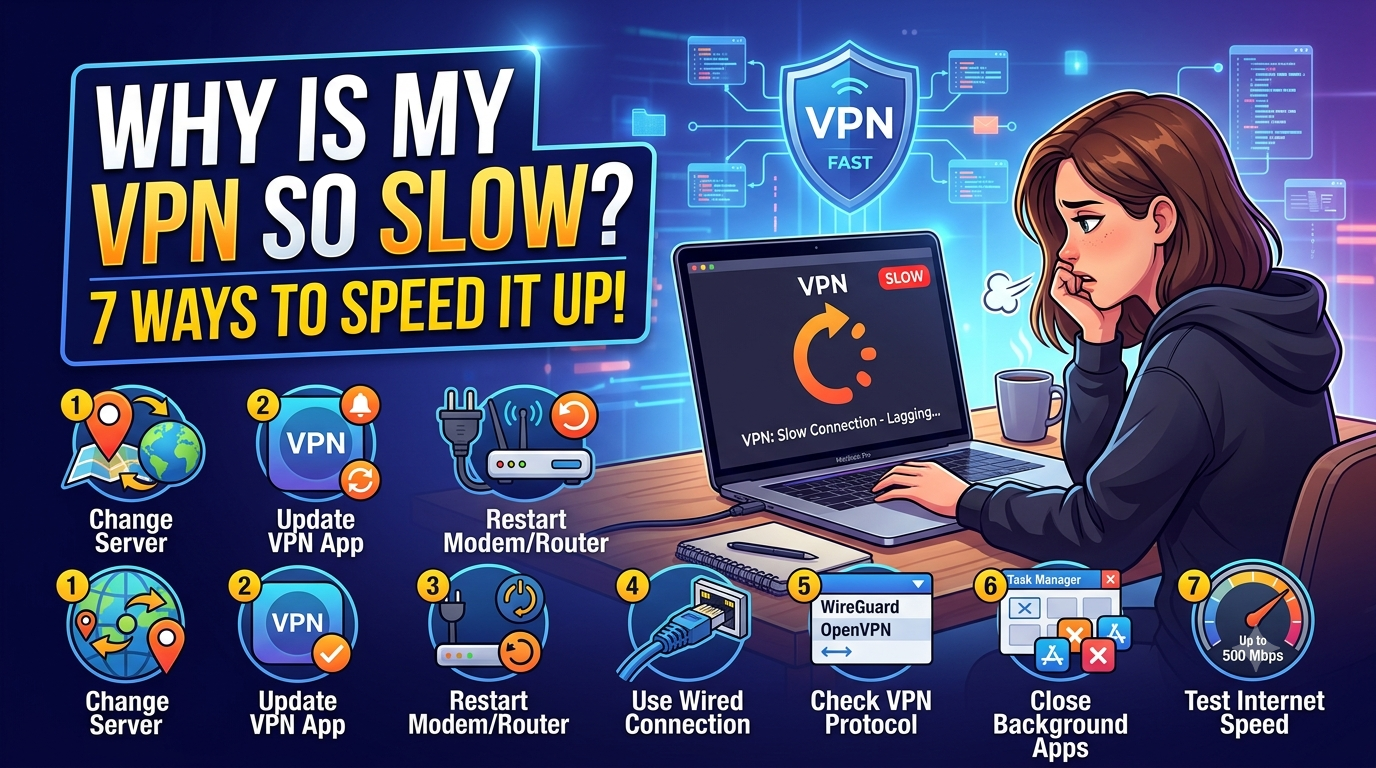
Follow this sequence:
Step 1: Establish a Baseline
Test your connection without a VPN.
Step 2: Test a Nearby Server
Measure speed retention.
Step 3: Change Protocols
Compare WireGuard and OpenVPN.
Step 4: Check for Packet Loss
Look for retransmissions and unstable latency.
Step 5: Test Another Device
Identify possible hardware limitations.
Step 6: Compare Wi-Fi and Ethernet
Eliminate wireless interference.
Step 7: Try Multiple Servers
Determine whether congestion is affecting performance.
Following this workflow typically identifies the root cause in minutes rather than hours.
Here is Part 4 of the article:
What Should You Do If None of the Fixes Work?
If you’ve tested multiple servers, changed protocols, checked for packet loss, verified your hardware, and eliminated Wi-Fi issues, yet your VPN remains slow, it’s time to take a deeper look at the provider itself.
Not all VPN services deliver the same level of performance.
Two providers may both advertise WireGuard support, thousands of servers, and military-grade encryption, yet produce dramatically different real-world results.
The difference often comes down to infrastructure quality.
Signs Your VPN Provider May Be the Problem
Persistent speed issues across multiple devices and networks can indicate limitations within the VPN service itself.
Warning signs include:
- Consistently overloaded servers
- Large speed drops regardless of location
- Frequent connection instability
- High latency across nearby servers
- Limited protocol options
- Poor application optimization
If multiple troubleshooting steps fail to improve performance, testing another VPN provider can help determine whether the service itself is the bottleneck.
Compare Performance Across Multiple Locations
Before switching providers entirely, run tests from several server locations.
Recommended test locations include:
- Nearest available city
- Another city within your country
- Neighboring country
- Long-distance international server
Track:
- Download speed
- Upload speed
- Ping
- Connection stability
Patterns often emerge quickly.
For example:
| Server Location | Download Speed | Ping |
|---|---|---|
| Local City | 460 Mbps | 12 ms |
| Nearby State | 440 Mbps | 18 ms |
| Neighboring Country | 390 Mbps | 35 ms |
| Overseas Server | 220 Mbps | 110 ms |
These results are normal.
If every location produces poor performance, the VPN provider deserves closer scrutiny.
Advanced VPN Speed Optimization Tips
Once you’ve addressed the common causes of VPN slowdown, several advanced techniques can squeeze additional performance from your connection.
Use WireGuard-Based Protocols Whenever Possible
Modern VPN protocols consistently outperform older alternatives.
WireGuard and WireGuard-based implementations generally provide:
- Lower latency
- Faster connection establishment
- Better battery efficiency
- Higher throughput
In many environments, simply switching away from OpenVPN TCP produces immediate improvements.
Connect to City-Level Servers
Many VPN applications allow you to choose specific cities rather than countries.
This can improve performance because:
- Traffic travels shorter distances
- Regional congestion may be lower
- Routing becomes more efficient
A server located 20 miles away will typically outperform one located hundreds of miles away.
Avoid Multi-Hop Connections When Speed Matters
Multi-hop VPN configurations route traffic through two or more VPN servers.
This improves privacy in certain situations.
However, it also introduces:
- Additional latency
- More encryption overhead
- Longer routing paths
If speed is your primary concern, single-hop connections usually perform better.
Close Bandwidth-Heavy Background Applications
VPN troubleshooting often overlooks local bandwidth consumption.
Common offenders include:
- Cloud backups
- Streaming applications
- Game downloads
- Software updates
- File synchronization tools
Checking Task Manager or Activity Monitor frequently reveals hidden bandwidth consumers.
Frequently Asked Questions
Why is my VPN so slow all of a sudden?
Sudden VPN slowdowns are commonly caused by server congestion, protocol changes, software updates, packet loss, ISP issues, or network instability. Testing multiple servers and protocols usually identifies the cause.
Does a VPN always reduce internet speed?
Yes, some reduction is normal because encryption and routing introduce overhead. However, premium VPNs often retain 80–95% of your original speed on nearby servers.
Is WireGuard faster than OpenVPN?
In most cases, yes. WireGuard generally delivers lower latency, faster connection establishment, and higher throughput than OpenVPN.
Can a VPN increase internet speed?
Sometimes. If your ISP is throttling specific traffic or using inefficient routing paths, a VPN may improve performance for certain activities.
How much speed loss is acceptable?
Most high-quality VPN services should retain at least 80% of your baseline connection speed when connected to nearby servers.
Final Verdict
If you’ve been asking why is my vpn so slow, the answer usually comes down to one of seven factors: server distance, server congestion, protocol selection, packet loss, device limitations, network restrictions, or VPN software issues.
The fastest way to solve VPN performance problems is to follow a structured troubleshooting process. Start with baseline speed testing, switch to WireGuard if available, test multiple nearby servers, and verify that your hardware isn’t creating a bottleneck.
Most VPN slowdowns are not permanent. In many cases, a single configuration change restores hundreds of megabits per second in lost performance.
For users seeking the best combination of speed, privacy, and reliability, comparing available options among top-rated VPN services remains one of the most effective ways to avoid performance issues before they start.