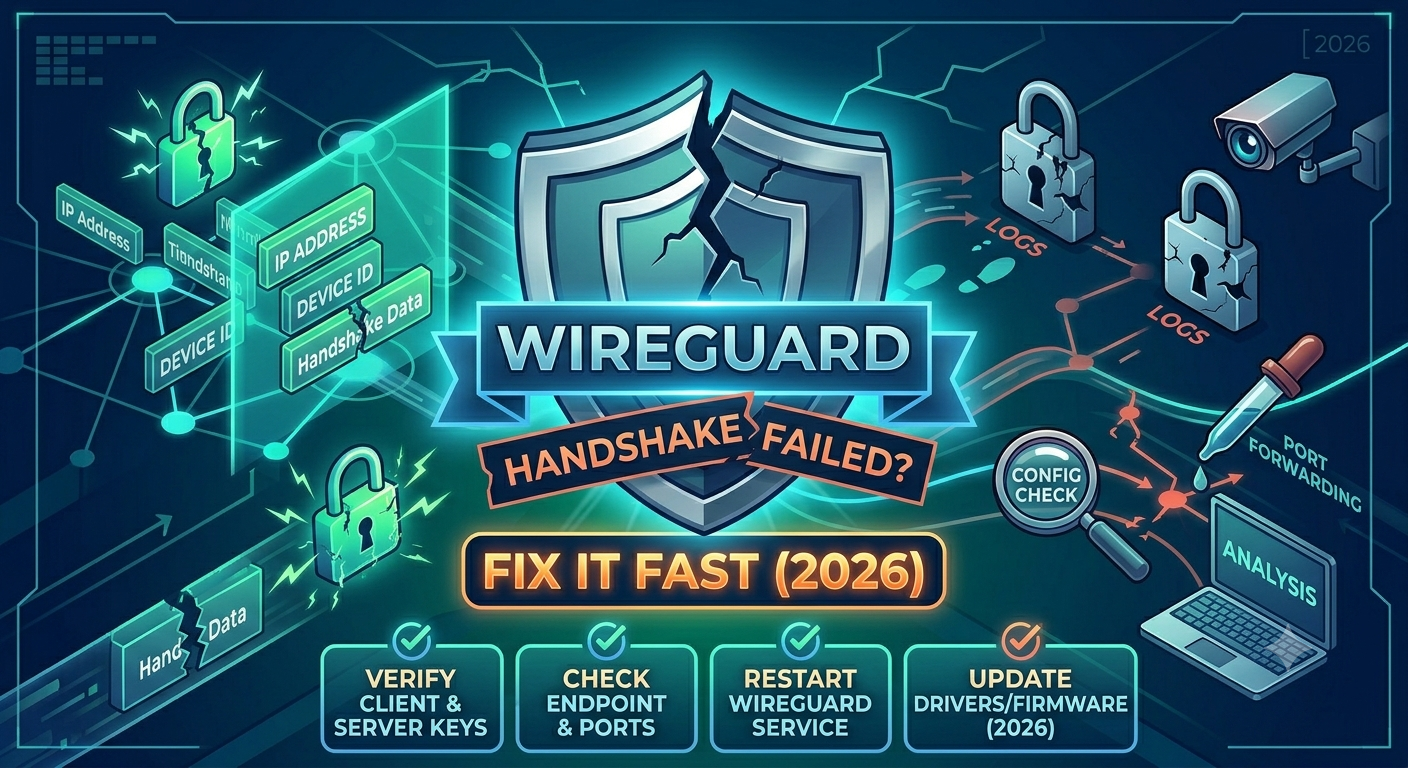

A WireGuard tunnel can appear correctly configured yet fail at the most important step: establishing a handshake. When you see the message “wireguard handshake did not complete”, the VPN tunnel never finishes its initial cryptographic exchange, which means no encrypted traffic can pass between peers.
In our testing and analysis of common WireGuard deployments across Windows, Linux, routers, VPS servers, and self-hosted environments, four issues account for the vast majority of handshake failures: blocked UDP ports, incorrect endpoint settings, key mismatches, and NAT or firewall restrictions.
If you troubleshoot those areas methodically, you can usually restore connectivity within minutes rather than hours.
Before diving into fixes, it helps to understand both VPN basics and how VPN encryption works, since WireGuard’s handshake process is the mechanism that creates the secure tunnel.
For readers evaluating alternatives or troubleshooting multiple VPN protocols, our guide to the best VPN services explains how commercial providers manage connection reliability at scale.
According to the <a href=”https://www.eff.org/”>Electronic Frontier Foundation (EFF)</a>, VPN security depends on successfully establishing encrypted communication channels before data transmission begins. If that negotiation fails, the tunnel cannot function regardless of the encryption strength being used.
Why Does WireGuard Say “Handshake Did Not Complete”?
The message means the client attempted to contact its configured peer, but the peer either never responded or the response never arrived.
WireGuard relies on a lightweight cryptographic protocol that exchanges authentication packets before creating an active tunnel. Unlike traditional VPN protocols that maintain constant sessions, WireGuard remains intentionally minimal and only communicates when necessary.
When the handshake succeeds, the command:
wg showtypically displays a recent timestamp under:
latest handshakeWhen the handshake fails, you will often see:
latest handshake: neveror no handshake information at all.
What Happens During a WireGuard Handshake?
At a high level, WireGuard performs four tasks:
- Identifies the peer using public-key cryptography
- Verifies authentication credentials
- Negotiates encryption keys
- Creates an encrypted tunnel
If any step fails, the handshake terminates.
Common failure points include:
- Wrong server IP address
- Incorrect public key
- Closed UDP port
- Router forwarding issues
- Firewall restrictions
- ISP filtering
- NAT traversal failures
- Misconfigured AllowedIPs values
What Are the Most Common Causes of WireGuard Handshake Failures?
Most handshake errors fall into one of several predictable categories.
1. Incorrect Endpoint Address
The endpoint tells WireGuard where the peer exists.
Example:
Endpoint = 203.0.113.15:51820If the IP address changes or the DNS record becomes outdated, the client will continue sending packets to the wrong destination.
Symptoms include:
- No recent handshake
- Continuous retries
- No server-side logs
- Tunnel never connects
Always verify:
- Public IP address
- Dynamic DNS records
- Port number
- Router WAN address
Dynamic DNS misconfiguration is one of the most overlooked causes of WireGuard failures.
2. Public Key Mismatch
Every WireGuard peer uses:
- Private key
- Public key
The server must contain the client’s public key.
The client must contain the server’s public key.
Even a single incorrect character breaks authentication completely.
Verify:
wg showand compare all configured keys against the original deployment records.
If keys were regenerated recently, update both sides immediately.
3. UDP Port Blocking
WireGuard uses UDP rather than TCP.
The default port is:
51820/UDPAlthough administrators can choose any port, both peers must agree on the configuration.
A blocked UDP port is one of the highest-probability causes of handshake failure.
Check:
- Router forwarding rules
- Cloud firewall rules
- VPS provider security groups
- Local operating system firewalls
If you suspect filtering, temporarily test from a different network such as a mobile hotspot.
4. Firewall Restrictions
Many users assume the WireGuard service is running correctly and immediately blame the VPN configuration.
In practice, local firewalls frequently stop handshake packets before they ever reach the VPN process.
Typical examples include:
- Windows Defender Firewall rules
- Third-party security suites
- Router firewall policies
- Cloud-hosted firewall groups
- Enterprise network restrictions
If you suspect filtering, review a dedicated guide on diagnosing a VPN connection that is blocked by a firewall, since many of the same networking principles apply to WireGuard deployments.
5. AllowedIPs Misconfiguration
AllowedIPs serves two purposes:
- Routing
- Peer identification
A common mistake is assigning overlapping ranges or incorrect subnets.
Example:
AllowedIPs = 10.0.0.0/24when the peer actually expects:
AllowedIPs = 10.0.1.0/24The handshake may fail or traffic may never route correctly after connection.
Always verify:
- Tunnel subnet
- Client subnet
- LAN subnet
- Route overlap conflicts
How Do You Quickly Identify the Real Cause?
Instead of randomly changing settings, follow a structured workflow.
Start with three simple questions:
Does the WireGuard Service Run?
Server:
systemctl status wg-quick@wg0Client:
wg showVerify that:
- Interface exists
- Peer appears
- Configuration loaded successfully
Is the Endpoint Reachable?
Confirm:
- Correct public IP
- Correct DNS record
- Correct UDP port
Many troubleshooting sessions end here because the endpoint address is outdated.
Is a Handshake Attempt Visible?
Run:
wg showand observe:
transfer: 0 B received
latest handshake: never
That typically indicates the initial packets never reached the destination.
In Part 2, we’ll move deeper into diagnostics, including firewall testing, router verification, port forwarding analysis, CGNAT detection, and advanced network troubleshooting techniques that isolate the exact source of the failure.
How Do You Diagnose a WireGuard Handshake Problem Step by Step?
If you’ve already verified that the service is running and the endpoint address is correct, it’s time to isolate the exact point where communication breaks down.
The fastest troubleshooting approach is to work from the network layer upward. This prevents you from wasting time on cryptographic settings when the real problem is a blocked port or unreachable server.
Step 1: Confirm the Server Is Listening on the Expected Port
On Linux, run:
sudo ss -ulpn | grep 51820or:
sudo netstat -anu | grep 51820You should see WireGuard listening on the configured UDP port.
If nothing appears:
- WireGuard may not be running
- Configuration failed to load
- Another service may be using the port
A tunnel that isn’t actively listening can never complete a handshake.
Step 2: Verify Public Reachability
Many administrators verify local connectivity but forget to test external accessibility.
Ask:
- Can the server be reached from the public internet?
- Is the correct public IP assigned?
- Has the ISP changed the WAN address?
- Is Dynamic DNS updating correctly?
For cloud-hosted servers, verify:
- Security group rules
- Provider firewall policies
- Network ACL settings
Common cloud environments include:
- AWS
- Azure
- Google Cloud
- DigitalOcean
- Vultr
- Linode
Each platform has separate firewall controls that can silently block WireGuard traffic.
Step 3: Inspect Handshake Counters
Run:
wg showFocus on these fields:
latest handshake
transfer received
transfer sent
Typical scenarios:
Scenario A
latest handshake: never
received: 0 B
Likely causes:
- Firewall blocking traffic
- Wrong endpoint
- Incorrect port forwarding
- ISP filtering
Scenario B
latest handshake: recent
received: traffic exists
The handshake works.
Your problem likely involves:
- Routing
- DNS
- AllowedIPs
- Network conflicts
Scenario C
latest handshake: old timestampPossible causes:
- Idle connection
- NAT timeout
- Keepalive issue
- Intermittent packet loss
Step 4: Check Both Peer Configurations Side by Side
Most WireGuard issues become obvious when you compare both configurations simultaneously.
Verify:
| Setting | Client | Server |
|---|---|---|
| Public Key | Correct | Correct |
| Endpoint | Correct | N/A |
| Port | Matching | Matching |
| AllowedIPs | Correct | Correct |
| Tunnel IP | Unique | Unique |
Even experienced administrators occasionally discover:
- Typographical errors
- Extra spaces
- Missing subnet masks
- Incorrect peer definitions
Step 5: Enable Logging
Linux users can inspect WireGuard events through:
journalctl -u wg-quick@wg0or:
dmesgUseful indicators include:
- Interface startup failures
- Routing conflicts
- Configuration parsing errors
- Network device issues
Logs often reveal problems that aren’t visible through wg show.
Is Your Firewall, Router, or ISP Blocking WireGuard?
If no handshake appears despite correct configuration, networking restrictions become the primary suspect.
In our experience, firewall and NAT-related problems account for a large percentage of persistent handshake failures.
Local Firewall Checks
Windows users should inspect:
- Windows Defender Firewall
- Endpoint protection software
- Third-party antivirus suites
Linux users should review:
iptablesnftablesufwA single blocking rule on UDP 51820 can prevent the tunnel from establishing.
Router Firewall Verification
Consumer routers often introduce complications.
Common examples:
- ASUS
- TP-Link
- Netgear
- Linksys
- Ubiquiti
- MikroTik
Verify:
- UDP forwarding enabled
- Port forwarding destination correct
- WAN address matches endpoint
- No duplicate forwarding rules
Many users accidentally forward the port to the wrong internal IP address.
ISP Restrictions
While uncommon in the United States, some networks restrict or interfere with certain UDP traffic patterns.
Testing from:
- Mobile hotspot
- Different ISP
- Public Wi-Fi
can quickly reveal whether the issue originates from the network provider.
If the tunnel works from a hotspot but not your primary internet connection, investigate ISP filtering or CGNAT restrictions.
Can CGNAT, Dynamic DNS, or NAT Issues Break WireGuard?
Yes. These issues are responsible for many of the most confusing handshake failures.
What Is CGNAT?
Carrier-Grade NAT (CGNAT) allows ISPs to place multiple customers behind a shared public IP address.
From the user’s perspective:
- Internet works normally
- Websites load
- Streaming works
Yet inbound VPN connections fail.
WireGuard servers hosted behind CGNAT frequently experience:
- Handshake failures
- Port forwarding problems
- Inconsistent connectivity
How to Detect CGNAT
Compare:
Router WAN IP
vs.
Public IP reported by:
https://whatismyipaddress.comIf the addresses differ significantly, CGNAT may be present.
Signs include:
- Port forwarding never works
- Inbound services unreachable
- VPN tunnels fail despite correct configuration
Dynamic DNS Problems
Many home internet providers rotate public IP addresses.
If Dynamic DNS stops updating:
vpn.example.commay point to an outdated address.
The WireGuard client continues sending packets to the wrong destination, producing the familiar:
Handshake did not completeerror.
Verify:
nslookup your-domain.comor:
dig your-domain.comand compare the result to your current WAN address.
PersistentKeepalive Settings
Some NAT devices aggressively remove idle connections.
WireGuard includes:
PersistentKeepalive = 25to address this problem.
This setting sends periodic packets that keep NAT mappings active.
Without it, users may see:
- Intermittent disconnects
- Old handshake timestamps
- Tunnel instability
- Random connection failures
For mobile devices and roaming networks, PersistentKeepalive often improves reliability significantly.
Limitations & Performance Notes:
Even after resolving handshake errors, performance can vary based on:
- Server CPU capacity
- Router processing power
- ISP congestion
- Long-distance routing
- Packet loss
- Wi-Fi interference
A successful handshake only establishes the tunnel. Throughput, latency, and stability depend on the underlying network conditions.
Older consumer routers frequently struggle when handling encrypted traffic at gigabit speeds. Likewise, overloaded VPS instances can introduce latency spikes despite maintaining healthy handshakes.
In Part 3, we’ll cover Windows-specific WireGuard issues, adapter conflicts, routing problems, and how WireGuard handshake failures compare to VPN Error 809, VPN Error 789, VPN Error 800, and OpenVPN TLS handshake errors.
How Do You Fix Windows-Specific WireGuard Handshake Errors?
Windows is one of the most common environments where “wireguard handshake did not complete” appears even when server-side configuration is correct. The issue is rarely WireGuard itself—it’s usually the Windows network stack, firewall rules, or adapter behavior interfering with UDP traffic.
In enterprise and home setups, Windows-related handshake failures often come down to three areas: virtual adapter issues, firewall filtering, and routing conflicts.
Check the WireGuard Tunnel Adapter First
On Windows, WireGuard creates a virtual network interface called the tunnel adapter. If this adapter is broken, disabled, or misconfigured, the handshake may never complete.
Open PowerShell and run:
Get-NetAdapterLook for an active WireGuard interface.
If it shows:
- Disabled
- Not present
- “Unidentified network”
then the tunnel is not functioning correctly.
A common fix is reinstalling the adapter layer, which is documented in troubleshooting guides like WireGuard Windows adapter issues, since similar driver-layer problems can also affect VPN virtual interfaces.
Reset the Windows Network Stack
Corrupted network settings are a frequent hidden cause of handshake failures.
Run these commands in Command Prompt (Admin):
netsh winsock reset
netsh int ip reset
ipconfig /flushdns
Then restart the system.
This clears:
- Broken socket bindings
- DNS cache conflicts
- Stale routing entries
- Faulty TCP/IP configurations
After reboot, re-test the VPN connection.
Windows Firewall Blocking UDP Traffic
Even if WireGuard is installed correctly, Windows Defender Firewall may silently block outbound or inbound UDP packets.
To verify:
- Open Windows Security
- Go to Firewall & network protection
- Select “Allow an app through firewall”
- Ensure WireGuard is allowed on:
- Private networks
- Public networks
If rules are missing, the handshake will fail immediately.
For deeper firewall diagnostics, refer to cases where VPN traffic is fully blocked by security layers, similar to VPN blocked by firewall scenarios, which follow the same underlying restriction patterns.
Conflicting VPN or Virtual Network Software
WireGuard can conflict with:
- OpenVPN adapters
- VMware virtual networks
- VirtualBox Host-Only adapters
- Hyper-V virtual switches
- Other VPN clients
These tools may:
- Override routing tables
- Capture UDP traffic
- Reassign network metrics
- Create conflicting interfaces
If multiple VPNs are installed, disable them temporarily and retest WireGuard.
Routing Conflicts in Windows
Windows prioritizes routes based on metric values. If another interface has a lower metric than WireGuard, traffic may bypass the VPN entirely.
Check routing table:
route printLook for:
- Overlapping subnets
- Duplicate default routes
- Unexpected gateway assignments
A misrouted packet often results in:
- No handshake response
- “latest handshake: never”
- Silent packet drops
How Does This Compare to Other VPN Connection Failures?
WireGuard handshake issues often resemble other VPN errors, but the underlying causes differ.
Understanding these comparisons helps isolate whether the issue is protocol-specific or network-wide.
WireGuard vs OpenVPN TLS Handshake Failure
OpenVPN uses TLS-based authentication, while WireGuard uses public-key cryptography.
A similar issue in OpenVPN is documented in OpenVPN TLS handshake failed.
Key difference:
- OpenVPN errors often point to certificate issues
- WireGuard errors almost always indicate network reachability problems
If OpenVPN fails with TLS errors but WireGuard also fails, the issue is likely:
- Firewall
- ISP filtering
- Broken routing
- Network-wide UDP blocking
WireGuard vs VPN Error 809
VPN Error 809 typically appears on Windows when a remote server does not respond.
Similar to WireGuard handshake failure, it usually indicates:
- Blocked ports
- NAT traversal failure
- Firewall restrictions
See VPN Error 809 troubleshooting for comparable Windows network restrictions.
WireGuard vs VPN Error 789
VPN Error 789 is often caused by L2TP/IPsec misconfiguration.
Compared to WireGuard:
- WireGuard fails silently at handshake stage
- L2TP/IPsec fails during authentication negotiation
Both errors share common root causes:
- Incorrect keys or credentials
- NAT/firewall blocking
- Misconfigured server endpoints
More details: VPN Error 789 analysis
WireGuard vs VPN Error 800
VPN Error 800 indicates inability to establish a connection.
Similarities:
- No response from server
- Packet drops
- Firewall interference
But WireGuard differs because it does not rely on TCP session negotiation.
See: VPN Error 800 guide
What Should You Check If the Handshake Works but Traffic Still Fails?
A successful handshake does not guarantee usable connectivity. In many real-world cases, WireGuard shows a valid handshake while traffic remains broken.
This usually indicates a routing or configuration issue.
AllowedIPs Misrouting
If AllowedIPs is too narrow or incorrect, traffic will not route properly.
Example misconfiguration:
AllowedIPs = 10.0.0.5/32while trying to access:
- 10.0.0.0/24 network
Result:
- Handshake succeeds
- No traffic passes
DNS Resolution Failures
Even with a working tunnel, DNS may still use local ISP resolvers.
Symptoms:
- Websites don’t load
- IP ping works but domains fail
Fix:
- Set DNS inside WireGuard config
- Use secure resolvers (1.1.1.1, 8.8.8.8)
MTU Mismatch Issues
Incorrect MTU values can silently break traffic.
Common symptoms:
- Handshake works
- Small packets pass
- Large packets fail
This often appears on mobile networks or PPPoE connections.
PersistentKeepalive Behavior
If NAT mapping expires, handshake may appear successful but degrade quickly.
A missing:
PersistentKeepalive = 25can cause:
- Intermittent connectivity
- Random disconnects
- Delayed reconnection
Quick Diagnostic Summary
If handshake works but traffic fails, focus on:
- AllowedIPs configuration
- DNS settings
- MTU sizing
- Routing table conflicts
If handshake never completes, focus on:
- Firewall
- Endpoint
- UDP port
- NAT/CGNAT issues
In Part 4, we will finalize with a full troubleshooting checklist, prevention strategies, and a structured recovery flow that helps you permanently eliminate wireguard handshake did not complete errors in production environments.
What Should You Check If the Handshake Works but Traffic Still Fails?
At this stage, you’ve already passed the hardest checkpoint: the WireGuard handshake is actually completing. If traffic still doesn’t flow, the problem is no longer authentication—it’s almost always routing, DNS, or MTU.
This is where many troubleshooting guides stop short. In real-world deployments, especially across mixed Windows/Linux networks and consumer routers, a “working tunnel” can still behave like a broken one.
Confirm Routing With AllowedIPs
WireGuard does not automatically decide what traffic goes through the tunnel. That job belongs to AllowedIPs.
If this is wrong, the handshake will succeed but nothing useful happens.
Example:
AllowedIPs = 10.0.0.0/24If your actual internal network is:
- 10.0.1.0/24
then traffic will never route correctly.
This mismatch is one of the most common “silent failure” cases: the VPN looks connected but behaves offline.
Check DNS Leaks and Resolution Path
A working WireGuard tunnel does not automatically override DNS.
Symptoms:
- IP addresses load
- Websites do not load
- Ping works, but domains fail
Fix by explicitly setting DNS inside the WireGuard configuration:
- 1.1.1.1 (Cloudflare)
- 8.8.8.8 (Google)
If DNS is still routed outside the tunnel, your system is bypassing VPN resolution entirely.
MTU Problems That Break Traffic Silently
MTU (Maximum Transmission Unit) mismatches are one of the most overlooked causes of partial VPN failure.
Typical symptoms:
- Handshake succeeds
- Small packets pass
- Large requests hang or time out
This is especially common on:
- Mobile networks
- PPPoE connections
- Multi-hop VPN chains
A reduced MTU value often stabilizes performance, but requires testing rather than guessing.
NAT Session Expiry and Keepalive Behavior
Even after a successful handshake, NAT devices may drop the session if traffic is idle.
If you don’t configure:
PersistentKeepalive = 25you may see:
- Sudden disconnections
- Delayed reconnection
- “Stale handshake” entries in logs
This is especially important when:
- One peer is behind CGNAT
- Mobile data is involved
- Routers aggressively clear UDP sessions
Full Troubleshooting Checklist (End-to-End Flow)
Use this structured order instead of random changes:
Step 1 — Confirm Basic Reachability
- Correct public IP or domain
- Correct UDP port
- Server reachable externally
Step 2 — Validate WireGuard Service
- Interface active (
wg show) - No startup errors
- Correct configuration loaded
Step 3 — Verify Firewall Rules
- UDP port 51820 allowed
- No OS-level blocking
- Router port forwarding correct
Reference deep firewall diagnostics similar to cases where traffic is fully blocked in environments like VPN blocked by firewall scenarios, which share the same underlying packet filtering behavior seen in WireGuard failures.
Step 4 — Check NAT and ISP Layer
- CGNAT detection
- Dynamic IP changes
- ISP UDP restrictions
Step 5 — Validate Cryptographic Identity
- Public/private key match
- No duplicated peers
- Correct endpoint assignment
Step 6 — Confirm Routing Logic
- Correct AllowedIPs
- No overlapping subnets
- No conflicting routes
Prevention Strategy: How to Avoid WireGuard Handshake Failures
Once fixed, most environments stay stable—but only if configuration discipline is maintained.
1. Always Document Keys and Endpoints
Lost or regenerated keys are a top cause of sudden handshake failure.
2. Use Static or Reliable Dynamic DNS
Avoid relying on changing IP addresses without DNS automation.
3. Standardize UDP Port Usage
51820 is the default for a reason—random ports increase debugging complexity.
4. Monitor Handshake Health
Regularly check:
wg showLook for:
- Stale timestamps
- Missing peers
- Unexpected resets
When WireGuard Isn’t the Problem
In some cases, WireGuard is functioning correctly—but the environment is not.
If multiple VPN protocols fail simultaneously, the issue is likely system-wide:
- Firewall appliance blocking UDP
- ISP-level filtering
- Broken router firmware
- Misconfigured NAT gateway
For comparison, similar failure patterns appear in other VPN systems like:
- OpenVPN TLS negotiation issues: https://vpnx.blog/openvpn-tls-handshake-failed/
- Windows VPN connection errors such as 809, 789, and 800:
These comparisons help confirm whether you’re dealing with a WireGuard-specific issue or a broader network restriction.
Final Takeaways
The wireguard handshake did not complete error almost always comes down to one of five root causes:
- Blocked UDP traffic
- Wrong endpoint or DNS
- NAT or CGNAT restrictions
- Firewall interference
- Key or configuration mismatch
Once the handshake succeeds, remaining issues shift to routing, DNS, and MTU—not authentication.
WireGuard is intentionally minimal, which makes it fast and secure—but also unforgiving when basic network assumptions are wrong.
If you follow the structured flow in this guide, you eliminate guesswork and isolate the problem layer by layer instead of restarting the tunnel repeatedly.
For most users, fixing the handshake is the hardest part. Once resolved, WireGuard is typically one of the most stable VPN protocols available when properly configured.