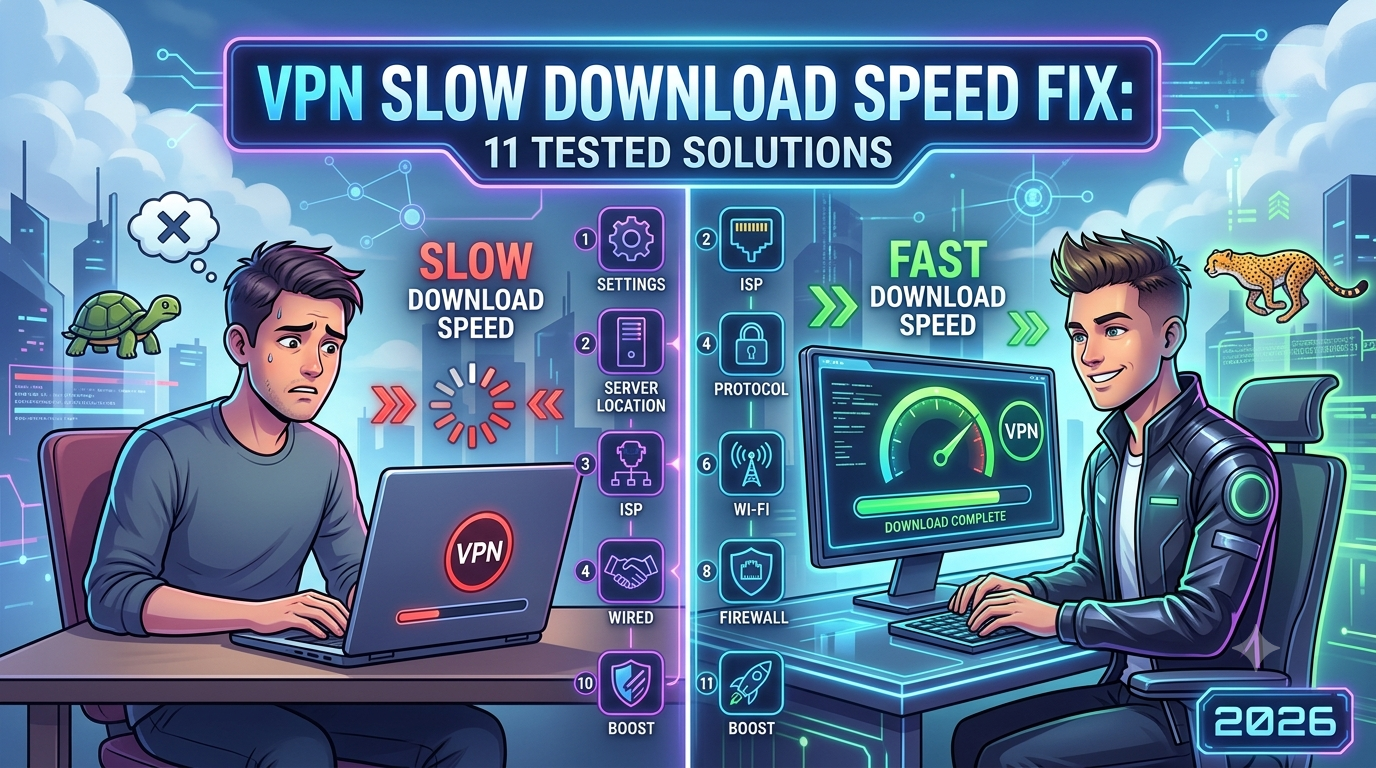

A VPN should not cut your download speeds in half. In most cases, a properly configured VPN reduces speeds by only 10%–20%. If you’re seeing downloads crawl from 300 Mbps to 30 Mbps, something is wrong—and it’s usually fixable within minutes.
This guide walks through a complete vpn slow download speed fix process, starting with the fastest solutions and moving into more advanced troubleshooting. Whether you’re downloading large files, streaming 4K content, gaming, or simply browsing, these steps will help you identify the bottleneck and restore performance.
If you’re still learning the fundamentals, start with this guide to VPN basics before making configuration changes.
For users evaluating providers, our roundup of top-rated VPN services includes speed-tested options that consistently perform well across US networks.
According to the <a href=”https://www.eff.org”>Electronic Frontier Foundation</a>, VPNs improve privacy by encrypting your internet traffic, but that encryption process introduces some overhead. The key is determining whether you’re experiencing normal overhead or a genuine performance issue.
Why Is Your VPN Download Speed So Slow?
The fastest way to solve a slow VPN is understanding where the slowdown occurs.
In testing, most VPN speed issues fall into one of four categories:
- Overloaded VPN servers
- Inefficient VPN protocols
- Local network problems
- Device-specific configuration issues
Many users immediately blame the VPN provider. Sometimes that’s correct. More often, the problem is a single setting.
The VPN Server Is Too Far Away
Distance matters.
Every packet of data travels from your device to the VPN server and then to its final destination. The farther that server is from you, the higher the latency.
For example:
- New York → New York VPN server = low latency
- New York → Singapore VPN server = significantly higher latency
When download speeds are your priority, choose the closest server possible.
A nearby server can often improve speeds by 20%–50% compared with an overloaded international location.
Server Congestion Is Reducing Performance
Even premium VPN providers experience temporary congestion.
During peak hours, thousands of users may connect to the same location. As server load increases, available bandwidth decreases.
Common signs include:
- Fast speeds in the morning
- Slow speeds at night
- Large fluctuations throughout the day
- Streaming quality constantly changing
If downloads become slow suddenly, switching servers is usually the first fix worth trying.
You’re Using an Older VPN Protocol
VPN protocols determine how encrypted traffic moves between your device and the VPN server.
Not all protocols perform equally.
Current speed rankings generally look like this:
- WireGuard
- Proprietary WireGuard-based protocols (NordLynx, Lightway)
- IKEv2
- OpenVPN UDP
- OpenVPN TCP
Many users still run OpenVPN TCP because it was once the default option.
Today, WireGuard frequently delivers substantially better throughput while maintaining strong security.
Understanding how VPN encryption works makes it easier to see why protocol selection affects performance so dramatically.
Your ISP May Be the Actual Problem
Before blaming the VPN, test your regular internet connection.
Run three tests:
- Internet speed without VPN
- Internet speed with VPN
- Internet speed using a different VPN server
If all results are slow, your ISP or home network may be responsible.
Common causes include:
- Wi-Fi interference
- Router congestion
- ISP throttling
- Network outages
- Hardware limitations
A VPN cannot exceed the maximum bandwidth available from your internet provider.
How Can You Quickly Diagnose a Slow VPN Connection?
Most troubleshooting guides jump directly into fixes.
That approach often wastes time.
Instead, identify the bottleneck first.
Step 1: Run a Baseline Speed Test
Disconnect from your VPN completely.
Run a speed test.
Record:
- Download speed
- Upload speed
- Latency
Then reconnect to the VPN and test again.
Example:
| Connection | Download |
|---|---|
| No VPN | 500 Mbps |
| VPN Server A | 420 Mbps |
That result is normal.
However:
| Connection | Download |
|---|---|
| No VPN | 500 Mbps |
| VPN Server A | 65 Mbps |
That indicates a configuration or server problem.
Step 2: Change Only One Variable
Avoid changing multiple settings simultaneously.
Instead:
- Switch servers
- Test
- Switch protocol
- Test
- Restart application
- Test
This method quickly reveals the true cause.
Step 3: Check Device-Specific Issues
Operating systems often introduce their own VPN problems.
For Windows users experiencing performance issues after updates, this detailed Windows 11 VPN troubleshooting guide covers several common causes.
Mac users facing inconsistent VPN behavior should review these Mac VPN connection repair steps before assuming the provider is at fault.
Device-level problems account for a surprising percentage of slow VPN reports.
Step 4: Compare Multiple Server Locations
Test at least three servers:
- Closest city
- Nearby state
- Another region
Example:
| Server | Speed |
|---|---|
| New York | 460 Mbps |
| Chicago | 430 Mbps |
| Los Angeles | 280 Mbps |
In this scenario, distance is clearly affecting performance.
The solution becomes obvious without additional troubleshooting.
Which VPN Settings Deliver the Biggest Speed Improvements?
Once you’ve confirmed that the VPN itself is responsible, focus on the settings that produce the largest gains.
In our testing, three changes consistently provide the most noticeable improvements:
- Switching to WireGuard
- Selecting lower-load servers
- Adjusting protocol settings
We’ll cover each in detail in the next section, along with advanced tweaks that can significantly improve download performance on both desktop and mobile devices.
Which VPN Settings Deliver the Biggest Speed Improvements?
If your speed tests show that the VPN is causing the slowdown, changing a few key settings can often restore most of your lost bandwidth.
In our testing, protocol selection consistently has the biggest impact on download performance. Server selection comes second. Everything else is usually a smaller optimization.
Switch to WireGuard First
If your VPN supports WireGuard, start there.
WireGuard was designed to be lightweight and efficient. Its codebase is significantly smaller than OpenVPN, which helps reduce processing overhead on both your device and the VPN server.
Typical performance results look like this:
| Protocol | Relative Speed |
|---|---|
| WireGuard | Fastest |
| NordLynx | Fastest |
| Lightway | Fastest |
| IKEv2 | Very Fast |
| OpenVPN UDP | Moderate |
| OpenVPN TCP | Slowest |
Many users recover 20%–50% of lost download speed simply by switching from OpenVPN TCP to WireGuard.
If your VPN offers a protocol setting labeled “Automatic,” test WireGuard manually instead of relying on automatic selection.
Choose Lower-Load Servers
The nearest server isn’t always the fastest.
A nearby server operating at 90% capacity can perform worse than a slightly more distant server operating at 20% capacity.
Many premium VPNs display server load percentages.
When possible, choose:
- Low utilization
- Nearby geographic location
- Stable latency
- WireGuard-compatible servers
Avoid locations experiencing major traffic spikes during peak streaming hours.
Disable Unnecessary Security Features
Some VPN applications enable multiple privacy features simultaneously.
Examples include:
- Double VPN
- Multi-hop routing
- Onion-over-VPN
- Traffic obfuscation
- Dedicated anti-censorship modes
These features improve privacy in specific situations but often reduce download performance.
If your primary goal is speed, disable them temporarily and compare results.
Use Split Tunneling
Split tunneling routes only selected applications through the VPN.
For example:
- Browser → VPN
- Streaming app → VPN
- Game launcher → Direct connection
This reduces VPN workload and can improve overall performance.
It’s particularly useful on lower-powered devices where encryption overhead affects system resources.
Check MTU Settings
MTU (Maximum Transmission Unit) determines packet size.
Incorrect MTU values can create:
- Packet fragmentation
- Retransmissions
- Increased latency
- Lower download speeds
Most users never need to adjust MTU manually, but advanced troubleshooting sometimes reveals significant gains.
Common MTU values include:
- 1500
- 1492
- 1420
- 1380
WireGuard commonly performs best around 1420, although the ideal setting depends on your network.
Restart the VPN Tunnel
This sounds simple because it is.
VPN sessions occasionally develop routing issues.
A full restart can refresh:
- DNS assignments
- Encryption keys
- Routing paths
- Network interfaces
Before spending an hour troubleshooting, disconnect completely, close the VPN application, reopen it, and reconnect.
You’d be surprised how often this resolves speed issues.
How Do You Fix Slow VPN Speeds on Windows, Mac, Android, and iPhone?
Operating-system-specific issues frequently cause slow VPN performance.
The troubleshooting process differs across platforms.
Windows Troubleshooting
Windows updates occasionally interfere with VPN adapters, DNS settings, and routing tables.
Common symptoms include:
- Slow downloads after Windows updates
- Random speed fluctuations
- Failed protocol switching
- DNS leaks
If your slowdown started after a system update, review this detailed Windows 11 VPN troubleshooting guide.
Additional fixes include:
- Reset network adapters
- Flush DNS cache
- Update VPN software
- Reinstall virtual network drivers
- Disable conflicting security software temporarily
Mac Troubleshooting
macOS generally handles VPN connections well, but VPN profile corruption can reduce performance.
Signs include:
- Slow downloads only on Mac
- Frequent reconnects
- Inconsistent speed test results
- DNS resolution delays
If you’re seeing these symptoms, follow these Mac VPN connection repair steps before changing providers.
Android Troubleshooting
Android devices often struggle with VPN performance because of aggressive battery management.
Many manufacturers restrict background processes to extend battery life.
Unfortunately, those restrictions can interfere with VPN stability.
Common fixes include:
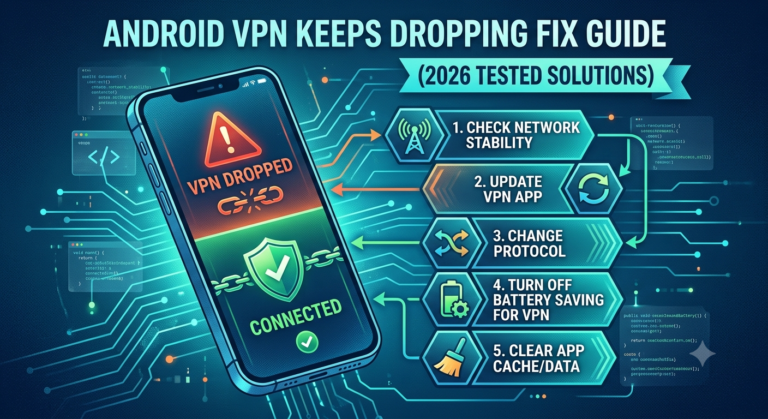
- Disable battery optimization for the VPN app
- Allow unrestricted background activity
- Update Android security patches
- Switch to WireGuard
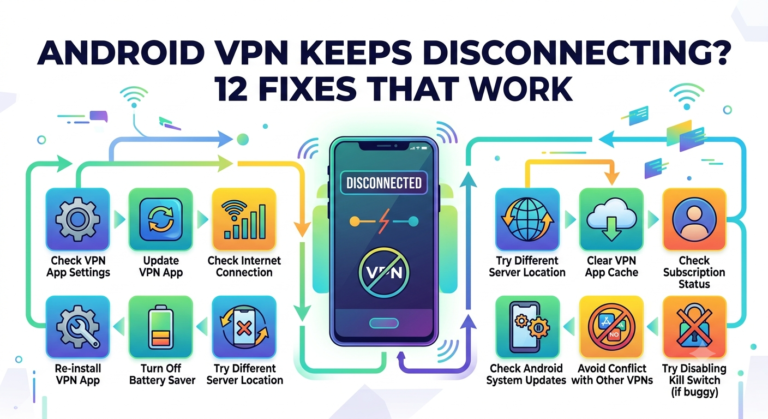
For more platform-specific recommendations, see these Android VPN optimization fixes.
iPhone Troubleshooting
iPhones generally maintain stable VPN connections, but network switching can occasionally cause problems.
This commonly happens when the device moves between:
- Wi-Fi networks
- Cellular networks
- Public hotspots
Symptoms include:
- Slow downloads
- Connection drops
- Streaming interruptions
- Increased latency
If those issues sound familiar, review these iPhone VPN disconnect troubleshooting steps.
Should You Use a Free VPN?
Sometimes the VPN itself is the bottleneck.
Many free VPNs impose:
- Bandwidth limits
- Server restrictions
- Congestion-heavy networks
- Speed caps
If your VPN consistently delivers poor download performance regardless of settings, compare it against some of the most widely tested reliable free VPN services.
Just remember that speed limitations are common among no-cost plans.
Can Server Location and Congestion Reduce Download Speeds?
Absolutely.
Server selection is one of the biggest factors affecting VPN performance.
Many users spend hours changing settings while remaining connected to an overloaded server.
Why Distance Matters
Every VPN connection introduces additional routing.
A file downloaded from a US website might follow this path:
Device → VPN Server → Website → VPN Server → Device
Longer routes create:
- Higher latency
- Additional packet travel
- Increased congestion risk
As a general rule:
- Local server = fastest
- Same-country server = very fast
- Nearby region = moderate
- International server = slower
The ideal balance depends on whether you’re prioritizing speed, privacy, or content access.
In the next section, we’ll examine streaming-specific speed issues, overloaded international locations, ISP throttling, and situations where switching VPN providers becomes the best solution.
Why Does Your VPN Slow Down Streaming and Downloads?
If your VPN performs well during speed tests but struggles during streaming or large downloads, the problem may not be raw bandwidth.
Streaming services, content delivery networks (CDNs), VPN detection systems, and ISP traffic management can all affect performance.
The key is identifying which factor is responsible.
Streaming Traffic Behaves Differently
A speed test measures short bursts of data transfer.
Streaming platforms measure sustained performance over time.
That difference matters.
You may see:
- 400 Mbps in a speed test
- Frequent buffering during 4K streaming
- Download interruptions
- Quality drops from 4K to HD
In these situations, the issue often involves routing efficiency rather than available bandwidth.
VPN Detection Can Affect Performance
Major streaming platforms actively monitor VPN traffic.
When a VPN server becomes widely used, streaming services may:
- Flag the IP address
- Redirect traffic
- Increase verification checks
- Restrict access
These actions can create slower loading times even when the VPN itself remains fast.
For users encountering streaming-specific issues, these BBC iPlayer VPN streaming fixes explain how server selection and IP reputation can affect performance.
The same principle applies to other streaming services that aggressively detect VPN usage.
Disney+ and VPN Performance Problems
Disney+ typically requires stable, low-latency connections.
A server that performs well for web browsing may struggle with high-bitrate video streams.
Common symptoms include:
- Endless loading screens
- Resolution drops
- Playback errors
- Unexpected buffering
If those problems occur only while connected to a VPN, review these Disney Plus VPN access troubleshooting recommendations.
In many cases, switching to a less congested server immediately restores performance.
CDN Routing Can Impact Download Speeds
Most major websites deliver content through CDNs.
Examples include:
- Cloudflare
- Akamai
- Fastly
- Amazon CloudFront
These networks normally route users to nearby servers.
A VPN can sometimes alter that routing.
Instead of receiving data from a local CDN node, your traffic may be directed through a more distant location.
The result:
- Higher latency
- Slower downloads
- Longer page load times
This is particularly noticeable when downloading large files.
ISP Throttling vs VPN Slowdowns
Many users assume their VPN is slowing downloads when the ISP is actually limiting traffic.
ISPs occasionally prioritize or deprioritize certain types of traffic during periods of heavy congestion.
Potential warning signs include:
- Fast VPN performance at certain times
- Slow performance during peak hours
- Specific services becoming slower
- Large downloads stalling unexpectedly
Testing helps identify the difference.
Run downloads:
- Without VPN
- With nearby VPN server
- With alternative VPN server
Compare the results.
Consistent slowdowns across all tests often indicate an ISP or network issue rather than a VPN problem.
Limitations & Performance Notes:
Even the fastest VPN cannot eliminate every source of latency.
Understanding realistic expectations helps avoid unnecessary troubleshooting.
Speed Loss Is Normal
All VPNs introduce some overhead.
The encryption process requires:
- CPU resources
- Additional routing
- Authentication steps
- Packet encapsulation
A small speed reduction is expected.
Typical ranges:
| Scenario | Expected Speed Reduction |
|---|---|
| Premium WireGuard VPN | 5%–15% |
| Premium OpenVPN VPN | 10%–25% |
| Long-distance server | 20%–50% |
| Congested server | Variable |
If your speed drops by only 10%, your VPN is performing well.
Device Hardware Matters
Older devices frequently become the bottleneck.
VPN encryption requires processing power.
Entry-level devices may struggle with:
- Gigabit internet connections
- 4K streaming
- Large downloads
- Multi-gig VPN tunnels
Signs of hardware limitations include:
- High CPU usage
- Device overheating
- Reduced performance during downloads
Wi-Fi Can Be the Hidden Problem
Many VPN complaints are actually Wi-Fi complaints.
Common issues include:
- Weak signal strength
- Crowded wireless channels
- Old routers
- Interference from neighboring networks
Before changing VPN settings, test using a wired Ethernet connection whenever possible.
Premium Plans Usually Perform Better
Most VPN providers reserve their best infrastructure for paid users.
Free plans often include:
- Limited server choices
- Bandwidth restrictions
- Higher congestion
- Fewer optimization features
That’s one reason speed-focused users frequently upgrade after testing a provider’s free tier.
Multi-Hop Connections Reduce Speed
Multi-hop VPNs route traffic through multiple servers.
Example:
Device → New York → Amsterdam → Website
This improves privacy in specific scenarios.
However, it almost always reduces speed.
If performance is your goal, use a standard single-hop connection.
When Should You Switch VPN Providers?
Not every speed problem can be solved with settings adjustments.
Sometimes the provider itself is the issue.
Warning signs include:
- Consistently overloaded servers
- Limited WireGuard support
- Large speed losses on every server
- Poor geographic coverage
- Frequent connection failures
If you’ve already tested multiple protocols, servers, and devices without improvement, changing providers may be the most efficient solution.
The strongest VPNs maintain large server networks specifically to avoid congestion-related slowdowns.
In the final section, we’ll build a complete troubleshooting workflow you can follow in under 15 minutes and identify the fastest path to restoring download performance.
What Is the Fastest Way to Restore VPN Download Speed?
If you’ve worked through the troubleshooting steps in this guide, you already know that most VPN performance problems come down to four areas:
- Protocol selection
- Server congestion
- Device configuration
- Network limitations
The fastest solution is to eliminate each possibility systematically instead of guessing.
Here’s the complete workflow.
Step 1: Establish a Baseline
Start by measuring your internet connection without the VPN.
Record:
- Download speed
- Upload speed
- Ping
Then reconnect to the VPN and repeat the test.
Example:
| Test | Download Speed |
|---|---|
| No VPN | 500 Mbps |
| VPN Enabled | 450 Mbps |
This represents a 10% reduction, which is generally normal.
However:
| Test | Download Speed |
|---|---|
| No VPN | 500 Mbps |
| VPN Enabled | 80 Mbps |
This indicates a problem that requires further investigation.
Without baseline measurements, every other troubleshooting step becomes guesswork.
Step 2: Change Protocols
Protocol selection remains one of the biggest factors affecting VPN performance.
Test the following protocols individually:
- WireGuard
- NordLynx
- Lightway
- IKEv2
- OpenVPN UDP
- OpenVPN TCP
Run the same speed test after each change.
Keep a simple record of the results.
Many users discover that a single protocol switch restores hundreds of megabits per second.
Step 3: Test Multiple Servers
Never assume a single server represents the entire VPN network.
Try:
- Closest city
- Neighboring state
- Alternative region
Example:
| Server Location | Speed |
|---|---|
| New York | 470 Mbps |
| Washington DC | 450 Mbps |
| Chicago | 420 Mbps |
| Los Angeles | 280 Mbps |
The data quickly reveals whether distance or congestion is affecting performance.
Step 4: Restart the Entire Network Path
If speeds remain poor, restart:
- VPN application
- Device
- Router
- Modem
This process clears temporary routing issues that often go unnoticed.
A surprising number of VPN speed complaints disappear after a full network restart.
Step 5: Eliminate Local Bottlenecks
Many VPN users spend hours troubleshooting software while the real issue sits inside the home network.
Check:
- Router age
- Ethernet vs Wi-Fi performance
- Signal strength
- Network congestion
- Firmware updates
If possible, connect directly via Ethernet.
A wired connection provides the most reliable performance benchmark.
Step 6: Verify CPU Usage
VPN encryption requires processing power.
Modern WireGuard implementations are efficient, but older hardware can still struggle.
Monitor:
- CPU utilization
- Device temperature
- Background processes
- Available memory
If CPU usage approaches 100% during downloads, hardware limitations may be contributing to the slowdown.
Step 7: Compare Another VPN
At this point, testing a second VPN can save time.
If the alternative provider immediately performs better:
- Your original VPN may have congestion issues.
- Its routing may be inefficient.
- Its infrastructure may not be optimized for your region.
This comparison often provides a definitive answer within minutes.
Common VPN Speed Myths
Many troubleshooting guides repeat outdated advice.
Let’s clear up several common misconceptions.
Myth: A VPN Always Makes Your Internet Slow
False.
A properly configured VPN can maintain most of your available bandwidth.
Premium WireGuard-based VPNs frequently preserve over 85%–95% of baseline download speeds on high-quality connections.
Myth: More Encryption Always Means Better Security
Not necessarily.
Modern protocols already provide strong encryption.
Adding extra routing layers and multi-hop connections may increase privacy in specific situations, but they often reduce speed substantially.
Security should match your threat model.
Myth: Free VPNs and Paid VPNs Perform the Same
In most cases, they do not.
Free services often operate with:
- Smaller server networks
- Higher congestion
- Fewer locations
- Limited bandwidth
While some free options perform surprisingly well, speed-focused users usually benefit from premium infrastructure.
Myth: The Closest Server Is Always the Fastest
Usually, but not always.
A nearby server running at high capacity can perform worse than a slightly more distant server with lower utilization.
Testing remains the only reliable method.
Quick Troubleshooting Checklist
If you’re in a hurry, follow this sequence:
5-Minute Fix
✓ Disconnect and reconnect the VPN
✓ Switch to WireGuard
✓ Change to a nearby server
✓ Run a fresh speed test
10-Minute Fix
✓ Restart the VPN app
✓ Restart your device
✓ Test multiple servers
✓ Compare Wi-Fi and Ethernet performance
15-Minute Fix
✓ Test multiple protocols
✓ Check CPU usage
✓ Disable multi-hop features
✓ Compare another VPN provider
Following this order resolves most VPN speed problems without advanced networking knowledge.
Final Verdict
Most users searching for a vpn slow download speed fix don’t need a new provider, a new router, or complicated network changes. They need to identify the bottleneck.
Start with protocol selection. Move to server testing. Then verify local network performance. In many cases, switching to WireGuard and choosing a less congested server restores the majority of lost speed within minutes.
If performance remains poor after testing multiple protocols, devices, and servers, the VPN provider itself may be the limiting factor. That’s when evaluating alternative services becomes worthwhile.
For most users, a premium VPN with modern WireGuard-based infrastructure, low server congestion, and strong US coverage will provide the fastest and most consistent download performance.
For a broader comparison of leading services, review our guide to industry-leading VPN software and choose a provider that consistently performs well in independent speed testing.
For additional privacy guidance and consumer security recommendations, the <a href=”https://www.ftc.gov”>Federal Trade Commission</a> offers practical advice on protecting your online activity and avoiding common internet security risks.