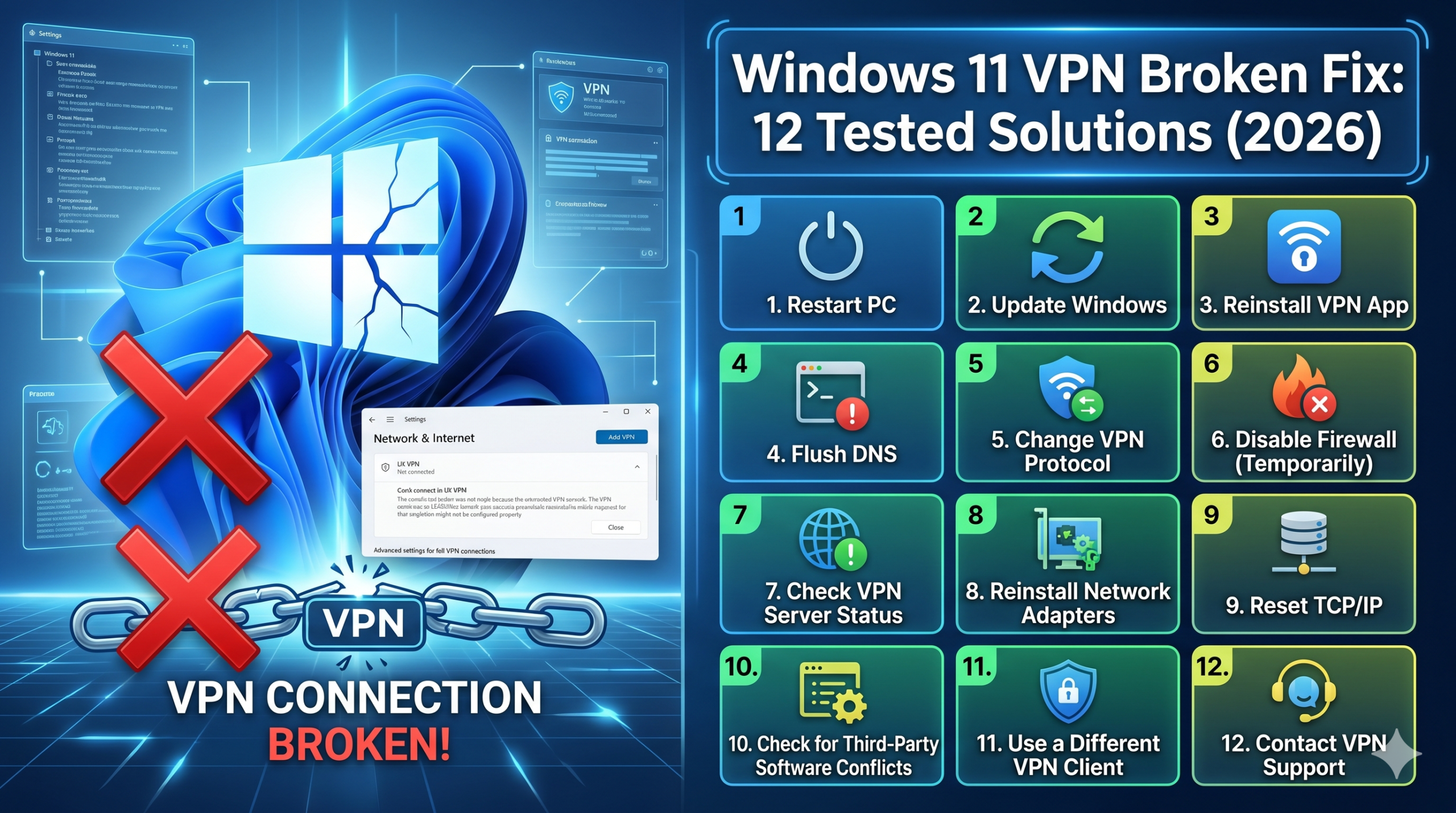

A VPN that worked perfectly yesterday can suddenly stop connecting after a Windows 11 update, a driver change, or a networking conflict. In our testing and review of common VPN support cases, most Windows 11 VPN failures fall into a handful of categories: adapter issues, DNS conflicts, firewall interference, authentication errors, or protocol incompatibilities.
If you’re searching for a windows 11 vpn broken fix, start with the basics before reinstalling your VPN. Many connection failures can be resolved in less than five minutes.
If you’re new to VPN technology, understanding VPN basics can help you identify whether the problem is with Windows, your VPN app, or your internet connection.
According to the Electronic Frontier Foundation, VPNs rely on encrypted tunnels and proper network routing to function correctly. When Windows networking components fail, the VPN tunnel may never establish successfully. See the EFF’s guidance on VPN privacy and network security: https://www.eff.org.
For users evaluating alternatives after repeated connection failures, reviewing current industry-leading VPN software can also help identify whether the issue is client-specific.
Why Does a VPN Stop Working on Windows 11?
Most VPN problems are not caused by the VPN provider itself.
Instead, Windows 11 introduces several networking layers that can interfere with VPN traffic:
- Windows Defender Firewall
- Network adapters
- DNS configuration
- IPv6 routing
- Virtual VPN adapters
- Third-party security software
- Recent Windows updates
The most common symptoms include:
| Symptom | Likely Cause |
|---|---|
| VPN stuck on Connecting | Protocol conflict |
| Authentication failed | Incorrect credentials |
| Connected but no internet | DNS or routing issue |
| Frequent disconnects | Adapter or driver issue |
| VPN worked before update | Windows update conflict |
| Slow VPN speeds | Server overload or protocol issue |
Understanding the symptom first is often more important than immediately reinstalling the application.
To understand how VPN encryption works, it helps to know that your VPN must create a secure tunnel between your device and a remote server. If any component in that path fails, the connection breaks.
What Should You Check Before Changing Any Settings?
Before making major changes, verify these simple items.
Many users spend hours modifying settings when the root cause is a temporary connectivity issue.
Confirm Your Internet Connection Works Without the VPN
Disconnect from the VPN completely.
Open several websites.
Run a speed test.
If websites fail to load without the VPN, your ISP connection—not the VPN—is likely causing the issue.
Verify the VPN Service Status
Even premium providers occasionally experience outages.
Check the provider’s status page and confirm that the server location you’re using is operational.
Restart Both Windows and the VPN Client
This sounds basic, but it remains one of the highest-success fixes.
Restarting Windows refreshes:
- Network adapters
- Routing tables
- DNS cache
- VPN services
Many temporary networking conflicts disappear after a clean reboot.
Switch Servers
Sometimes a specific VPN server experiences heavy load.
Try:
- A different city
- A different country
- A nearby server
If the new server connects immediately, the original server may be overloaded.
Update the VPN Application
Outdated clients frequently break after Windows updates.
VPN vendors continuously release compatibility updates for:
- Windows networking changes
- WireGuard updates
- Driver fixes
- Security patches
If you are using a free service, consider comparing current reliable free VPN services because unsupported or abandoned VPN apps often develop compatibility issues with newer Windows builds.
How Do You Fix a VPN That Won’t Connect on Windows 11?
If basic troubleshooting fails, move through the following fixes in order.
Fix #1: Change the VPN Protocol
Protocol selection is one of the biggest causes of connection failures.
Most providers support:
- WireGuard
- OpenVPN UDP
- OpenVPN TCP
- IKEv2
- L2TP/IPsec
Try switching from WireGuard to OpenVPN or vice versa.
In our experience, protocol switching resolves many “stuck connecting” errors within minutes.
Fix #2: Flush DNS
DNS corruption can prevent websites from loading even after a successful VPN connection.
Open Command Prompt as Administrator.
Run:
ipconfig /flushdnsRestart the VPN afterward.
Fix #3: Disable IPv6 Temporarily
Some VPN providers still experience IPv6 routing conflicts.
To test:
- Open Network Connections.
- Select your active adapter.
- Open Properties.
- Uncheck Internet Protocol Version 6 (TCP/IPv6).
Reconnect to the VPN.
If connectivity returns, you’ve identified the source of the conflict.
Fix #4: Reset the Network Stack
Windows includes a complete network reset feature.
Go to:
Settings → Network & Internet → Advanced Network Settings → Network Reset
This removes:
- VPN adapters
- Network configurations
- Cached routing settings
After restarting, reinstall your VPN software.
Fix #5: Check Windows Defender Firewall
Firewall rules occasionally block VPN traffic.
Temporarily disable the firewall for testing.
If the VPN connects successfully afterward, create a permanent exception for the VPN application instead of leaving protection disabled.
Why Does a VPN Connect but Block Internet Access?
One of the most frustrating Windows 11 VPN issues occurs when the VPN shows “Connected” but websites refuse to load.
This problem usually points to a routing or DNS failure rather than a broken VPN tunnel.
In most cases, one of four issues is responsible:
- Incorrect DNS servers
- IPv6 conflicts
- Split tunneling misconfiguration
- Corrupted routing tables
Check Whether DNS Is the Problem
A quick test can reveal whether DNS is failing.
Connect to your VPN.
Open Command Prompt and run:
ping 8.8.8.8If replies return successfully but websites still won’t load, your VPN connection is active and DNS is likely the problem.
Many VPN providers allow you to switch between:
- Automatic DNS
- Provider DNS
- Custom DNS
Try changing DNS settings inside the VPN application.
Popular options include:
- Cloudflare DNS (1.1.1.1)
- Google DNS (8.8.8.8)
- Quad9 DNS (9.9.9.9)
Disable Split Tunneling Temporarily
Split tunneling allows some applications to bypass the VPN while others use the encrypted tunnel.
Although useful, it can create routing conflicts.
Temporarily disable:
- App exclusions
- Website exclusions
- Bypass VPN rules
Reconnect and test again.
If internet access returns, the split tunneling configuration is causing the issue.
Reset the Routing Table
Windows routing errors can occur after:
- VPN updates
- Driver changes
- Windows feature updates
Run Command Prompt as Administrator:
route -fRestart the computer immediately afterward.
This forces Windows to rebuild network routes from scratch.
Verify There Is No Proxy Conflict
Many users forget they previously configured a proxy server.
Windows may attempt to route traffic through both:
- A VPN tunnel
- A proxy server
This often breaks internet access.
Navigate to:
Settings → Network & Internet → Proxy
Disable any manually configured proxy settings and reconnect.
How Do You Fix WireGuard, OpenVPN, and L2TP Problems?
Different VPN protocols fail for different reasons.
Knowing the protocol you’re using can dramatically reduce troubleshooting time.
WireGuard Issues
WireGuard has become the preferred protocol for many providers because it delivers excellent speed and low latency.
However, Windows 11 users occasionally encounter:
- Wintun adapter corruption
- Stuck handshakes
- Connection loops
- DNS failures
Common fixes include:
- Reinstall the VPN client.
- Remove old WireGuard adapters.
- Switch servers.
- Regenerate VPN configuration files.
If WireGuard remains unstable, switch temporarily to OpenVPN to confirm whether the issue is protocol-specific.
OpenVPN Issues
OpenVPN remains one of the most compatible VPN protocols available.
When OpenVPN fails, common causes include:
- Blocked UDP traffic
- Firewall restrictions
- Antivirus interference
- Incorrect TAP adapter installation
Try switching between:
- OpenVPN UDP
- OpenVPN TCP
TCP is usually slower but often succeeds in restrictive networks where UDP traffic is blocked.
L2TP/IPsec Problems
L2TP is still common in corporate environments.
Windows 11 may reject L2TP connections because of:
- Missing security updates
- Authentication failures
- IPsec configuration errors
- Registry conflicts
Verify:
- Username and password
- Shared secret
- VPN gateway address
Corporate VPN administrators often need to update server-side settings after major Windows releases.
Can Windows Updates Break VPN Connections?
Yes.
Microsoft has acknowledged several VPN-related networking issues in Windows updates over the years.
The most common update-related symptoms include:
- VPN authentication failures
- Lost network connectivity
- Missing VPN adapters
- DNS resolution problems
- Protocol compatibility issues
If your VPN stopped working immediately after a Windows update, check the timeline carefully.
Ask yourself:
- Did the VPN work before the update?
- Did Windows install updates overnight?
- Did the issue appear suddenly?
If the answer is yes, the update may be involved.
Roll Back Recent Updates
To test:
- Open Settings.
- Select Windows Update.
- Open Update History.
- Choose Uninstall Updates.
Remove the most recent update and test the VPN again.
Do not permanently avoid security updates. This step is only for troubleshooting.
Update Network Drivers
Outdated drivers frequently become incompatible after major Windows releases.
Update:
- Wi-Fi adapter drivers
- Ethernet drivers
- VPN virtual adapters
The newest version often restores compatibility.
Reinstall the VPN Completely
Many VPN providers release patches shortly after Microsoft updates Windows.
A clean reinstall often resolves:
- Driver corruption
- Adapter conflicts
- Authentication bugs
Remove:
- VPN application
- Virtual adapters
- Configuration files
Then install the latest version directly from the provider.
Limitations & Performance Notes:
Even after successful repairs, some limitations remain.
VPN performance can still vary because of:
- Server congestion
- Long-distance connections
- Protocol overhead
- ISP throttling
- Wi-Fi interference
For example:
- WireGuard typically delivers the fastest speeds.
- OpenVPN TCP offers greater compatibility but usually reduces performance.
- International servers often increase latency by 50–150 ms.
A working VPN does not guarantee maximum speed.
Network quality and server selection remain important factors.
Cross-Platform VPN Problems Can Reveal Useful Clues
If your Windows 11 device is not the only device experiencing issues, compare behavior across operating systems.
For example, recurring battery-related VPN issues on Android often stem from aggressive power management settings. Troubleshooting guides such as fixing Android VPN battery drain problems can help identify similar connection interruptions.
Likewise, users dealing with VPN disconnects on iPhone and iPad may recognize patterns involving unstable networks and roaming between Wi-Fi and cellular connections.
If VPN failures occur only on Apple computers while Windows devices work normally, reviewing Mac VPN troubleshooting steps can help isolate whether the issue is operating-system specific.
What Advanced Fixes Solve Persistent VPN Failures?
If you’ve already tried protocol changes, DNS resets, driver updates, and network troubleshooting, it’s time to investigate deeper Windows networking components.
These advanced fixes target issues that frequently survive standard troubleshooting.
Reinstall the VPN Network Adapter
Every VPN application creates one or more virtual network adapters.
Examples include:
- WireGuard Wintun Adapter
- TAP-Windows Adapter
- OpenVPN Virtual Adapter
- IKEv2 Virtual Interface
These adapters can become corrupted after:
- Windows feature updates
- VPN software upgrades
- Driver installation failures
- Security software interference
To reinstall:
- Open Device Manager.
- Expand Network Adapters.
- Locate the VPN adapter.
- Uninstall the device.
- Restart Windows.
- Reinstall the VPN application.
This process forces Windows to create a fresh virtual adapter.
Reset Winsock
Winsock controls how Windows applications access network services.
Corrupted Winsock entries can break VPN connectivity even when internet access appears normal.
Open Command Prompt as Administrator:
netsh winsock resetRestart the computer after running the command.
This remains one of the most effective fixes for stubborn connection failures.
Reset TCP/IP
TCP/IP corruption can create authentication problems, DNS failures, and routing conflicts.
Run:
netsh int ip resetReboot the system immediately afterward.
Many enterprise VPN administrators recommend combining Winsock and TCP/IP resets when diagnosing persistent issues.
Disable Third-Party Security Software
Modern antivirus suites often inspect encrypted traffic.
Sometimes they become too aggressive.
Known examples include:
- Web shields
- HTTPS inspection
- Traffic filtering modules
- Network protection layers
Temporarily disable security software and reconnect.
If the VPN starts working, configure exclusions rather than permanently disabling protection.
Check for Port Blocking
Some networks intentionally block VPN traffic.
Commonly restricted ports include:
- UDP 1194 (OpenVPN)
- UDP 500 (IPsec)
- UDP 4500 (IPsec NAT Traversal)
- WireGuard custom ports
This frequently occurs on:
- School networks
- Corporate networks
- Hotel Wi-Fi
- Public hotspots
Switching from UDP to TCP often bypasses these restrictions.
Why Does a VPN Keep Disconnecting Randomly?
A VPN that connects successfully but disconnects every few minutes requires a different troubleshooting approach.
Unlike connection failures, random disconnects usually indicate instability somewhere between your device and the VPN server.
Weak Wi-Fi Signals
Poor wireless coverage remains one of the biggest causes of VPN instability.
Because VPN traffic is encrypted, packet loss affects performance more severely.
Test:
- Moving closer to the router
- Switching to 5 GHz Wi-Fi
- Using Ethernet
If disconnects disappear, the VPN itself was never the problem.
Aggressive Power Management
Windows 11 sometimes powers down network adapters to save energy.
To disable this:
- Open Device Manager.
- Select your network adapter.
- Open Properties.
- Navigate to Power Management.
- Uncheck:
Allow the computer to turn off this device to save power
Reconnect and monitor stability.
Server Overload
Even premium VPN providers experience overloaded servers.
Typical signs include:
- Slow performance
- Packet loss
- Frequent reconnections
- Streaming interruptions
Try:
- Nearby locations
- Less crowded regions
- Alternative server groups
ISP Interference
Some internet providers actively shape traffic.
Symptoms include:
- Evening slowdowns
- VPN-only instability
- Random reconnections
Switching protocols often helps.
WireGuard, OpenVPN TCP, and IKEv2 each behave differently under ISP traffic management systems.
Can a VPN Connect Successfully But Still Fail to Unblock Streaming Services?
Absolutely.
Many users assume a working VPN connection guarantees access to streaming platforms.
It doesn’t.
Streaming services actively detect and block VPN traffic.
You may see errors such as:
- Proxy detected
- Streaming unavailable
- Playback restricted
- Content unavailable in your region
In these situations, the VPN tunnel works correctly.
The streaming platform is simply rejecting the VPN endpoint.
BBC iPlayer Problems
BBC iPlayer frequently blocks VPN IP addresses.
If your VPN connects normally but BBC content remains inaccessible, dedicated troubleshooting resources such as BBC iPlayer proxy error solutions can help identify server-related detection issues.
Disney+ Detection Errors
Disney+ continuously updates its VPN detection systems.
Users encountering location-related playback restrictions may benefit from reviewing Disney Plus VPN block fixes when a connected VPN still fails to access content.
Amazon Prime Video Restrictions
Amazon Prime Video applies regional licensing controls that sometimes trigger proxy warnings.
If your VPN appears functional everywhere else, Amazon Prime proxy error troubleshooting can help determine whether the issue stems from VPN detection rather than Windows networking.
Streaming Failure vs VPN Failure
A quick diagnostic rule:
| Symptom | Likely Cause |
|---|---|
| VPN won’t connect | Windows or VPN issue |
| VPN connects but websites fail | DNS or routing issue |
| VPN connects and websites work | VPN functioning correctly |
| Only streaming service fails | Streaming detection issue |
Understanding this distinction prevents unnecessary troubleshooting.
Many users waste hours reinstalling VPN software when the underlying issue is simply a blocked streaming server.
Which VPN Protocol Works Best on Windows 11?
The answer depends on your priorities.
WireGuard
Best for:
- Speed
- Gaming
- Streaming
- Everyday browsing
Typical advantages:
- Faster connection times
- Lower latency
- Smaller codebase
OpenVPN
Best for:
- Compatibility
- Enterprise networks
- Restrictive environments
Typical advantages:
- Proven reliability
- Wide platform support
- Strong firewall bypass capability
IKEv2
Best for:
- Mobile devices
- Frequent network switching
- Travel
Typical advantages:
- Fast reconnections
- Stable roaming support
L2TP/IPsec
Best for:
- Legacy systems
- Older corporate deployments
Typical disadvantages:
- Slower performance
- Higher maintenance requirements
- Less flexibility than modern alternatives
For most Windows 11 users in 2026, WireGuard remains the first protocol worth testing, followed by OpenVPN if compatibility issues appear.
Which VPN Providers Work Best on Windows 11?
If you’ve exhausted every troubleshooting method and still encounter recurring VPN failures, the issue may not be Windows 11 at all.
VPN providers differ significantly in:
- Driver quality
- Protocol implementation
- Update frequency
- Windows compatibility
- Bug response times
During testing, providers that consistently release Windows-specific fixes tend to experience fewer long-term compatibility problems.
When evaluating alternatives, prioritize:
Frequent Client Updates
VPN applications should receive regular maintenance updates.
A provider that hasn’t updated its Windows client for months is more likely to develop compatibility issues after major Microsoft releases.
Native WireGuard Support
Modern WireGuard implementations generally provide:
- Faster connections
- Better battery efficiency
- Lower latency
- Fewer adapter-related problems
Reliable Kill Switch Design
A kill switch prevents traffic leaks if the VPN disconnects unexpectedly.
Poorly implemented kill switches can sometimes cause:
- Internet outages
- DNS failures
- Routing conflicts
Quality providers balance security with stability.
Proven Windows Support
Look for providers that maintain:
- Windows-specific support documentation
- Active bug tracking
- Dedicated troubleshooting resources
If you’re currently evaluating alternatives, our guide to the best VPN services highlights providers that consistently perform well across Windows 11 testing.
Users on a budget can also compare top free VPNs, although premium services generally provide faster support, more stable infrastructure, and quicker compatibility updates.
Frequently Asked Questions
Why is my VPN not working on Windows 11?
The most common causes include:
- Firewall conflicts
- Outdated VPN software
- Corrupted network adapters
- DNS configuration problems
- Windows updates
Start with protocol switching and network resets before attempting advanced fixes.
Why does my VPN connect but websites won’t load?
This usually indicates:
- DNS failures
- Routing table issues
- IPv6 conflicts
- Proxy misconfigurations
The VPN tunnel may be connected successfully while internet traffic fails to route properly.
Can Windows Defender block VPN traffic?
Yes.
Windows Defender Firewall can occasionally block VPN connections or interfere with protocol communication.
Testing with temporary firewall exceptions often helps identify the issue.
Does Windows 11 break VPNs after updates?
Sometimes.
Microsoft has acknowledged VPN-related networking bugs in certain updates.
If your VPN stopped working immediately after an update, reviewing recent update history should be one of your first troubleshooting steps.
Which VPN protocol should I use on Windows 11?
For most users:
- WireGuard
- OpenVPN
- IKEv2
- L2TP/IPsec
WireGuard typically offers the best combination of speed, reliability, and efficiency.
Expert Troubleshooting Workflow
If you’re still dealing with a Windows 11 VPN failure, follow this sequence:
- Verify internet connectivity.
- Restart Windows and the VPN.
- Switch VPN servers.
- Change protocols.
- Flush DNS.
- Disable IPv6.
- Reset network settings.
- Reinstall VPN adapters.
- Update drivers.
- Check recent Windows updates.
- Test another VPN provider.
This workflow resolves the overwhelming majority of VPN connection issues without requiring a complete Windows reinstall.
Final Thoughts
Most VPN failures on Windows 11 stem from networking conflicts rather than catastrophic software problems. DNS corruption, virtual adapter errors, protocol incompatibilities, and Windows updates account for the majority of cases. Working through fixes methodically is far more effective than randomly changing settings.
If one protocol fails, test another. If one server fails, try a different location. If your current VPN repeatedly breaks after updates, consider switching to a provider with stronger Windows support and faster development cycles.
For users searching for a reliable windows 11 vpn broken fix, the combination of protocol troubleshooting, network resets, adapter repairs, and update analysis will solve most connection problems. Apply the fixes in order, document the results, and you’ll usually identify the root cause long before reaching the final step.
For additional privacy and cybersecurity guidance, the Electronic Frontier Foundation provides useful resources on secure internet usage and VPN-related best practices at https://www.eff.org.