
Stremio makes it easier to organize movies, TV shows, live channels, and other video content in one interface instead of switching between multiple apps. If you’re searching for how to use stremio, the process is simpler than many beginners expect. After installing the application, adding the right add-ons, and signing in, you can manage your library across multiple devices.
Unlike traditional streaming platforms, Stremio doesn’t host content itself. Instead, it indexes streaming sources through official and community add-ons. Understanding that distinction is the key to using the platform effectively and safely.
Before installing community add-ons, it’s also worth understanding the privacy implications. If you’re unfamiliar with VPN technology, our guide to what is a VPN explains why many privacy-conscious users choose one while streaming. For users looking for premium options, see our roundup of our recommended VPNs.
For additional background on the platform itself, read what Stremio is and how it works.
According to the Electronic Frontier Foundation, encrypting your internet traffic is an important privacy practice, especially when using public Wi-Fi networks: https://www.eff.org.
What Is Stremio and How Does It Work?
Stremio is a media center available for Windows, macOS, Linux, Android, Android TV, and several other platforms. Instead of maintaining its own catalog, it gathers metadata and available streaming sources through add-ons.
The basic workflow looks like this:
- Install the Stremio application.
- Create or sign in to your account.
- Install official or community add-ons.
- Search for a movie or TV show.
- Choose an available stream.
- Start watching.
Your watch history, library, and preferences sync automatically when you use the same account across supported devices.
How Do You Install and Set Up Stremio?
Getting started takes only a few minutes.
Step 1: Download the Application
Visit the official Stremio website and download the version for your operating system.
Supported platforms include:
- Windows
- macOS
- Linux
- Android
- Android TV
Step 2: Install the App
Run the installer and follow the on-screen instructions. The default settings work well for most users.
Step 3: Create an Account
Although you can browse without signing in, creating a free account offers several advantages:
- Sync your library
- Save watch history
- Synchronize add-ons
- Continue watching on another device
Step 4: Configure Basic Settings
Open Settings and review:
- Preferred language
- Subtitle language
- Streaming quality
- Hardware acceleration
- Interface theme
These settings improve the overall experience before you install additional add-ons.
Why Are Add-ons So Important?
Add-ons are the core of the Stremio ecosystem. They provide metadata, subtitles, streaming catalogs, and content sources.
Official add-ons are developed or approved by the platform, while community add-ons are created by third-party developers. Before installing any third-party option, make sure you understand what it does and whether it comes from a trusted source.
In the next part, you’ll learn how to install, organize, and manage add-ons safely, along with best practices for improving search results and playback quality.
How Do You Add and Manage Stremio Add-ons?
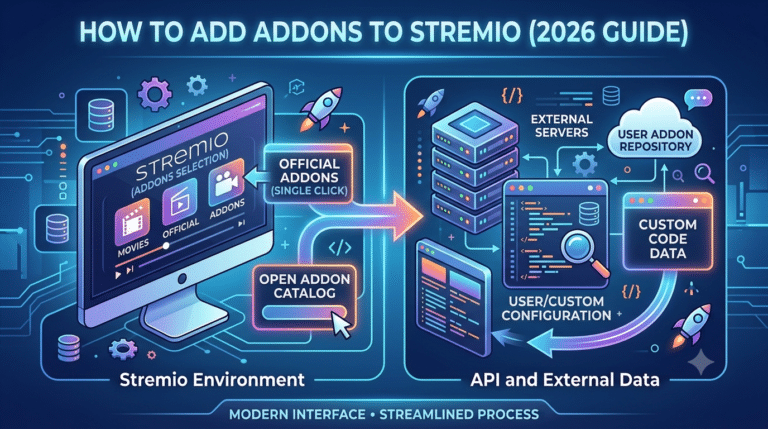
Add-ons are what make Stremio useful. They provide metadata, subtitles, streaming catalogs, and access to supported content sources. Without them, the application offers only basic functionality.
To browse available add-ons, open Stremio and select Add-ons from the main menu. You’ll find two broad categories:
- Official add-ons, which are maintained or approved by the Stremio team.
- Community add-ons, which are created by third-party developers.
If you’re new to the platform, start with official add-ons. They are easier to install and generally require less configuration.
Installing an Add-on
Installing an add-on typically takes only a few clicks:
- Open the Add-ons section.
- Browse or search for the add-on you want.
- Select the add-on to view its description.
- Click Install.
- Wait for the confirmation message.
Most add-ons become available immediately. If they don’t appear right away, restart the application or refresh your library.
Managing Installed Add-ons
Over time, you may install several add-ons for different purposes. Keeping them organized helps maintain a cleaner interface and more consistent search results.
Good practices include:
- Removing add-ons you no longer use.
- Updating community add-ons when new versions are available.
- Avoiding multiple add-ons that perform the same function unless you have a specific reason to keep them.
Regular maintenance can also reduce duplicate search results and improve browsing.
How Do You Organize Your Library?
Stremio lets you build a personal library that syncs across supported devices when you’re signed in.
You can:
- Add movies and TV shows to your library.
- Track what you’ve already watched.
- Resume playback on another device.
- Receive notifications when new episodes become available.
Using the library instead of searching every time makes it much easier to keep track of ongoing series.
Search Tips
The built-in search works best when you:
- Use complete titles whenever possible.
- Include the release year if multiple versions exist.
- Select the correct movie or TV series from the results before choosing a stream.
This reduces confusion and helps you find the intended content more quickly.
Improving Playback Quality
Playback quality depends on several factors, including your internet connection, the selected streaming source, and your device’s capabilities.
If playback feels slow or buffers frequently, try these steps:
- Close unnecessary background applications.
- Use a stable Wi-Fi or wired connection.
- Lower playback quality if your connection is limited.
- Enable hardware acceleration if your device supports it.
- Update Stremio to the latest available version.
These simple adjustments often improve performance without requiring additional software.
Personalizing Your Experience
A few settings can make everyday use more convenient:
- Choose your preferred subtitle language.
- Set a default audio language when available.
- Customize the application’s appearance.
- Enable automatic subtitle downloads.
- Adjust cache settings if your device has limited storage.
Small configuration changes can noticeably improve the viewing experience, especially if you use Stremio regularly.
What’s Next?
Once you’ve installed the add-ons you need and organized your library, you’re ready to start streaming. The next part covers how to watch movies and TV shows, improve streaming performance, understand common playback limitations, and troubleshoot problems you may encounter during everyday use.
How Do You Watch Movies and TV Shows on Stremio?
Now that you’ve installed Stremio and configured your preferred add-ons, you’re ready to start streaming. Open the app, use the search bar to find a movie or TV show, and select the title you want to watch. Stremio automatically displays available streaming sources from your installed add-ons, along with metadata such as ratings, episode lists, trailers, and subtitles.
If multiple streams are available, compare their resolution and language before starting playback. Higher-quality streams generally require a faster internet connection, while lower-resolution options can provide smoother playback on slower networks.
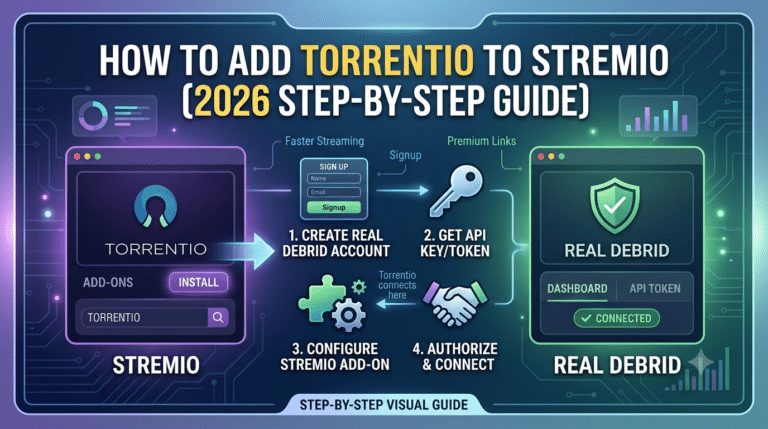
For users looking to improve streaming reliability with premium caching services, our guide to Stremio Debrid service explained covers how these services work and when they may be useful.
Managing Playback
During playback, you can:
- Pause and resume your video.
- Skip forward or backward.
- Select a different subtitle language.
- Change the playback source if another stream offers better performance.
- Enable full-screen mode for a more immersive viewing experience.
If you stop watching before finishing, Stremio remembers your progress and synchronizes it with your account, allowing you to continue on another supported device.
How Can You Improve Streaming Performance?
Playback quality depends on more than just your internet speed. Your hardware, network stability, installed add-ons, and the selected streaming source all influence performance.
For the best experience:
- Keep Stremio updated.
- Use a stable broadband connection.
- Close applications consuming bandwidth in the background.
- Enable hardware acceleration if your device supports it.
- Restart the application if playback becomes unstable.
If a particular stream buffers repeatedly, selecting another available source often resolves the problem.
Enhancing Metadata
Accurate metadata makes browsing significantly easier by improving artwork, descriptions, cast information, and episode organization.
If you’d like richer media information throughout your library, learn how to use AIOmetadata with Stremio to improve title matching and library presentation.
Server Load Effects, Device Compatibility Limits, Account Restrictions, and Speed Throttling Scenarios
Even when your internet connection is fast, external factors can affect playback quality.
Server Load Effects
Popular releases often experience higher demand, which can result in slower response times or temporary buffering. If one source performs poorly, switching to another available stream may provide better results.
Device Compatibility Limits
Older hardware may struggle with high-bitrate 4K content or newer video codecs. If playback stutters:
- Reduce playback quality.
- Close unnecessary background applications.
- Ensure graphics drivers and operating system updates are current.
Account and Service Restrictions
While Stremio itself is free, some streaming services accessible through add-ons require separate subscriptions or user accounts. Access depends on the policies of those individual providers.
Speed Throttling Scenarios
Network congestion or ISP traffic management can occasionally reduce streaming performance during peak usage periods. Testing your connection at different times of day can help determine whether the issue is local or network-related.
How Do You Troubleshoot Common Playback Problems?
Most problems can be solved in just a few minutes.
Streams Won’t Start
If playback fails:
- Verify your internet connection.
- Refresh the stream list.
- Try another available source.
- Restart Stremio.
- Check for application updates.
Subtitle Problems
If subtitles don’t appear correctly:
- Refresh the subtitle search.
- Select another subtitle provider.
- Confirm your preferred language in Settings.
- Adjust subtitle timing if audio and text are out of sync.
Add-ons Stop Working
Community add-ons occasionally require updates following changes to external services. Remove outdated add-ons if necessary and install maintained alternatives from trusted sources.
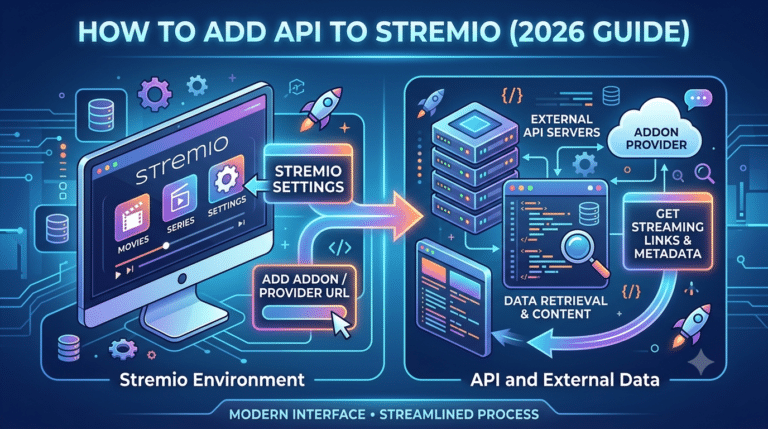
For advanced integrations, see our guide on how to configure the Stremio API to understand supported API-based functionality.
Preparing for the Final Steps
By this stage, you should be comfortable installing add-ons, organizing your library, selecting streams, and resolving the most common playback issues. The final part focuses on privacy, security, safe streaming practices, frequently asked questions, and long-term tips for getting the most from Stremio.
Is Stremio Safe to Use?
Stremio itself is a legitimate media management application. It doesn’t host movies or TV shows on its own. Instead, it organizes content and displays available streaming sources through official and community add-ons.
From a security standpoint, the application is generally safe when downloaded from the official Stremio website. As with any software that supports third-party extensions, it’s important to be selective about the add-ons you install. Community add-ons can vary in quality and maintenance, so take a moment to understand what an add-on does before enabling it.
To help protect your privacy:
- Download Stremio only from its official website.
- Keep the application updated.
- Install only add-ons you trust.
- Use strong, unique passwords for your Stremio account.
- Enable automatic operating system and browser updates.
These simple habits reduce both security risks and compatibility issues over time.
Frequently Asked Questions
Do I need a Stremio account?
No. You can browse much of the application without creating an account. However, signing in lets you synchronize your library, watch history, and preferences across supported devices.
Can I use Stremio on multiple devices?
Yes. Stremio supports Windows, macOS, Linux, Android, Android TV, and web-based access. When you’re signed in, your library and settings can sync between compatible devices.
Why do some streams buffer?
Buffering may occur because of network congestion, a slow internet connection, limited device performance, or issues with the selected streaming source. Trying another available source or reducing playback quality often resolves the problem.
Does Stremio include subtitles?
Yes. Many titles support subtitles in multiple languages. You can set a preferred language in the application’s settings and choose different subtitle tracks during playback.
How often should I update Stremio?
Install updates whenever they’re available. New releases frequently include performance improvements, security fixes, support for newer operating systems, and bug fixes that improve overall stability.
Tips for Getting the Most Out of Stremio
Once you’re comfortable with the basics, a few best practices can make your experience even better:
- Keep your library organized by adding titles you plan to watch.
- Remove add-ons you no longer use.
- Review your settings after major application updates.
- Keep your operating system and graphics drivers up to date.
- Use a reliable internet connection for high-resolution streaming.
Small maintenance tasks like these help keep the application responsive and reduce common playback issues.
Final Thoughts
Learning how to use Stremio doesn’t take long. After installing the application, adding trusted add-ons, and configuring a few basic settings, you’ll have a centralized interface for discovering and organizing movies, TV shows, and other supported media.
The key to a good experience is keeping your software updated, choosing reliable add-ons, and understanding that playback quality depends on both your device and the streaming sources you use. As your library grows, features like synchronized watch history, subtitle preferences, and cross-device support become increasingly valuable.
Whether you’re watching occasionally or building a large personal media library, spending a few minutes setting up Stremio properly will make day-to-day use smoother, more organized, and more enjoyable.