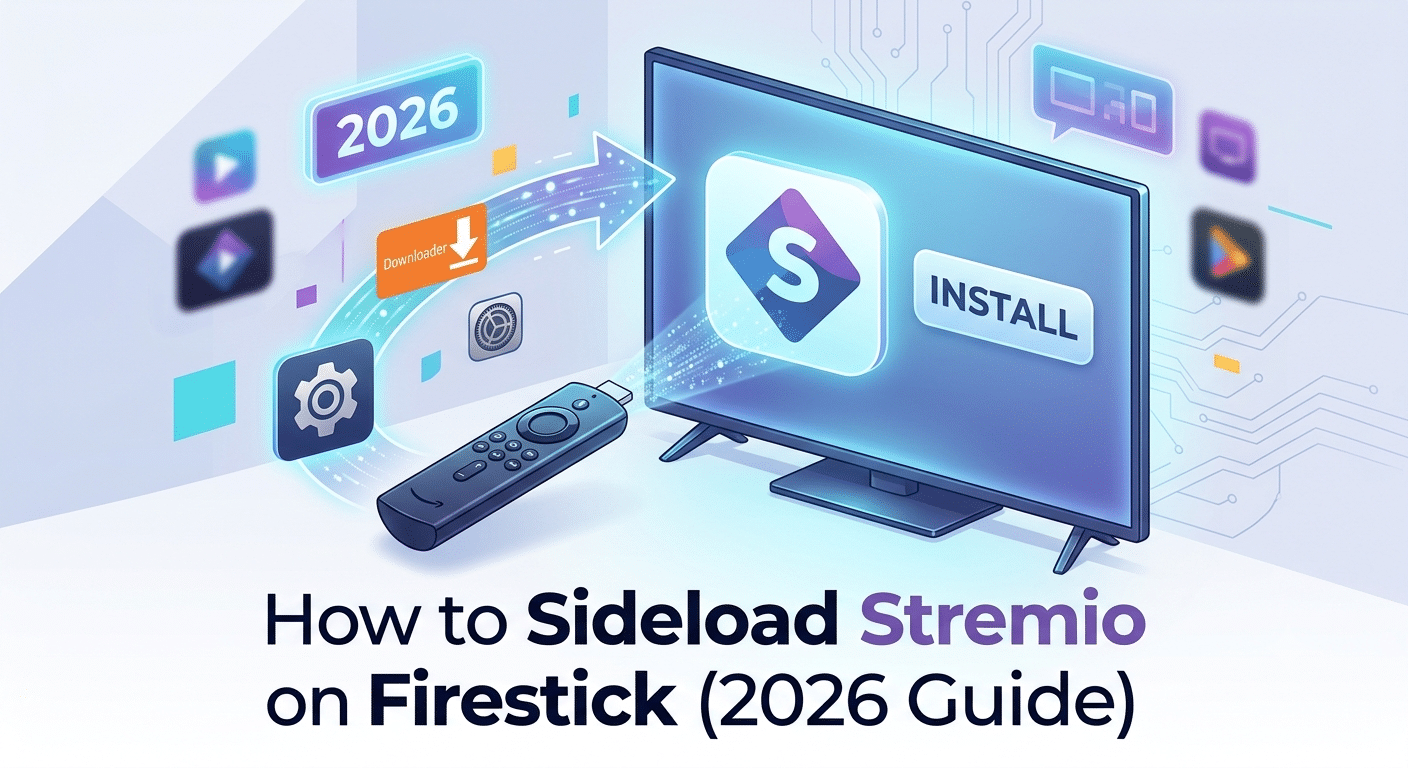

Installing third-party streaming apps on Fire TV devices has become more restrictive in recent years, but sideloading remains a widely used workaround. If you’re searching for how to sideload stremio on firestick, the process is less about hacking and more about manually installing an Android-compatible app outside the Amazon App Store ecosystem.
Most guides skip the important part: what actually happens under the hood when you sideload. You’re essentially enabling Fire OS (a modified Android system) to accept APK files—standard Android installation packages. This method is commonly used for apps that aren’t officially distributed through Amazon’s storefront.
Before anything else, understand the privacy layer involved. Streaming apps that pull content from third-party sources can expose your traffic to ISP monitoring or throttling. That’s why privacy-focused users often rely on tools like VPN basics to understand how encrypted tunnels protect streaming activity. Even major tech reviewers at outlets like PCMag regularly highlight VPN use as part of safer streaming workflows, especially when sideloading apps outside official stores.
Why Stremio Requires Sideloading on Firestick
Stremio is not available directly in the Amazon App Store. That alone is the main reason users look up sideloading methods. Amazon tightly controls which media apps can appear on Fire TV devices, especially those that rely on external add-ons or decentralized streaming sources.
Instead, users install it manually using an APK file. This process bypasses the store but still runs within Fire OS permissions once enabled correctly.
In practical terms, sideloading does not modify your device—it simply expands installation access. However, it does shift responsibility to you for updates, compatibility, and security validation.
For users concerned about privacy during installation or streaming sessions, understanding how VPN encryption works becomes important because Firestick traffic remains fully visible to your internet provider unless encrypted.
What You Need Before You Start
Before you attempt how to sideload stremio on firestick, you need a few essentials prepared. Missing even one step can lead to installation errors or broken app launches.
First, ensure your Firestick has Developer Options enabled. This unlocks the ability to install apps from unknown sources. Without it, APK files are automatically blocked.
Second, install the Downloader app. This is the most common tool used to fetch APK files directly from a URL and install them on Fire TV.
Third, ensure stable internet connectivity. APK files for Stremio can exceed 80–100MB depending on the version, and interruptions often cause incomplete installations.
Finally, consider your privacy setup. Many users choose to run sideloaded apps alongside a VPN to reduce ISP throttling or geo-based streaming restrictions. If you’re unsure which tools to use, curated lists like leading VPN providers help compare performance, logging policies, and streaming compatibility.
Can You Use Stremio Without a VPN?
Yes—but it comes with trade-offs.
Technically, Stremio will run without any VPN service. However, your ISP can still see traffic patterns, and some providers may throttle streaming-heavy usage. That becomes more noticeable when using add-ons that pull high-bandwidth streams.
A deeper breakdown of this scenario is available in guides like using Stremio without a VPN, which explains when a VPN is optional versus when it becomes practically necessary.
From a performance standpoint, skipping a VPN can sometimes improve raw speed slightly, but it removes encryption protection and exposes your streaming behavior to network-level monitoring.
Understanding Add-On-Based Streaming Before Installation
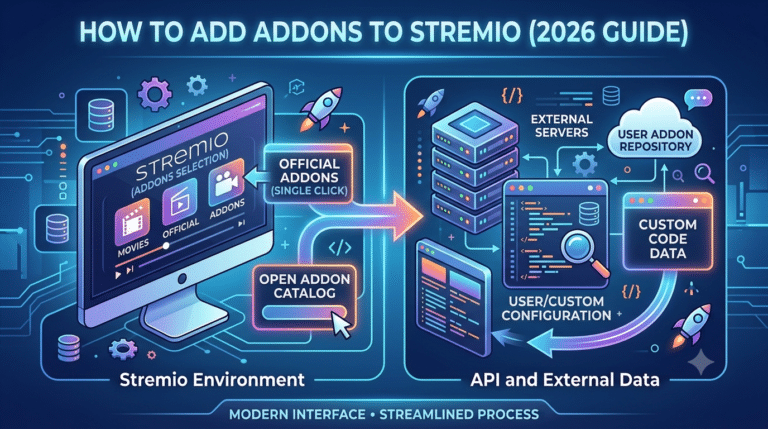
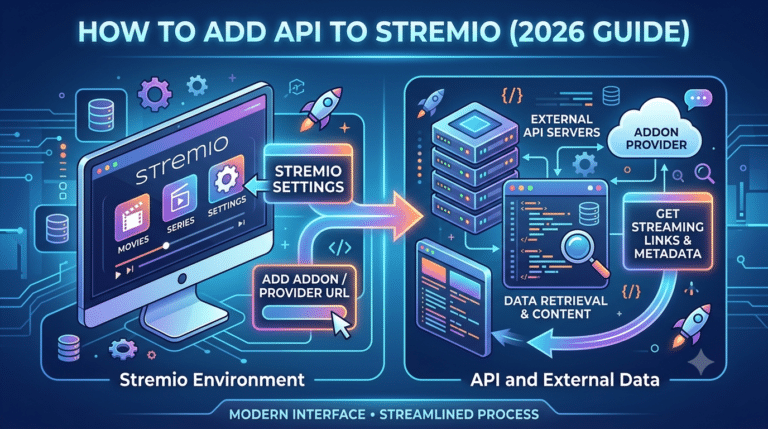
Stremio differs from traditional streaming apps because it does not host its own content library. Instead, it relies heavily on add-ons that aggregate streams from various sources.
This architecture is where many users run into confusion after installation. The app may install correctly, but content availability depends entirely on which add-ons are configured.
Some users extend functionality using services like debrid integrations, which cache and optimize streaming links. A detailed explanation of this ecosystem is covered in resources like Stremio debrid service integration, which outlines how premium link resolvers improve playback stability.
Understanding this structure early prevents the most common mistake: assuming installation equals full functionality. In reality, sideloading is just step one.
Security Reality of Sideloading on Fire TV
Firestick sideloading is generally safe when done correctly, but it does introduce a different risk model compared to official app installs. The key difference is trust—Amazon verifies apps in its store, while sideloaded APKs depend on the source you choose.
That’s why experienced users treat sideloading as a controlled process rather than an open download environment. Verified APK sources, updated versions, and consistent VPN usage form the baseline safety approach.
At this stage, you’re not installing Stremio yet—you’re preparing the device environment so installation succeeds without errors or restrictions.
Once your Fire TV device is prepared, the actual sideloading process is straightforward, but each step matters. Most installation failures come from skipped permissions or incorrect APK versions rather than the app itself.
This section focuses on the exact workflow used on current Fire OS versions (2025–2026 builds), where Amazon has tightened background installation controls and restricted unknown app access by default.
For context on broader streaming security practices, organizations like the Electronic Frontier Foundation regularly highlight risks of unmanaged app installs on consumer devices: https://www.eff.org. The takeaway is simple—sideloading is safe when you control the source and understand what you’re installing.
Step 1: Enable Developer Options on Firestick
Firestick hides developer settings by default on newer Fire OS versions. To unlock them:
- Go to Settings
- Open My Fire TV
- Select About
- Highlight your device name and click it 7 times
This activates Developer Mode, which is required to install external APK files.
Next:
- Go to Developer Options
- Turn ON Install Unknown Apps
- Enable it specifically for Downloader
Without this permission, Stremio installation will fail even if the file downloads correctly.
Step 2: Install the Downloader App
The Downloader app is the standard sideloading tool used across Fire TV devices. It allows direct APK downloads via URL without needing a browser.
- Open Amazon App Store
- Search for “Downloader”
- Install and launch it
Once opened, grant storage permissions. This allows it to save and execute APK files locally.
At this stage, your Firestick is fully prepared to receive external apps.
Step 3: Download the Correct Stremio APK
Now comes the critical part—choosing the correct APK version.
Firestick devices use ARM-based architecture, so you must avoid x86 builds. Installing the wrong variant will result in crashes or installation errors.
Inside Downloader:
- Enter the official or trusted APK source URL
- Download the Stremio Android TV APK (ARM64 recommended)
- Wait for download completion
Once downloaded, the installer will automatically prompt you.
Step 4: Install Stremio on Firestick
After download:
- Click Install
- Wait for installation to complete
- Select Done (not Open yet, if you want to remove installer file first)
Once installed, Stremio will appear in your apps list.
At this point, the app is technically functional, but not yet optimized. Most users stop here and run into playback or buffering issues later because they skip configuration steps.
Step 5: First Launch Configuration
When you open Stremio for the first time, you’ll notice it does not behave like traditional streaming apps. It starts as a blank media hub until add-ons are configured.
This is where most users misunderstand the system. Stremio does not host content—it aggregates it.
To improve stability and metadata loading, some users rely on advanced configuration tools like Stremio metadata customization options, which enhance how titles, posters, and catalog data are displayed.
Without proper setup, the interface may appear empty or incomplete even though installation succeeded.
Step 6: Common Installation Errors
Even when the process is followed correctly, Firestick users often encounter predictable issues:
- “App not installed” error → usually wrong APK architecture
- Downloader stuck at 0% → network or DNS issue
- App crashes on launch → outdated Fire OS or incompatible build
These issues are rarely caused by Stremio itself but by Firestick restrictions or incomplete sideload steps.
Step 7: Network Stability and Playback Preparation
Once installed, performance depends heavily on network conditions. Firestick devices are particularly sensitive to bandwidth fluctuations because they rely on Wi-Fi only (unless using Ethernet adapters).
If playback starts buffering or streams fail to load, the issue is often not installation-related. It usually comes down to caching behavior, add-on response time, or ISP-level throttling.
A deeper breakdown of playback instability scenarios is covered in guides like adjusting Stremio buffering window settings, which explains how buffering thresholds affect smooth streaming.
Step 8: Real-Debrid Integration (Optional but Common)
Many advanced users improve stream availability by connecting external resolver services that provide higher-quality links and fewer dead streams.
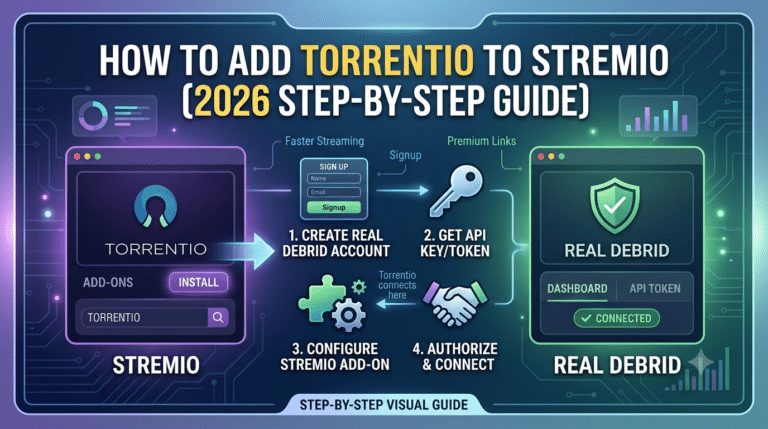
One of the most widely used options is Real-Debrid integration, which significantly improves playback reliability inside Stremio’s ecosystem.
Setup details are explained in depth here: how to use Real-Debrid with Stremio Firestick
This step is optional, but it often determines whether users experience smooth HD playback or inconsistent loading behavior.
Step 9: VPN Conflicts and Connection Issues
Some users report that Stremio stops working or fails to load streams when a VPN is active. This is not a Firestick issue—it’s usually related to routing conflicts or blocked endpoints.
In most cases, switching servers or adjusting VPN protocols resolves the problem. A full breakdown of this issue is available here: Stremio not working with VPN fixes
VPN behavior varies depending on provider quality, which is why lower-tier services often introduce more streaming instability than they solve.
External Context on App Safety
Security researchers consistently warn that installing apps outside official stores increases dependency on user validation rather than platform enforcement. That doesn’t make sideloading unsafe—it simply shifts responsibility.
A similar principle is documented by PCMag in their privacy coverage: https://www.pcmag.com/picks/the-best-vpn-services — where they emphasize that user-controlled environments require stronger security awareness.
By this stage, Stremio is installed and running on your Fire TV Stick. The real difference between a smooth setup and a frustrating one comes next: performance tuning. Most users assume installation is the hard part, but playback stability is where Firestick limitations and network conditions start to matter.
Fire TV hardware is compact and efficient, but it is not built for heavy multi-source streaming without optimization. That’s why buffering, slow loading add-ons, and stream drops are common complaints after sideloading.
Why Does Stremio Buffer or Freeze on Firestick?
Buffering on Stremio is rarely caused by a single issue. It’s usually a combination of:
- Weak Wi-Fi signal or congested network
- Overloaded add-ons pulling unstable streams
- ISP throttling during high-bandwidth playback
- Limited Firestick RAM under sustained streaming load
Fire TV devices, especially older models, can struggle when multiple background processes run at once. Unlike smartphones or PCs, they have strict memory constraints that directly impact video playback stability.
A deeper technical explanation of playback behavior and optimization techniques is covered in guides like adjusting Stremio buffering window settings, which shows how buffering thresholds influence smooth streaming performance.
VPN Impact on Streaming Performance
Using a VPN can either improve or reduce performance depending on how it is configured. This is one of the most misunderstood parts of sideloaded streaming setups.
A VPN encrypts your internet traffic and routes it through a remote server. This helps prevent ISP throttling, but it also adds routing overhead.
If your VPN server is far away or overloaded, you may experience:
- Increased latency
- Slower initial stream loading
- Temporary buffering spikes
On the other hand, a high-quality provider with optimized streaming servers can stabilize playback significantly.
If you want a deeper breakdown of VPN selection, performance, and privacy trade-offs, resources like top-rated VPN services explain how different providers handle speed, encryption strength, and streaming compatibility.
When VPNs Break Stremio Instead of Fixing It
Not all VPN configurations work smoothly with Stremio. Some users experience complete stream failure when VPN is active.
This usually happens due to:
- Blocked IP ranges from streaming sources
- DNS conflicts between VPN and Fire OS
- Aggressive ad-blocking or filtering features
- Protocol mismatches (WireGuard vs OpenVPN instability)
A detailed troubleshooting guide is available here: Stremio not working with VPN fixes, which outlines why certain VPN setups fail and how to correct routing issues.
In practice, switching servers or disabling advanced filtering features often restores functionality immediately.
Server Load Effects, Device Compatibility Limits, Account/Plan Restrictions, Speed Throttling Scenarios
Firestick performance is heavily influenced by internal hardware constraints and external streaming conditions. Understanding these limits helps you avoid misdiagnosing issues as “app problems.”
1. Server Load Effects
Stremio relies on external sources and add-ons. When those servers are overloaded, streams may:
- Take longer to load
- Drop resolution automatically
- Fail to start entirely
This is not device-related—it’s upstream congestion.
2. Device Compatibility Limits
Older Firestick models (especially 1st and 2nd gen) struggle with:
- High-bitrate 1080p streams
- HEVC/H.265 decoding
- Multiple background processes
Newer 4K models handle playback better but still rely heavily on Wi-Fi stability.
3. Account/Plan Restrictions
Some external stream sources or debrid services limit:
- Concurrent connections
- Maximum bitrate tiers
- Regional access availability
If limits are exceeded, playback may silently fail or downgrade quality.
4. Speed Throttling Scenarios
ISPs often throttle streaming traffic during peak hours. This is especially noticeable when:
- Watching HD or high-bitrate content
- Using non-encrypted connections
- Streaming from high-demand add-ons
A properly configured VPN can reduce this issue, but only if the server is fast and nearby.
Firestick Hardware Constraints You Can’t Ignore
Even when everything is configured correctly, Firestick hardware imposes real limitations:
- Limited RAM compared to mobile devices
- Shared CPU resources for decoding and UI
- Heat throttling under extended streaming sessions
If your device becomes sluggish over time, a reboot often restores performance temporarily. This is a known behavior in Fire OS environments under sustained load.
When Stremio Works Better (and When It Doesn’t)
Stremio performs best when:
- Network is stable (5GHz Wi-Fi preferred)
- VPN is optimized or selectively disabled
- Add-ons are responsive and updated
- Firestick is a 4K or newer model
It performs poorly when:
- Wi-Fi signal is weak or unstable
- Multiple heavy apps run in background
- VPN routes traffic inefficiently
- Add-ons rely on slow or overloaded sources
External Context on Streaming Privacy
Privacy-focused organizations like the Electronic Frontier Foundation continue to emphasize the importance of encrypted traffic when using third-party streaming tools: https://www.eff.org/issues/privacy
While Stremio itself is not inherently unsafe, its add-on ecosystem depends on external sources, which makes encryption and network awareness important for privacy-conscious users.
At this point, Stremio is installed, configured, and optimized. The final step is understanding how to keep it stable over time without running into crashes, broken streams, or performance degradation. Most issues users face weeks later are not installation-related—they come from outdated add-ons, weak security practices, or Firestick resource limits.
What Are the Real Risks of Sideloading Stremio?
Sideloading itself is not inherently dangerous, but it removes Amazon’s app vetting layer. That means you are responsible for verifying what gets installed.
The main risks include:
- Installing modified or unsafe APK files
- Using unverified third-party add-ons
- Exposure to ISP monitoring without encryption
- Broken updates due to manual APK management
The safest approach is to only use trusted sources and keep your installation clean. If you’re new to VPN concepts, understanding VPN basics helps clarify why encryption matters when using third-party streaming tools.
Why Add-Ons Break Over Time
Stremio’s biggest strength—its add-on ecosystem—is also its biggest maintenance challenge.
Add-ons can fail because:
- Source domains go offline
- Streaming APIs change without notice
- Community-maintained repositories stop updating
- Cache systems become outdated
When this happens, the app itself still works, but content disappears or fails to load.
Some users rely on debrid-based setups to reduce this instability. A deeper explanation of how this ecosystem works is available here: Stremio debrid service integration guide. These services improve stream reliability by caching content and reducing dependency on unstable sources.
Firestick Performance Degradation Over Time
Even if everything works perfectly at first, Firestick performance can degrade due to:
- Cached data buildup
- Background app memory usage
- Thermal throttling during long sessions
- Outdated system updates
To mitigate this:
- Restart Firestick weekly
- Clear app cache regularly
- Avoid running multiple heavy apps simultaneously
- Keep Fire OS updated
These small habits significantly extend device responsiveness.
VPN Stability and Long-Term Streaming Behavior
VPN usage can evolve from helpful to problematic if not managed properly.
Over time, users may experience:
- Slower speeds due to crowded servers
- IP blocks from streaming sources
- DNS leaks causing inconsistent access
- Regional switching issues
Choosing a reliable provider matters more than enabling a VPN by default. A well-tested breakdown of providers is available in top-rated VPN services, which compares performance consistency and streaming reliability.
If a VPN begins interfering with playback, switching servers or changing protocols usually resolves the issue faster than disabling encryption entirely.
Can You Use Stremio Without a VPN?
Yes, but it depends on your risk tolerance and network conditions.
Without a VPN:
- You may get slightly faster raw speeds
- ISP throttling may still occur
- Your streaming activity is visible to your provider
A full breakdown of trade-offs is available here: using Stremio without a VPN safely.
In most real-world cases, users either:
- Run Stremio without VPN for speed
- Or enable VPN only during streaming sessions
Both approaches are valid depending on your priorities.
Best Practices for Stable Firestick Streaming
To keep your setup stable long-term:
- Use updated APK versions only
- Avoid random third-party repositories
- Keep Firestick storage at least 20–25% free
- Prefer 5GHz Wi-Fi over 2.4GHz
- Reinstall Stremio only when necessary
Most importantly, avoid overloading the device with unnecessary apps running in the background.
When to Reinstall Stremio
Reinstallation is rarely required, but it becomes useful when:
- App crashes repeatedly on launch
- Add-ons stop loading entirely
- Cache corruption affects playback
- Fire OS updates break compatibility
A clean reinstall resets configuration without affecting Firestick system stability.
Final Expert Take
Sideloading Stremio on Firestick is straightforward, but long-term performance depends on how well you manage add-ons, network stability, and device resources. The installation is only the first step—real reliability comes from maintenance.
Used correctly, how to sideload stremio on firestick becomes less about installation tricks and more about building a stable streaming environment that balances speed, privacy, and device limitations.
For most users, the strongest setup is a clean APK install, minimal add-ons, and a carefully chosen VPN configuration based on consistent performance rather than marketing claims.
If you want the most stable experience, prioritize reliability over complexity—and keep your setup simple enough to maintain over time.