
Can You Use Stremio on iPhone?
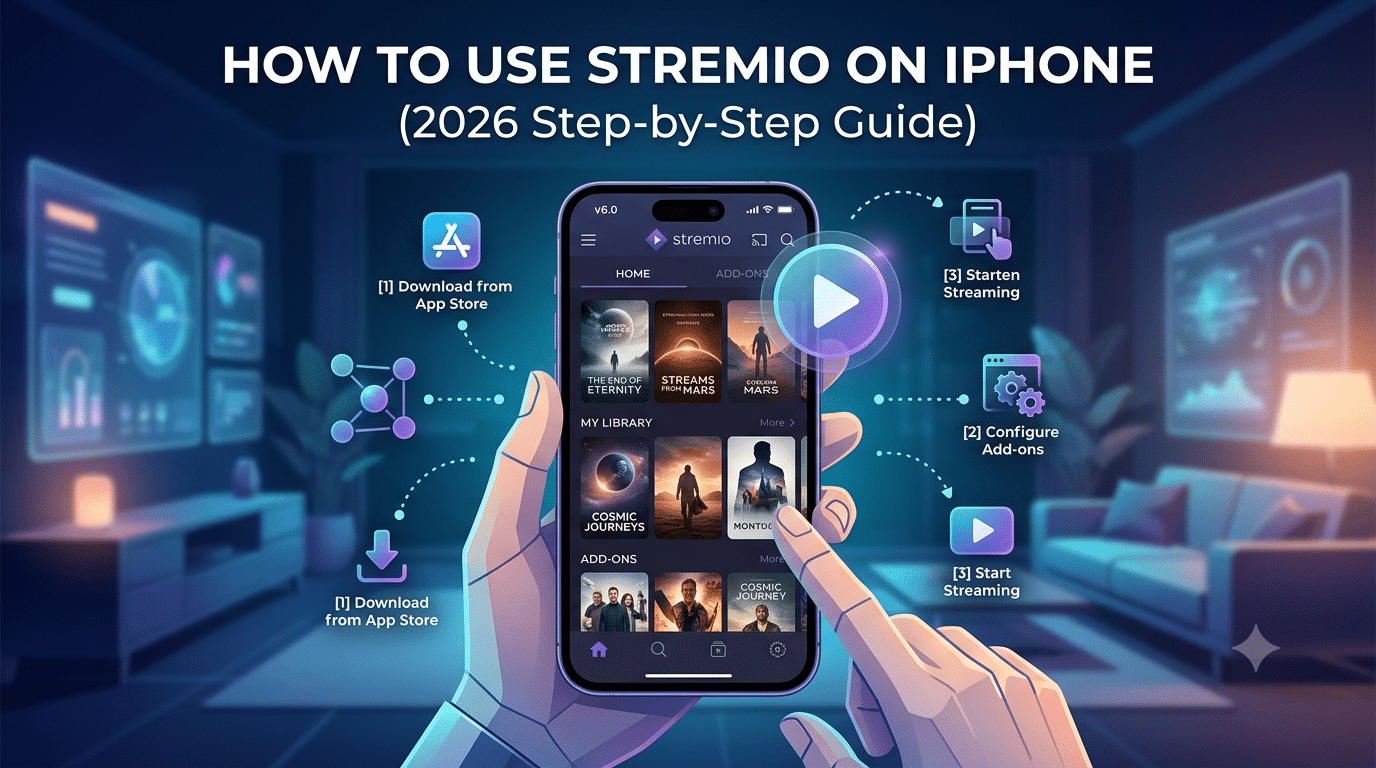
Stremio does not offer a native iOS app, which is the first limitation you need to understand. Instead, iPhone users rely on Stremio Web, a browser-based version that mirrors most core streaming features.
This means the experience depends heavily on Safari or another modern mobile browser rather than a dedicated app installed from the App Store.
In practice, Stremio on iPhone works as a lightweight streaming interface. You sign in, access your library, and stream content through supported add-ons, but everything runs inside the browser environment.
If you’re new to the platform, it’s worth first understanding the basics of how streaming apps handle content routing and privacy layers. A good starting point is this overview of what is a VPN, since many users pair Stremio with privacy tools for safer browsing and streaming.
Why There Is No Native Stremio App for iOS
Apple’s App Store policies restrict certain types of media aggregation apps, especially those that rely on third-party add-ons or external streaming sources. As a result, Stremio focuses on Android, Windows, macOS, and Linux.
Instead of fighting App Store limitations, the developers shifted iOS users to a web-first model. This is why the browser version exists.
On iPhone, you won’t find full system-level integration like you do on desktop. No background services. No system-wide player. Just a web interface optimized for mobile Safari.
This limitation also explains why some users explore external setup methods like installing Stremio on other platforms first, then syncing their accounts across devices.
How to Set Up Stremio on iPhone (Step-by-Step)
Step 1: Open Stremio Web
Start by launching Safari and navigating to the official Stremio Web interface. Once loaded, log in with your existing Stremio account.
Your library, add-ons, and watch history are all tied to this account, not the device itself.
Step 2: Optimize Safari for Streaming
For better playback performance:
- Enable JavaScript (default on iOS)
- Disable low power mode if buffering occurs
- Use full-screen mode for video playback
Performance varies depending on your device generation and network stability. Older iPhones may struggle with high-bitrate streams.
Step 3: Connect Your Streaming Sources
Stremio relies heavily on add-ons to populate content. Without them, the app is essentially an empty shell.
You can manage these through your account dashboard or by following a structured setup process like this guide on how to add Stremio add-ons safely.
Add-ons determine:
- Available content catalogs
- Streaming sources
- Metadata (titles, posters, subtitles)
Step 4: Use Real-Debrid for Better Streams (Optional)
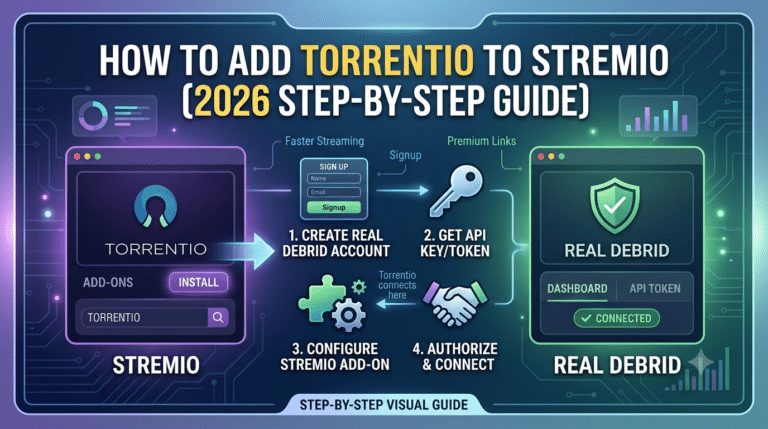
Many users improve playback reliability by connecting Real-Debrid. It reduces buffering by prioritizing cached, high-quality sources.
If you’re setting this up for the first time, this walkthrough explains the full process: connecting Real-Debrid to Stremio.
Important Limitations on iPhone
Stremio Web on iPhone is functional but not identical to desktop usage. Key limitations include:
- No background playback
- Limited hardware decoding control
- Browser-dependent performance
- Occasional add-on compatibility differences
These constraints are normal for web-based streaming apps on iOS.
Do You Need a VPN for Stremio on iPhone?
A VPN is not strictly required to use Stremio, but it can be useful depending on your setup and privacy expectations.
VPNs help:
- Mask your IP address
- Encrypt traffic between your device and the internet
- Reduce ISP visibility into streaming activity
If you’re new to the concept, this guide explains the fundamentals of how VPNs work and why they matter for streaming environments.
For users comparing providers, this breakdown of top-rated VPN services can help identify reliable options, especially for mobile devices.
Server Load Effects, Device Compatibility Limits, Account/Plan Restrictions, Speed Throttling Scenarios
When using Stremio on iPhone, performance issues often come from external factors rather than the app itself:
- Server load: Add-on sources may slow down during peak usage times
- Device compatibility: Older iPhones may struggle with modern codecs
- Account limitations: Free Real-Debrid or free streaming sources can cap quality
- ISP throttling: Some networks reduce video streaming speeds without encryption
In these cases, switching networks or enabling a VPN can stabilize playback quality.
How Do You Set Up Stremio on iPhone Step by Step?
Once Stremio Web is running on your iPhone, the next step is turning it into a usable streaming setup. Out of the box, the interface is minimal. The real functionality comes from configuration.
Installing and Configuring Stremio Web
On iPhone, everything happens inside the browser. After logging in:
- Your dashboard loads your synced library
- The homepage shows recommended content based on installed add-ons
- Playback opens in the same tab or a full-screen player
Unlike desktop versions, there’s no system-level installation. You’re essentially running a web app session that behaves like a lightweight streaming hub.
If you’re setting up Stremio for the first time across devices, it helps to understand the broader installation process described in this guide on how to install Stremio on every platform. It explains how accounts sync across desktop and mobile environments.
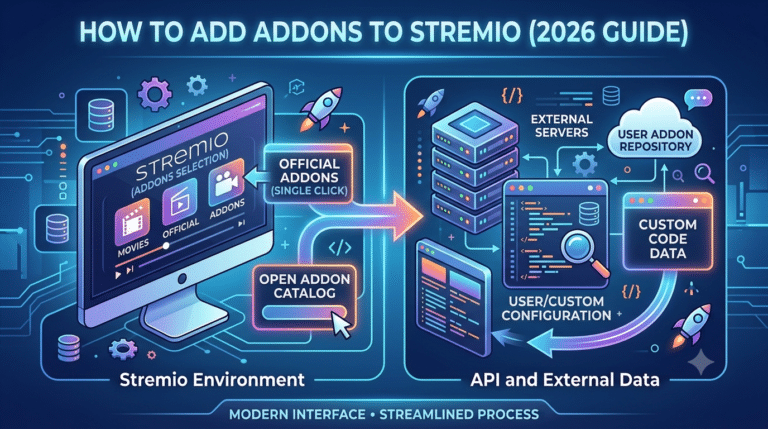
Adding Your Preferred Add-ons
Add-ons are the backbone of Stremio. Without them, the app has no content sources.
To configure add-ons on iPhone:
- Open your Stremio Web dashboard
- Navigate to the Add-ons section
- Browse official and community options
- Install only trusted sources
Add-ons determine what appears in your search results and what streams are available. Some focus on metadata, others on streaming links.
A detailed breakdown of safe configuration practices is available in this guide on how to add Stremio add-ons safely.
Be cautious here—third-party add-ons vary widely in reliability and legal clarity depending on your region.
Syncing Your Existing Library
One advantage of Stremio is cross-device synchronization. Once you log in on iPhone, your:
- Watch history
- Saved content
- Installed add-ons
all sync automatically from your account.
This is why most users set up Stremio first on desktop before switching to mobile. It ensures your library is already populated.
If you’re building a multi-device setup, this guide on how to get Stremio on Roku shows how the same account ecosystem extends to TV-based streaming environments.
What Are the Common Problems and How Can You Fix Them?
Stremio on iPhone is generally stable, but web-based streaming introduces a few predictable issues.
Playback Not Starting
This usually happens when:
- Add-ons are not properly installed
- Stream sources are unavailable
- Safari blocks media autoplay
Fix: refresh the page, disable content blockers, or switch add-ons.
Buffering or Low Quality Streams
Buffering is usually network-related rather than app-related:
- Weak Wi-Fi signal
- ISP throttling video traffic
- High demand on source servers
Switching networks or using a stable connection often resolves this immediately.
Add-ons Not Loading
If add-ons fail to appear:
- Clear browser cache
- Re-login to your Stremio account
- Reinstall add-ons
Some community add-ons may also temporarily go offline due to server maintenance.
When Should You Use a VPN with Stremio?
A VPN becomes relevant when you want more privacy control over streaming traffic or when add-on sources are unstable in your region.
VPNs work by routing your traffic through encrypted tunnels, preventing external parties from easily observing your online activity.
If you’re new to this, this explanation of VPN basics breaks down how they function without technical overload.
For streaming specifically, VPNs can also help avoid bandwidth shaping from ISPs that detect video traffic patterns.
If you’re comparing tools, this overview of leading VPN providers highlights services that are commonly used for streaming setups.
Can You Use Real-Debrid with Stremio on iPhone?
Yes, but with limitations.
Real-Debrid integration works through compatible add-ons rather than directly inside iOS. Once configured, it improves stream availability by providing cached links.
On iPhone, the setup still depends on Stremio Web compatibility and the add-ons you’ve installed.
For a full walkthrough, this guide explains how to set up Stremio with Real-Debrid, including authentication and link resolution steps.
When properly configured, users typically see:
- Faster stream selection
- Fewer broken links
- More HD playback options
Is Stremio Safe and Legal to Use on iOS?
Stremio itself is a legitimate media platform. The application is legal, and the official software does not host content.
However, safety depends on how you configure add-ons. Some third-party sources may operate in legally grey areas depending on your region.
To understand the platform’s legitimacy in detail, see this analysis on whether Stremio is legitimate.
From a security perspective:
- Official Stremio usage is safe
- Browser-based access adds no extra risk
- Add-ons determine content legality exposure
Can You Use Stremio on iPhone Effectively for Daily Streaming?
Using Stremio on iPhone becomes noticeably more stable once the setup is fully optimized. At this stage, the focus shifts from installation to performance tuning and real-world usability.
Because everything runs through a browser-based interface, your experience depends on three core factors:
- Safari performance handling
- Network stability
- Add-on responsiveness
Unlike desktop environments, iOS limits background processing and media decoding control. That means you need to rely more on optimization rather than system-level tweaks.
Stremio Web App iOS Optimization Tips
Use Safari Instead of Third-Party Browsers
Safari is still the most stable option for Stremio Web on iPhone. Apple allows deeper media integration in its native browser, which improves playback consistency.
Browsers like Chrome or Edge on iOS still use Apple’s WebKit engine, so differences are minimal, but Safari tends to handle media sessions more reliably.
Enable Full-Screen Playback Early
On iOS, switching to full-screen mode early reduces interface lag and improves buffering behavior. The video player reallocates resources more efficiently when it is not constrained inside a page layout.
Manage Background Apps
Stremio Web can slow down if your device is under memory pressure. Close unused apps before streaming, especially:
- Social media apps
- Video editors
- Navigation apps
This frees up RAM for smoother playback.
AirPlay and External Streaming Options
Many users try to extend Stremio playback from iPhone to larger screens using AirPlay.
Does AirPlay Work with Stremio on iPhone?
Yes, but with limitations. AirPlay support depends on how the browser handles media routing. Some streams may not properly mirror due to codec restrictions or DRM-like behavior in certain sources.
When it works, AirPlay allows you to:
- Stream content to Apple TV
- Mirror playback to supported smart TVs
- Extend playback from iPhone to a larger display
However, not all add-on streams are compatible with AirPlay, especially those that rely on non-standard video containers.
VPN Usage on iPhone for Stremio Privacy
Streaming through add-ons often involves connecting to third-party servers. That makes privacy awareness important, especially on mobile networks.
A VPN can help by encrypting traffic between your iPhone and the internet. This reduces visibility of your browsing activity on public Wi-Fi or ISP-level monitoring.
If you’re new to the concept, this explanation of how VPN mechanics work breaks down encryption, tunneling, and routing in simple terms.
For users looking to choose a provider, this list of top free VPNs is useful for testing before committing to a paid plan.
Stremio Add-on Performance on iPhone
Add-ons behave differently on iOS compared to desktop systems. Because the browser handles execution, performance depends heavily on:
- Script execution speed
- Server response times
- Mobile caching limits
Common Performance Issues
- Slow loading catalogs during peak hours
- Missing metadata thumbnails
- Delayed stream discovery
These are usually server-side, not device-side issues.
Real-World Streaming Stability on iPhone
When properly configured, Stremio Web on iPhone can deliver stable HD playback, but it is not designed for heavy multitasking or prolonged background streaming.
Expect:
- Occasional reloads of the web session
- Stream switching delays when sources are overloaded
- Reduced quality selection during high traffic periods
These limitations are normal for browser-based streaming systems on mobile platforms.
server load effects, device compatibility limits, account/plan restrictions, speed throttling scenarios, etc.
Several hidden factors influence performance on iPhone:
Server Load Effects
Add-on servers may become congested during peak usage hours, resulting in slower stream discovery or failed playback attempts.
Device Compatibility Limits
Older iPhones struggle with modern codecs like HEVC at high bitrates, leading to dropped frames or forced quality reduction.
Account/Plan Restrictions
Free or limited Real-Debrid configurations may restrict access to higher-quality cached sources, affecting playback consistency.
Speed Throttling Scenarios
Some ISPs identify streaming traffic patterns and reduce bandwidth. This is more noticeable on mobile data than Wi-Fi.
A VPN can help mitigate throttling by masking traffic type, but results vary depending on the provider and region.
Frequently Asked Questions
Can you install Stremio from the App Store?
No. Stremio does not currently offer an official iOS app. On iPhone, access is handled through the web version instead of a native installation. This is why most users rely on browser-based streaming through Stremio Web.
Why is Stremio not loading properly on iPhone?
If Stremio fails to load or freezes in Safari, the issue is usually related to:
- Cached browser data conflicts
- Weak or unstable internet connection
- Add-on server downtime
- Heavy memory usage on the device
Clearing Safari cache or restarting the session usually resolves most issues.
Is Stremio safe to use on iPhone?
The core Stremio platform is safe and widely used. The main risk factor comes from third-party add-ons, which may vary in reliability and legal compliance depending on your region.
For a deeper breakdown of platform legitimacy, you can review this analysis on whether Stremio is legitimate.
Do you need a VPN for Stremio on iPhone?
A VPN is not required, but it is often used for privacy protection and to reduce ISP-level monitoring of streaming activity.
If you want to understand the mechanics behind it, this guide explains what a VPN is and how it works in simple terms.
Final Optimization Tips for iPhone Users
Stremio on iPhone works best when you treat it as a lightweight streaming interface rather than a full desktop media center.
To maintain stable performance:
- Keep Safari updated
- Avoid running multiple heavy apps while streaming
- Use stable Wi-Fi instead of mobile data when possible
- Refresh sessions periodically if playback degrades
These small adjustments significantly reduce buffering and playback errors.
Advanced Setup: When You Want Better Stream Quality
If you’re aiming for higher-quality streams and fewer broken links, the ecosystem around Stremio becomes important.
Many users enhance their setup by combining:
- Add-ons for content discovery
- External streaming resolvers
- Premium link services
A full breakdown of setup optimization is available in this guide on how to connect Real-Debrid to Stremio, which helps stabilize high-quality playback sources.
For users building a full ecosystem, this installation overview on how to install Stremio across devices explains how to maintain sync between desktop and mobile environments.
Conclusion
Using Stremio on iPhone is possible, but it relies entirely on browser-based access rather than a native app. That means performance depends on Safari, add-ons, and network stability rather than system-level optimization.
For most users, the setup works well for casual streaming, especially when paired with properly configured add-ons and optional privacy tools. However, limitations like lack of background playback and occasional stream instability are expected on iOS.
If your goal is smooth, consistent streaming on iPhone, the key is not just installation—it’s proper configuration, stable sources, and understanding how web-based streaming behaves on mobile devices.