
If you’re learning how to set up Stremio, the first thing to understand is that it isn’t just another streaming app—it’s a media hub that depends heavily on add-ons, device compatibility, and correct configuration from the start. A small mistake during setup can lead to missing libraries, broken streams, or syncing issues across devices.
The good news is that once you follow the right sequence, Stremio becomes straightforward to run across phones, TVs, and desktops without constant tweaking. The key is understanding how its core system works before touching installation settings.
What is Stremio and how does it work during setup?
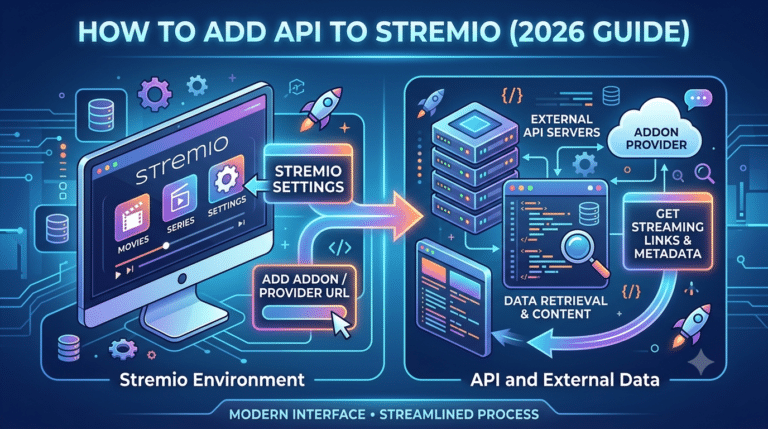
Stremio is a media aggregation platform that organizes video content through add-ons rather than hosting files itself. During setup, the app builds your environment by connecting your account, syncing preferences, and enabling content sources through extensions.
Unlike traditional streaming apps, Stremio doesn’t rely on a fixed catalog. Instead, it pulls content through modular add-ons that you choose during or after installation. This is why setup matters so much—your configuration directly determines what appears in your library.
A helpful breakdown of its architecture is available in this technical overview of how the system functions:
how Stremio works in practice
At a system level, Stremio behaves more like a content manager than a streaming provider. Once installed, it:
- Syncs your account across devices
- Loads add-ons from its catalog
- Fetches metadata (posters, subtitles, streams)
- Builds a unified library interface
This modular structure is also why security awareness matters during setup. Because add-ons can connect to external sources, many users choose to route traffic through privacy tools. Privacy advocates such as the Electronic Frontier Foundation highlight how encryption and tunneling tools help reduce exposure when streaming or browsing online:
VPN basics and online privacy guidance
A VPN is not mandatory for Stremio to function, but it can help mask traffic from your ISP and stabilize access in restricted networks. If you’re new to this layer, it helps to first understand the fundamentals of encrypted routing and data tunneling before configuring streaming add-ons. A simple breakdown is available here:
VPN basics
Once you understand this foundation, the setup process becomes more predictable and easier to troubleshoot later.
How do you install Stremio on your device?
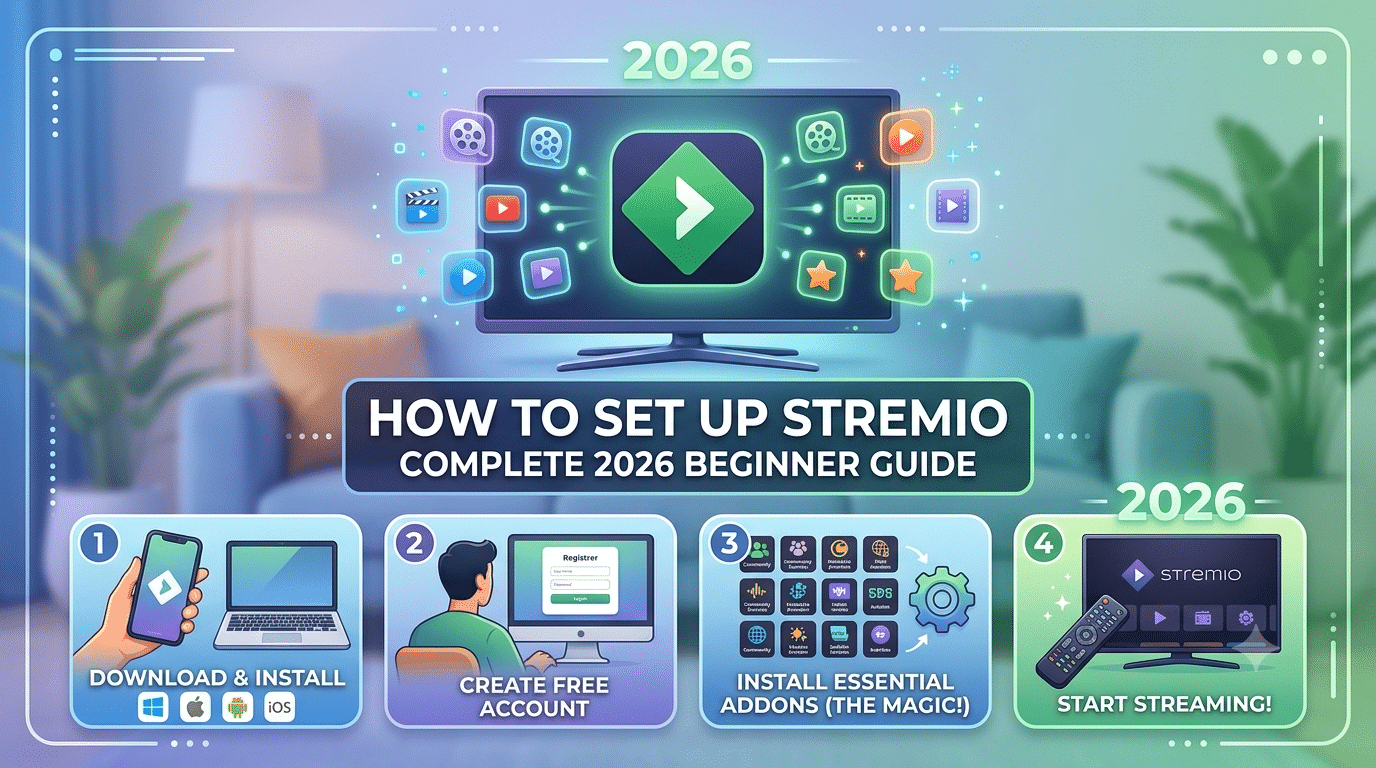
Installation is the first real step in learning how to set up Stremio correctly, and the process varies slightly depending on your platform. The core experience, however, remains consistent across Windows, macOS, Android, and Firestick-based devices.
On desktop systems, you download the installer from the official Stremio client, run the setup file, and complete a quick login. On mobile devices, installation follows a standard app-store flow, but functionality may differ slightly depending on OS restrictions.
Before installation, ensure your device meets basic requirements:
- Stable internet connection
- Updated operating system
- At least 200MB free storage
Once installed, Stremio immediately prompts you to sign in or create an account. This step is essential because it enables synchronization of your library, watch history, and add-ons across multiple devices.
At this stage, most users rush into add-on installation, but that often causes confusion later. The better approach is to complete the base setup first and confirm the app is running correctly before expanding functionality.
If you’re using streaming tools for privacy-sensitive environments, you may also consider pairing your setup with secure browsing tools. A curated list of trusted options is available here:
leading VPN providers
This becomes especially useful when accessing content from multiple networks or traveling, where connection stability and privacy policies may vary.
Once installation is complete, the next step is configuration—this is where add-ons, playback settings, and device-specific tuning come into play.
server load effects, device compatibility limits, account/plan restrictions, speed throttling scenarios, etc.
Stremio performance during setup is influenced by several hidden constraints. Server load can affect how quickly add-ons populate content libraries, especially during peak hours. Device compatibility also plays a role—low-powered Firestick or older Android TV units may struggle with heavy metadata loading or multiple add-ons enabled simultaneously.
Account-level limits are minimal since Stremio does not operate on a traditional subscription tier model, but synchronization delays can occur when switching between devices too quickly. In some cases, ISP throttling can also reduce stream stability, particularly when high-bandwidth content is accessed without encryption layers in place.
How do you configure add-ons like Torrentio?
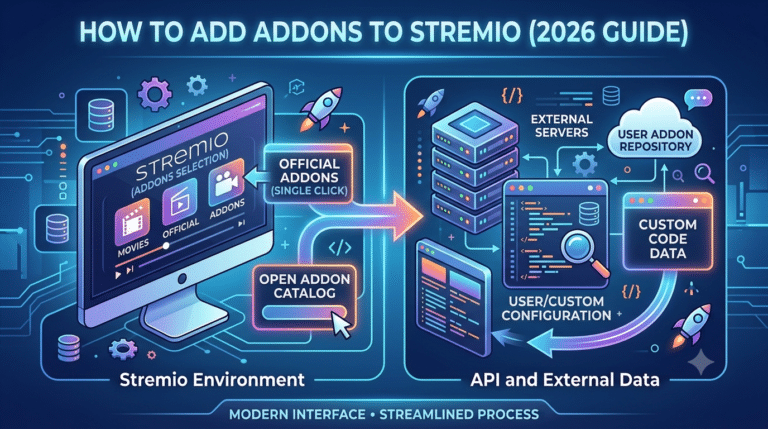
Once Stremio is installed, the real value of the platform comes from add-ons. These are external modules that supply streams, metadata, and subtitles. Without them, the app is essentially an empty shell.
The setup process is straightforward, but it must be done in the correct order. Inside the Stremio interface, you access the add-on catalog, browse available extensions, and install the ones you need. The most commonly used streaming extensions fall under community add-ons, which means they are not officially built into the core app.
A structured breakdown of the most widely used extensions and what they do is covered here:
best Stremio add-ons for setup
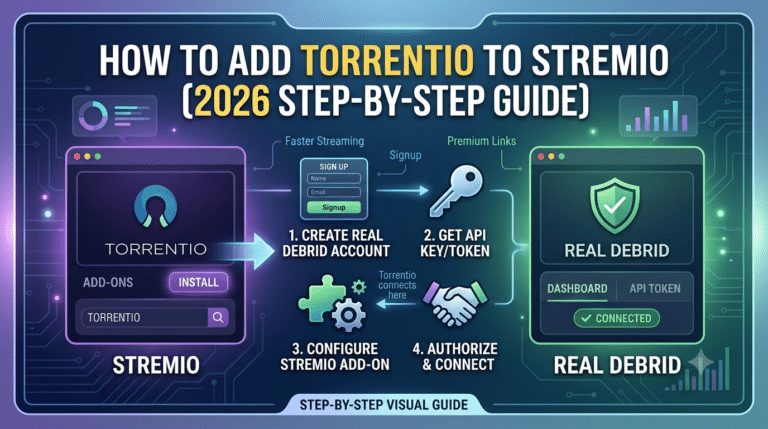
Torrent-based add-ons like Torrentio are often used because they aggregate multiple sources into a single feed. However, performance depends heavily on network conditions and how well your setup is configured. If add-ons are misconfigured, you may see empty results or slow loading times.
To install add-ons correctly, users typically follow this flow:
- Open Stremio add-on section
- Search or paste the add-on URL
- Confirm installation
- Restart the app to refresh catalog sync
If you want a more technical walkthrough of this process, including manual installation methods, this guide is useful:
how to install Stremio add-ons properly
One important detail many beginners miss is that add-ons are not “plug and play.” They often require configuration parameters such as preferred sources, quality filters, or external service integration. Without tuning these settings, the streaming experience can feel inconsistent.
What are the best settings after installation?
After installing Stremio and your initial add-ons, the next step is optimizing playback and interface settings. This directly affects buffering, stream quality, and loading speed.
Start with video playback preferences:
- Set default resolution based on your internet speed
- Enable hardware acceleration if your device supports it
- Adjust subtitle behavior for auto-loading
On lower-end devices like Firestick, reducing default stream quality can significantly improve stability. On desktop systems, higher resolutions (1080p or 4K) can be used if bandwidth allows.
Device-specific setup guides can vary. For example, Firestick requires additional optimization compared to desktop platforms due to limited processing power. Android TV sits somewhere in the middle, offering better flexibility but still depending on network strength.
A full device-specific breakdown of configuration differences is covered in this guide:
Stremio Firestick and mobile setup options
At this stage, users often overlook background network conditions. Streaming apps like Stremio rely heavily on consistent throughput rather than peak speed. Even if your connection is fast, unstable routing can cause buffering.
This is where understanding encrypted traffic flow becomes relevant. A VPN, for example, routes your traffic through secure tunnels, which can sometimes stabilize or slightly slow down connections depending on server distance and load. A deeper explanation of this process is available here:
how VPN data tunneling works
For users who want to improve privacy while streaming, selecting a stable provider matters more than raw speed. A comparative overview of top-tier services is available here:
best VPN for streaming setups
Why does Stremio require an account for syncing?
Stremio uses a cloud-based account system to synchronize your setup across devices. This includes add-ons, watch history, and interface preferences.
When you log in on a new device, your configuration is automatically restored. This removes the need to manually reinstall add-ons each time. However, syncing is not instant—it can take a few seconds or longer depending on server load and connection quality.
The account system is especially useful if you switch between devices frequently. For example:
- Desktop at home
- Mobile on the go
- TV for playback sessions
All of these remain aligned under a single profile.
server load effects, device compatibility limits, account/plan restrictions, speed throttling scenarios, etc.
During add-on configuration, server load plays a noticeable role. If add-on repositories are under heavy traffic, installation may delay or fail temporarily. Device compatibility also impacts performance—older Android versions may struggle with certain add-ons that require updated APIs.
Although Stremio does not enforce strict subscription tiers, external services integrated into add-ons (like debrid systems) may introduce their own limits or throttling. Additionally, ISPs can sometimes throttle streaming traffic, especially when large amounts of data are transferred without encryption.
Why does Stremio sometimes fail after setup?
Even when you follow the correct installation flow, Stremio can behave inconsistently after setup. Most issues are not caused by the app itself but by add-ons, network conditions, or incomplete configuration.
The most common failure points are:
- Add-ons not loading content catalogs
- Empty search results after installation
- Buffering or stalled playback
- Sync delays between devices
In most cases, these problems trace back to either unstable add-ons or network routing issues rather than the core application.
Security and network stability also play a role here. Streaming traffic is sensitive to routing efficiency, especially when multiple add-ons are pulling from external sources at the same time. Organizations like the Electronic Frontier Foundation have long emphasized how encrypted traffic handling can reduce exposure and improve stability in restrictive environments:
VPN privacy and encryption principles
When Stremio fails to load content properly, the issue is often resolved by rechecking add-on configurations or resetting the app’s cache rather than reinstalling everything.
Is Stremio legal to use and what should you know?
Legality is one of the most misunderstood parts of the Stremio ecosystem. The app itself is legal software. It functions as a media aggregator, meaning it does not host or distribute content directly.
However, legality depends entirely on the add-ons you install and the sources they connect to.
A detailed breakdown of compliance risks, licensing boundaries, and safe usage expectations is available here:
Is Stremio legal and how it works
In general:
- Official add-ons that provide licensed content are legal
- Third-party add-ons may vary in legality depending on region and source
- Streaming copyrighted content without authorization may violate local laws
This is why users often take extra precautions when configuring their setup, especially in regions with strict copyright enforcement.
To reduce exposure while streaming, some users also rely on privacy tools. A lightweight option for users who don’t want to invest in paid services is exploring reputable no-cost solutions. A curated list is available here:
best free VPN options for streaming privacy
Free VPNs can help mask traffic, but they often come with limitations such as reduced speed, data caps, or fewer server locations. For stable streaming, these constraints matter significantly.
How do you fix add-on and streaming issues?
When Stremio breaks after setup, the fix usually depends on isolating the problem layer by layer.
Start with add-ons:
- Remove recently installed extensions
- Reinstall only essential sources
- Avoid stacking too many overlapping add-ons
Then check network behavior:
- Restart router to refresh IP routing
- Switch between Wi-Fi and wired connections if possible
- Disable background downloads that consume bandwidth
If issues persist, clearing the app cache often resolves corrupted metadata loading.
Another overlooked cause is conflicting add-on versions. Some community extensions update frequently, and outdated versions can stop working without warning.
There is also a subset of modified or unofficial builds circulating online that claim to enhance Stremio functionality. These are not part of the official ecosystem and may introduce stability or security risks. One example often discussed in community forums is the so-called “alternate build variations,” sometimes referenced in relation to experimental setups like the following overview:
Stremio alternative builds and experimental editions
Understanding which version you are using matters, because modified clients can behave differently from the official release.
Why add-on structure impacts stability
Stremio’s architecture depends heavily on external add-ons, which means performance is distributed rather than centralized. This design has benefits—flexibility, variety, and customization—but also introduces instability points.
If too many add-ons are active:
- Startup time increases
- Search results become inconsistent
- Stream selection may duplicate or conflict
If too few are installed:
- Content availability becomes limited
- Search results may appear empty
Finding balance is key. Most stable setups use a small number of high-quality add-ons rather than dozens of overlapping sources.
Account sync and device mismatch issues
Another common issue after setup is device mismatch. Because Stremio syncs through cloud accounts, changes made on one device may not immediately appear on another.
Delays can occur due to:
- Server synchronization lag
- Regional routing differences
- Temporary cache desynchronization
In most cases, simply logging out and back in resolves the issue.
How do you troubleshoot common Stremio setup issues?
If you’ve followed the setup steps and Stremio still isn’t working correctly, the issue is usually tied to one of three layers: add-ons, network conditions, or device performance. Fixing it is about isolating which layer is failing rather than reinstalling everything.
Start with add-ons. This is where most problems originate. Remove any recently added extensions, especially ones that overlap in function. Then restart the app and check whether the content catalog reloads properly.
If the problem persists, reset your environment:
- Log out of your account
- Clear app cache
- Reinstall only essential add-ons
- Log back in to trigger a fresh sync
For more structured troubleshooting flows, this technical walkthrough breaks down installation and repair steps in detail:
how to install and manage Stremio add-ons correctly
Network issues are the second most common cause. Stremio depends on real-time streaming sources, so unstable routing can break playback even if your internet speed looks fine on paper. Switching networks or restarting your router often resolves sudden buffering or empty streams.
In more restrictive environments, encrypted traffic routing can improve consistency. A deeper technical explanation of tunneling and secure routing is available here:
how VPN data routing and encryption work
Device limitations also matter. Low-power devices like older Firesticks or entry-level Android TV boxes may struggle when multiple add-ons run simultaneously. Reducing active extensions and lowering default stream resolution can stabilize performance significantly.
Best practices after completing Stremio setup
Once your setup is stable, the goal shifts from installation to optimization. A well-configured Stremio system is lightweight, selective, and consistent—not overloaded with unnecessary add-ons.
A few best practices include:
- Keep only 2–4 core add-ons active
- Avoid duplicating similar content sources
- Update add-ons regularly to prevent broken streams
- Maintain a stable internet connection without background heavy downloads
Security also becomes part of long-term usage. Because Stremio relies on external sources, many users choose to add an extra privacy layer when streaming. If you’re exploring options, this comparison of providers is a useful reference point:
recommended VPN services for streaming privacy
If you prefer a lighter option, free tools exist as well, though they often come with trade-offs in speed and reliability:
free VPN tools for basic protection
The key takeaway is consistency. A stable setup is more about discipline in configuration than complexity of tools.
Device-specific performance tips
Different devices handle Stremio in different ways, and optimizing for your hardware can significantly improve stability.
On Firestick devices:
- Limit add-ons to essential sources only
- Reduce default playback resolution
- Close background apps before streaming
On Android TV:
- Enable hardware acceleration if available
- Keep system firmware updated
- Avoid excessive simultaneous add-ons
On desktop systems:
- Use wired connections where possible
- Ensure GPU drivers are up to date
- Allocate sufficient system memory for streaming tasks
On mobile devices:
- Prefer Wi-Fi over mobile data for stability
- Disable background app refresh
- Use lightweight configurations to reduce load
A deeper device compatibility breakdown is available here:
how to use Stremio across iPhone and PC setups
Understanding limits: load, devices, accounts, and throttling
Stremio performance is influenced by several hidden constraints that users often overlook.
Server load effects:
Add-ons depend on external servers. When these servers are overloaded, content loading slows or temporarily fails.
Device compatibility limits:
Older devices may struggle with metadata-heavy catalogs or multiple active add-ons.
Account sync delays:
Changes don’t always propagate instantly across devices due to cloud synchronization timing.
Speed throttling scenarios:
Some ISPs may throttle streaming traffic patterns, especially during peak hours or high-volume usage.
These factors combined explain why two users with identical setups may experience very different performance results.
Final conclusion
Stremio is powerful, but its performance depends entirely on how carefully you configure it. Installation is simple; optimization is what determines whether it runs smoothly or constantly breaks.
If you understand add-ons, manage device limits, and keep your setup lean, you get a stable streaming system that works across devices without constant fixes. The real skill is not installing Stremio—it’s maintaining it.
If you’re building a long-term setup, focus on stability over complexity and avoid overloading the system with unnecessary extensions.
For most users, how to set up Stremio correctly comes down to one principle: keep it simple, keep it controlled, and optimize only what you actually use.