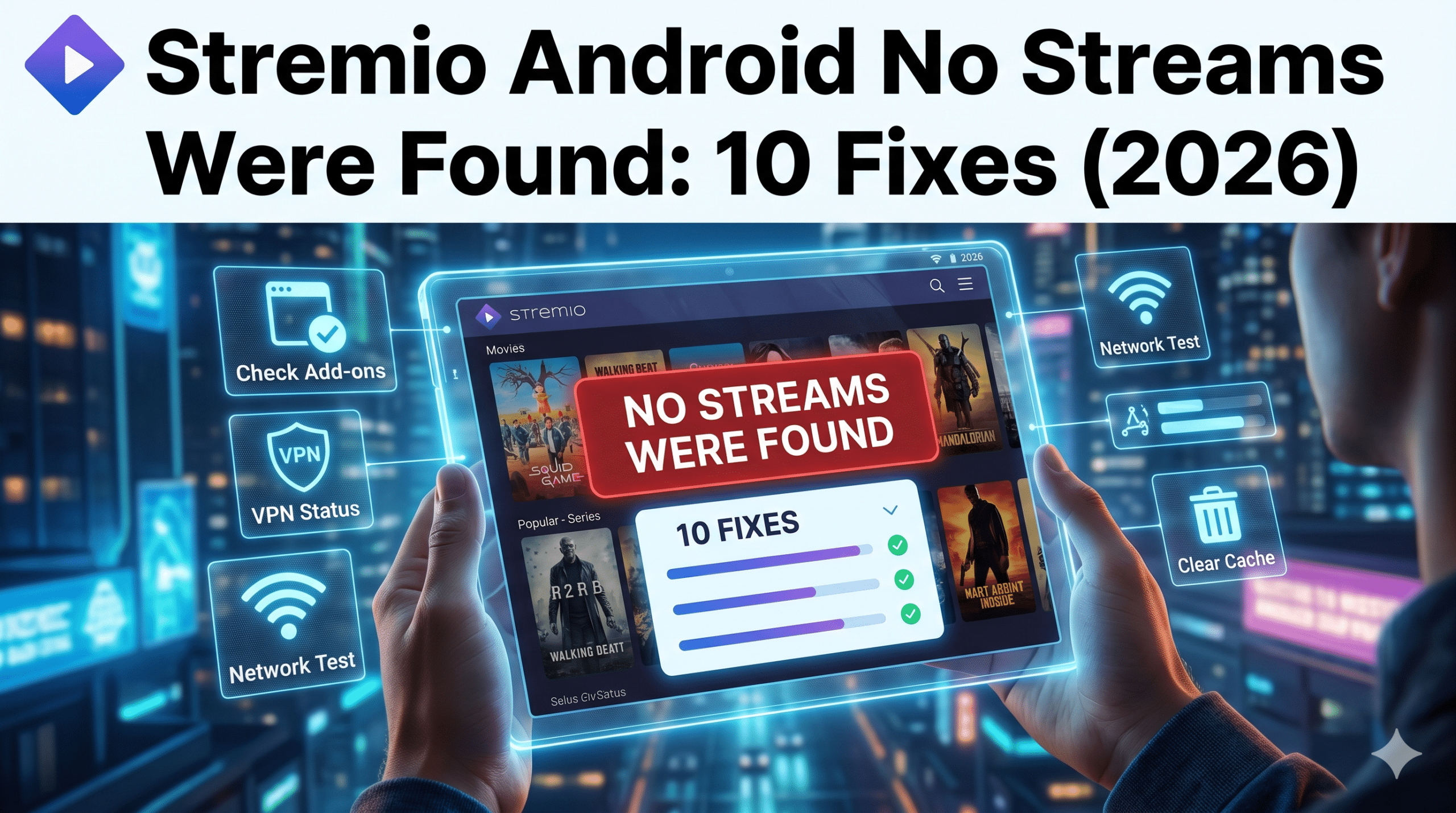

If Stremio Android No Streams Were Found appears on your device, the problem usually isn’t Stremio itself. In most cases, the error comes from a failed add-on, a source indexing issue, a VPN conflict, a network problem, or an outage affecting the service that supplies streaming links.
Android users encounter this error more often than Windows users because Android devices vary significantly in hardware, operating systems, DNS handling, and background network restrictions. Android TV, Google TV, Fire TV devices, and smartphones can all behave differently even when running the same Stremio version.
Before reinstalling anything, follow a structured troubleshooting process. Most users can restore streams within minutes by identifying the actual cause.
For readers unfamiliar with VPN technology, understanding VPN basics helps explain why network routing sometimes affects source discovery. Likewise, knowing how VPN encryption works can make troubleshooting easier when VPN-related issues are involved.
According to the Electronic Frontier Foundation, DNS filtering, network interference, and connection-routing issues can affect access to online services, making connectivity checks an important first troubleshooting step.
Why Does Stremio Android No Streams Were Found Appear?
The error simply means Stremio searched for available sources but returned an empty result.
That doesn’t necessarily mean the content is unavailable. Instead, Stremio may be unable to communicate with the services responsible for locating stream sources.
The most common causes include:
- Broken add-ons
- Disabled add-ons
- Torrentio outages
- VPN routing problems
- DNS failures
- Android cache corruption
- ISP filtering
- Network instability
- Source-provider outages
In testing, add-on failures account for the majority of cases. If Torrentio or another major source provider becomes unavailable, thousands of users can suddenly receive the same error despite having a working internet connection.
Users facing broader source-discovery problems should also review this detailed guide covering the general Stremio no streams available error because many root causes affect every platform, not just Android.
Quick Diagnostic Checklist
Before applying fixes, answer these questions:
- Does the error affect every title or only one?
- Does it happen on Wi-Fi and mobile data?
- Does disabling your VPN change anything?
- Do streams work on another device?
- Did the problem start after an update?
- Are your add-ons still installed?
These answers often identify the culprit immediately.
For example:
- One title affected = content-specific issue.
- All titles affected = add-on or network issue.
- Android only = device-specific issue.
- VPN only = routing or DNS issue.
Are Stremio Servers or Add-ons Currently Down?
Many users assume Stremio itself is down when streams disappear.
Usually, that isn’t the case.
Stremio operates as a media platform, but stream availability depends heavily on external add-ons and source providers. If those services experience downtime, Stremio may still open normally while returning no results.
A good first step is checking whether an outage is occurring. Our guide on how to check if Stremio is down walks through the fastest verification methods.
Signs of an Add-on Outage
Watch for these indicators:
- Streams disappeared suddenly.
- Previously working content no longer loads.
- Friends report identical issues.
- Multiple Android devices show the same error.
- Reinstalling Stremio changes nothing.
When several symptoms appear together, an add-on outage becomes the most likely explanation.
Check Installed Add-ons
Open:
Stremio → Add-ons → Installed
Verify that your source add-ons remain active.
Common problems include:
- Add-on accidentally removed
- Outdated configuration
- Expired integration
- Corrupted add-on settings
If an essential add-on disappears after an update, Stremio may still function normally while showing “No Streams Were Found” for every title.
Test Multiple Content Types
Don’t test only one movie.
Try:
- Popular movies
- Recent TV episodes
- Older films
- Different genres
If only one title fails, the issue may relate to source availability rather than a system-wide problem.
If everything fails, continue troubleshooting the device and network.
How Do You Fix Missing Streams on Android Devices?
Most Android-specific cases can be solved without reinstalling the application.
Start with the easiest fixes first.
Restart Stremio Completely
Many users simply close the app and reopen it.
Android often leaves background processes running.
Instead:
- Open Settings.
- Select Apps.
- Choose Stremio.
- Tap Force Stop.
- Reopen the app.
This refreshes active processes and clears temporary runtime errors.
Clear Stremio Cache
Corrupted cache files frequently interfere with source retrieval.
To clear cache:
- Open Android Settings.
- Select Apps.
- Tap Stremio.
- Choose Storage.
- Select Clear Cache.
Do not clear app data yet unless necessary.
Cache removal preserves most settings while eliminating temporary file corruption.
Update Stremio
Older versions occasionally experience compatibility issues after add-on updates.
Confirm you’re running the latest release available for your platform.
Version mismatches can cause:
- Source-loading failures
- Metadata issues
- Add-on communication errors
- Authentication problems
Switch Networks
This test takes less than two minutes.
If you’re on Wi-Fi:
- Try mobile data.
If you’re on mobile data:
- Try Wi-Fi.
If streams suddenly return, the original network likely contains the issue.
Common network causes include:
- DNS failures
- ISP filtering
- Router configuration problems
- VPN conflicts
We’ll cover VPN-specific troubleshooting in the next section because VPN routing remains one of the most overlooked causes of Android stream detection failures.
Can a VPN Cause Stremio Android No Streams Were Found Errors?
Yes. A VPN can absolutely trigger the Stremio Android No Streams Were Found error under certain conditions.
The VPN itself usually isn’t the problem. The issue typically comes from how the VPN server handles DNS requests, routing paths, IP reputation, or traffic filtering.
In testing, VPN-related failures generally fall into four categories:
- Poor-quality VPN servers
- DNS resolution problems
- Overloaded VPN locations
- ISP and VPN routing conflicts
If streams disappear immediately after connecting to a VPN, disconnect temporarily and test the same title again.
If streams return, you’ve identified the source of the problem.
Users experiencing this scenario should review our detailed guide on Stremio VPN stream detection issues because VPN-specific failures often require different fixes than standard Stremio troubleshooting.
Test Multiple VPN Locations
Many users connect to a single server and assume all VPN locations behave identically.
They don’t.
VPN providers route traffic differently across regions.
For example:
- New York server works
- Chicago server fails
- Dallas server works again
This often indicates a routing issue rather than a Stremio problem.
Switch between several locations and test source availability after each change.
Change DNS Providers
DNS servers convert domain names into IP addresses.
If DNS requests fail, Stremio may be unable to communicate with source providers.
Popular alternatives include:
- Google DNS
- Cloudflare DNS
- Quad9 DNS
Changing DNS frequently resolves Android source-discovery failures when streams disappear despite a stable internet connection.
Avoid Low-Quality Free VPNs
Free VPN services sometimes introduce more problems than they solve.
Common limitations include:
- Congested servers
- Traffic throttling
- DNS leaks
- Restricted bandwidth
- Poor streaming compatibility
If you’re evaluating alternatives, compare several top free VPNs before relying on one for streaming-related troubleshooting.
Verify VPN Server Reputation
Source providers occasionally block IP ranges associated with abuse, spam, or excessive traffic.
When this happens:
- Stremio opens normally.
- Add-ons load.
- Source requests fail.
Switching servers often restores functionality immediately.
If you use a premium VPN, choose servers optimized for reliability rather than the fastest advertised location.
Users searching for long-term options can compare current top-rated VPN services that maintain larger server networks and better routing consistency.
Why Do Streams Work on PC But Not Android?
This is one of the most common troubleshooting scenarios.
You open Stremio on Windows.
Everything works.
Then you launch the same account on Android and see “No Streams Were Found.”
When that happens, the problem almost always exists on the Android side rather than the Stremio account itself.
Android Handles Networking Differently
Android devices often use:
- Different DNS settings
- Different VPN behavior
- Battery optimization policies
- Background restrictions
These differences can prevent add-ons from communicating correctly even when the same account works perfectly elsewhere.
Compare Device Behavior
Create a simple comparison:
| Device | Streams Available? |
|---|---|
| Windows PC | Yes |
| Android Phone | No |
| Android TV | No |
| Mobile Data | Yes |
| Home Wi-Fi | No |
Patterns like these quickly reveal where the failure occurs.
If your PC works normally, review this platform-specific Windows troubleshooting guide for Stremio stream errors and compare settings against your Android device.
Android TV and Google TV Bugs
Android TV devices introduce additional complexity.
Common issues include:
- Outdated firmware
- Aggressive memory management
- Add-on loading failures
- Network stack inconsistencies
Unlike smartphones, Android TV devices often remain online for weeks without restarting.
This increases the likelihood of temporary software issues.
A full reboot frequently restores functionality.
Disable Battery Optimization
Android battery-saving systems can interfere with background network tasks.
To test:
- Open Settings.
- Select Apps.
- Choose Stremio.
- Open Battery Settings.
- Disable optimization.
After restarting the application, check whether streams reappear.
Reinstall Add-ons Instead of Reinstalling Stremio
Many users immediately uninstall the entire app.
That’s rarely necessary.
Instead:
- Remove affected add-ons.
- Restart Stremio.
- Reinstall the add-ons.
- Test again.
This targets the most common failure point while preserving application settings.
How Do You Fix Android TV and Google TV Source Detection Problems?
Android TV devices account for a disproportionate number of source-detection complaints.
Several factors contribute:
- Older hardware
- Slower storage
- Limited memory
- Delayed app updates
The troubleshooting process differs slightly from phones and tablets.
Restart Everything
Don’t restart only Stremio.
Restart:
- Android TV
- Router
- VPN connection
- Stremio application
A complete restart eliminates many temporary communication failures.
Check Storage Space
Low storage can interfere with caching and metadata retrieval.
Maintain at least:
- 1–2 GB free storage minimum
Devices operating near capacity frequently experience unpredictable application behavior.
Update Android TV Firmware
Many users update apps but ignore system updates.
Firmware updates often include:
- Network fixes
- DNS improvements
- Security patches
- Compatibility updates
These changes can directly affect source detection.
Compare With Other Platforms
If possible, test the same account on another operating system.
For example:
- Android TV fails
- iPhone works
- Windows works
That pattern strongly suggests a device-specific problem.
Users comparing ecosystems can also review this guide covering Stremio no streams found on iPhone and iPad and see how troubleshooting differs across platforms.
Likewise, Mac users encountering similar symptoms can reference this Mac-specific Stremio stream troubleshooting guide to identify platform-related differences.
In the next section, we’ll examine advanced causes that many troubleshooting guides ignore, including server load effects, account restrictions, compatibility limits, and speed-throttling scenarios.
Server Load Effects, Device Compatibility Limits, Account Restrictions, and Speed Throttling Scenarios
Most troubleshooting guides stop after recommending a cache clear or app reinstall.
That solves many cases, but not all of them.
Some instances of Stremio Android No Streams Were Found result from underlying conditions that are harder to identify because they don’t produce obvious error messages.
Understanding these factors can save hours of unnecessary troubleshooting.
Server Load Effects
Source providers and add-on services experience traffic spikes.
This commonly occurs during:
- Major sporting events
- Popular TV episode releases
- New movie launches
- Holiday periods
When demand increases dramatically, source indexes can become slow or temporarily unavailable.
Symptoms include:
- Streams appear intermittently
- Results load very slowly
- One search works while the next fails
- Available sources fluctuate
Users often mistake these temporary failures for permanent add-on problems.
A simple retest 30–60 minutes later can sometimes restore normal functionality.
Device Compatibility Limits
Not all Android devices perform equally.
A flagship Android phone and a budget Android TV box may run the same Stremio version, but their hardware capabilities differ significantly.
Potential limitations include:
- Insufficient RAM
- Weak processors
- Slow storage
- Outdated Android versions
Low-end hardware can struggle when:
- Loading large metadata libraries
- Processing multiple source requests
- Running VPN software simultaneously
- Handling background network operations
If your device is several years old, performance constraints become increasingly likely.
Android Version Compatibility
Stremio updates regularly.
Android manufacturers often do not.
This creates situations where:
- The app is current.
- The operating system is outdated.
- Certain functions behave unpredictably.
Check:
Settings → About Device → Android Version
If your device no longer receives updates, compatibility problems become harder to avoid over time.
Account and Plan Restrictions
Some third-party services integrated with Stremio use account-based access controls.
Potential issues include:
- Expired subscriptions
- Authentication failures
- Account synchronization errors
- Service-side limitations
When these problems occur, source requests may return no results despite a functioning network.
The application itself often provides little indication that an account-related issue exists.
Reauthenticate Connected Services
If you use external integrations:
- Log out.
- Reconnect the service.
- Refresh authorization settings.
- Test source availability again.
Many source-loading failures disappear after a fresh authentication cycle.
Speed Throttling Scenarios
Internet speed alone rarely causes “No Streams Were Found.”
However, network throttling sometimes contributes indirectly.
Potential sources include:
- ISP traffic shaping
- Public Wi-Fi restrictions
- Congested VPN servers
- Mobile carrier limitations
Throttling can delay communication between Stremio and source providers long enough to trigger request failures.
Signs of Throttling
Watch for these symptoms:
- Websites load normally.
- Streaming apps behave inconsistently.
- Source searches take unusually long.
- Performance changes throughout the day.
If these patterns appear, test another network before assuming the problem lies with Stremio.
Why Do DNS Problems Frequently Trigger Source Errors?
DNS issues remain one of the most overlooked causes of Android streaming failures.
Many users focus exclusively on Stremio settings while ignoring the network layer beneath the application.
When DNS fails, Stremio may lose the ability to locate source-provider endpoints.
The result looks identical to an add-on failure:
- No streams available
- Empty source lists
- Failed content searches
Yet the root cause exists entirely outside the application.
Common DNS Failure Indicators
You may be dealing with DNS-related issues if:
- Streams work on mobile data but not Wi-Fi.
- A VPN restores functionality.
- One network works while another fails.
- Add-ons appear installed but return no sources.
These clues point toward resolution failures rather than application bugs.
Test Public DNS Providers
A quick DNS change often resolves stubborn Android issues.
Popular options include:
- Google DNS
- Cloudflare DNS
- Quad9
After changing DNS:
- Restart the device.
- Restart Stremio.
- Retry affected content.
This process eliminates many hidden networking issues.
Router-Level DNS Problems
Sometimes the problem exists at the router rather than the Android device.
Potential causes include:
- Misconfigured DNS settings
- Firmware bugs
- ISP-provided DNS outages
- Security filtering systems
If every device on the same Wi-Fi network experiences similar failures, investigate the router before reinstalling applications.
Can ISP Filtering Cause Missing Streams?
Yes.
Although less common than add-on failures, ISP filtering occasionally interferes with source discovery.
This varies significantly by location and internet provider.
The symptoms often resemble:
- Add-on outages
- DNS failures
- Source indexing errors
That similarity makes diagnosis difficult.
Warning Signs of ISP Interference
Possible indicators include:
- Mobile data works.
- Home internet fails.
- VPN restores functionality.
- Sources disappear only on one connection.
When all four conditions appear together, ISP filtering becomes a strong possibility.
How to Confirm
Perform three tests:
- Home Wi-Fi
- Mobile data
- VPN connection
Compare the results.
Example:
| Connection | Streams Available |
|---|---|
| Home Wi-Fi | No |
| Mobile Data | Yes |
| VPN | Yes |
This pattern strongly suggests a network-level issue.
Temporary Workarounds
If filtering is suspected:
- Switch networks.
- Change DNS providers.
- Test another VPN location.
- Restart networking equipment.
These steps help isolate the source of interference.
Advanced Troubleshooting Checklist
If you’ve reached this stage, you’ve likely already tried the obvious fixes.
Use this advanced checklist:
Application Layer
- Update Stremio.
- Reinstall affected add-ons.
- Clear cache.
- Verify permissions.
Device Layer
- Restart Android.
- Update firmware.
- Disable battery optimization.
- Check free storage.
Network Layer
- Test another Wi-Fi network.
- Test mobile data.
- Change DNS.
- Restart router.
VPN Layer
- Disable VPN.
- Switch servers.
- Test alternative protocols.
- Verify DNS handling.
Service Layer
- Confirm add-on status.
- Verify account integrations.
- Check outage reports.
- Reauthenticate connected services.
Working through these layers systematically prevents guesswork and dramatically shortens troubleshooting time.
What Should You Do If Nothing Else Works?
If you’ve completed every troubleshooting step in this guide and still see Stremio Android No Streams Were Found, it’s time to focus on elimination rather than additional fixes.
At this stage, randomly changing settings usually creates more confusion.
Instead, isolate the problem methodically.
Create a Clean Test Environment
The fastest way to identify stubborn issues is to remove variables.
Test with:
- A different internet connection
- VPN disabled
- Fresh Stremio installation
- Essential add-ons only
- No custom DNS settings
If streams suddenly appear, reintroduce settings one at a time until the failure returns.
This process reveals the exact trigger.
Test Another Android Device
Many users assume their account is responsible when the real issue is device-specific.
Sign into Stremio on:
- Another Android phone
- Android tablet
- Android TV device
Compare results.
Possible outcomes:
| Device | Result |
|---|---|
| Original Device | No Streams |
| Second Device | Streams Available |
If the second device works normally, focus on the original device rather than the account or network.
Remove and Reinstall Add-ons
A damaged add-on configuration can survive app updates and cache clearing.
Remove the affected add-ons completely.
Then:
- Restart Stremio.
- Reinstall required add-ons.
- Restart the app again.
- Test several titles.
This process refreshes configuration data that may have become corrupted.
Reinstall Stremio as a Last Resort
Full reinstallation should not be your first fix.
Use it only after:
- Cache clearing
- Network testing
- DNS testing
- Add-on reinstallation
- VPN troubleshooting
have failed.
When reinstalling:
- Remove the application.
- Restart Android.
- Install the latest version.
- Sign in again.
- Reinstall add-ons manually.
A clean installation eliminates damaged local files that ordinary troubleshooting cannot repair.
Decision Tree: Which Fix Should You Try First?
Many users waste time because they apply fixes in the wrong order.
Use this simplified decision tree.
Scenario 1: Error Appeared Suddenly
Most likely causes:
- Add-on outage
- Source-provider outage
- Temporary service issue
Recommended action:
- Check outage reports.
- Test multiple titles.
- Wait and retest later.
Scenario 2: Error Started After Enabling a VPN
Most likely causes:
- DNS conflict
- Routing issue
- Blocked VPN server
Recommended action:
- Disconnect VPN.
- Switch server locations.
- Change DNS settings.
Scenario 3: Works on Mobile Data but Not Wi-Fi
Most likely causes:
- Router issue
- ISP filtering
- DNS failure
Recommended action:
- Restart router.
- Change DNS providers.
- Test VPN connectivity.
Scenario 4: Works on Windows but Not Android
Most likely causes:
- Android compatibility issue
- Device restrictions
- Battery optimization
Recommended action:
- Disable optimization.
- Update Android.
- Reinstall affected add-ons.
Scenario 5: No Device Can Find Streams
Most likely causes:
- Add-on outage
- Service disruption
- Authentication problem
Recommended action:
- Verify add-on status.
- Reauthenticate connected services.
- Test again later.
Following the correct path dramatically reduces troubleshooting time.
Frequently Asked Questions
Why does Stremio Android No Streams Were Found happen even with fast internet?
Internet speed is rarely the primary cause. Add-on failures, DNS issues, VPN conflicts, and source-provider outages are far more common reasons.
Can clearing cache fix Stremio source errors?
Yes. Corrupted cache files can interfere with source retrieval. Clearing cache is one of the safest and most effective first troubleshooting steps.
Why does Stremio work on one Android device but not another?
Android devices differ in operating system versions, firmware, memory management, DNS behavior, and networking features. These differences can affect source detection.
Can a VPN help fix the error?
Sometimes. If the issue involves DNS failures, ISP filtering, or routing problems, a VPN may restore access. In other cases, the VPN itself may be causing the problem.
Should I reinstall Stremio immediately?
No. Reinstallation should be a last resort after testing add-ons, networks, DNS settings, and VPN configurations.
According to the Federal Trade Commission, network performance and connectivity issues can stem from multiple layers of internet infrastructure, which is why systematic troubleshooting generally works better than reinstalling software repeatedly.
Key Takeaways
The Stremio Android No Streams Were Found error usually comes from add-ons, networking issues, DNS failures, VPN conflicts, or source-provider outages rather than the Stremio application itself.
Start with the simplest fixes first:
- Verify add-ons.
- Check for outages.
- Clear cache.
- Test another network.
- Disable or change VPN servers.
- Change DNS settings.
If the issue appears only on Android, focus on device-specific causes such as battery optimization, firmware compatibility, and Android TV limitations.
By following the troubleshooting workflow in this guide, most users can identify the root cause within minutes rather than relying on trial and error.
For ongoing VPN-related troubleshooting and streaming reliability testing, compare current industry-leading VPN software options and choose providers with consistent DNS handling, stable routing, and large server networks.